
1. Introduction
Thank you for choosing the INNOCN 25M2S 24.5-inch WQHD 240Hz QD-MiniLED Gaming Monitor. This manual provides essential information for setting up, operating, and maintaining your monitor. Please read it carefully to ensure optimal performance and longevity of your device.
The INNOCN 25M2S is designed to deliver an immersive gaming and viewing experience with its advanced QD-MiniLED technology, high refresh rate, and vibrant color reproduction.
2. Package Contents
Please check that all items are present in your package:
- INNOCN 25M2S Monitor Display
- Monitor Stand (Base and Neck)
- Power Adapter and Cable
- DisplayPort Cable (Recommended for full performance)
- HDMI Cable
- User Manual
- Warranty Card
3. Setup
3.1. Assembly
Carefully remove the monitor and its components from the packaging. Attach the stand neck to the monitor panel, then secure the base to the stand neck. Ensure all screws are tightened properly.
3.2. Connecting the Monitor
Connect the power adapter to the monitor's DC Power In port and then to a power outlet. For video input, connect your PC or game console using either the DisplayPort 1.4 or HDMI 2.1 cables. For optimal performance, especially for 1440p at 240Hz with HDR, the DisplayPort cable is strongly recommended due to HDMI 2.1 TMDS bandwidth limitations.
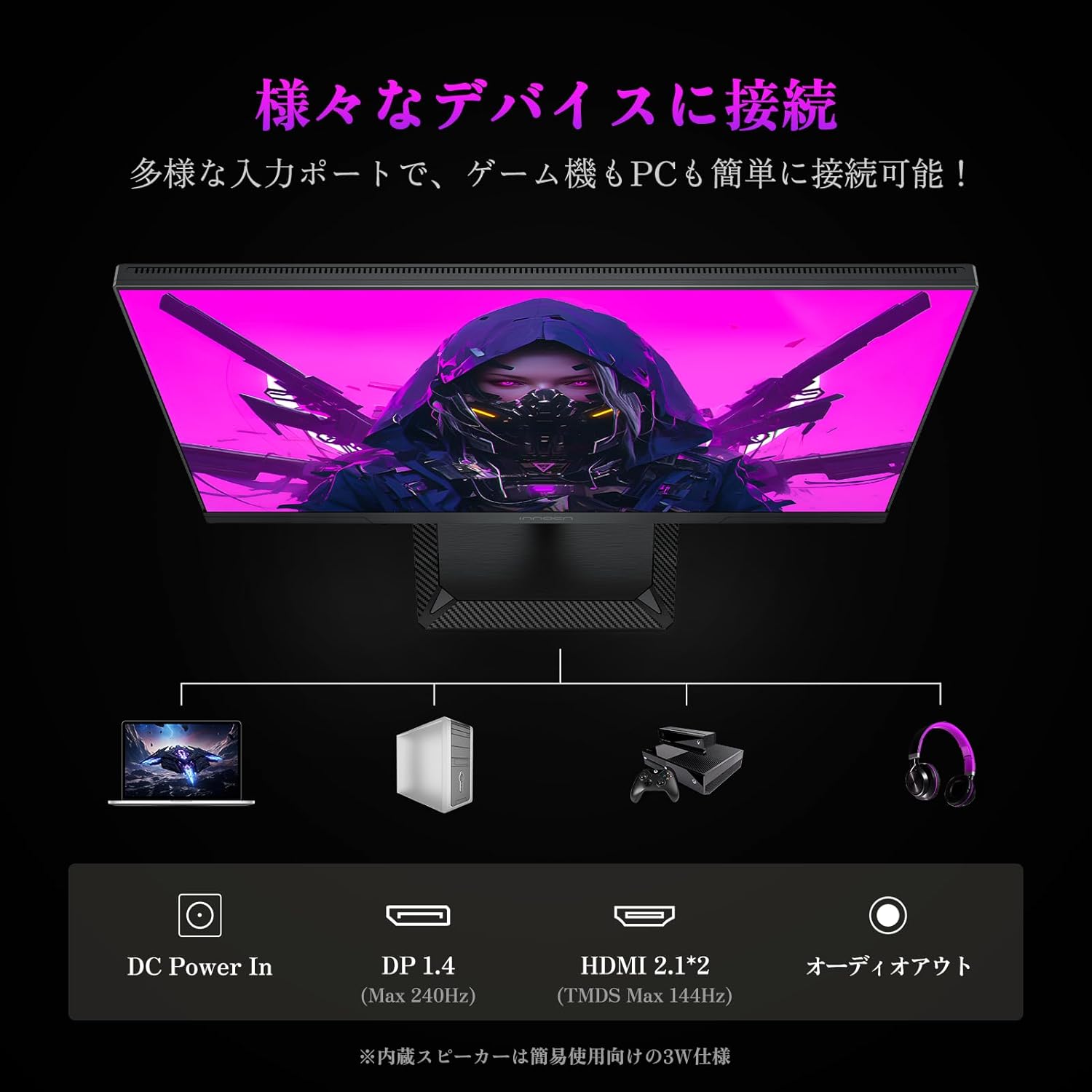
If you wish to use external audio devices, connect them to the AUDIO OUT port. The monitor also features 3W built-in speakers for clear audio without external devices.
4. Operating the Monitor
4.1. OSD Menu Navigation
The monitor's On-Screen Display (OSD) menu is controlled by buttons located on the bottom right of the display. These buttons allow you to navigate through various settings, including picture adjustments, game modes, and system configurations. Shortcut keys can be customized for quick access to frequently used functions.
4.2. Picture Settings
Adjust brightness, contrast, color temperature, gamma, and aspect ratio to suit your preferences. For accurate color reproduction in design work, it is recommended to turn off local dimming to ensure color consistency.
4.3. Game Settings
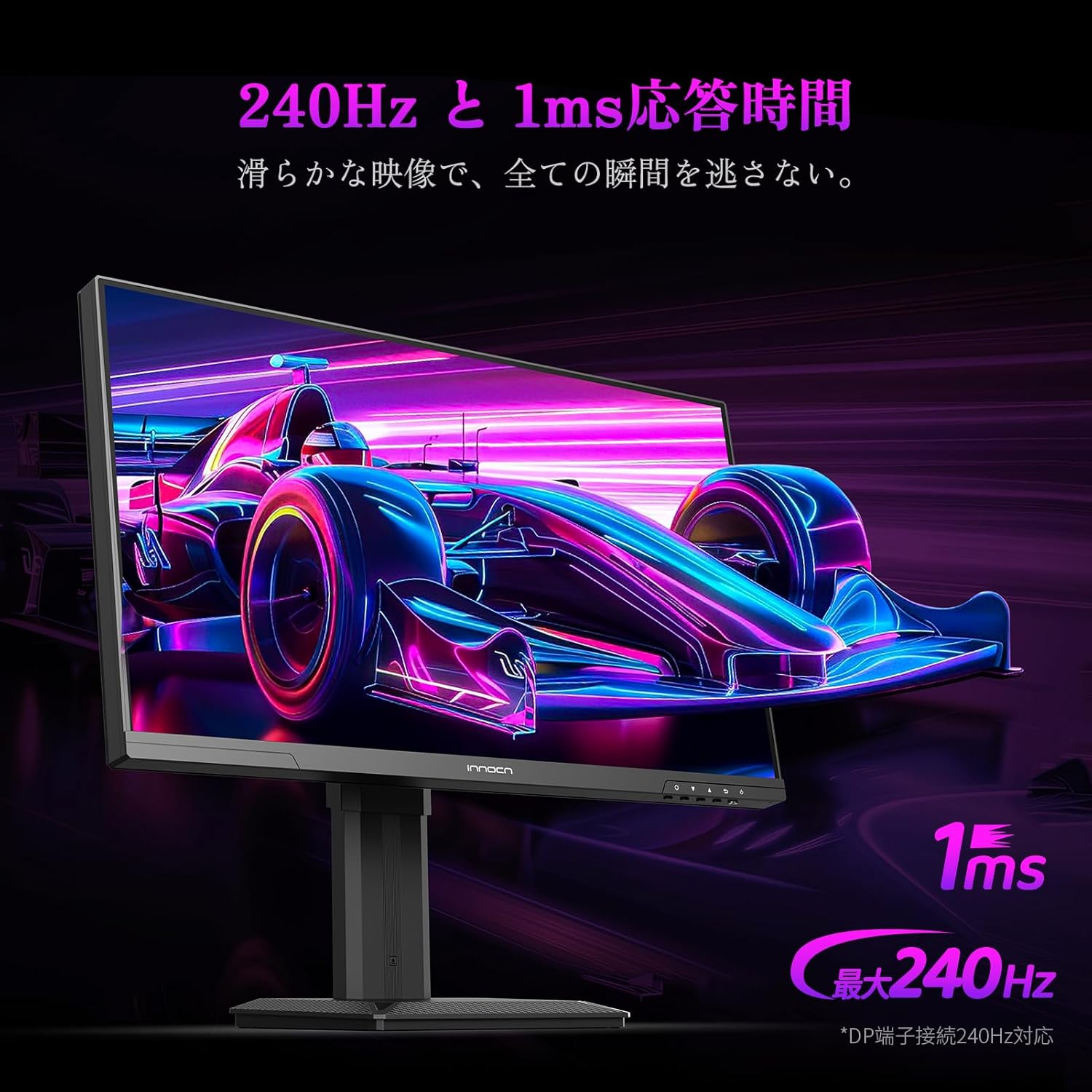
The monitor features multiple preset game modes, including FPS and RTS. These modes optimize image settings for specific game genres, enhancing enemy visibility and emphasizing details. The 240Hz refresh rate and 1ms response time minimize ghosting and input lag for a smooth gaming experience. VRR (Variable Refresh Rate) is also supported.

4.4. HDR (High Dynamic Range)
The 25M2S supports HDR1000, providing realistic reproduction of scenes with extreme light and dark differences. Local dimming enhances contrast, making blacks deeper and whites brighter. For movies, enable movie mode. For games, activate game mode to enhance dark area details. Note that if HDR is directly enabled in your system settings, the screen may appear gray; ensure HDR content is being played for proper display.

4.5. Automatic Brightness Sensor
The monitor is equipped with an automatic light-sensing function that adjusts screen brightness according to ambient light conditions, providing a comfortable viewing experience and reducing eye strain. This feature can be turned off in the OSD menu if not desired.
4.6. RGB Backlighting
The rear of the display features seven-color LED lights, which can be customized to create your preferred gaming atmosphere and enhance your setup's aesthetics.
4.7. Energy Saving Features
The monitor includes DC dimming and flicker-free technology for eye comfort. It also has an energy-saving setting with a default 'No Signal Time' of 5 seconds, after which it enters a deep energy-saving mode with a black screen if no signal is detected. This helps reduce power consumption during standby.
5. Key Features
- QD-MiniLED Technology: Delivers superior contrast with deeper blacks and brighter whites for an extreme visual experience.
- 240Hz Refresh Rate & 1ms Response Time: Ensures ultra-smooth motion and minimal ghosting for competitive gaming.
- WQHD Resolution (2560x1440): Provides sharp, detailed images.
- HDR1000 & High Contrast: Offers realistic color expression and a high contrast ratio of 2,500,000:1.
- Wide Color Gamut: Covers 100% sRGB, 99% DCI-P3, and 98% AdobeRGB for vibrant and accurate colors.
- Ergonomic Stand: Features height adjustment (100±5mm), vertical rotation (±90°), and tilt adjustment (5° to 20°) for comfortable viewing.
- Versatile Connectivity: Includes 2x HDMI 2.1, 1x DisplayPort 1.4, and Audio Out.
- Built-in Speakers: 3W integrated speakers provide clear audio.
- Eye-Care Features: DC dimming and flicker-free technology reduce eye strain.
- Automatic Light Sensor: Adjusts screen brightness based on ambient light.
- Customizable RGB Lighting: Rear LED lights to personalize your gaming setup.



6. Specifications
| Feature | Specification |
|---|---|
| Brand | INNOCN |
| Model | 25M2S |
| Screen Size | 24.5 inches |
| Resolution | 2560 x 1440 pixels (WQHD) |
| Refresh Rate | 240Hz |
| Response Time | 1 millisecond |
| Panel Type | IPS Non-Glare |
| Backlight Technology | QD-MiniLED |
| HDR Support | HDR1000 |
| Contrast Ratio | 2,500,000:1 |
| Color Gamut | 100% sRGB, 99% DCI-P3, 98% AdobeRGB |
| Connectivity | 2x HDMI 2.1, 1x DisplayPort 1.4, Audio Out |
| Speakers | 3W Built-in |
| Ergonomics | Height Adjustment (100±5mm), Pivot (±90°), Tilt (5° to 20°) |
| Item Weight | 6.87 Kilograms |
| Item Dimensions (W x H x D) | 55.84 x 49.79 x 19.55 cm |
7. Troubleshooting
7.1. Common Issues & Solutions
- No Display / No Signal:
- Step 1: Check HDMI/DisplayPort Cable: Ensure your cable is fully inserted at both ends and supports the required standard (HDMI 2.1 or DisplayPort 1.4). If possible, try a different high-quality cable.
- Step 2: Check Device Settings: Verify that the input source on your connected PC or game console is correctly configured. Try switching to another HDMI/DisplayPort on the monitor if available.
- Step 3: Reconnect: Disconnect and reconnect the video cable firmly from both the monitor and the source device.
- Image Quality Issues (e.g., flickering, gray screen with HDR):
- Ensure your graphics card drivers are up to date.
- If the screen appears gray when HDR is enabled, ensure you are viewing actual HDR content. Direct system-level HDR activation without HDR content can cause this.
- For optimal 1440p/240Hz/HDR performance, use the DisplayPort cable. HDMI 2.1 TMDS ports may have bandwidth limitations preventing simultaneous full power for these settings.
- Monitor Automatically Turns Off:
- Check the 'Energy Saving Settings' in the OSD menu. The 'No Signal Time' setting might be configured to turn off the monitor after a period of inactivity. Adjust as needed.
7.2. Contacting Support
Before contacting customer support, please have the following information ready:
- Model name of your monitor (25M2S)
- Specific symptoms of the problem
- Details of your connected devices (PC/console model, graphics card)
- Type of video cable used (HDMI version, DisplayPort version)
- Whether you have performed the troubleshooting steps listed above
Providing this information will help us offer more accurate and prompt support.
8. Warranty and Support
INNOCN provides a 12-month warranty period for this gaming monitor. If you encounter any issues or have any questions during use, please feel free to contact our after-sales support via email.
For any inquiries regarding color adjustment or other monitor functions, our support team is available to assist you.