
1. Introduction
This manual provides essential instructions for setting up, operating, maintaining, and troubleshooting your CENAVA W80N Rugged Tablet. The W80N is an 8-inch industrial-grade tablet designed for demanding environments, featuring Windows 11 Pro, an Intel N5100 processor, 8GB RAM, 128GB storage, IP68 water and dust resistance, and 4G LTE connectivity.
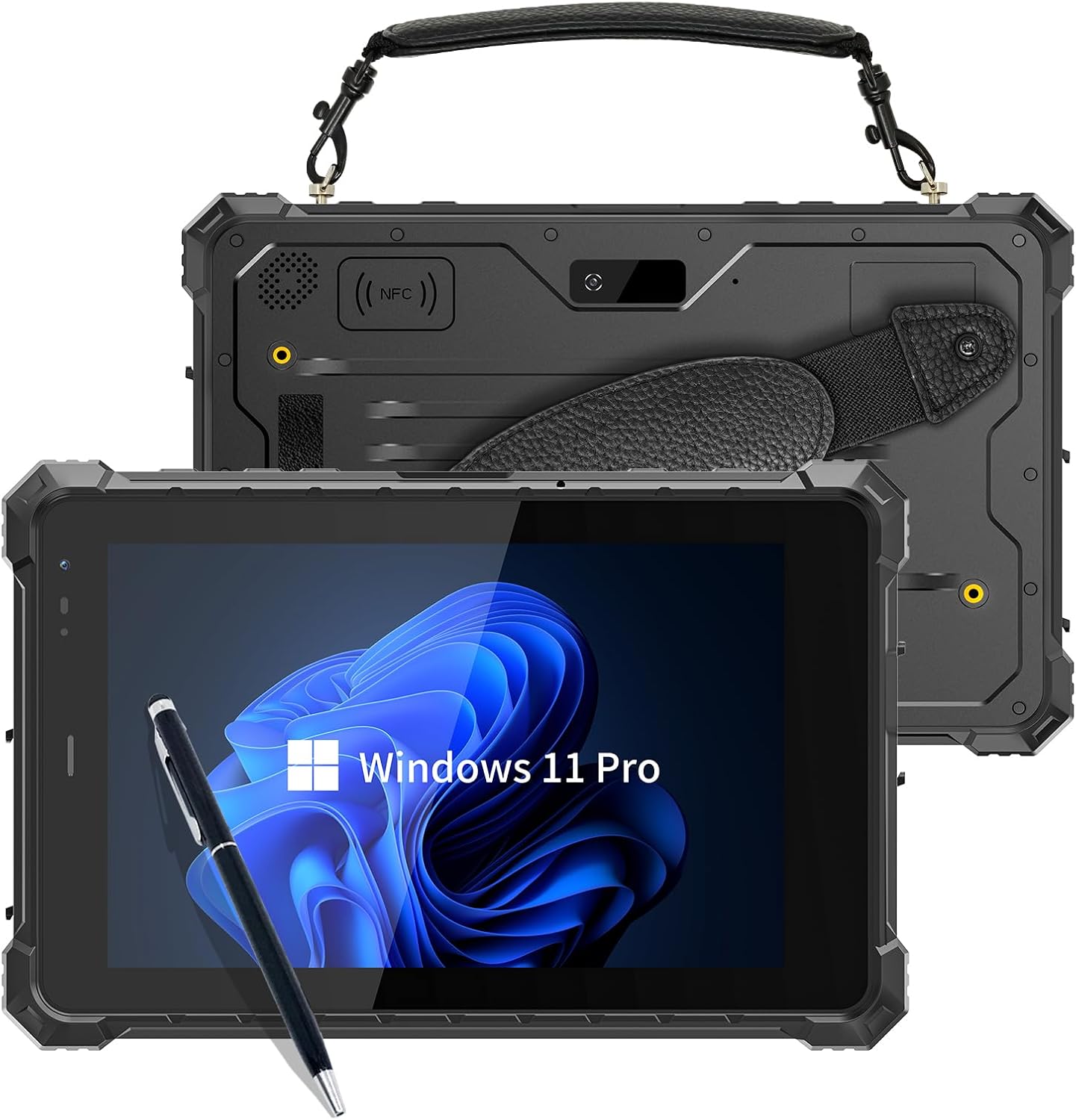
Image 1.1: Front and back view of the CENAVA W80N Rugged Tablet, showcasing its robust design, included stylus, and carrying handle.
2. Setup
2.1 Package Contents
Verify that all items are present in the package:
- 1 x CENAVA W80N Rugged Tablet
- 1 x AC Power Charger
- 1 x Carrying Handle
- 1 x Stylus
2.2 Initial Charging
Before first use, fully charge the tablet using the provided AC power charger. Connect the charger to the tablet's DC plug (outer diameter 3.5mm, inner diameter 1.35mm) or the 12Pin USB+charger port. The battery indicator will show charging status.
2.3 Powering On/Off
- To Power On: Press and hold the power button located on the side of the tablet until the screen illuminates.
- To Power Off: Press and hold the power button, then select 'Shut down' from the on-screen options. Alternatively, navigate to the Windows Start menu and select 'Power' > 'Shut down'.
2.4 SIM Card and Micro SD Card Installation
The tablet supports a Standard Micro SIM card for 4G LTE connectivity and Micro SD card expansion up to 1TB. Locate the card slot cover, typically on the side or back of the device. Carefully open the cover, insert the SIM card and/or Micro SD card into their respective slots, ensuring correct orientation. Close the cover securely to maintain IP68 rating.
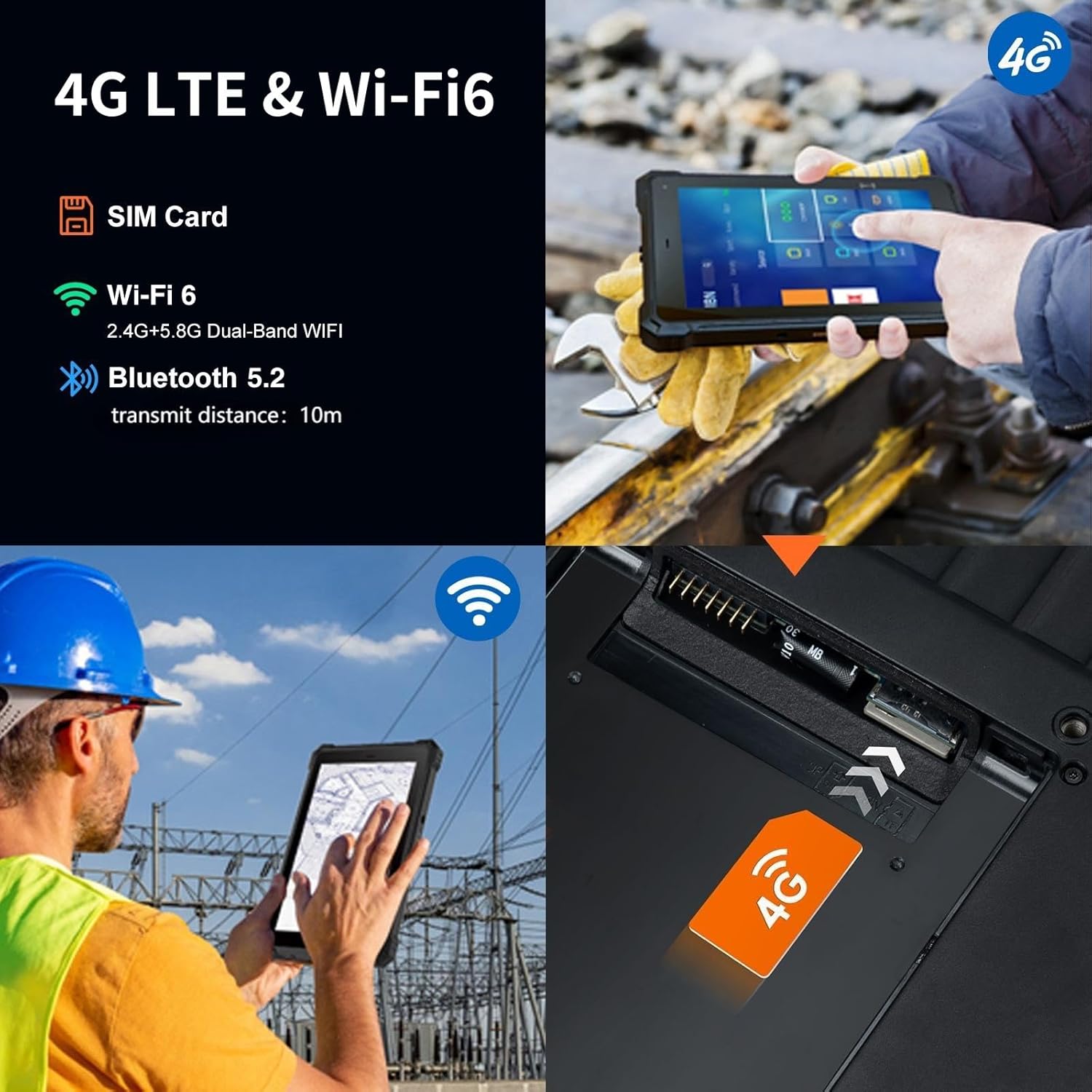
Image 2.1: Illustration of the SIM card slot on the CENAVA W80N Rugged Tablet, highlighting its 4G LTE and Wi-Fi 6 capabilities for robust connectivity.
2.5 Initial Windows Setup
Upon first power-on, follow the on-screen prompts to complete the Windows 11 Pro setup, including language selection, network connection, user account creation, and privacy settings.

Image 2.2: The CENAVA W80N Rugged Tablet screen showing the Windows 11 Pro operating system, indicating its 8GB RAM and 128GB storage capacity.
3. Operating
3.1 Basic Navigation
The W80N features an 8-inch touchscreen display. Use your fingers or the provided stylus for navigation. Tap to select, swipe to scroll, and pinch to zoom. Windows 11 Pro offers a familiar desktop environment.
3.2 Connecting to Wi-Fi
To connect to a Wi-Fi network:
- Open the Settings app.
- Go to Network & internet > Wi-Fi.
- Turn on Wi-Fi and select your desired network from the list.
- Enter the network password if prompted.
3.3 Using 4G LTE
If a SIM card is installed, the tablet can connect to 4G LTE networks. Ensure mobile data is enabled in Settings > Network & internet > Cellular. The tablet is compatible with most major carriers.
3.4 GPS Functionality
The built-in GPS, Beidou, Galileo, and GLONASS support allows for accurate positioning and navigation. Location services can be managed in Windows Settings > Privacy & security > Location. Navigation applications can utilize this feature for mapping and route guidance.

Image 3.1: The CENAVA W80N Rugged Tablet demonstrating its accurate positioning and navigation capabilities with built-in GPS, Beidou, Galileo, and GLONASS, useful for monitoring traffic and weather.
3.5 Connecting Peripherals
The tablet offers multiple interfaces:
- Type-C Port: For data transfer and charging.
- Type-A USB 3.0 Port: For connecting standard USB devices like keyboards, mice, or external storage.
- RS232 Port: For industrial communication with compatible devices.
- 3.5mm Standard Headphone Jack: For audio output.
- Micro HDMI: For connecting to external displays.
3.6 Battery Management
The tablet is equipped with a 5550mAh battery, providing approximately 7-8 hours of continuous usage. To optimize battery life, adjust screen brightness, close unused applications, and enable power-saving modes in Windows settings.
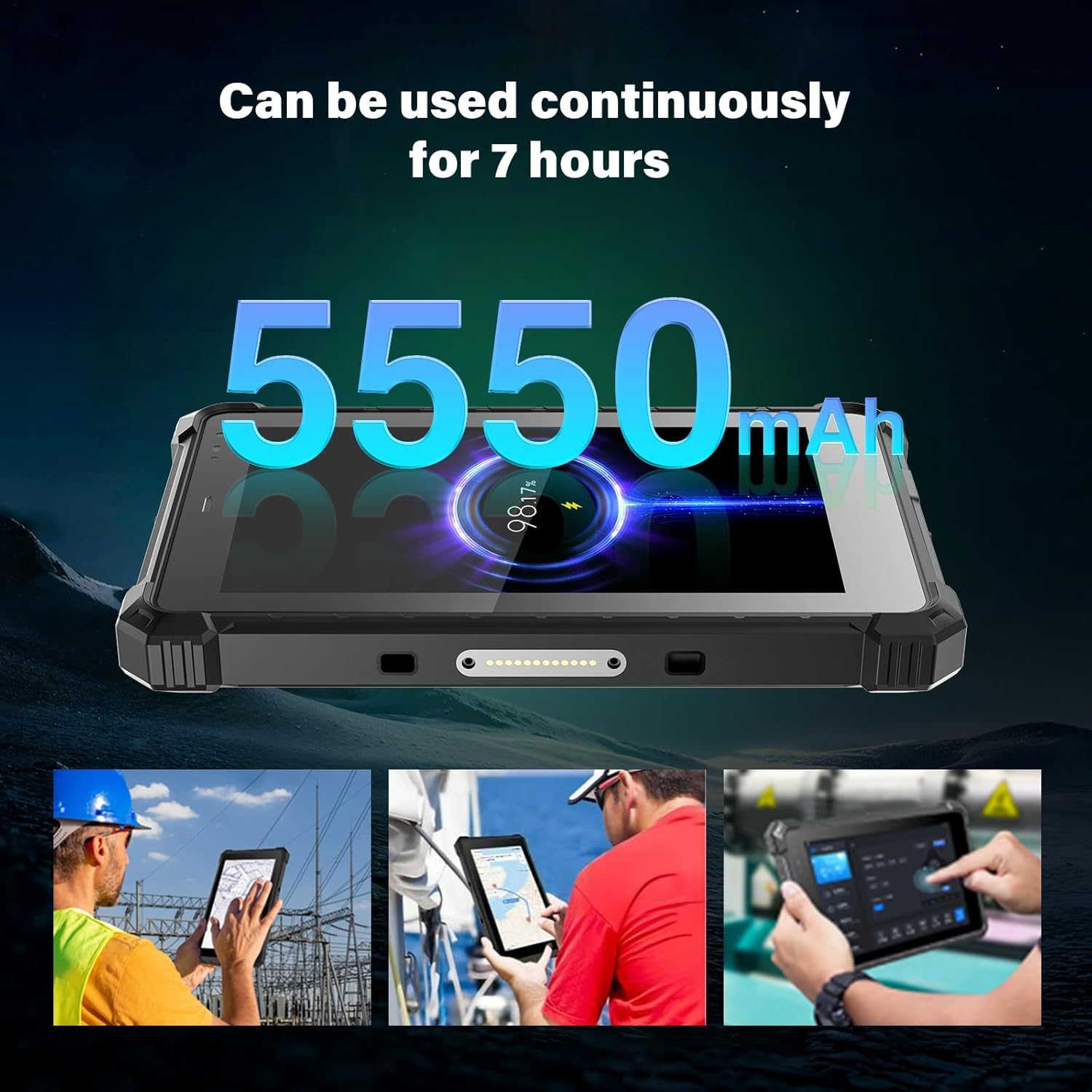
Image 3.2: The CENAVA W80N Rugged Tablet highlighting its 5550mAh battery, capable of continuous operation for up to 7 hours, suitable for various outdoor and industrial applications.
3.7 Sunlight Readable Screen
The 8-inch IPS display features a resolution of 1920x1200 and a brightness of up to 700cd/㎡, enhanced with a sunlight visibility film. This allows for clear viewing of content even under direct sunlight, reducing eye strain in outdoor environments.

Image 3.3: Visual representation of the CENAVA W80N Rugged Tablet's 8-inch HD+ screen, detailing its 1920x1200 resolution, 700 Nits brightness, and 16:10 aspect ratio, designed for sunlight visibility.
4. Maintenance
4.1 Cleaning the Device
To clean the tablet, use a soft, lint-free cloth. For stubborn dirt, slightly dampen the cloth with water or a mild, non-abrasive cleaning solution. Avoid using harsh chemicals, solvents, or abrasive materials that could damage the screen or casing. Ensure all port covers are closed before cleaning to prevent liquid ingress.
4.2 Water and Dust Resistance
The CENAVA W80N is IP68 rated for water and dust resistance and MIL-STD-810G certified for durability, capable of withstanding drops up to 4 feet. While designed for rugged use, it is important to ensure all port covers are securely closed to maintain its protective ratings. Avoid intentional submersion or exposure to high-pressure water jets.

Image 4.1: The CENAVA W80N Rugged Tablet illustrating its IP68 protection rating and MIL-STD-810H certification, signifying its resistance to water, dust, and drops.

Image 4.2: A close-up of the CENAVA W80N Rugged Tablet, emphasizing its durable screen and robust construction designed to withstand harsh conditions.
4.3 Storage and Handling
Store the tablet in a cool, dry place away from extreme temperatures and direct sunlight. When not in use, it is recommended to keep the tablet in a protective case. Avoid placing heavy objects on the tablet or exposing it to strong magnetic fields.
4.4 Software Updates
Regularly check for and install Windows updates to ensure optimal performance, security, and compatibility. Updates can be managed through Settings > Windows Update.
5. Troubleshooting
5.1 Device Not Powering On
- Ensure the battery is charged. Connect the tablet to the AC charger and wait a few minutes before attempting to power on.
- Press and hold the power button for 10-15 seconds to perform a hard reset.
5.2 Connectivity Issues (Wi-Fi/4G LTE)
- Wi-Fi: Verify that Wi-Fi is enabled in settings. Restart your router and the tablet. Ensure you are within range of the Wi-Fi network.
- 4G LTE: Check if the SIM card is correctly installed and activated. Ensure mobile data is enabled in settings. Verify signal strength in your location.
5.3 Screen Unresponsive
- Restart the tablet.
- Ensure the screen is clean and free of debris or moisture.
- If using a screen protector, ensure it is properly applied and not interfering with touch sensitivity.
5.4 Slow Performance
- Close unnecessary applications running in the background.
- Check for available Windows updates and install them.
- Ensure sufficient free storage space.
- Run a system scan for malware.
6. Specifications
| Feature | Specification |
|---|---|
| Model | CENAVA W80N |
| Operating System | Windows 11 Professional |
| Processor | Intel Jasper Lake N5100 (1.1 GHz) |
| RAM | 8GB |
| Storage | 128GB Flash Memory (expandable up to 1TB via Micro SD) |
| Screen Size | 8 Inches |
| Screen Resolution | 1920 x 1200 Pixels (IPS) |
| Brightness | 700cd/㎡ (Sunlight Readable) |
| Wireless Connectivity | Wi-Fi 6 (802.11ax, 2.4GHz & 5.8GHz Dual-Band), Bluetooth 5.2 |
| Cellular Connectivity | 4G LTE (SIM card slot) |
| Navigation | GPS, Beidou, Galileo, GLONASS |
| Battery | 5550mAh (up to 7-8 hours average usage) |
| Ports | Type-C, Type-A USB 3.0, RS232, 3.5mm Headphone Jack, Micro HDMI, 12V-4A DC, 12Pin USB+Charger |
| Durability | IP68 Water and Dust Resistant, MIL-STD-810G Certified (4-foot drop resistance) |
| Dimensions (LxWxH) | 9 x 5.6 x 0.9 inches |
| Weight | 3.1 pounds |

Image 6.1: Diagram illustrating the 'Smart Chip - Large Memory' configuration of the CENAVA W80N Rugged Tablet, featuring 8GB RAM, 128GB storage, and an Intel Jasper Lake N5100 processor.

Image 6.2: A comparison chart showing faster software startup times for common applications (Chrome, Edge, Excel, Word, PPT) on the Intel Jasper Lake N5100 processor compared to the Intel Celeron N4100.
7. Warranty and Support
For warranty information and technical support, please refer to the documentation included with your purchase or contact CENAVA customer service directly. Details regarding warranty periods and service procedures are typically provided by the manufacturer or authorized reseller.
You can visit the CENAVA store on Amazon for additional product information and support resources: CENAVA Store


