1. Introduction
Thank you for choosing the ODK 48 Inch Gaming Desk. This manual provides detailed instructions for the assembly, operation, and maintenance of your new gaming desk. Please read this manual thoroughly before beginning assembly to ensure proper setup and safe use. This desk is designed to provide a spacious and organized workstation for gaming and office tasks, featuring integrated LED lighting and power solutions.
2. Product Features
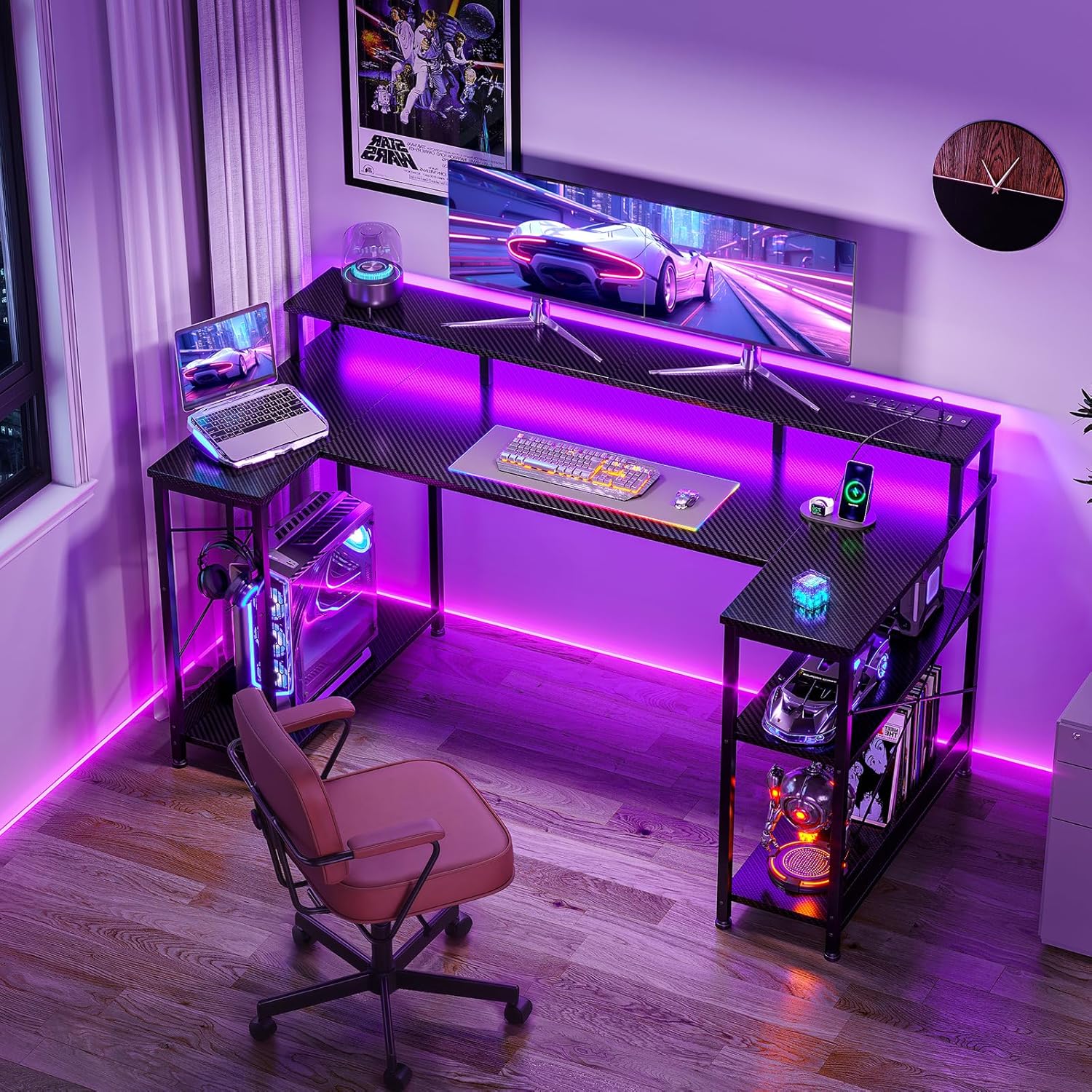
- U-Shaped Desktop: Offers an expanded workspace, providing approximately 18% more usable area compared to traditional desks, ideal for multi-monitor setups and accessories.
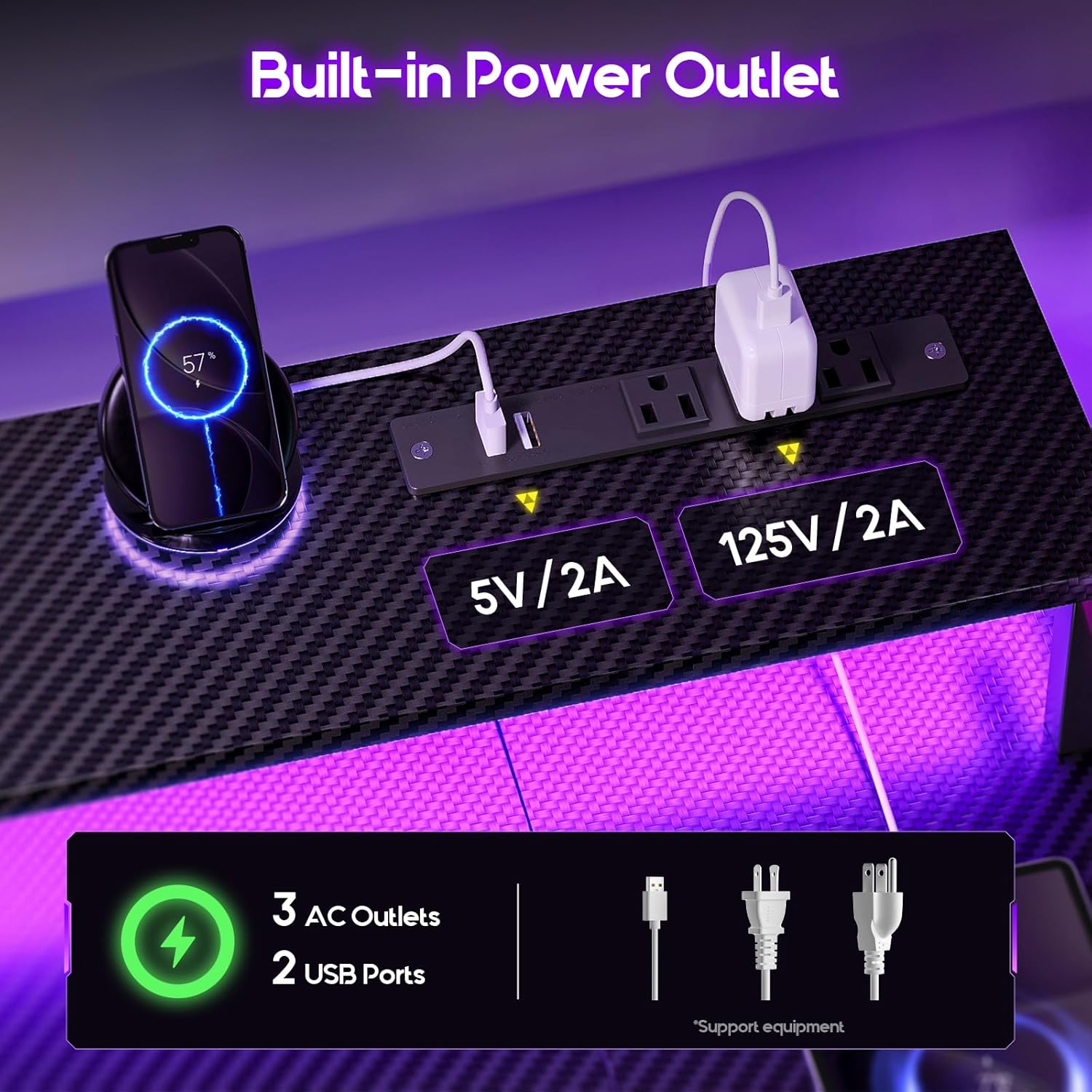
- Built-In Power Outlet: Features 3 AC outlets and 2 USB ports to conveniently power your devices directly from the desk.
- Customizable LED Lights: Integrated LED strip with 10 vibrant colors and 20 dynamic lighting modes to enhance your gaming or work environment.
- Carbon Fiber Finish: Durable and sleek carbon fiber texture provides a scratch-resistant and easy-to-clean surface.
- Monitor Stand: Ergonomic design elevates your monitor to eye level, promoting better posture and freeing up desk space underneath.
- Storage Shelves: Includes adjustable storage shelves and a dedicated PC tower shelf for organized storage of equipment and accessories.
- Headphone Hook: A convenient hook to keep your headphones organized and within reach.
- Adjustable Foot Pads: Ensures stability on uneven floors and protects your flooring from scratches.
Feature Visuals

This image illustrates the expanded U-shaped design of the desk, emphasizing the additional usable space it provides for a comprehensive setup.

A detailed view of the integrated power outlet, showing the 3 AC ports and 2 USB ports available for charging and powering your devices.
This image displays the RGB LED lights strip, highlighting its ability to produce various colors and dynamic lighting effects to customize your environment.

A visual representation of the desk's storage capabilities, including the adjustable shelves and the dedicated space for a PC tower.

This image focuses on the ergonomic monitor stand, designed to raise your display to a comfortable viewing height and provide additional storage underneath.
A close-up showing the practical headphone hook for organization and the adjustable foot pads for stability and floor protection.
3. Package Contents
Before assembly, please verify that all components listed below are present and undamaged. If any parts are missing or damaged, please contact customer support.
- Desktop Panels (U-shaped sections, monitor stand)
- Metal Frame Components (legs, support bars)
- Storage Shelves
- Built-in Power Outlet Unit
- LED Light Strip with Controller
- Headphone Hook
- Adjustable Foot Pads
- Assembly Hardware (screws, bolts, nuts, Allen wrench)
- Instruction Manual
4. Setup Instructions
Assembly of the ODK Gaming Desk is designed to be straightforward and typically takes about 30 minutes. Follow the step-by-step instructions provided in the included manual. Ensure you have ample space and a clean, flat surface for assembly.
- Unpack Components: Carefully remove all parts from the packaging and lay them out on a soft, clean surface to prevent scratches. Verify all parts against the package contents list.
- Assemble Frame: Attach the metal frame components according to the diagrams in the instruction manual. Ensure all screws are finger-tightened initially.
- Attach Desktop Panels: Secure the U-shaped desktop panels to the assembled frame. Pay attention to the orientation of each panel.
- Install Monitor Stand: Mount the monitor stand to the designated area on the desktop.
- Install Storage Shelves: Attach the storage shelves to the side frames. Note that these shelves are often adjustable or reversible to suit your setup.
- Secure Power Outlet: Integrate the built-in power outlet unit into its designated slot on the desktop.
- Apply LED Lights: Adhere the LED light strip to the underside of the monitor stand or along the back edge of the desk as desired. Connect the LED controller.
- Attach Headphone Hook: Secure the headphone hook to the side of the desk.
- Final Tightening: Once all components are in place, systematically tighten all screws and bolts using the provided Allen wrench. Do not overtighten.
- Adjust Foot Pads: Level the desk by adjusting the foot pads at the bottom of each leg to ensure stability.
For detailed visual guidance, refer to the assembly diagrams in your physical instruction manual.
5. Operating Instructions
5.1. Using the LED Lights
The integrated LED light strip can be controlled via the included remote or inline controller. Ensure the LED strip is properly connected to a USB power source (e.g., a USB port on your computer or a USB wall adapter).
- Power On/Off: Press the power button on the controller to turn the lights on or off.
- Change Colors: Use the color selection buttons to cycle through the 10 available static colors.
- Select Lighting Modes: Choose from 20 dynamic modes, such as fade, jump, or strobe, to create different ambiances.
- Adjust Brightness/Speed: Use the brightness buttons to increase or decrease the intensity of the lights. For dynamic modes, these buttons may adjust the speed of the effect.
5.2. Using the Built-in Power Outlet
The power outlet unit provides convenient access to power for your electronic devices. Simply plug the desk's main power cord into a standard wall outlet.
- AC Outlets: Use the 3 AC outlets for devices requiring standard wall power, such as monitors, desktop computers, or lamps.
- USB Ports: Use the 2 USB ports (5V/2A) to charge smartphones, tablets, gaming controllers, or other USB-powered devices.
Note: Do not exceed the maximum power rating of the outlet unit. Refer to the label on the power strip for specific electrical specifications.
6. Maintenance
Regular maintenance will help preserve the appearance and functionality of your ODK Gaming Desk.
- Cleaning: Wipe the carbon fiber surface with a soft, damp cloth. For stubborn marks, a mild soap solution can be used, followed by drying with a clean cloth. Avoid abrasive cleaners or harsh chemicals that could damage the finish.
- Dusting: Regularly dust all surfaces, including the metal frame and shelves, to prevent dust buildup.
- Hardware Check: Periodically check all screws and bolts to ensure they remain tight. Retighten if necessary to maintain stability.
- Cable Management: Keep cables organized to prevent tangles and reduce strain on the power outlet and device ports.
7. Troubleshooting
If you encounter any issues with your ODK Gaming Desk, refer to the following common problems and solutions:
| Problem | Possible Cause | Solution |
|---|---|---|
| Desk is wobbly/unstable. | Loose screws; uneven floor. | Ensure all assembly screws are securely tightened. Adjust the foot pads on the bottom of the legs to level the desk on uneven surfaces. |
| LED lights are not working. | Not plugged in; loose connection; faulty power source. | Check if the USB plug for the LED strip is securely connected to a working USB port. Ensure the inline controller is not damaged. Try a different USB power source. |
| Power outlets are not providing power. | Desk's main power cord not plugged in; circuit breaker tripped; faulty device. | Verify that the desk's main power cord is securely plugged into a live wall outlet. Check your household circuit breaker. Test the device you are trying to power with another outlet. |
| Scratches on the desktop surface. | Sharp objects; abrasive cleaning. | While the carbon fiber finish is scratch-resistant, avoid dragging sharp objects across the surface. Use soft cloths for cleaning. |
If the problem persists after attempting these solutions, please contact ODK customer support for further assistance.
8. Specifications
| Brand | ODK |
| Model | 48 Inch Carbon Fiber Black Gaming Desk |
| Product Dimensions (D x W x H) | 26.77"D x 47.24"W x 34.84"H |
| Color | Carbon Fiber Black |
| Material | Engineered Wood (Top), Metal (Base) |
| Item Weight | 39.02 Pounds |
| Special Feature | LED lighting strip, Built-in Power Outlet, Monitor Stand, Storage Shelves, Headphone Hook |
| Assembly Required | Yes |
| UPC | 850073988268 |
9. Warranty and Support
ODK provides a standard warranty for this product. For specific warranty terms and conditions, please refer to the warranty card included with your purchase or visit the official ODK website. Keep your proof of purchase for warranty claims.
If you require technical support, have questions about assembly, or need to report missing/damaged parts, please contact ODK customer service through the contact information provided on the product packaging or the official ODK website. When contacting support, please have your model number (48 Inch Carbon Fiber Black Gaming Desk) and purchase date ready.


