
ZHNN B0F28MVWJG
Android 13 Car Radio User Manual
Model: B0F28MVWJG | Brand: ZHNN
Introduction
This manual provides detailed instructions for the installation, operation, and maintenance of your ZHNN Android 13 Car Radio. This unit is designed to enhance your driving experience with modern features such as wireless CarPlay, Android Auto, GPS navigation, and a backup camera. Please read this manual thoroughly before use to ensure proper functionality and safety.
Product Overview
Key Features
- Vehicle Compatibility: Specifically designed for Dodge Ram 1500, 2500, 3500 models from 2002, 2003, 2004, and 2005.
- Wireless CarPlay/Android Auto/MirrorLink: Seamless smartphone integration for navigation, music, calls, and messages.
- Powerful Android 13 System: 2GB RAM and 64GB ROM for smooth operation, supporting app installation and fast response times on a 9-inch 1280x720 resolution screen.
- Offline & Online Navigation/FM Radio: Real-time traffic information with WiFi, pre-set FM stations, and Bluetooth voice control.
- Backup Camera and Steering Wheel Control: Includes a 720p backup camera for enhanced parking safety and full support for original steering wheel controls.
What's in the Box
The package includes the following components:
- 1x Car Radio with Frame
- 1x Wiring Harness
- 1x Rear View Camera
- 1x User Manual
- 1x Microphone
- 1x GPS Antenna
- 1x USB Cable (for original car connection)
- 1x Canbus Box
- 1x Speaker Cable
- 1x Reverse Camera Cable
- 1x RCA Cable
- Additional USB Cables
- Installation Tools
- 1x FM Antenna Adapter Cable
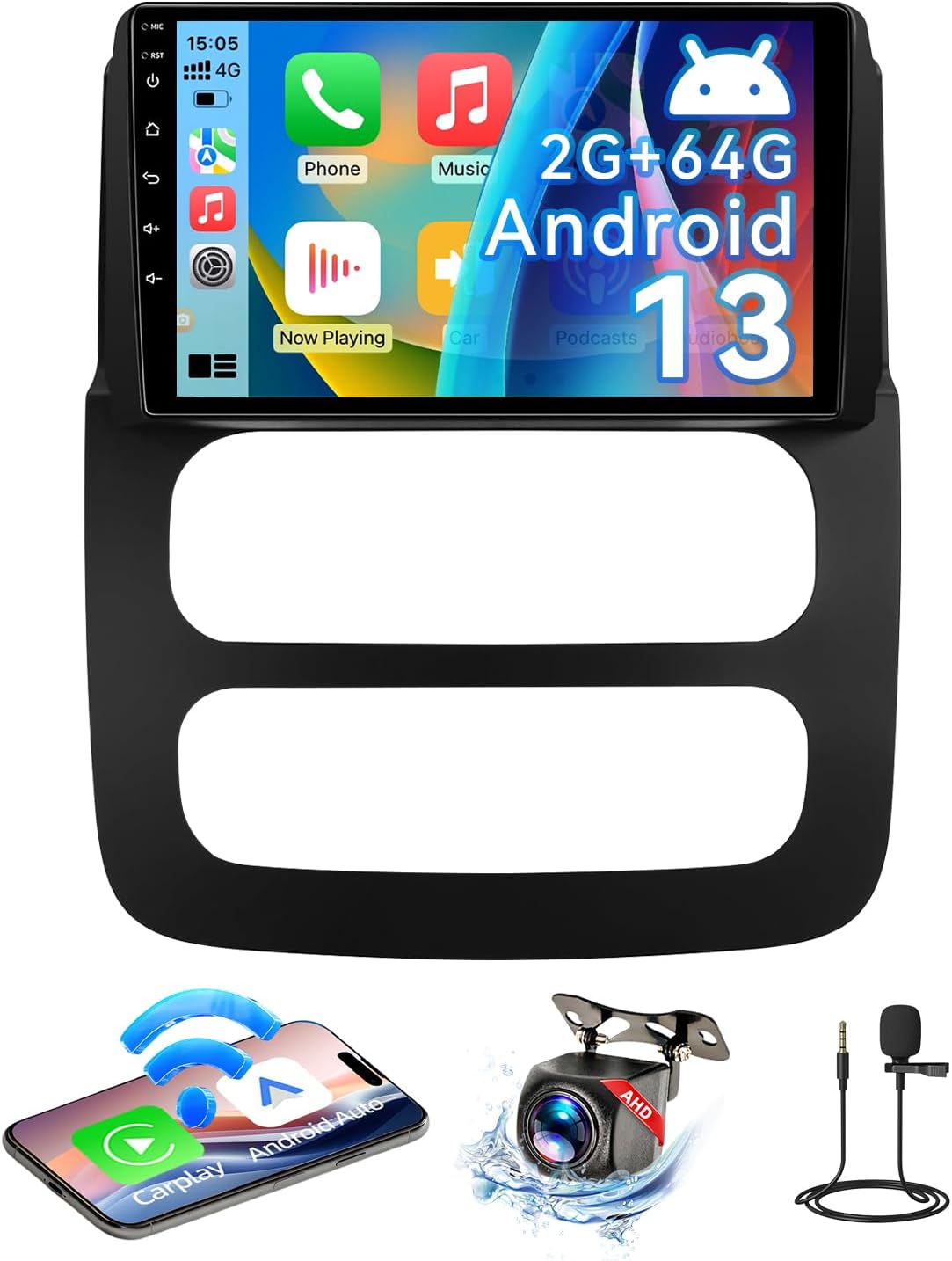
Image: The ZHNN Android 13 Car Radio unit with its included frame, along with essential accessories such as the microphone, GPS antenna, various connection cables, and the backup camera.

Image: A visual representation of all items included in the product package, detailing the main car radio unit, user manual, microphone, GPS antenna, various USB and RCA cables, Canbus box, speaker cable, reverse camera cable, AHD rear camera, installation tools, and an FM antenna adapter cable.
Vehicle Compatibility
This car radio is specifically designed for a direct fit and seamless integration with Dodge Ram 1500, 2500, and 3500 models manufactured between 2002 and 2005. Before installation, it is crucial to verify the year and shape of your vehicle's center console to ensure proper fitment. If you have any doubts regarding compatibility, please consult the seller with photos of your console.

Image: Comparison of a Dodge Ram dashboard before and after the installation of the new 9-inch car radio, demonstrating the improved aesthetic and functionality. Also shown are three different compatible dashboard configurations for the specified Dodge Ram models.
Setup & Installation
The installation process for this unit is designed to be straightforward, often described as "plug-and-play" due to the included wiring harness. However, professional installation is recommended if you are unfamiliar with car audio systems or electrical wiring.
General Installation Steps:
- Preparation: Disconnect the vehicle's battery to prevent electrical shorts.
- Remove Old Unit: Carefully remove the existing car radio and trim panels.
- Connect Wiring: Connect the provided wiring harness to the vehicle's existing harness. Ensure all connections, including the backup camera, GPS antenna, and microphone, are securely made. Note: For steering wheel controls, additional connectors may be required depending on your vehicle's specific setup.
- Mount New Unit: Install the new car radio unit into the dashboard opening, securing it with the provided frame and mounting hardware.
- Test Functionality: Reconnect the battery and test all functions of the new radio, including power, audio, touchscreen, CarPlay/Android Auto, GPS, and backup camera.
- Final Assembly: Reinstall any removed trim panels.
Refer to the detailed installation guide included in your package for specific wiring diagrams and step-by-step instructions tailored to your vehicle model.
Operating Instructions
Wireless CarPlay & Android Auto
The unit supports both wired and wireless CarPlay and Android Auto. Connect your smartphone via WiFi and Bluetooth to access navigation, music, calls, and messages directly on the car stereo. This feature allows for hands-free operation, enhancing driving safety.

Image: Demonstrates the wireless CarPlay and Android Auto functionality, showing the respective user interfaces on the car radio screen and a smartphone wirelessly connected to the system.

Image: A banner highlighting the wireless CarPlay and Android Auto capabilities, displaying their interfaces on the car radio screen.
Offline & Online Navigation
The car radio supports both offline and online navigation. When connected to WiFi, you can receive real-time traffic information. You can download maps for offline use, ensuring navigation even without an internet connection.

Image: The GPS navigation interface displayed on the car radio, showing a detailed map with route information and destination markers. A car is visible on a road in the background, illustrating the use case.

Image: A graphic icon symbolizing GPS Navigation, featuring a map with multiple location pins, indicating route planning and destination tracking.
FM Radio
The FM radio function allows you to listen to your favorite stations. It includes preset station capabilities for quick access. The unit also supports Bluetooth voice control, enabling commands like "play music" or "GPS navigation" without diverting your attention from the road.

Image: A driver operating the vehicle while the car radio displays the FM radio interface, showing the current frequency (87.50 MHz) and several preset station options (P1-P6).

Image: A banner illustrating the FM Radio feature, with the radio interface displayed on the car screen and a person driving in the background.

Image: A graphic icon symbolizing FM Radio functionality, featuring a vibrant equalizer display and a classic radio symbol.
Bluetooth Connectivity
Connect your phone via Bluetooth for hands-free calling and audio streaming. The system supports Bluetooth voice control for convenient operation.

Image: A graphic icon illustrating Bluetooth connectivity, set against a background of intricate microchip circuitry.
MirrorLink Functionality
MirrorLink allows you to display your smartphone's screen directly onto the car radio's display, enabling access to apps and content from your phone on the larger screen.

Image: A banner demonstrating the MirrorLink feature, where a smartphone's screen content is mirrored onto the larger car radio display.

Image: A graphic icon symbolizing Mirror Link, showing a car image being mirrored from a smartphone screen to a larger display, representing screen sharing functionality.
Split Screen Functionality
The split-screen feature allows you to run two applications simultaneously on the 9-inch display, for example, navigation on one side and music playback on the other.

Image: A graphic icon illustrating the Split Screen feature, displaying two distinct images side-by-side within a single frame, indicating simultaneous display of multiple applications.
Backup Camera
The included 720p backup camera provides clear reversing images, significantly enhancing parking safety and ease. The display automatically switches to the camera view when the vehicle is put into reverse.

Image: The car radio screen displaying the real-time view from the rear camera, complete with parking guidelines, as a vehicle maneuvers in a parking lot.

Image: A graphic icon symbolizing a Backup Camera, showing a car reversing into a parking spot with visual aids, indicating enhanced parking safety.
Steering Wheel Control (SWC)
The unit fully supports the original car's steering wheel button controls. This allows you to effortlessly switch songs, adjust volume, and answer calls directly from your steering wheel, keeping your hands on the wheel and focus on the road.

Image: A graphic icon depicting steering wheel control buttons, indicating the ability to manage car radio functions directly from the steering wheel.
WiFi Connection
The unit features built-in WiFi for internet connectivity, enabling online navigation, app downloads, and real-time traffic updates.

Image: A graphic icon symbolizing WiFi Connection, featuring a glowing Wi-Fi symbol against a dark, abstract background, indicating wireless internet capability.
Official Product Videos
Product Overview Video
Video: A short preview video providing a quick overview of the ZHNN Android 13 Car Radio's features and interface. This video demonstrates key functionalities and the overall user experience.
Detailed Product Demonstration
Video: A comprehensive demonstration video showcasing the various features and operations of the ZHNN Android 13 Car Radio. This video provides a more in-depth look at the user interface, connectivity options, and performance.
Maintenance
To ensure the longevity and optimal performance of your car radio, follow these maintenance guidelines:
- Cleaning: Use a soft, dry cloth to clean the screen and exterior. Avoid abrasive cleaners or solvents that could damage the display or finish.
- Software Updates: Periodically check for software updates through the unit's settings menu or the manufacturer's website to ensure you have the latest features and bug fixes.
- Environmental Conditions: Avoid exposing the unit to extreme temperatures, direct sunlight for prolonged periods, or excessive moisture.
Troubleshooting
If you encounter issues with your car radio, refer to the following common troubleshooting steps:
| Problem | Possible Cause | Solution |
|---|---|---|
| Unit does not power on | Loose power connection, blown fuse, vehicle battery issue. | Check wiring harness connections. Inspect vehicle's fuse box for blown fuses. Ensure vehicle battery is charged. |
| No sound | Volume too low, speaker wires disconnected, incorrect audio settings. | Increase volume. Check speaker wire connections. Verify audio output settings in the unit's menu. |
| Touchscreen unresponsive | System freeze, dirt on screen. | Restart the unit (refer to manual for reset procedure). Clean the screen with a soft cloth. |
| CarPlay/Android Auto not connecting | Incorrect WiFi/Bluetooth settings, phone compatibility, app issues. | Ensure WiFi and Bluetooth are enabled on both the unit and your phone. Restart phone and unit. Check for app updates on your phone. |
| Backup camera not displaying | Camera connection loose, reverse trigger wire not connected. | Check the camera's video cable and power connection. Ensure the reverse trigger wire is correctly connected to the vehicle's reverse light circuit. |
If the problem persists after attempting these solutions, please contact customer support for further assistance.
Specifications
| Feature | Detail |
|---|---|
| Operating System | Android 13 |
| RAM | 2GB |
| ROM (Internal Storage) | 64GB |
| Screen Size | 9 inches (23 cm diagonal) |
| Screen Resolution | 1280x720 |
| Connectivity | Wireless CarPlay, Wireless Android Auto, MirrorLink, Bluetooth, WiFi, GPS |
| Special Features | Touchscreen, Built-In Bluetooth, Steering Wheel Control (SWC) Support, Backup Camera Input (AHD 720p included) |
| Audio Output Mode | Stereo |
| Compatible Devices | Smartphone |
| Item Weight | 2.6 pounds |
| Package Dimensions | 17 x 13 x 6 inches |
Warranty & Support
For warranty information and technical support, please refer to the documentation included with your product or contact the manufacturer directly. The seller, LaiTong Inc, can be reached through the Amazon platform for purchase-related inquiries.
For common issues, please consult the Troubleshooting section of this manual. For further assistance, ensure you have your product model number (B0F28MVWJG) and purchase details ready when contacting support.