
caramco Interface Module
Contents
caramco Wireless CarPlay & Android Auto Retrofit Kit User Manual
Model: Interface Module | For Cadillac CTS 2009-2013 (Pop-Up Screen ONLY)
1. Introduction
This manual provides comprehensive instructions for the installation, operation, and maintenance of your caramco Wireless CarPlay & Android Auto Retrofit Kit. This kit is designed to integrate wireless CarPlay and Android Auto functionality into specific Cadillac CTS models, enhancing your in-car connectivity without replacing the factory head unit. Please read this manual thoroughly before installation and use to ensure proper functionality and safety.
2. Compatibility Verification
This retrofit kit is exclusively compatible with Cadillac CTS models manufactured between 2009 and 2013 that are equipped with a factory pop-up screen. It is crucial to verify your vehicle's screen type before proceeding with installation. This module operates on a Linux-based system and does not support YouTube or video playback.

Image 2.1: Visual guide for identifying a compatible pop-up screen versus a non-pop-up screen in a Cadillac CTS dashboard. The kit is only compatible with the pop-up screen type.
3. Product Contents
Please ensure all the following components are present in your package:
- Interface Module (Main Unit)
- Power/Canbus Cable
- Video Cable
- Microphone
- WiFi Antenna

Image 3.1: Overview of all components included with the caramco Wireless CarPlay & Android Auto Retrofit Kit.
4. Setup and Installation
Installation of this kit requires basic automotive DIY skills, including the ability to remove the factory radio and connect dedicated harnesses. No programming is required, and all original wiring is preserved. Basic automotive tools are necessary.
4.1 Wiring Diagram
Refer to the following diagram for correct wiring connections between the interface module and your vehicle's factory system.

Image 4.1: Wiring diagram illustrating the connections for the interface module with the factory head unit and associated cables.
4.2 General Installation Steps (Overview)
- Carefully remove the factory radio and associated trim panels to access the wiring.
- Connect the provided Power/Canbus cable and Video cable to the factory harness and the interface module as per the wiring diagram.
- Install the microphone in a suitable location for clear audio input.
- Attach the WiFi antenna to the interface module.
- Secure the interface module in a safe, accessible location behind the dashboard.
- Reassemble the factory radio and trim panels.
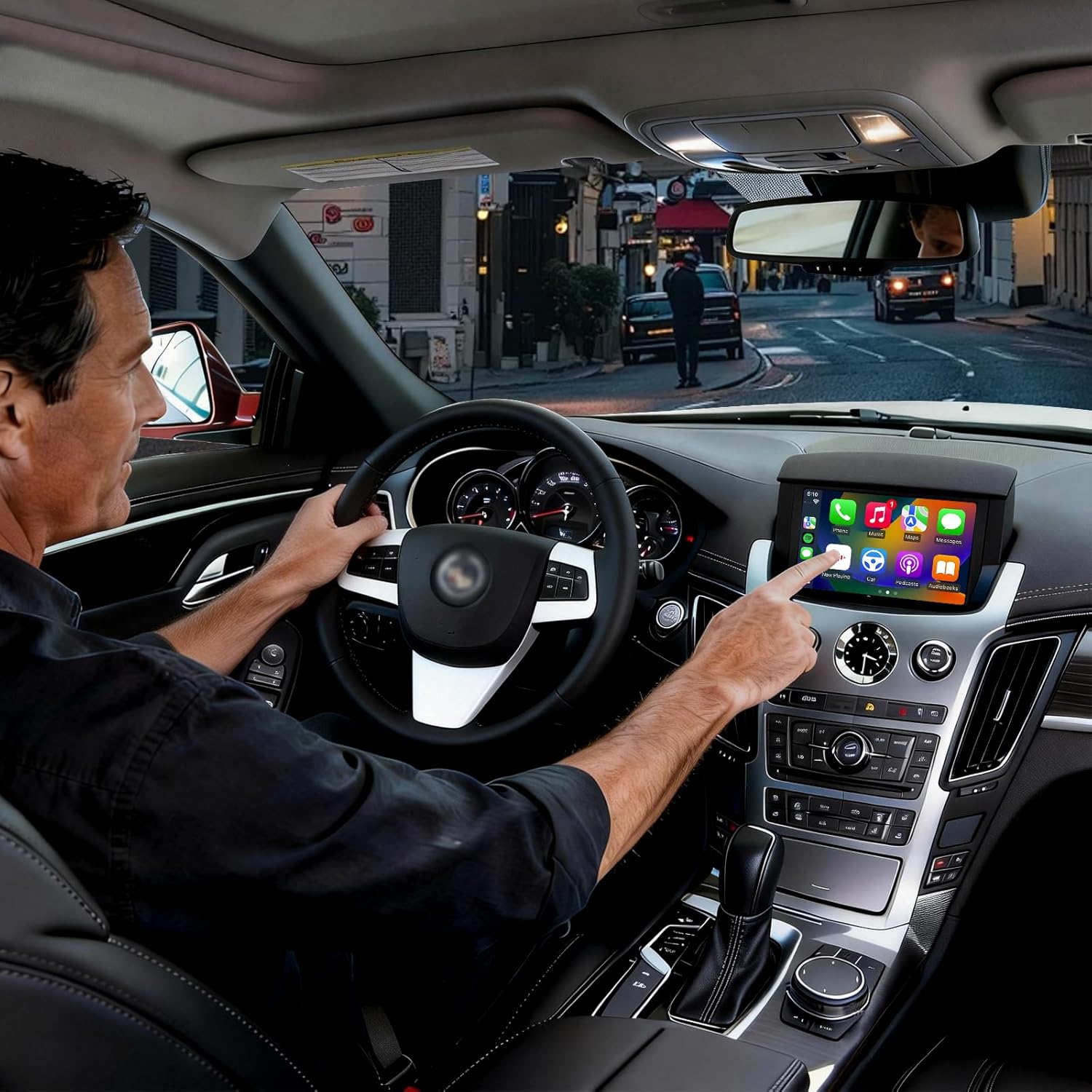
Image 4.2: Example of the CarPlay interface integrated into a Cadillac CTS dashboard after installation.
5. Operating Instructions
5.1 Wireless CarPlay & Android Auto Connection
The kit enables wireless connection for both Apple CarPlay and Android Auto. Once installed, your smartphone can connect to the module via 5GHz WiFi and factory Bluetooth, eliminating the need for physical cables. This allows navigation, calls, and music to be displayed and controlled directly on your car's screen.

Image 5.1: Display of Wireless CarPlay and Wireless Android Auto interfaces on the vehicle's screen.
5.2 Dual-System Operation
You can seamlessly switch between the factory infotainment system and the CarPlay/Android Auto interface using your steering wheel buttons. This ensures that all original car functions and safety controls remain fully operational and accessible.
5.3 Native Vehicle Integration
The kit is designed to work with your vehicle's existing controls. This includes:
- Steering Wheel Buttons: Control volume, track skipping, and phone calls directly from your steering wheel.
- Touchscreen Functions: The factory touchscreen remains fully functional for interacting with CarPlay/Android Auto.
- Factory & Aftermarket Camera Support: The system supports OEM rear and 360° camera systems, as well as universal aftermarket cameras.
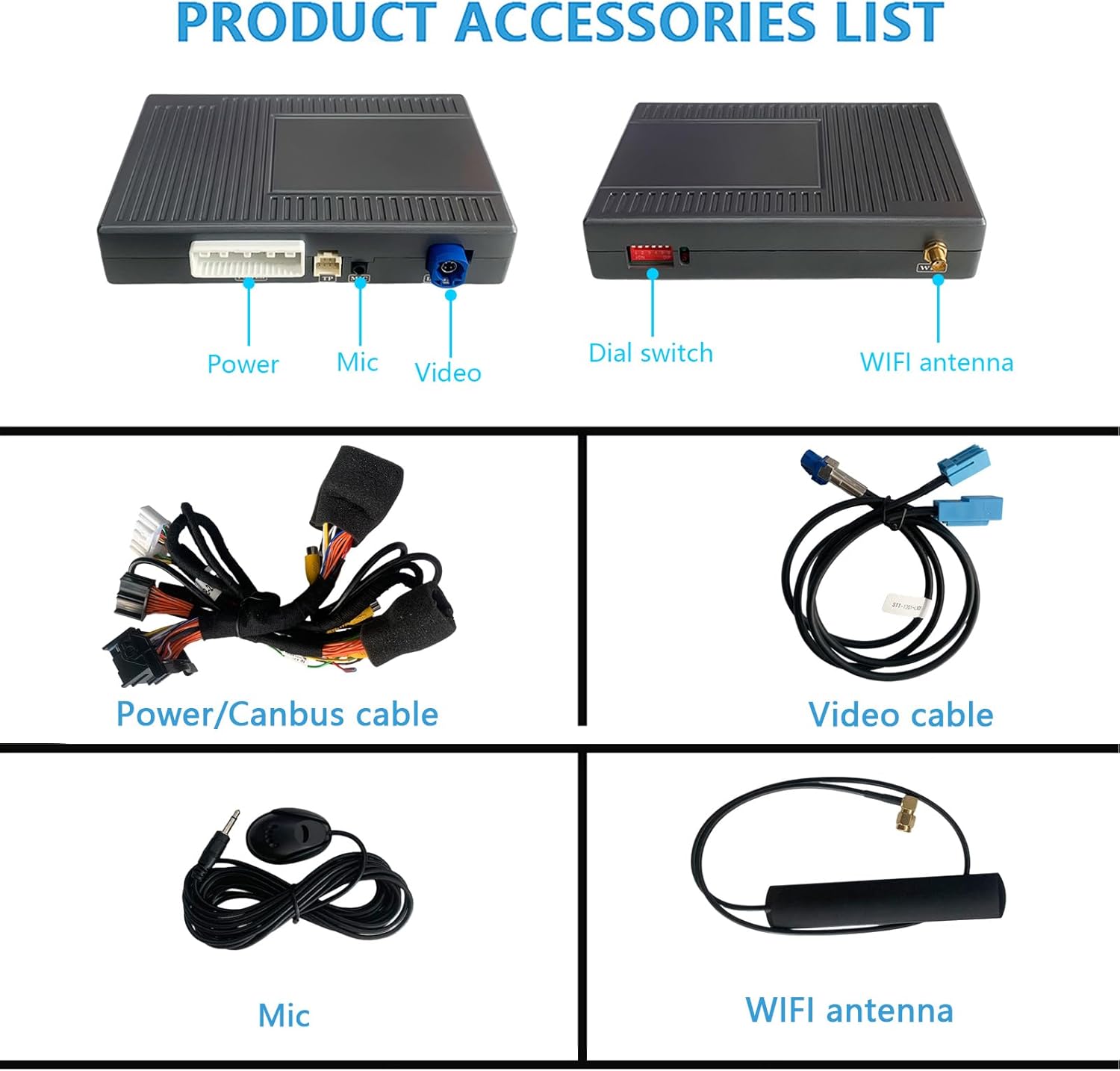
Image 5.2: Illustration of how the kit preserves original vehicle functions, including touchscreen interaction, camera display, and steering wheel controls.
5.4 Audio Output
Audio from CarPlay/Android Auto will play through your car's factory speakers. By default, audio is routed via the AUX input. If available, the system can upgrade to factory Bluetooth audio for enhanced sound quality.

Image 5.3: Depiction of using the included microphone for calls and routing audio through the factory AUX input.
6. Maintenance
The caramco Wireless CarPlay & Android Auto Retrofit Kit is designed for durability and requires minimal maintenance. To ensure optimal performance and longevity:
- Keep the module and connections free from dust and moisture.
- Avoid exposing the unit to extreme temperatures.
- Do not attempt to open the module casing, as this may void the warranty.
7. Troubleshooting
If you encounter issues with your retrofit kit, please refer to the following common troubleshooting steps:
- No Display/Black Screen: Verify all video cable connections are secure. Ensure the correct input source is selected on your factory system.
- No Audio: Check that the AUX input is selected on your factory radio. Confirm the audio cable is properly connected.
- Wireless Connection Issues: Ensure your phone's Bluetooth and Wi-Fi are enabled. Try restarting your phone and the vehicle's infotainment system.
- Controls Not Responding: Confirm all Canbus connections are secure. Ensure the system is properly toggled to the CarPlay/Android Auto interface.
For persistent issues or technical assistance, please contact caramco customer support.
8. Specifications
| Brand | caramco |
| Model Name | Interface Module |
| Compatible Devices | Cadillac CTS (2009-2013, Pop-Up Screen ONLY), Smartphone (iOS for CarPlay, Android for Android Auto) |
| Connectivity Technology | AUX, Wireless (Bluetooth, 802.11ac WiFi) |
| Supported Applications | CarPlay, Android Auto |
| Installation Type | Wired (Plug & Play) |
| Control Method | Push Button (OEM controls) |
| Audio Input | LVDS |
| Audio Output Type | Speaker (via AUX/Bluetooth) |
| Supported Media Type | MP3, AAC |
9. Support
For technical assistance, installation guidance, or any questions regarding your caramco Wireless CarPlay & Android Auto Retrofit Kit, please contact our support team. We aim to respond to all inquiries within 24 hours.
Contact information can typically be found on the product packaging or the retailer's website where the product was purchased.
Documents and downloads
Ask a question about this manual
Ask about setup, troubleshooting, compatibility, parts, safety, or missing instructions. Manuals+ will review the question and use this page’s manual context to help answer it.