
1. Introduction
This manual provides essential information for setting up, operating, and maintaining your SVITOO 10-inch Android Tablet. Please read through these instructions carefully to ensure optimal performance and longevity of your device. This tablet is designed for a wide range of uses, from entertainment and learning to productivity, featuring an advanced Android 16 operating system and robust hardware.
2. What's in the Box
Upon unboxing your SVITOO tablet, please verify that all the following items are included:
- Tablet (SVITOO 10-inch Android Tablet)
- Protective Cover Case with Magnetic Bracket
- USB-C Charging Cable
- User Manual (this document)
- Gift Box (packaging)
Image: Contents of the SVITOO 10-inch Android Tablet packaging, showing the tablet, protective case, USB-C charging cable, and user manual.
Video: An unboxing video demonstrating the contents of the SVITOO 10-inch Android Tablet package, including the tablet, protective case, and charging accessories.
3. Setup
- Charge the Tablet: Before first use, fully charge the tablet using the provided USB-C cable and power adapter. Connect the USB-C cable to the tablet's charging port and the adapter to a power outlet.
- Power On: Press and hold the Power ON/OFF button located on the top edge of the tablet until the screen lights up.
- Initial Setup Wizard: Follow the on-screen instructions to complete the initial setup. This typically includes:
- Selecting your language.
- Connecting to a Wi-Fi network.
- Signing in with your Google account (or creating a new one).
- Setting up screen lock (PIN, pattern, or facial recognition).
- Install MicroSD Card (Optional): If you wish to expand storage, insert a MicroSD card (up to 1TB, sold separately) into the dedicated slot on the side of the tablet.

Image: A detailed view of the SVITOO tablet's side, highlighting the USB-C port, headphone jack, volume buttons, power button, and MicroSD card slot.
Video: A demonstration of the SVITOO tablet's features, including its responsive touchscreen and pre-installed Google apps, showcasing the ease of initial setup and navigation.
4. Operating Instructions
4.1 Basic Navigation
- Touchscreen Gestures: Tap to select, swipe to scroll, pinch to zoom.
- Home Screen: Access your apps and widgets. Swipe left or right to navigate between screens.
- Notifications: Swipe down from the top of the screen to view notifications and quick settings.
- Recent Apps: Tap the square (Recent Apps) button to view and switch between recently used applications.
4.2 Split-Screen Multitasking
The tablet supports split-screen mode for using two applications simultaneously:
- Open the first app you wish to use.
- Tap the square (Recent Apps) button.
- Tap the app icon at the top of one of the windows.
- Select "Split screen" from the menu.
- Choose the second app to open alongside the first.

Image: A visual guide demonstrating the steps to activate and use the split-screen dual-mode display feature on the SVITOO tablet.
4.3 Parental Controls
Utilize Google Family Link for parental controls to manage device usage and app access for children:
- Set screen time limits.
- Block harmful apps and websites.
- Approve or deny app downloads.
- Track your child's location.
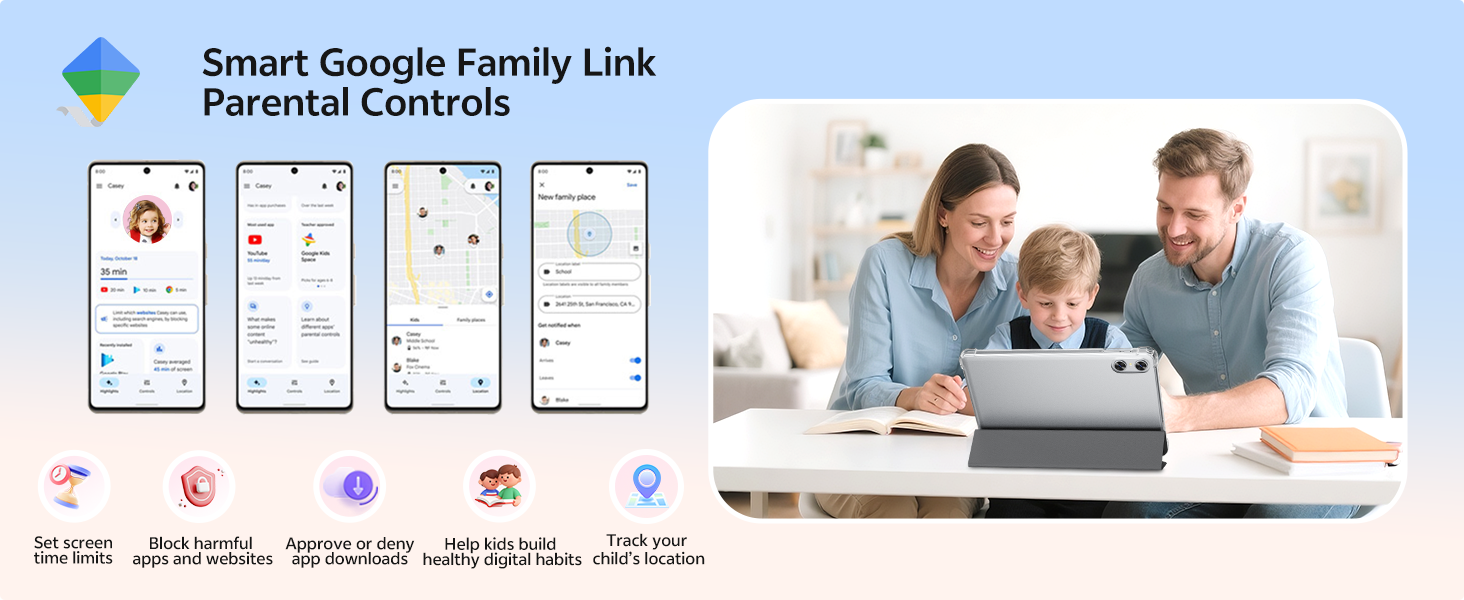
Image: An illustration of the Smart Google Family Link Parental Controls interface, showing various options for managing a child's tablet usage.
4.4 Eye Protection Night Mode
Activate Night Mode for a better reading experience and reduced eye strain, especially in low-light conditions. This feature adjusts screen colors to warmer tones.
4.5 Face Unlock
Configure facial recognition technology for quick and secure unlocking of your device. This can be set up in the Security settings.
5. Key Features
5.1 Display and Visuals
- 10.1-inch HD IPS Display: Enjoy crisp visuals with a 1280 x 800 resolution and a 16:10 aspect ratio, providing a wide field of view and vibrant colors.
- Widevine L1 Certification: Supports HD streaming on platforms like Netflix, Prime Video, Disney+, and Hulu.

Image: The SVITOO 10.1-inch HD IPS screen showcasing vibrant colors and clear detail, with logos of streaming services like YouTube, Disney+, Prime Video, Hulu, and Netflix, indicating Widevine L1 support.
Video: A comprehensive overview of the SVITOO Android Tablet, highlighting its 10-inch display, octa-core processor, and expandable storage, demonstrating its suitability for various tasks.
5.2 Performance and Storage
- Octa-Core Processor: Equipped with a Unisoc T7250 octa-core CPU (or T606 in some variants), ensuring smooth multitasking and efficient performance.
- 20GB RAM (4GB + 16GB): Ample memory for running multiple applications without lag.
- 128GB Internal Storage: Generous storage for apps, media, and documents.
- 1TB MicroSD Expandable: Expand storage up to 1TB using a MicroSD card (sold separately).
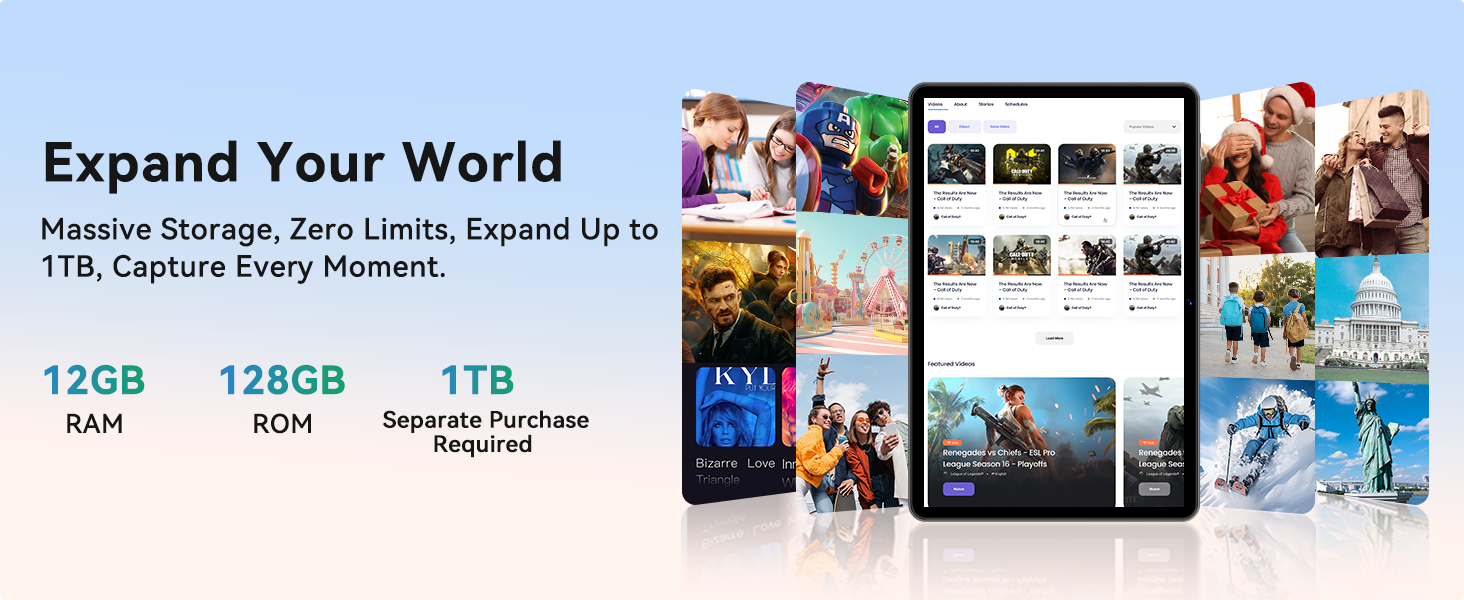
Image: A graphic detailing the SVITOO tablet's memory and storage, showing 12GB RAM, 128GB ROM, and 1TB expandable storage (MicroSD card sold separately).
5.3 Connectivity and Battery
- Dual-Band Wi-Fi: Supports 2.4/5 GHz Wi-Fi bands for stable and fast internet connections.
- Bluetooth 5.0: Enables seamless pairing with external devices like speakers and headphones.
- 6600mAh High-Capacity Battery: Provides extended usage for entertainment, work, and learning, with up to 12 hours of video playback or browsing, and 56 days of standby.
- Built-in GPS: For reliable navigation and location tracking.
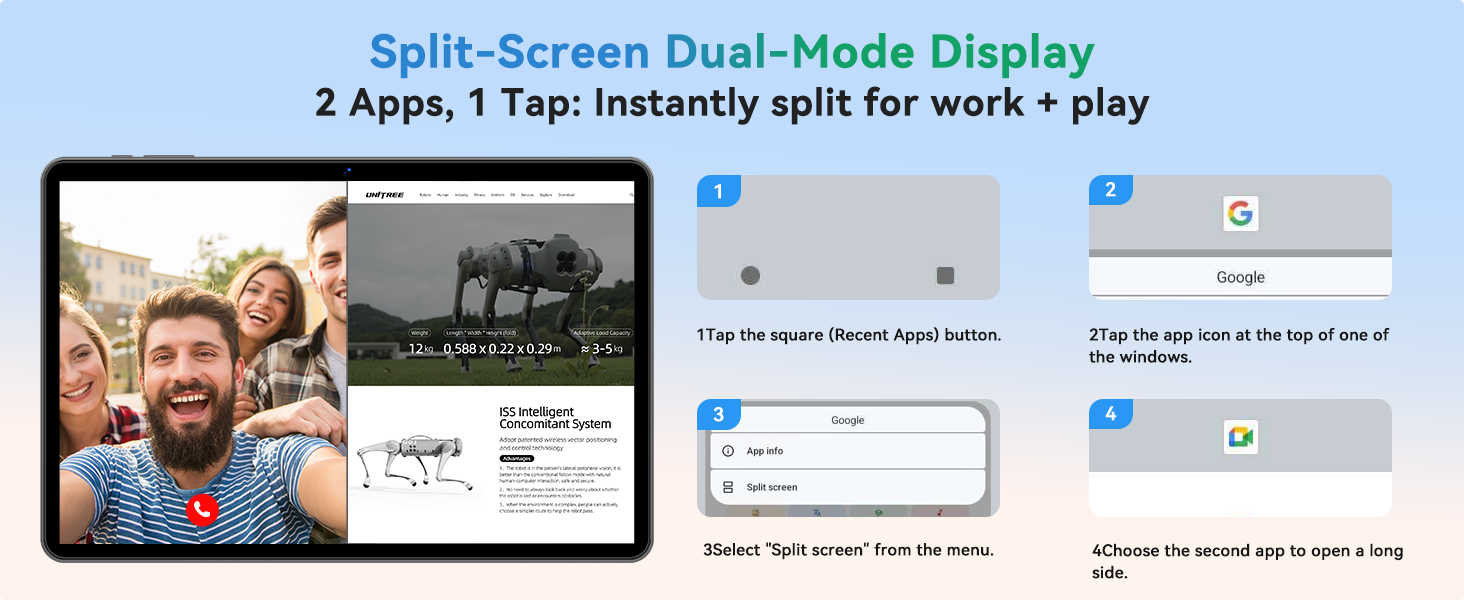
Image: An infographic highlighting the SVITOO tablet's 6600mAh battery, showing estimated usage times for video, music, and browsing, along with Type-C charging and Night Mode features.
5.4 Cameras and Audio
- Rear Camera: 8MP with autofocus for high-quality photos and videos.
- Front Camera: 2MP for clear video calls and selfies.
- Dual-Box Speakers: Provides enhanced audio experience.
- 3.5mm Audio Jack: For wired headphone connections.
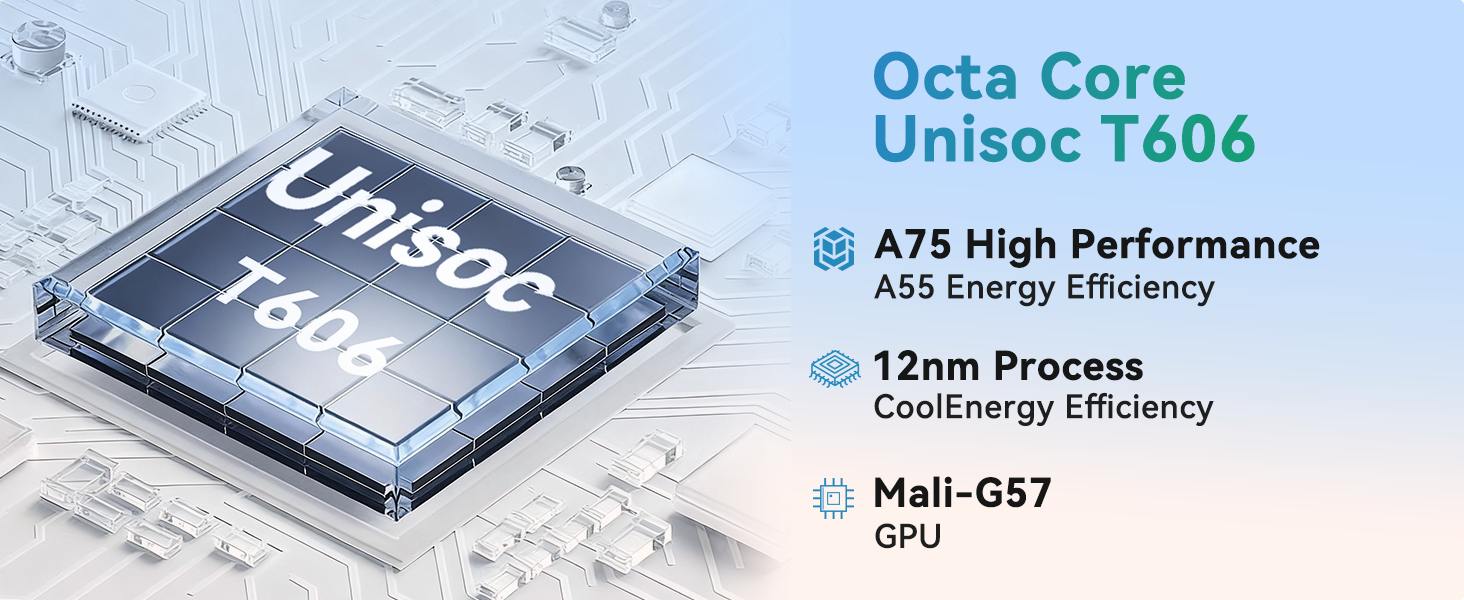
Image: A visual representation of the SVITOO tablet's camera capabilities, featuring a 2MP front camera and an 8MP rear camera, alongside the Smart Google Lens and Face Unlock features.
6. Maintenance
- Cleaning: Use a soft, lint-free cloth to clean the screen and body. Avoid abrasive cleaners or solvents.
- Software Updates: Regularly check for and install system updates to ensure optimal performance and security. Go to Settings > System > System update.
- Battery Care: To prolong battery life, avoid extreme temperatures and do not let the battery fully drain frequently.
- Storage Management: Periodically clear unnecessary files and apps to maintain performance. Use the built-in Storage Manager (Settings > Storage) to free up space.
- Protective Case: Keep the tablet in its protective case to guard against drops and scratches.
7. Troubleshooting
| Problem | Solution |
|---|---|
| Tablet won't turn on | Ensure the tablet is fully charged. Press and hold the power button for 10-15 seconds to perform a force restart. |
| Slow performance | Close unused apps, clear cache, or free up storage space. Consider a factory reset if the issue persists (back up data first). |
| Wi-Fi connection issues | Restart the tablet and your Wi-Fi router. Forget the network and reconnect. Ensure you are within range. |
| Apps crashing | Clear the app's cache and data (Settings > Apps > [App Name] > Storage). Update the app or reinstall it. |
| Battery drains quickly | Reduce screen brightness, disable unused features (Bluetooth, GPS), close background apps, or check for rogue apps consuming power. |
8. Specifications
| Feature | Detail |
|---|---|
| Model Number | SVITOO Tab 10 GMS Certified 1060T |
| Operating System | Android 16 |
| Display Size | 10.1 Inches |
| Screen Resolution | 1280 x 800 Pixels (HD IPS) |
| Processor | Unisoc T7250 Octa-Core (up to 1.8 GHz) |
| RAM | 20GB (4GB + 16GB) |
| Internal Storage | 128GB |
| Expandable Storage | Up to 1TB via MicroSD card (sold separately) |
| Battery Capacity | 6600mAh (up to 12 hours average life) |
| Rear Camera | 8MP Auto-Focus |
| Front Camera | 2MP |
| Connectivity | Dual-Band Wi-Fi (802.11ac, b, g, n), Bluetooth 5.0, GPS |
| Ports | USB-C, 3.5mm Audio Jack, MicroSD Card Slot |
| Dimensions (LxWxH) | 9.7 x 6.4 x 0.4 inches |
| Item Weight | 2.31 pounds |
9. Warranty and Support
Your SVITOO tablet comes with a 12-month product support period. Amazon offers a 30-day return and exchange policy. If the Amazon return window has passed, please contact SVITOO directly for support.
How to Contact SVITOO Support:
- Through Your Order: Log in to Amazon, go to "Your Orders", find the item, and click "Contact Seller".
- Through the Product Page: On the product page, click the seller’s name, then click "Contact Seller".
Note: Product support does not cover damage caused by human error, natural disasters, or other force majeure events.
