1. Introduction
The X88 GD1 Android 11.0 4K TV Stick transforms any compatible television into a smart entertainment hub. Featuring Android 11.0 OS, an Amlogic S905Y4-B Quad-Core processor, dual-band Wi-Fi, and Bluetooth 5.0, this device delivers a seamless 4K streaming experience. Enjoy a wide range of applications, games, and media content directly on your TV.
2. What's in the Box
- X88 GD1 Android 11.0 4K TV Stick
- Bluetooth Voice Remote Control
- HDMI Cable
- AC Power Adapter
- User Guide

Image: X88 GD1 Android TV Stick, remote control, and packaging contents.
3. Product Overview
The GD1 TV Stick is a compact device designed for easy integration with your television. It features an HDMI connector for video and audio output, a USB-C port for power, and an indicator light. The included Bluetooth remote control offers intuitive navigation and voice command capabilities.

Image: The X88 GD1 Android TV Stick and its accompanying Bluetooth voice remote control.

Image: Detailed view of the TV Stick and remote, highlighting their design.
4. Setup Instructions
Follow these steps for initial setup:
- Connect the TV Stick: Plug the GD1 TV Stick into an available HDMI port on your television.
- Power the Device: Connect the USB-C power cable to the TV Stick and the AC power adapter to a wall outlet. Alternatively, if your TV has a powered USB port, you may use that for power.
- Select HDMI Input: Turn on your TV and use your TV remote to select the correct HDMI input source where the GD1 TV Stick is connected.
- Pair the Remote Control: Once the Android TV logo appears, follow the on-screen instructions to pair your Bluetooth Voice Remote Control. Typically, this involves holding down the 'Home' and 'Back' buttons simultaneously for about 10 seconds near the device until pairing is successful.
- Complete On-Screen Setup: Follow the remaining on-screen prompts to connect to your Wi-Fi network, sign in with your Google account, and install recommended applications.

Image: Visual guide illustrating the three simple steps to set up the TV Stick: connect to TV, connect to internet, and start streaming.
5. Operating Instructions
5.1 Navigating the Interface
Use the directional pad on your remote to navigate through menus and select items. The 'Home' button returns you to the main screen, and the 'Back' button goes to the previous screen.
5.2 Voice Control
Press the dedicated Voice Assistant button on your remote (usually a microphone icon) and speak your commands. You can search for content, open apps, get weather updates, and more.
5.3 Installing Applications
The Google Play Store is pre-installed. Navigate to the 'Apps' section, open the Play Store, and search for desired applications. Select 'Install' to add them to your device.
5.4 Casting Content
The GD1 TV Stick features built-in Chromecast. You can cast videos, photos, and music from your compatible smartphone, tablet, or computer directly to your TV screen.

Image: Illustration of the Chromecast built-in feature, showing content being cast from a phone to the TV via the TV Stick.
6. Connectivity
The device supports advanced connectivity options:
- Dual-band Wi-Fi (2.4G/5.8Ghz): Provides stable and fast wireless internet access for streaming and online activities.
- Bluetooth 5.0: Allows connection to compatible Bluetooth devices such as the remote control, headphones, or game controllers. Note: Only Bluetooth remote control connection is supported; other Bluetooth devices may not be compatible.
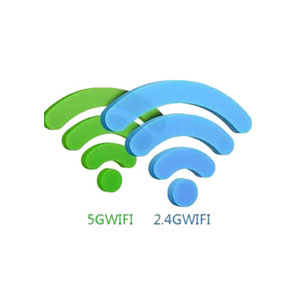

Image: Icons representing 5G WiFi and Bluetooth 5.0 connectivity.
7. Features
- Android 11.0 OS: Experience a faster and more efficient operating system for enhanced performance.
- Amlogic S905Y4-B Processor: A powerful ARM Quad 64-bit Cortex-A35 CPU ensures smooth operation and a better user experience.
- 4K AV1 Support: Enjoy ultra-high-definition content with stunning visual clarity. AV1 codec offers improved compression efficiency compared to H.265 or VP9.
- 3D Video Support: Capable of playing 3D movies for an immersive home theater experience.
- Memory & Storage: Equipped with 2GB DDR4 RAM and 16GB eMMC internal storage, expandable via external hard drive, USB device, or microSD card.

Image: Diagram highlighting the Amlogic S905Y4-B low-power CPU with 4-core CPU, Mali-G31 GPU, and AV1/H.265/VP9 decoder.

Image: Comparison showing AV1 codec efficiency, providing more video for less data compared to VP9 and H.265.
8. Troubleshooting
- No Power: Ensure the USB-C power cable is securely connected to the TV Stick and the power adapter is plugged into a working electrical outlet.
- No Signal on TV: Verify the TV Stick is firmly plugged into the HDMI port and your TV is set to the correct HDMI input source.
- Remote Control Not Responding: Check the batteries in the remote. If the remote is Bluetooth, ensure it is paired correctly by following the initial setup instructions.
- Wi-Fi Connectivity Issues: Confirm your Wi-Fi network is active and the password is entered correctly. Try restarting your router and the TV Stick.
- App Performance Issues: Close unused applications to free up RAM. Clear app cache or reinstall problematic applications. Ensure sufficient storage space is available.
9. Specifications
| Feature | Detail |
|---|---|
| Brand | X88 |
| Model Name | GD1 |
| Operating System | Android 11.0 ATV OS |
| Processor | Amlogic S905Y4-B ARM Quad 64-bit Cortex-A35 |
| RAM | 2GB DDR4 |
| Storage | 16GB eMMC (expandable) |
| Connectivity | 2.4G/5.8Ghz Dual-band WiFi, Bluetooth 5.0 |
| Video Output | 4K AV1, 3D Support |
| Special Features | Chromecast, DLNA, Miracast, Voice Control |
| Dimensions | 3.06 x 1.2 x 0.52 inches |
| Item Weight | 5.3 ounces |
10. Maintenance
- Cleaning: Use a soft, dry cloth to clean the device. Avoid liquid cleaners.
- Software Updates: Periodically check for system updates in the device settings to ensure optimal performance and security.
- Storage Management: Regularly clear cache from applications and uninstall unused apps to maintain performance.
11. Warranty and Support
For technical support, please contact the seller through the Amazon support tools. Online assistance is available 7 days a week, 365 days a year. Information regarding specific warranty periods can be found with your purchase documentation or by contacting the seller directly.


