1. Introduction
This manual provides essential information for the setup, operation, maintenance, and troubleshooting of your new Samsung 55-Inch Class OLED S95F 4K Glare Free Smart TV and the accompanying Music Frame. Please read this manual thoroughly before using the product to ensure safe and optimal performance.
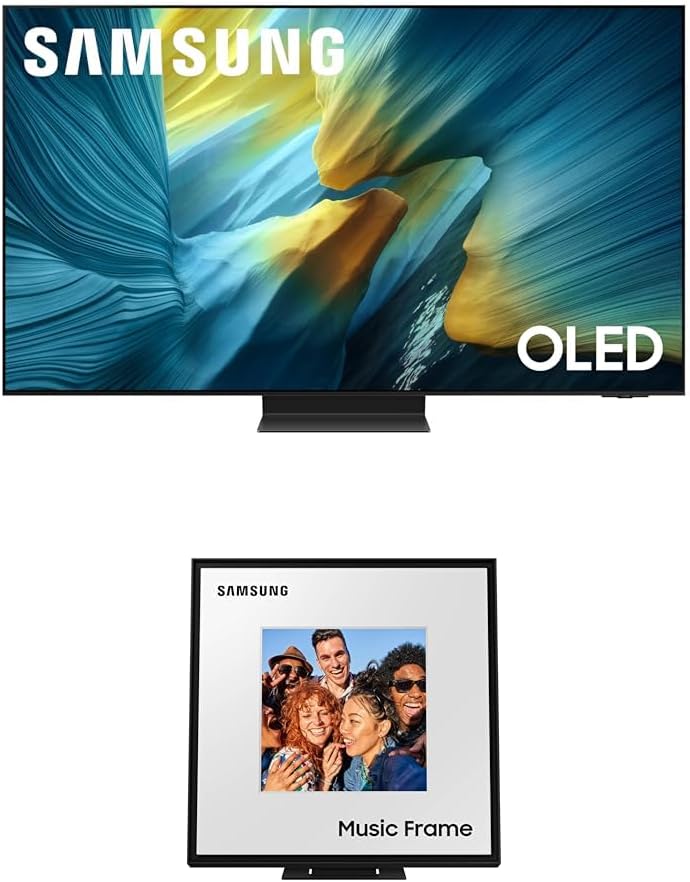
Image 1.1: The Samsung 55-Inch Class OLED S95F 4K Glare Free Smart TV and the included Music Frame, showcasing their sleek design.
2. Key Features
- Our Most Advanced 4K AI Processor: Powered by 128 neural networks, this processor delivers AI-enhanced picture and optimized sound for an exceptional 4K experience across streaming, gaming, and live sports.

Image 2.1: Visual representation of the NQ4 AI Gen3 Processor, highlighting its advanced capabilities.
- Glare Free Display: Enjoy your content without distracting reflections, even in brightly lit rooms, ensuring an immersive viewing experience.

Image 2.2: Illustrates the effectiveness of the Glare Free technology in reducing screen reflections.
- Powerful Brightness and Dramatic Contrast (OLED HDR Pro): Experience new details and highlights with vibrant, detailed picture quality, thanks to the brightest OLED display with pixel-level pitch-blacks.

Image 2.3: A visual example of the enhanced brightness and dramatic contrast provided by OLED HDR Pro.
- Smooth Motion for Gaming and Sports (Motion Xcelerator 165Hz): Enjoy smooth visuals and fast speeds for VRR gaming at up to 4K 165Hz, ensuring a tear-free experience.

Image 2.4: A dynamic scene illustrating the smooth motion capabilities of Motion Xcelerator 165Hz for fast-paced content.
- 4K AI Upscaling Pro: Transforms all content to impressive 4K resolution using 128 AI neural networks, ensuring sharp and smooth picture quality.

Image 2.5: A visual demonstration of 4K AI Upscaling Pro, highlighting improved detail and clarity.
- Auto HDR Remastering: Intelligently transforms SDR content to HDR-like quality with brighter highlights, more vibrant colors, and clearer details.
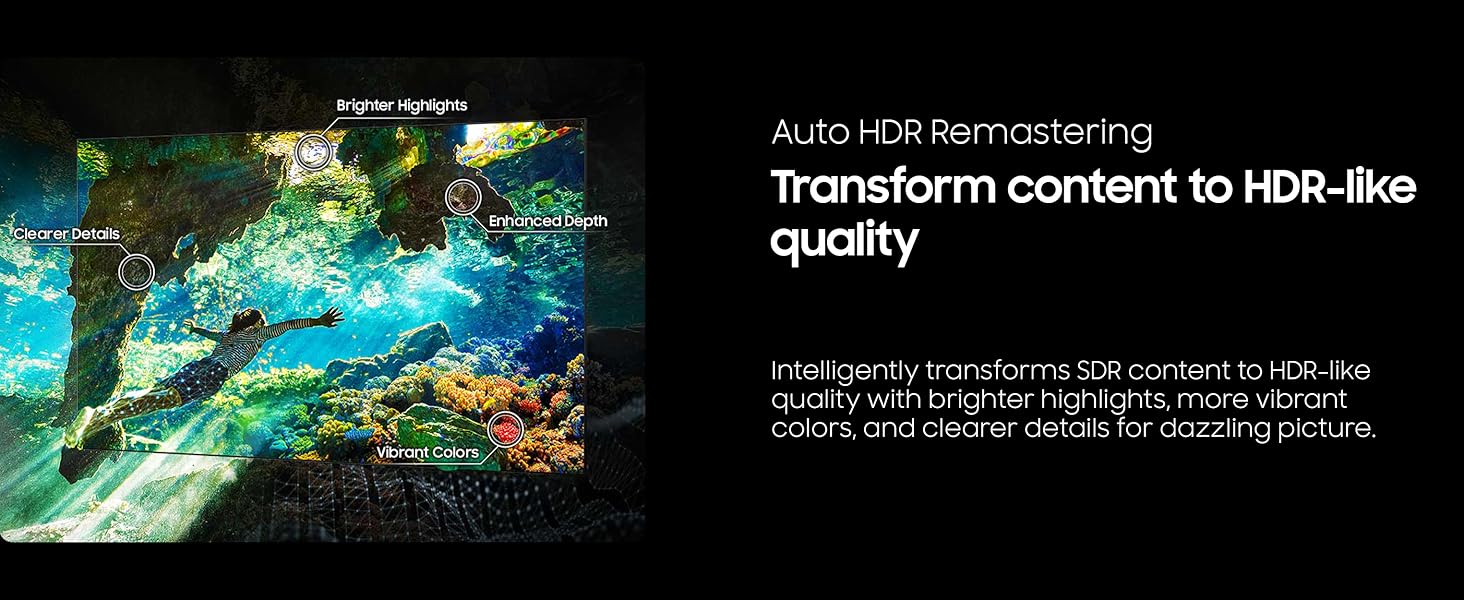
Image 2.6: A scene illustrating the enhanced colors, highlights, and details achieved with Auto HDR Remastering.
- Customizable Design (Music Frame): The innovative Music Frame allows you to swap bezels to match your space and showcase personal artwork or photos, functioning as a photo frame speaker.

Image 2.7: The Samsung Music Frame, designed to blend into your decor while providing audio functionality.
- Dolby Atmos: Experience multi-dimensional surround sound from the Music Frame, filling the room with rich, deep audio for music and movies.
- Q-Symphony: Sync your Samsung TV speakers and Music Frame for a more robust audio experience, optimizing all audio channels to work together as one.
- Wide Range Speaker Technology: The Music Frame provides clear and uniform sound throughout the room with its high-quality, 3-way stereo speaker and patented wide-range technology.
3. Setup Guide
3.1 Unpacking and Initial Placement
- Carefully remove the TV and Music Frame from their packaging. Retain all packaging materials for future transport or service.
- Place the TV on a stable, level surface or mount it securely to a wall using a compatible VESA mount (sold separately). Ensure adequate ventilation around the TV.
- Position the Music Frame in your desired location, ensuring it is within range of your Wi-Fi network for smart features.
3.2 Connections
- Power Connection: Connect the power cord to the TV's power input and then to a wall outlet. Do not plug in until all other connections are made.
- HDMI Devices: Connect external devices (e.g., cable box, Blu-ray player, gaming console) to the HDMI ports on the TV. Note the HDMI port numbers for easy selection.
- Antenna/Cable: If using an antenna or cable, connect the coaxial cable to the 'ANT IN' port.
- Network Connection: For smart features and updates, connect the TV to your home network via Ethernet cable to the LAN port or wirelessly through Wi-Fi during initial setup.
- Music Frame Connection: Follow the Music Frame's specific instructions for power and network connection. It typically connects wirelessly to your home network and can be paired with the TV via Q-Symphony.
3.3 Initial Setup Wizard
- Plug in the TV's power cord. The TV will automatically turn on and display the initial setup screen.
- Follow the on-screen prompts to select your language, country, and connect to your Wi-Fi network.
- Agree to the terms and conditions, and sign in to or create a Samsung account to access all smart features.
- Complete the channel scan (if using antenna/cable) and adjust basic picture and sound settings.
- The TV will guide you through pairing the remote control and setting up the Music Frame for integrated audio.
4. Operating Instructions
4.1 Basic TV Operation
- Power On/Off: Press the Power button on the remote control.
- Source Selection: Use the 'Source' button on the remote to switch between connected devices (HDMI 1, HDMI 2, TV, etc.).
- Volume Control: Use the Volume Up/Down buttons.
- Channel Change: Use the Channel Up/Down buttons.
- Smart Hub: Press the 'Home' button to access the Smart Hub, where you can find apps, streaming services, and connected devices.
4.2 Smart Features and Apps
- App Store: Download and install various applications from the Samsung App Store.
- Voice Assistant: Utilize the built-in voice assistant (e.g., Bixby, Alexa, Google Assistant) for hands-free control, searching content, and managing smart home devices.
- Screen Mirroring: Cast content from your smartphone or tablet to the TV screen using compatible mirroring technologies.
- Ambient Mode: When the TV is off, display decorative content, photos, or useful information to blend seamlessly with your decor.
4.3 Music Frame Operation
- Music Playback: Stream music directly to the Music Frame via Bluetooth or Wi-Fi using compatible music apps on your smartphone or the TV's Smart Hub.
- Q-Symphony Integration: When connected to the TV, the Music Frame will automatically synchronize its audio output with the TV's speakers for an enhanced sound experience.
- Customization: Change the displayed artwork or photos on the Music Frame via the SmartThings app or the TV's settings.
5. Maintenance
- Screen Cleaning: Gently wipe the screen with a soft, dry microfiber cloth. For stubborn marks, lightly dampen the cloth with distilled water. Avoid using harsh chemicals or abrasive materials.
- Frame and Casing: Clean the TV frame and Music Frame casing with a soft, dry cloth.
- Ventilation: Ensure the ventilation openings on the TV are not blocked to prevent overheating.
- Software Updates: Periodically check for and install software updates through the TV's settings menu to ensure optimal performance and access to new features.
6. Troubleshooting
If you encounter issues with your TV or Music Frame, refer to the table below for common problems and their solutions.
| Problem | Possible Cause | Solution |
|---|---|---|
| No power/TV won't turn on | Power cord disconnected; no power to outlet. | Check power cord connection; test outlet with another device. |
| No picture/sound | Incorrect input source; loose HDMI cable. | Select correct input source; ensure HDMI cables are securely connected. |
| Picture quality issues (e.g., washed out, incorrect colors) | Picture settings not optimized; external device issue. | Adjust picture settings in the TV menu (Picture Mode, Brightness, Contrast, Color). Ensure external device output settings are correct. |
| Glare on screen | Strong light source directly hitting the screen. | While the TV has glare-free technology, extreme direct light can still cause some reflection. Adjust room lighting or TV position. |
| Smart features/apps not working | No internet connection; app error. | Check network connection (Wi-Fi/Ethernet). Restart the TV. Reinstall the problematic app. |
| Music Frame not connecting/no sound | Not paired correctly; network issue. | Ensure Music Frame is powered on and connected to the same network as the TV. Re-pair through TV settings or SmartThings app. |
If the problem persists after trying these solutions, please contact Samsung customer support.
7. Specifications
| Feature | Detail |
|---|---|
| Brand Name | SAMSUNG |
| Model Number | S95F |
| ASIN | B0F25BYFD8 |
| Display Type | OLED |
| Screen Size | 55-Inch Class |
| Resolution | 4K UHD |
| Processor | NQ4 AI Gen3 Processor |
| Refresh Rate | Up to 4K 165Hz (VRR) |
| Special Features | Glare Free, OLED HDR Pro, 4K AI Upscaling Pro, Auto HDR Remastering, Active Voice Amplifier Pro, Adaptive Sound Pro, AI Motion Enhancer Pro, Music Frame Included |
| Audio Technology | Dolby Atmos, Q-Symphony, Wide Range Speaker Technology |
| First Available | March 21, 2025 |
8. Warranty and Support
Your Samsung 55-Inch Class OLED S95F Smart TV and Music Frame are covered by a manufacturer's warranty. For specific warranty terms and conditions, please refer to the warranty card included with your product or visit the official Samsung support website.
For technical assistance, troubleshooting beyond this manual, or to inquire about service, please contact Samsung Customer Support:
- Online Support: Visit the official Samsung support website for FAQs, downloads, and live chat.
- Phone Support: Refer to your product documentation for the customer service phone number in your region.
Please have your product model number (S95F) and serial number ready when contacting support.


