
Introduction
This manual provides essential information for setting up, operating, maintaining, and troubleshooting your Acer Aspire Lite Laptop. Please read this guide thoroughly to ensure optimal performance and longevity of your device.

Figure 1: Acer Aspire Lite Laptop, front view.
Product Features
- Processor: AMD Ryzen 7 5700U processor with up to 4.3 GHz max boost clock, 8 cores, and 16 threads for efficient multitasking.
- Display: 15.6" Full HD (1920 x 1080) high-brightness Acer ComfyView LED-backlit display.
- Memory: 32GB DDR4 SDRAM.
- Storage: 1TB PCIe NVMe M.2 Solid State Drive.
- Graphics: Integrated AMD Radeon Graphics.
- Operating System: Windows 11 Pro.
- Connectivity: Wi-Fi 6 and Bluetooth 5.2.
- Webcam: HD webcam with 1280 x 720 resolution for video communication.
- Audio: Dual stereo speakers for clear sound output.
- Ports: 1x USB 3.2 Gen1 (Type A), 2x USB 2.0 (Type A), 1x HDMI, 1x USB 3.2 Gen2 (Type C), 1x Headphone/Mic Combo Jack.
- Recovery: Includes a WOWPC recovery USB for system restoration.

Figure 2: Laptop in use, illustrating processor capabilities.

Figure 3: Display and graphics quality.
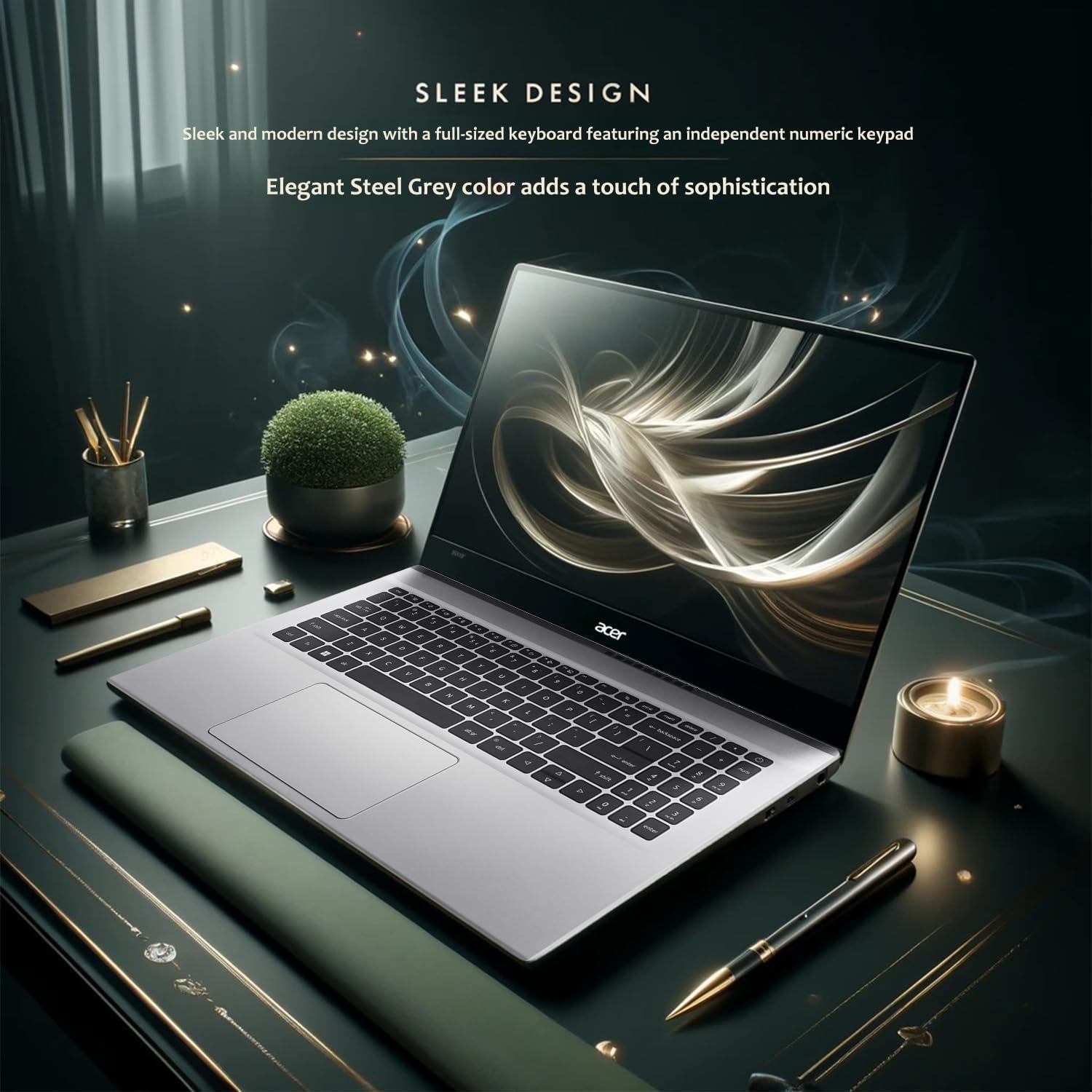
Figure 4: Sleek design and elegant Steel Gray finish.

Figure 5: High-fidelity audio experience.
Setup
1. Initial Power On
- Unpack: Carefully remove the laptop and all accessories from the packaging.
- Connect Power: Plug the AC adapter into the laptop's power port and then into a wall outlet.
- Power On: Open the laptop lid and press the power button, typically located on the keyboard deck.
- Windows Setup: Follow the on-screen instructions to complete the Windows 11 Pro initial setup, including language, region, network connection, and user account creation.
2. Connecting Peripherals
Connect external devices such as a mouse, keyboard, or external monitor to the appropriate ports. Refer to the "Ports" section in the specifications for port types and locations.

Figure 6: Side view of the laptop, illustrating available ports.
Operating Instructions
1. Basic Usage
- Keyboard: The laptop features a full-size keyboard with an independent numeric keypad.
- Touchpad: Use the integrated touchpad for navigation. Adjust sensitivity and gestures in Windows settings.
- Power Management: Utilize Windows power settings to optimize battery life and performance. The laptop offers up to 9 hours of battery life.

Figure 7: Laptop in use, demonstrating battery endurance.
2. Connectivity
- Wi-Fi: Connect to wireless networks via Wi-Fi 6. Access network settings through the Windows taskbar.
- Bluetooth: Pair Bluetooth devices like headphones or speakers using Bluetooth 5.2. Manage devices in Windows settings.
- Ethernet: For a wired internet connection, connect an Ethernet cable to the dedicated port (if available on your specific model).
Maintenance
1. Cleaning
- Screen: Use a soft, lint-free cloth lightly dampened with water or a screen cleaner. Avoid harsh chemicals.
- Keyboard/Chassis: Use a soft cloth to wipe surfaces. A can of compressed air can remove dust from between keys.
- Ports: Ensure ports are free of dust and debris.
2. Battery Care
- Avoid extreme temperatures.
- Do not fully discharge the battery frequently.
- For long-term storage, charge the battery to approximately 50-70%.
3. Software Updates
Regularly check for and install Windows updates and Acer driver updates to ensure system stability and security.
Troubleshooting
Common Issues and Solutions:
- No Power: Ensure the AC adapter is securely connected and the power outlet is functional. Try a different outlet.
- Display Issues: If the screen is blank, try connecting an external monitor to check if the laptop is outputting video. Adjust display settings in Windows.
- Wi-Fi Connectivity: Check if Wi-Fi is enabled in Windows settings. Restart your router and the laptop.
- Slow Performance: Close unnecessary applications, check for malware, and ensure sufficient free storage space.
WOWPC Recovery USB
Your device includes a WOWPC recovery USB. In case of severe system issues or for a fresh installation, insert the USB and follow the on-screen instructions to access recovery options. This tool is designed to assist with system restoration and troubleshooting.
Specifications
| Feature | Detail |
|---|---|
| Brand | acer |
| Model Name | Aspire |
| Processor | AMD Ryzen 7 5700U (4.3 GHz max boost) |
| RAM | 32 GB DDR4 |
| Hard Drive | 1 TB PCIe NVMe M.2 SSD |
| Graphics Coprocessor | AMD Radeon Graphics (Integrated) |
| Operating System | Windows 11 Pro |
| Screen Size | 15.6 Inches FHD (1920x1080) |
| Connectivity | Wi-Fi 6, Bluetooth 5.2 |
| Ports | 1x USB 3.2 Gen1 (Type A), 2x USB 2.0 (Type A), 1x HDMI, 1x USB 3.2 Gen2 (Type C), 1x Headphone/Mic Combo Jack |
| Battery Life | Up to 9 Hours |
| Color | Steel Gray |
| Dimensions (LxWxH) | 14.29 x 9.5 x 0.78 inches |
| Item Weight | 5 pounds |
| Special Features | Anti Glare Coating, HD Audio, Memory Card Slot, Numeric Keypad |
Warranty and Support
For warranty information and technical support, please refer to the documentation included with your product or visit the official Acer support website. Extended protection plans are available for purchase, offering additional coverage for 2-year or 4-year periods, as well as a monthly Complete Protect plan.
For further assistance, you may contact Acer customer service.