
1. Introduction
This manual provides detailed instructions for the installation, operation, maintenance, and troubleshooting of your Roinvou Android Radio. This unit is designed for Toyota Camry models manufactured between 2000 and 2006. It features a 9-inch 1280x720 touch screen, wireless CarPlay/Android Auto, Bluetooth 5.0, GPS navigation, 5GHz WiFi, and includes a backup camera.
Important Compatibility Note: This unit's cable does not support original cars equipped with JBL power amplifiers or large screens. Please verify your vehicle's specifications before installation.

Image 1.1: Overview of the Roinvou Android Radio installed in a Toyota Camry dashboard.

Image 1.2: Compatibility reference for Toyota Camry dashboards (Fit vs. Not Fit).
2. Setup and Installation
Professional installation is recommended for this product. Ensure the vehicle's battery is disconnected before beginning installation.
2.1 Package Contents
Verify that all components are present:
- Roinvou Android Car Stereo Unit
- Power Cable
- RCA Harness
- GPS Antenna
- AHD Backup Camera
- External Microphone
- Rear Camera Input Cable
- 2 x USB Cables
- Installation Tool & Accessories
2.2 Wiring Connections
Connect the provided cables to their corresponding ports on the head unit and the vehicle's wiring harness. Ensure all connections are secure.

Image 2.1: Connection reference and package list.
2.3 Backup Camera Installation
The included AHD backup camera provides an HD image with night vision and a 170-degree wide angle. Connect the camera as follows:
- Connect the camera's red wire to the reversing lamp's positive (+) terminal.
- Connect the camera's black wire to ground (GND).
- Connect the video output cable from the camera to the 'Rear Camera Input' on the head unit.
- The reverse input cable (usually a thin pink or brown wire) from the head unit's harness must be connected to the reversing lamp's positive (+) terminal or a 12V trigger from the reverse gear.
Tip: The reverse input cable must be plugged in even if the reverse camera is not being used, as it can affect Bluetooth and WiFi signal reception.

Image 2.2: Backup camera connection diagram.
2.4 Steering Wheel Control (SWC)
The unit supports most factory multi-function steering wheel buttons. The setup process depends on whether your vehicle has a CANBUS decoder.
- Without CANBUS Decoder: Connect the steering wheel control wires (Key1/Key2) in the power cable to the corresponding port or wire of your original car. Then, go to the 'Steering Wheel Key' manual match settings in the unit's interface to activate button functions.
- With CANBUS Decoder: Connect the CANBUS before powering on the machine. Then, navigate to 'Apps' > 'Settings' > 'Factory Settings' (password: 8888 or 8317) > 'Vehicle' > 'Automotive type' to select the matching brand and model year for proper SWC functionality.

Image 2.3: Steering Wheel Control setup instructions.
3. Operating Instructions
3.1 Power On/Off and Basic Navigation
The unit powers on automatically with the vehicle's ignition. Use the touchscreen interface to navigate through applications and settings. The physical buttons on the side provide quick access to common functions like volume and home.
3.2 Wireless CarPlay & Android Auto
Connect your smartphone wirelessly to access navigation, music, calls, and other apps via voice control (Siri/Google Assistant). CarPlay/Android Auto automatically activates when your phone is connected.

Image 3.1: Wireless CarPlay and Android Auto interface.
3.3 Bluetooth 5.0
Pair your phone via Bluetooth for hands-free calling and audio streaming. Bluetooth 5.0 ensures stable connections and clear audio quality.
3.4 Mirror Link Function
Synchronize your Android or iOS smartphone screen to the head unit's display. This allows you to view phone content, such as videos or games, on the larger screen.
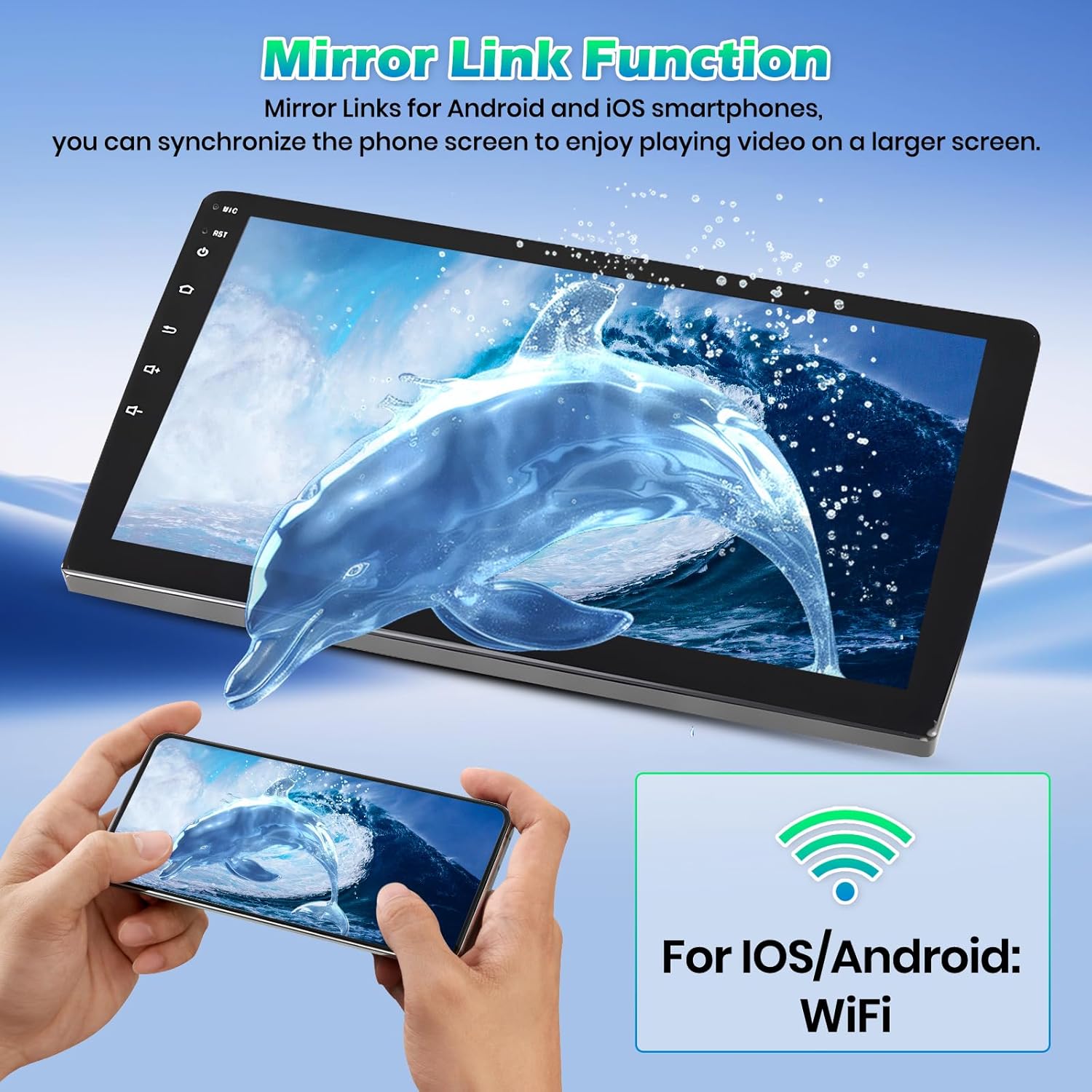
Image 3.2: Mirror Link function in use.
3.5 GPS Navigation & WiFi
The unit has built-in GPS navigation. You can download offline navigation maps from the Play Store. Connect to WiFi (5GHz supported) to use online maps and access other internet-dependent applications.

Image 3.3: GPS Navigation and WiFi connectivity.
3.6 FM/RDS Radio & 32-Band EQ
Tune into FM radio stations with RDS (Radio Data System) for automatic display of station information. The 32-band EQ allows for detailed audio customization, with preset modes (Rock, Pop, Classic) and a customizable equalizer to optimize sound quality.

Image 3.4: Bluetooth, FM/RDS Radio, and 32-Band EQ interfaces.
3.7 Split Screen Function
Utilize the split-screen feature to run two applications simultaneously, such as navigation and music playback, enhancing multitasking capabilities.

Image 3.5: Split Screen function and UI themes.
4. Maintenance
To ensure the longevity and optimal performance of your Roinvou Android Radio, follow these maintenance guidelines:
- Screen Cleaning: Use a soft, lint-free cloth, slightly dampened with water or a screen-safe cleaner, to gently wipe the touchscreen. Avoid abrasive materials or harsh chemicals.
- Software Updates: Periodically check for system updates through the unit's settings to ensure you have the latest features and security patches.
- Environmental Conditions: Avoid exposing the unit to extreme temperatures or direct sunlight for prolonged periods, as this can affect performance and screen lifespan.
- Connection Checks: Occasionally inspect all wiring connections to ensure they remain secure and free from corrosion.
5. Troubleshooting
If you encounter issues with your Roinvou Android Radio, refer to the following common problems and solutions:
| Problem | Possible Cause / Solution |
|---|---|
| Unit does not power on. | Check power cable connections. Ensure the vehicle's ignition is on. Verify the ACC wire is properly connected. |
| No sound or poor audio quality. | Check speaker wiring. Ensure volume is not muted. Adjust EQ settings. If using a factory amplifier, ensure proper wiring or consider a line output converter if experiencing ground loop noise. |
| Bluetooth connection issues. | Ensure Bluetooth is enabled on both the unit and your phone. Try unpairing and re-pairing the device. Ensure the phone is within close proximity to the unit. |
| GPS signal is weak or inaccurate. | Ensure the GPS antenna is properly connected and placed in an area with a clear view of the sky (e.g., on the dashboard). |
| Backup camera not displaying. | Check camera power and video connections. Ensure the reverse input trigger wire is correctly connected to the reverse light circuit. |
| Steering Wheel Controls not working. | Verify SWC wiring. Perform the SWC learning process in the unit's settings (refer to Section 2.4). Ensure correct CANBUS decoder settings if applicable. |
| Navigation voice too low with music. | Adjust navigation voice volume settings within the navigation application or the unit's sound settings. Some apps may have independent volume controls. |
| Unit becomes unresponsive or freezes. | Perform a soft reset using the reset button (if available) or by turning off the vehicle's ignition and restarting. If issues persist, a factory reset may be necessary (note: this will erase all user data). |
6. Specifications
| Feature | Detail |
|---|---|
| Model | 4+64G 4Core |
| Operating System | Android |
| Screen Size | 9 Inches |
| Resolution | 1280 x 720 |
| Connectivity Technology | Bluetooth 5.0, USB, Wi-Fi (5GHz) |
| Special Features | Wireless CarPlay, Wireless Android Auto, Mirror Link, Touchscreen, GPS Navigation, FM RDS Radio, Support Reverse Input, Split Screen, EQ Setting, SWC |
| Audio Output Mode | Stereo |
| Map Type | North America (pre-installed) |
| Mounting Type | Dashboard Mount |
| Item Weight | 5.92 pounds |
| Package Dimensions | 15.35 x 9.06 x 5.91 inches |
7. Warranty and Support
7.1 Return Policy
This product is eligible for a 30-day refund or replacement policy from the date of purchase. Please refer to the retailer's return policy for specific terms and conditions.
7.2 Customer Support
For technical assistance, installation queries, or any other support needs, please contact Roinvou customer service. You can typically find contact information through the seller's page on the platform where you purchased the product.
Alternatively, you may reach out via email:
Email: roinvouservices@163.com

Image 7.1: Roinvou Customer Support Information.