
RSH RSH-ITag03
RSH Android Tracker Tags User Manual
Model: RSH-ITag03
1. Introduction
Welcome to the user manual for your RSH Android Tracker Tags. These tags are designed to help you easily locate your valuable items using the Google Find My Device network. This manual provides detailed instructions on setting up, operating, maintaining, and troubleshooting your tracker tags to ensure optimal performance.
2. Product Overview
The RSH Android Tracker Tag is a compact and efficient device that leverages Bluetooth 5.2 technology and the extensive Google Find My Device network for accurate item tracking. It is specifically optimized for Android 9.0 and above, offering seamless integration without the need for additional apps.
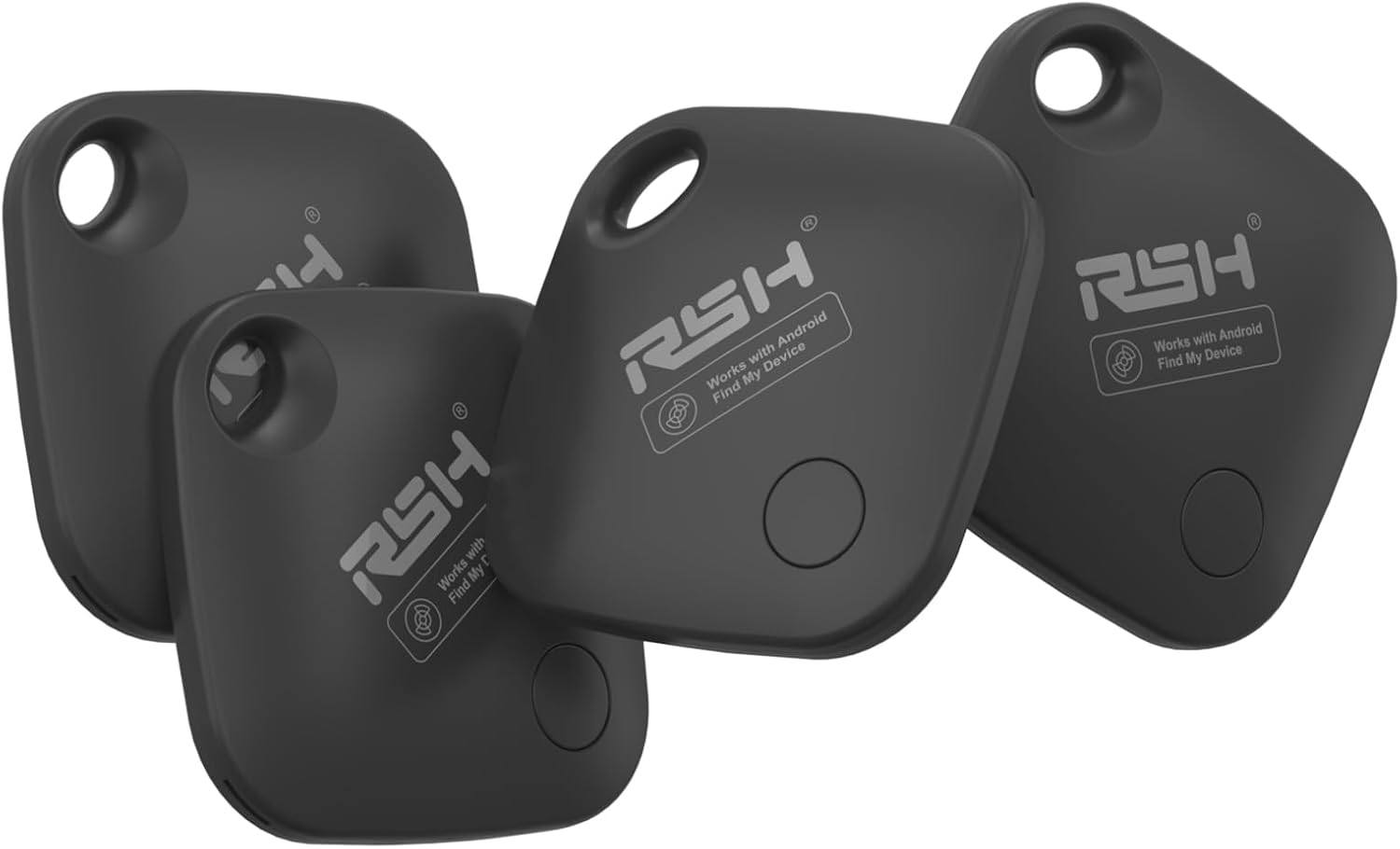
Image: A set of four RSH Android Tracker Tags, showcasing their sleek black design and portability.
Key features include:
- Full Android Compatibility: Optimized for Android 9.0+ with one-click Bluetooth 5.2 pairing.
- Accurate Google Finder Tag: Locates items with precision, showing distance (accurate to meters) via Google Find Hub.
- Find Nearby with Sound: Activates a loud ring (up to 80 dB) within Bluetooth range (up to 60m/200ft).
- Global Tracking: View item whereabouts on Google Maps when out of Bluetooth range, with location updates in minutes in high Android device density areas.
- Sharing Mode and Lost Mode: Share tags with family/friends or set contact information for lost items.
- Easy Connection & Data Security: Automatic pairing window and encrypted, anonymous location data.
3. Setup
Setting up your RSH Android Tracker Tag is a simple two-step process:
- Step 1: Download the Google Find My Device App
Download the official Google Find My Device app from the Google Play Store on your Android smartphone or tablet. This app is essential for managing and locating your RSH Tracker Tags. - Step 2: Pair Your Tag
Turn on your RSH Tracker Tag. Place it near your Android phone. A pairing window will automatically pop up on your phone's screen. Follow the on-screen prompts to complete the pairing process.

Image: Visual guide for the easy pairing process of the RSH Tracker Tag with an Android device.
The RSH Tracker Tags are designed for seamless integration with Android devices running Android 9.0 and above, including popular brands like Samsung, Google, Xiaomi, OPPO, and Vivo.
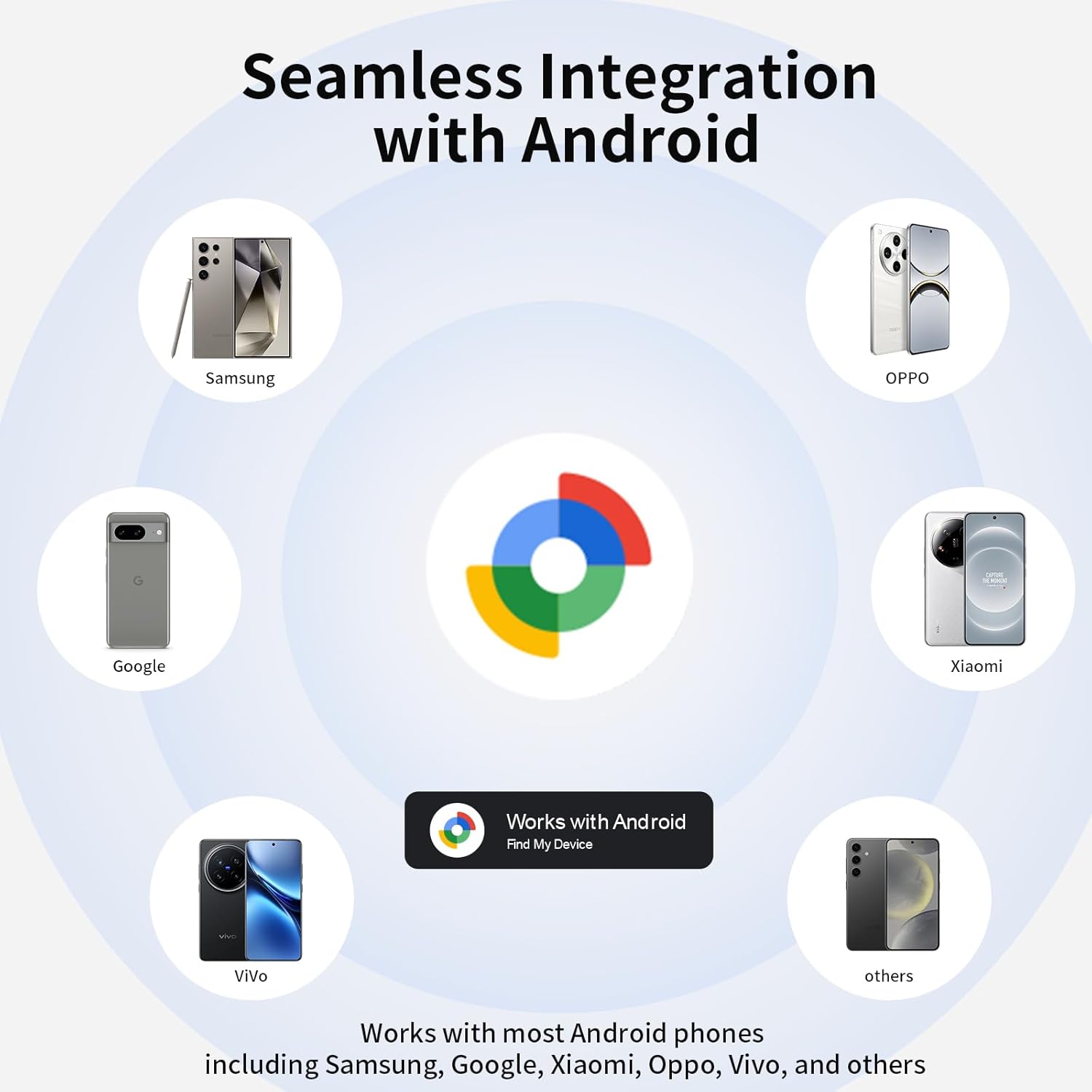
Image: Illustration of the RSH Tracker Tag's compatibility and seamless integration with various Android phone brands.
4. Operating Instructions
Once paired, your RSH Android Tracker Tag offers several functionalities to help you keep track of your belongings.
4.1 Finding Nearby Items (Play Sound)
If your item is within Bluetooth range (up to 60 meters or 200 feet), you can make the tag emit a sound to help you locate it. Open the Google Find My Device app, select your RSH Tracker Tag, and tap the "Play Sound" button. The tag will ring loudly, guiding you to its location.

Image: How to play a sound on your RSH Tracker Tag using the Google Find My Device app to locate nearby items.
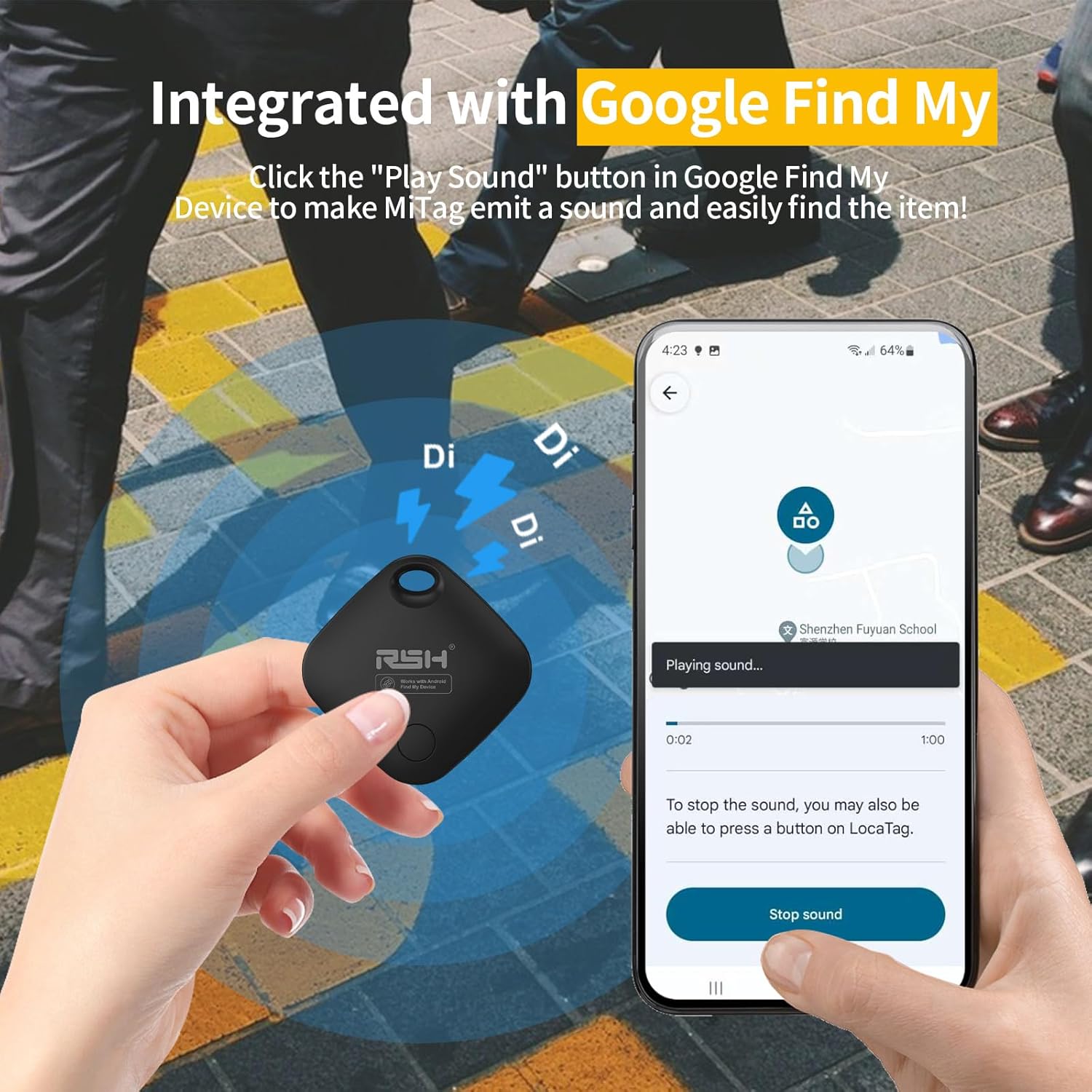
Image: The RSH Tracker Tag emitting a sound, as controlled by the Google Find My Device app on a smartphone.
4.2 Finding Faraway Items (Global Tracking)
If your item is not within Bluetooth range, the Google Find My Device network can help you locate it globally. The app will display the tag's last known location on Google Maps. In areas with a high density of Android devices, location updates can occur within minutes.

Image: How to locate your RSH Tracker Tag on a map when it is far away, utilizing the Google Find My Device network.
4.3 Sharing Mode
You can share access to your RSH Android Tag with family and friends through the Google Find My Device app. This allows trusted individuals to help keep an eye on important items, increasing security and peace of mind.

Image: Instructions on how to share your RSH Android Tag with others using the Google Find My Device app.
4.4 Lost Mode
If you lose your RSH Tracker Tag, you can activate "Lost Mode" in the Google Find My Device app. This allows you to set up contact information that can be viewed by anyone who finds your tag, increasing the chances of its return.

Image: How to set your RSH Tracker Tag to Lost Mode, allowing finders to access your contact information.
4.5 Attaching Your Tag
The RSH Tracker Tag is designed to be easily attached to various items. Use the integrated loop to secure it to keys, backpacks, luggage, wallets, or even pet collars.

Image: Examples of how the RSH Tracker Tag can be attached to everyday items like backpacks, keys, wallets, and luggage.
5. Maintenance
5.1 Battery Replacement
Your RSH Tracker Tag uses a replaceable CR2032 coin cell battery. The battery life is approximately 12 months. You can check the battery status within the Google Find My Device app. When the battery is low, replace it promptly to ensure continuous tracking.

Image: The RSH Tracker Tag with its back open, illustrating the replaceable CR2032 battery compartment.
To replace the battery:
- Gently pry open the tag's casing.
- Remove the old CR2032 battery.
- Insert a new CR2032 battery with the positive (+) side facing up.
- Close the casing securely.
5.2 Cleaning
Wipe the tracker tag with a soft, dry cloth to remove dust or dirt. Avoid using harsh chemicals or abrasive materials, as they may damage the device.
6. Troubleshooting
If you encounter issues with your RSH Android Tracker Tag, try the following solutions:
- Tag not pairing: Ensure Bluetooth is enabled on your Android device. Make sure the tag is powered on and within close proximity to your phone. Try restarting both the tag (by removing and reinserting the battery) and your phone.
- Sound not playing: Check the battery level of the tag in the Google Find My Device app. Ensure your phone's volume is up. Make sure the tag is within Bluetooth range.
- Inaccurate location: Ensure your Android device has location services enabled and is connected to the internet. Location accuracy can vary based on environmental factors and the density of Android devices in the area.
- Tag not responding: Replace the battery with a new one. If the issue persists, contact customer support.
7. Specifications
| Feature | Specification |
|---|---|
| Model Number | RSH-ITag03 |
| Connectivity | Bluetooth 5.2 |
| Compatible Devices | Android devices (Android 9.0 and above) |
| Battery Type | 1 x CR2032 (included) |
| Battery Life | Up to 12 months (approx. 120 days stated in specs) |
| Item Weight | 2.89 ounces |
| Package Dimensions | 4.57 x 3.74 x 0.75 inches |
| Manufacturer | RSH |
| Country of Origin | China |
8. Warranty and Support
RSH is committed to providing satisfactory assurance and service for its products. If you encounter any issues with your RSH Android Tags during use, please refer to the troubleshooting section or contact our customer support for assistance.
For further support, please visit the official RSH store or contact the seller directly through your purchase platform.
Related documentsRSH-ITag03


Ask a question about this manual
Ask about setup, troubleshooting, compatibility, parts, safety, or missing instructions. Manuals+ will review the question and use this page’s manual context to help answer it.