
SOULION R100 Plus
SOULION R100 Plus Wireless Bluetooth Computer Speaker Instruction Manual
Model: R100 Plus
1. Introduction
This manual provides comprehensive instructions for the setup, operation, and maintenance of your SOULION R100 Plus Wireless Bluetooth Computer Speaker. Please read this manual thoroughly before using the product to ensure proper function and longevity.
2. Package Contents
Verify that all items listed below are present in your product packaging:
- SOULION R100 Plus Computer Speaker
- USB-C Power Cable
- 3.5mm AUX Cable
- Quick Start Guide
3. Product Overview
The SOULION R100 Plus is a versatile computer speaker designed to enhance your audio experience with clear stereo sound, dynamic RGB lighting, and multiple connectivity options.
3.1 Key Features
- Rechargeable Battery: Provides 4-6 hours of playtime on a 4-hour charge.
- Clear Stereo Sound: Equipped with upgraded 2x5W technology for balanced audio.
- Dynamic RGB Lighting: Features 4 colorful light shows with adjustable modes.
- Multi-function Buttons: Intuitive controls for power, volume, track selection, and light effects.
- Wide Compatibility: Connects via Bluetooth or 3.5mm AUX to PCs, laptops, tablets, and smartphones.
3.2 Speaker Components and Controls

The top panel of the speaker features four independent buttons for easy operation:
- "M" Button: Short press for Play/Pause. Long press to Power On/Off.
- "Gear" Button (Sun icon): Short press to change RGB light modes. Long press for 3 seconds to clear Bluetooth memory.
- "+" Button: Short press for Volume Up. Long press to switch to the Next Song.
- "-" Button: Short press for Volume Down. Long press to switch to the Previous Song.

The rear of the speaker includes the 3.5mm AUX input and the USB-C charging port.
4. Setup Instructions
4.1 Initial Charging
Before first use, fully charge the speaker using the provided USB-C cable. Connect the USB-C end to the speaker's charging port and the USB-A end to a compatible power source (e.g., computer USB port, USB wall adapter). A full charge takes approximately 4 hours and provides 4-6 hours of playtime.

4.2 Connecting via Bluetooth
- Long press the "M" button on the speaker to power it on.
- The speaker will enter Bluetooth pairing mode, indicated by a flashing light.
- On your smartphone, tablet, or computer, navigate to Bluetooth settings.
- Search for "R100 Plus" in the list of available devices and select it to connect.
- Once connected, the light indicator will become solid, and you can begin audio playback.
4.3 Connecting via 3.5mm AUX Cable
- Connect one end of the provided 3.5mm AUX cable to the AUX port on the speaker.
- Connect the other end of the 3.5mm AUX cable to the audio output port of your device (PC, laptop, tablet, etc.).
- Long press the "M" button on the speaker to power it on. The speaker will automatically switch to AUX mode.
- Adjust the volume on both your device and the speaker.

4.4 Windows Setup
- Plug the 3.5mm AUX connector into your computer's audio port.
- Long press the "M" button to power on the speaker.
- Fix the setting:
- Click the Speaker icon in the taskbar and choose "R100 Plus" as the audio output.
- Alternatively, go to Control Panel/System Preferences > Sound Settings > choose "R100 Plus" as audio output > save changes.

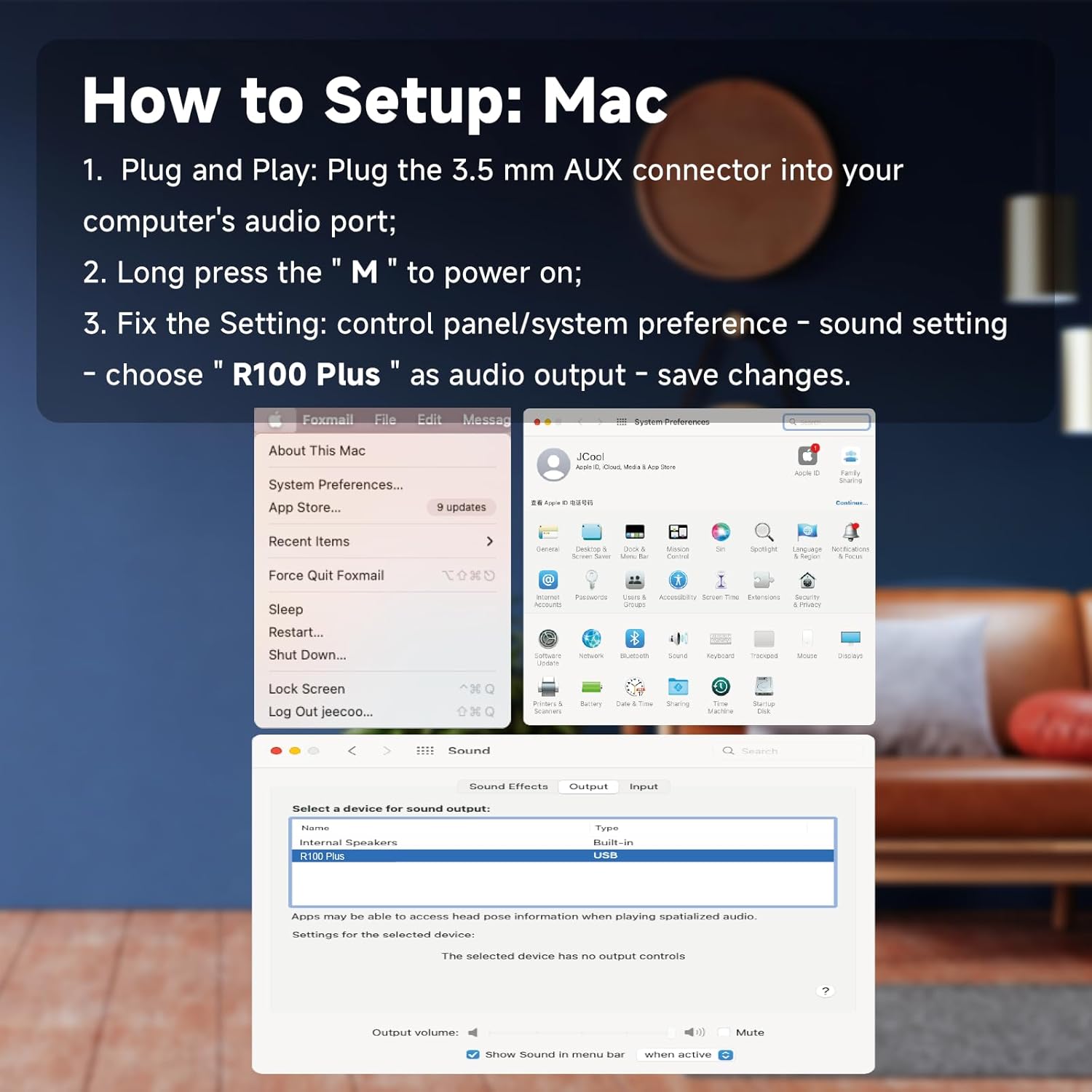
4.5 Mac Setup
- Plug the 3.5mm AUX connector into your computer's audio port.
- Long press the "M" button to power on the speaker.
- Fix the setting: Go to Control Panel/System Preferences > Sound Settings > choose "R100 Plus" as audio output > save changes.
5. Operating Instructions
5.1 Power On/Off
Long press the "M" button on the top of the speaker to power it on or off.
5.2 Volume Control
Short press the "+" button to increase volume. Short press the "-" button to decrease volume.
5.3 Track Selection
Long press the "+" button to skip to the next song. Long press the "-" button to go to the previous song.
5.4 RGB Lighting Control
Short press the "Gear" (Sun icon) button to cycle through the 4 available RGB light modes. The lights can be turned on or off by clicking this button.

5.5 Clearing Bluetooth Memory
Long press the "Gear" (Sun icon) button for 3 seconds to clear the speaker's Bluetooth pairing memory.
6. Maintenance
- Keep the speaker away from water and excessive moisture.
- Clean the speaker with a soft, dry cloth. Do not use abrasive cleaners or solvents.
- Avoid exposing the speaker to extreme temperatures.
- Store the speaker in a cool, dry place when not in use for extended periods.
7. Troubleshooting
If you encounter issues with your SOULION R100 Plus speaker, refer to the following common solutions:
- No Sound/Speaker Not Working:
- Check if the speaker has power. Ensure it is charged or connected to a power source. A 5V/1A adapter is recommended for charging (not included).
- Ensure both your computer/device and the R100 Plus speaker's volume are turned up, preferably to maximum for testing.
- Avoid plugging two audio devices into your computer simultaneously.
- Confirm "R100 Plus" is selected as the audio output on your device.
- If using AUX, try plugging the 3.5mm AUX jack into a different computer host port.
- Test the speaker with other devices to determine if the issue is device-specific.
- If using Bluetooth, try changing to AUX mode or re-pairing the Bluetooth connection.
- Bluetooth Connection Issues:
- Ensure the speaker is in pairing mode (flashing light).
- Clear the Bluetooth memory on the speaker (long press "Gear" button for 3 seconds) and on your device, then attempt to re-pair.
- Ensure the speaker is within the effective range of your Bluetooth device.
8. Specifications
| Feature | Detail |
|---|---|
| Model Name | R100 Plus |
| Brand | SOULION |
| Connectivity Technology | Bluetooth, 3.5mm AUX |
| Speaker Type | Soundbar |
| Audio Output Mode | Stereo |
| Speaker Maximum Output Power | 5 Watts (2x5W technology) |
| Frequency Response | 150 Hz |
| Signal-to-Noise Ratio | 80 dB |
| Power Source | Battery Powered (Rechargeable) |
| Battery Capacity | 2600 mAh |
| Charging Time | 4 Hours |
| Play Time | 4-6 Hours |
| Product Dimensions (D x W x H) | 16" x 2.5" x 2.5" (40.6cm x 6.4cm x 6.4cm) |
| Item Weight | 1.54 lbs (0.83 kg) |
| Material | Plastic (with fabric cover) |
| Special Feature | Rechargeable, Bluetooth, 3.5mm Plug-N-Play, Lightweight, Dynamic RGB Light |
9. Warranty and Support
The SOULION R100 Plus speaker comes with a Limited Warranty. For detailed warranty information, product support, or technical assistance, please refer to the contact information provided in the Quick Start Guide included in your package or visit the official SOULION website.
Related documentsR100 Plus


Ask a question about this manual
Ask about setup, troubleshooting, compatibility, parts, safety, or missing instructions. Manuals+ will review the question and use this page’s manual context to help answer it.