1. Introduction
This manual provides comprehensive instructions for the installation, operation, and maintenance of your NHOPEEW Car Radio for Kia Forte (2009-2017). This advanced car stereo features a 9-inch HD touch screen, Android 13 operating system, wireless Carplay and Android Auto, GPS navigation, WiFi connectivity, EQ audio customization, steering wheel control (SWC) support, Bluetooth, and an AHD backup camera. Please read this manual thoroughly before installation and use to ensure proper functionality and safety.
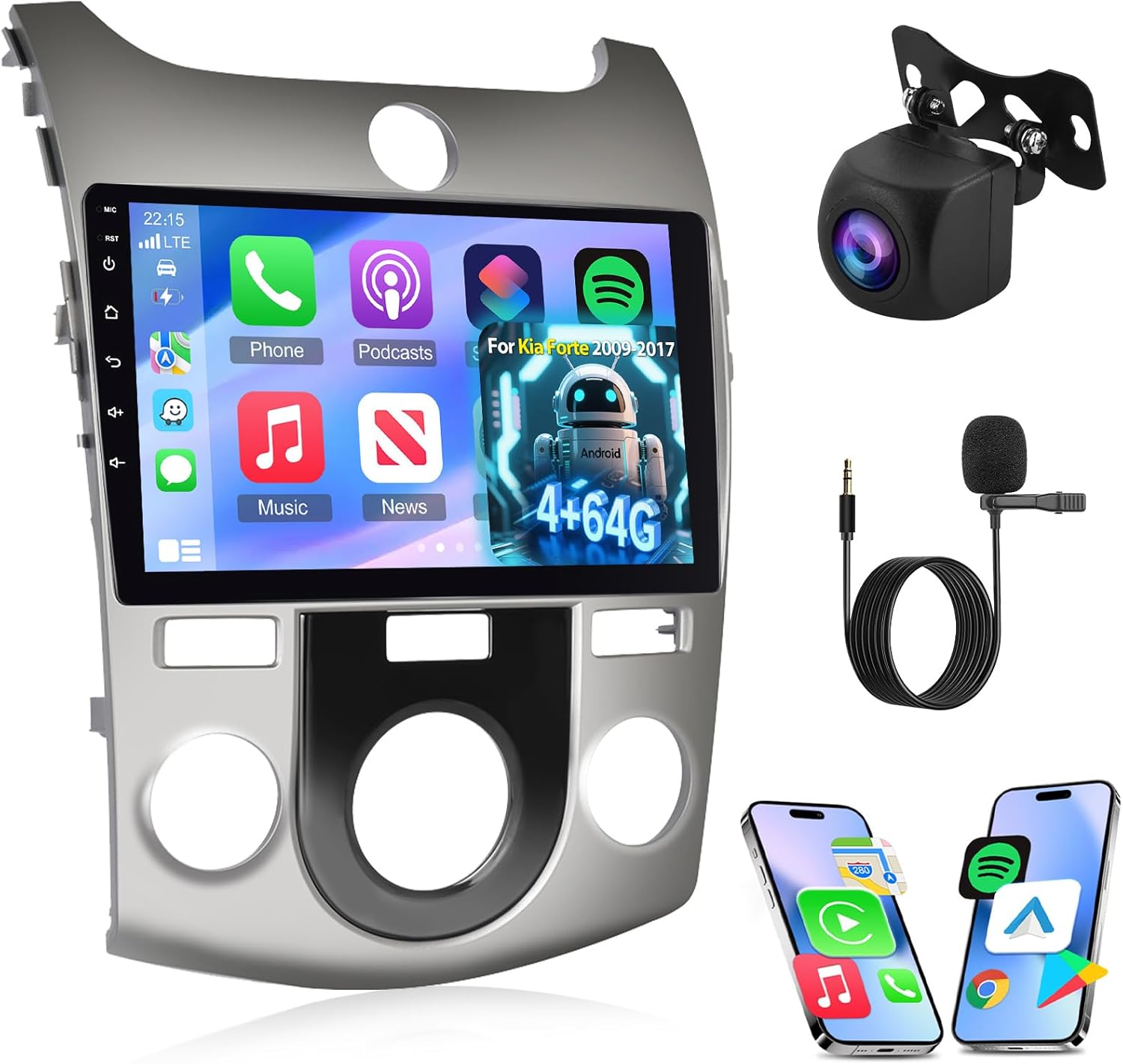
Figure 1.1: NHOPEEW Car Radio for Kia Forte with included AHD backup camera, microphone, and USB cables.
2. Package Contents
Verify that all items listed below are present in your package:
- Android Car Radio Unit
- Wiring Harness
- AHD Backup Camera
- Microphone
- GPS Antenna
- USB Cables
- RCA Cable
- Installation Tool
- Users Manual (this document)

Figure 2.1: Visual representation of the package contents, including the main unit, cables, camera, and tools.
3. Setup and Installation
Installation of the NHOPEEW Car Radio requires careful attention to wiring and fitting. Professional installation is recommended to ensure correct setup and to avoid damage to your vehicle or the unit.
3.1 Vehicle Compatibility
This unit is designed for Kia Forte models from 2009 to 2017. Ensure your vehicle's dashboard configuration matches the provided installation images for proper fitment.
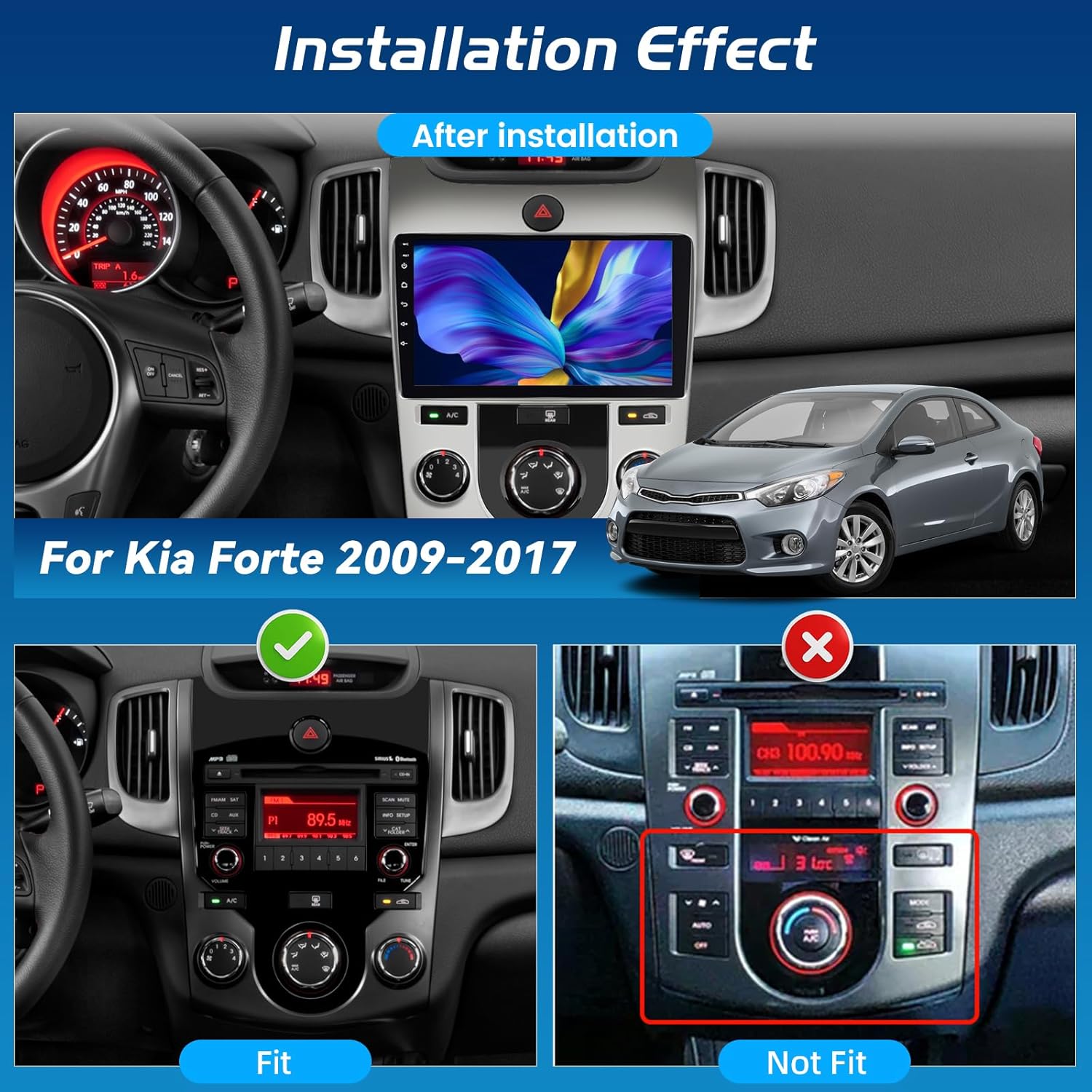
Figure 3.1: Illustration of correct and incorrect dashboard fitment for the Kia Forte (2009-2017).
3.2 Wiring Connections
Follow the wiring diagram carefully. Incorrect wiring can lead to malfunction or damage.
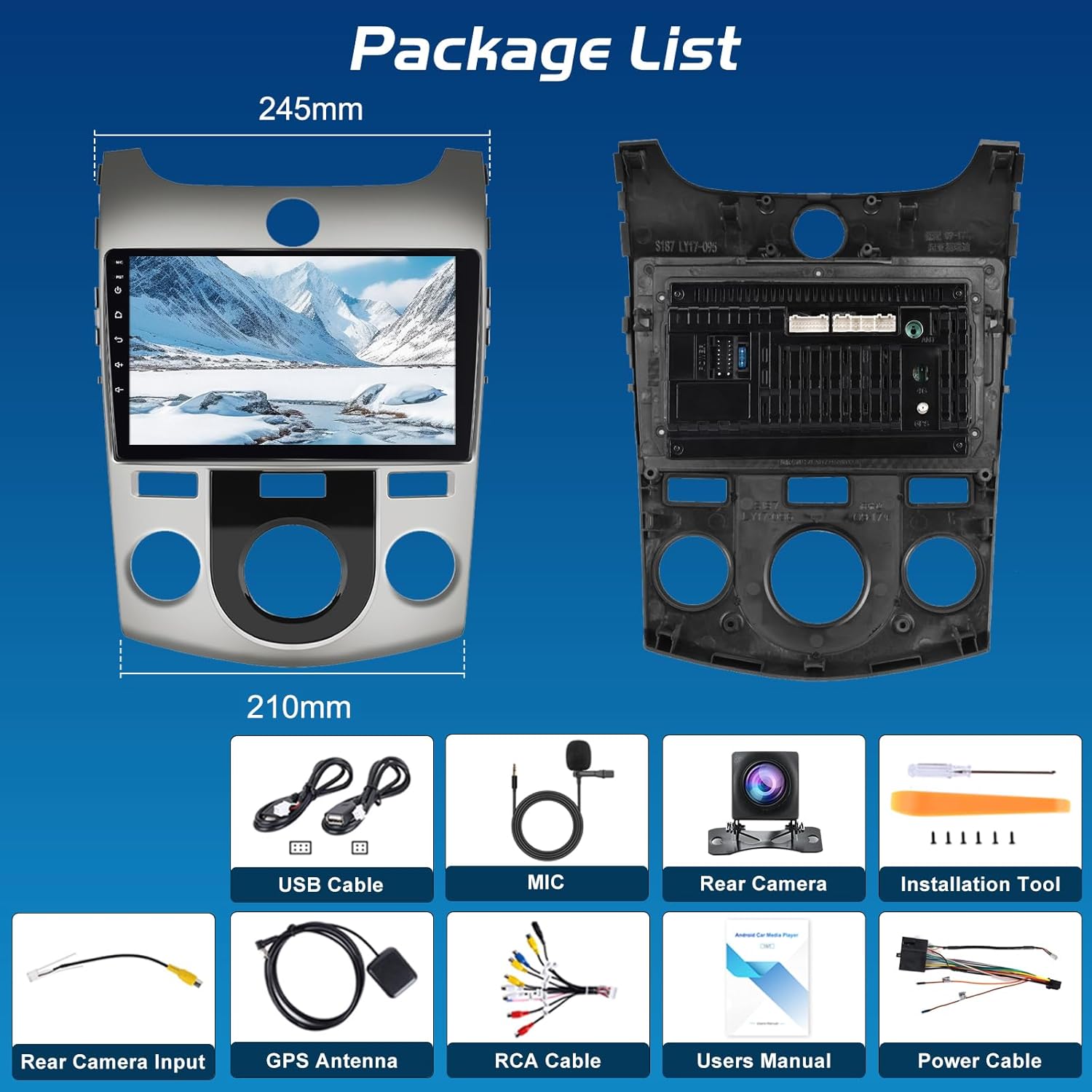
Figure 3.2: Reversing Camera Wiring Diagram.
- Connect the camera's red wire to the positive pole of the car's reversing light.
- Connect the camera's black wire to the negative pole of the car's reversing light.
- Connect the video signal cable (yellow RCA) from the camera to the 'REVERSE' input on the car radio.
- Ensure the white plug is connected to the radio. This connection is essential for Bluetooth and WiFi functionality, even if the backup camera is not used.
Important Note:
- Some Kia Forte models (especially 2012 and newer) may require purchasing a separate hazard light button as the original may not fit or function with the new unit.
- The AC module may require careful fitting or slight adjustment to integrate correctly into the new dash panel.
4. Operating Instructions
4.1 Android 13 System and 9-inch HD Touch Screen
The unit operates on Android 13, providing a smooth and responsive user experience. The 9-inch HD touch screen (1280x720 pixels) offers clear visuals and sensitive touch control.

Figure 4.1: The 9-inch HD touch screen with Android 13 OS.
4.2 Wireless Carplay and Android Auto
Connect your smartphone wirelessly via Bluetooth to access Carplay or Android Auto. This allows for seamless integration of phone applications, navigation, music, and voice control directly on the car radio display.

Figure 4.2: Wireless Carplay and Android Auto functionality.
4.3 EQ Audio Customization
Utilize the built-in 32-band equalizer to fine-tune audio output according to your preferences and music genre. This feature allows for precise sound adjustments to enhance your listening experience.

Figure 4.3: Multiple EQ Sound Scene interface.
4.4 GPS Navigation and WiFi
The integrated GPS module supports both online and offline navigation. Connect to WiFi or a phone hotspot to access online maps, stream media, and download applications.
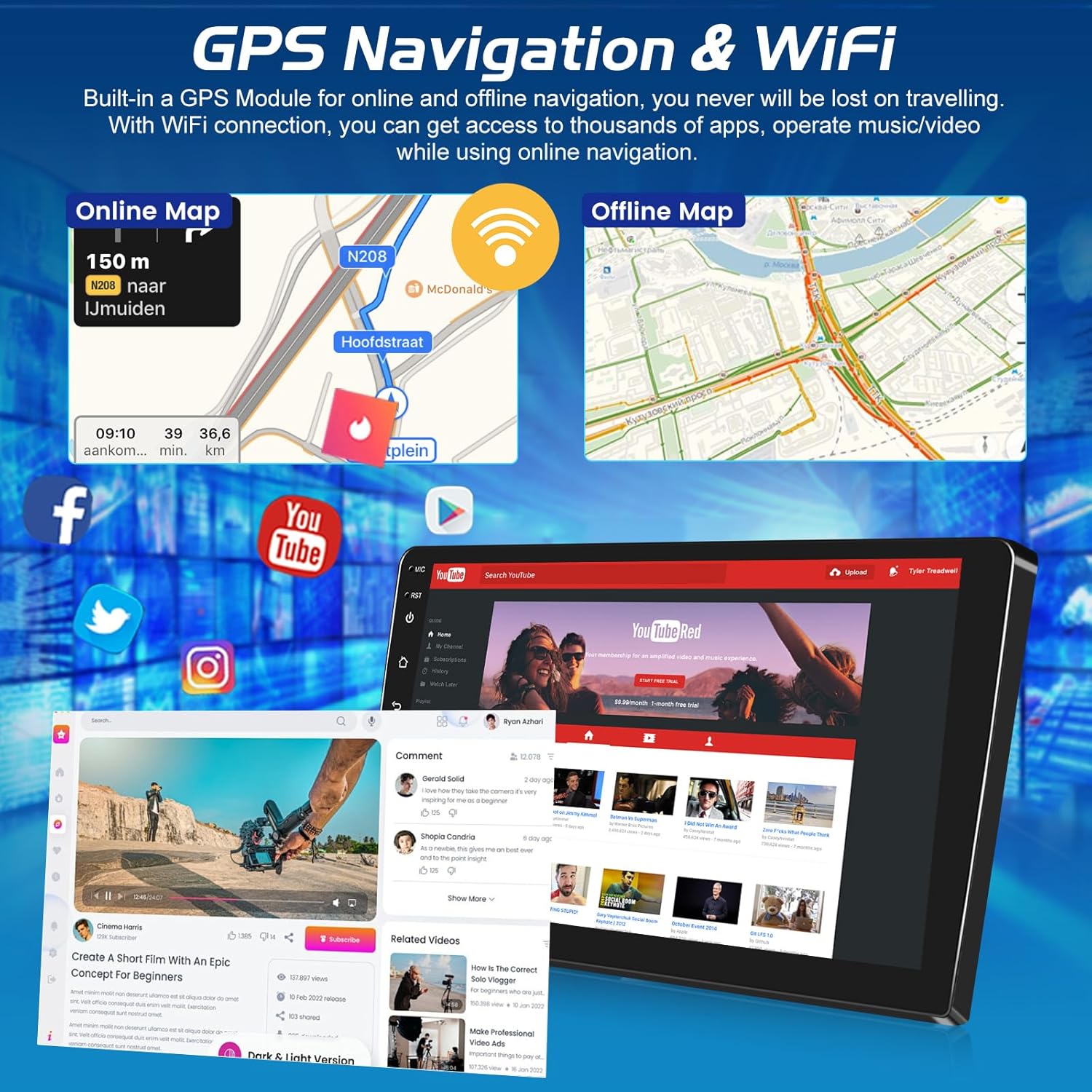
Figure 4.4: GPS Navigation and WiFi connectivity features.
4.5 Steering Wheel Control (SWC)
The unit supports your vehicle's original steering wheel controls. After installation, you must complete the steering wheel button learning process within the 'SWC APP' on the unit. This allows you to control volume, track selection, and calls directly from your steering wheel, enhancing driving safety.
4.6 AHD Backup Camera
The included AHD reversing camera provides a clear view of the area behind your vehicle when reversing. The image automatically displays on the touch screen, assisting with parking and maneuvering.

Figure 4.5: Steering Wheel Control interface and AHD Backup Camera view.
4.7 Bluetooth Connectivity
Connect your mobile phone via Bluetooth for hands-free calling and audio streaming. Access your phonebook and manage calls directly from the car radio interface.
4.8 FM/RDS Radio
The built-in FM/RDS tuner allows you to listen to your favorite radio stations and receive real-time station information and news updates.
5. Maintenance
To ensure the longevity and optimal performance of your NHOPEEW Car Radio, follow these maintenance guidelines:
- Screen Cleaning: Use a soft, lint-free cloth specifically designed for electronics to clean the touch screen. Avoid abrasive cleaners or harsh chemicals.
- Software Updates: Periodically check for available software updates through the unit's settings menu or the manufacturer's website. Keeping the software updated can improve performance and add new features.
- Environmental Conditions: Avoid exposing the unit to extreme temperatures, direct sunlight for prolonged periods, or excessive moisture.
- Cable Connections: Periodically check all wiring connections to ensure they are secure and free from corrosion.
6. Troubleshooting
If you encounter issues with your car radio, refer to the following troubleshooting steps:
- No Power: Check all power connections. Ensure the wiring harness is correctly installed and receiving power from the vehicle. Verify the vehicle's fuse box for any blown fuses related to the stereo system.
- No Sound: Check speaker connections. Ensure the volume is not muted or set to minimum. Verify audio settings in the unit's menu.
- Touch Screen Unresponsive: Try restarting the unit. If the issue persists, perform a factory reset (note: this will erase all user data and settings).
- GPS Not Working: Ensure the GPS antenna is properly connected and positioned with a clear view of the sky. Check GPS settings in the unit.
- Bluetooth/WiFi Connectivity Issues: Ensure the white plug for Bluetooth/WiFi is securely connected to the radio (refer to Section 3.2). Restart the unit and your mobile device.
- Backup Camera Not Displaying: Verify the camera's power and video signal connections (refer to Section 3.2). Ensure the vehicle is in reverse gear.
- Steering Wheel Controls Not Working: Ensure the SWC wiring is correctly connected. Perform the 'SWC APP' learning process as described in Section 4.5.
- Fitment Issues (Hazard Button/AC Module): As noted in Section 3.2, some vehicle models may require a separate hazard button or careful adjustment of the AC module for optimal fit.
If these steps do not resolve the issue, please contact NHOPEEW customer support for further assistance.
7. Specifications
| Feature | Specification |
|---|---|
| Operating System | Android 13 |
| Display Size | 9 Inches |
| Screen Resolution | 1280x720 pixels |
| Memory (RAM) | 4GB |
| Storage (ROM) | 64GB |
| Processor | 4 Core |
| Connectivity | Bluetooth, Wi-Fi |
| Special Features | Built-In Bluetooth, Built-In Wi-Fi, DSP, GPS Navigation, Wireless Carplay and Android Auto |
| Included Components | Android Car Radio, Wiring Harness, AHD Backup Camera, Microphone, GPS Antenna |
| Item Weight | 3.66 pounds |
| Package Dimensions | 13.78 x 10.63 x 3.15 inches |
8. Warranty and Support
8.1 Product Warranty
The NHOPEEW Car Radio comes with a 2-year warranty from the date of purchase. This warranty covers manufacturing defects and malfunctions under normal use. Please retain your proof of purchase for warranty claims.
8.2 Customer Support
For technical assistance, troubleshooting not covered in this manual, or warranty inquiries, please contact NHOPEEW customer support. Refer to the contact information provided with your purchase or visit the official NHOPEEW website.


