
1. Introduction
The JUCONU 4K 1080P Wireless HDMI Display Adapter allows you to wirelessly mirror content from your smartphone, tablet, laptop, or PC to a larger display such as an HDTV, monitor, or projector. This device supports 4K and 1080P resolutions and is compatible with various operating systems including iOS, Android, and Windows, utilizing protocols like Miracast, AirPlay, and DLNA.
2. Product Overview
Key Features:
- 4K & 1080P Resolution Support: Enjoy high-definition video streaming up to 4K (3840x2160 pixels at 30Hz) or 1080P (1920x1080 pixels at 60Hz).
- Wide Compatibility: Supports iOS (iPhone, iPad, iPod Touch), Mac OS, Android, and Windows devices.
- Multiple Protocols: Compatible with AirPlay, Miracast, and DLNA for versatile screen mirroring.
- Wireless & Easy Connection: No apps or Bluetooth required for basic setup.
- Mirror & Extend Mode: Cast content to a large screen while simultaneously using your device for other tasks (Extend Mode) or duplicate your screen (Mirror Mode).
Package Contents:
- JUCONU Wireless HDMI Display Adapter
- USB Power Cable
- User Manual
3. Setup Instructions
Follow these steps to connect your wireless HDMI display adapter to your display device.
- Connect to HDMI Port: Plug the HDMI connector of the adapter into an available HDMI input port on your HDTV, monitor, or projector.
- Connect Power: Connect the USB power cable to the adapter's Micro USB port. Plug the other end of the USB cable into a 5V/1A USB power adapter (not included) or a USB port on your TV/projector that provides sufficient power. Ensure the adapter receives stable power for optimal performance.
- Select HDMI Input: Use your TV/monitor remote control to select the correct HDMI input source that the adapter is connected to.
- Initial Screen: Once powered on, the adapter will display a setup screen on your TV, showing connection instructions and Wi-Fi information.

Figure 3.1: Connection Diagram. The adapter connects to the display via HDMI and receives power via USB. Devices like laptops, iPhones, and Android phones connect wirelessly.
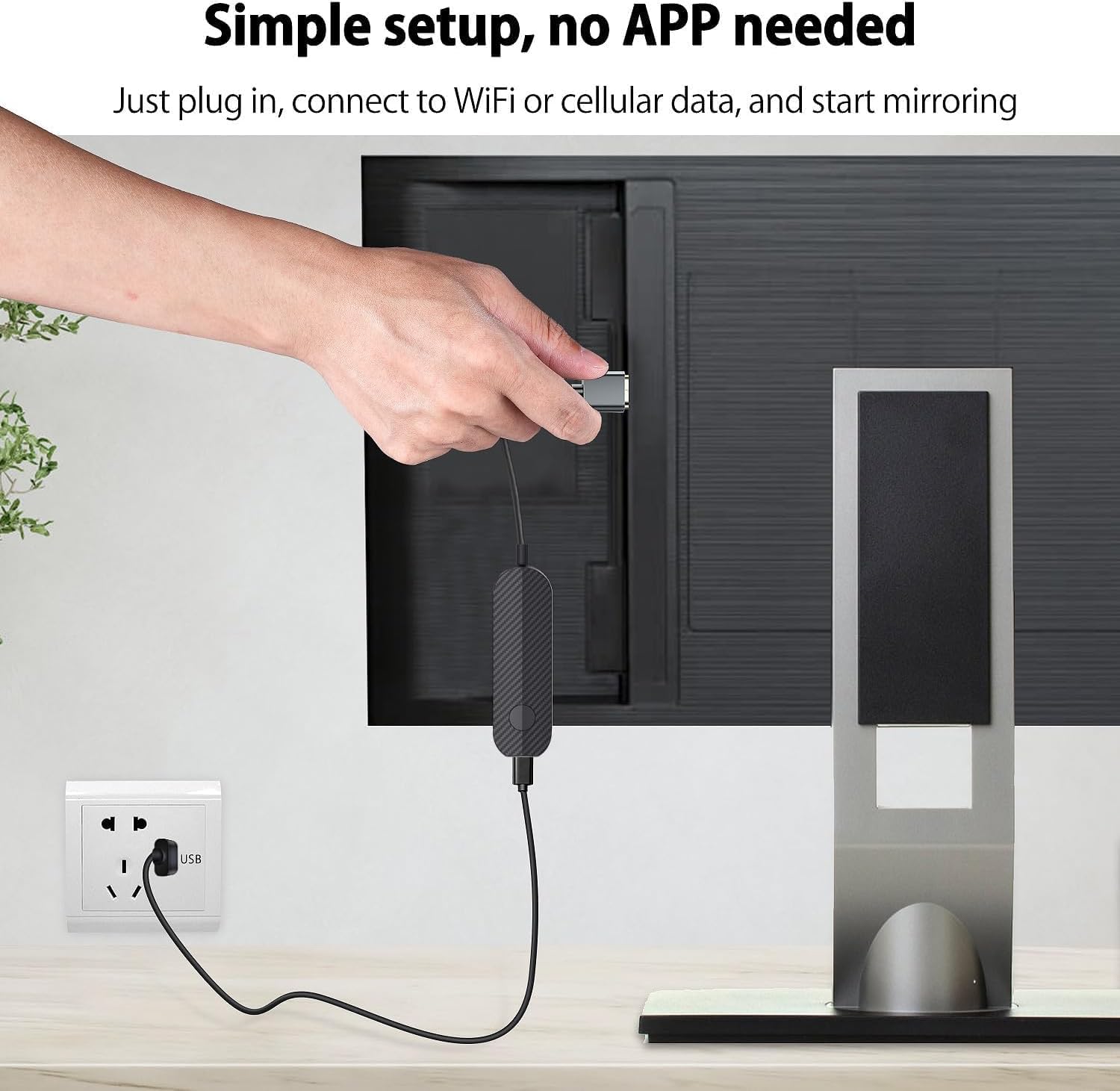
Figure 3.2: Simple Setup. Plug the adapter into the TV's HDMI port and connect the USB power cable to a power source.
4. Operating Instructions
4.1. Connecting iOS/Mac OS Devices (AirPlay)
For iPhone, iPad, and MacBook users, the adapter utilizes AirPlay for screen mirroring.
- Ensure your iOS/Mac OS device is connected to the same Wi-Fi network as the wireless display adapter.
- On your iOS device, swipe down from the top-right corner (or up from the bottom for older models) to open the Control Center. On Mac, click the AirPlay icon in the menu bar.
- Tap 'Screen Mirroring' (or 'AirPlay Mirroring' on Mac).
- Select the JUCONU adapter from the list of available devices.
- Your device's screen will now be mirrored to the connected display.

Figure 4.1: iOS Device Mirroring. Compatible apps for iOS include YouTube, Safari, Office, and Google. Note the limitations for HDCP-protected content.
4.2. Connecting Android & Windows Devices (Miracast/DLNA)
For Android smartphones, tablets, and Windows laptops/PCs, the adapter supports Miracast and DLNA.
- On your Android device, navigate to the 'Cast', 'Smart View', 'Wireless Display', or 'Screen Mirroring' option in your settings or quick panel. For Windows, press Windows Key + P and select 'Connect to a wireless display'.
- Select the JUCONU adapter from the list of available devices.
- Your device's screen will now be mirrored to the connected display.

Figure 4.2: Android/Windows Device Casting. This adapter supports mirroring content from various media apps on Android and Windows devices.
4.3. Mirror Mode vs. Extend Mode
The adapter supports two display modes:
- Mirror Mode: Duplicates your device's screen onto the large display. What you see on your phone/laptop is exactly what appears on the TV.
- Extend Mode: Allows you to cast video or other content to the TV while simultaneously using your phone or laptop for other tasks. This creates a dual-screen experience.

Figure 4.3: Mirror and Extend Modes. Choose the mode that best suits your viewing and multitasking needs.
5. Compatibility Notes and Limitations
It is important to understand the compatibility limitations of this device, particularly concerning copyrighted content.
- HDCP Protected Content (iOS/Mac OS): Apple devices are generally not compatible with HDCP (High-bandwidth Digital Content Protection) protected applications. This includes popular streaming services such as Netflix, Amazon Video, Sky Go, BT Sport, DIRECTV, HULU, Comcast TV, Xfinity, and other copyright-protected applications when using AirPlay.
- Android & Windows Compatibility: For Android and Windows devices, the adapter supports encryption screen projection apps, allowing streaming from services like Netflix, Prime Video, Sky Go, BT Sport, YouTube, DIRECTV, HULU, Comcast TV, XFINITY, Vudu, and Movistar.
- Supported iOS Apps: For iOS devices, you can cast content from free apps such as Safari, Office apps, YouTube, WhatsApp, Skype, Twitter, and Reddit.
6. Troubleshooting
If you encounter issues with your JUCONU Wireless HDMI Display Adapter, refer to the following troubleshooting tips:
- No Display on TV:
- Ensure the adapter is securely plugged into the HDMI port.
- Verify the USB power cable is connected and receiving adequate power (5V/1A). Try a different USB power adapter or TV USB port.
- Confirm the TV's input source is set to the correct HDMI port.
- Cannot Connect/Mirror:
- For iOS/Mac OS, ensure your device is on the same Wi-Fi network as the adapter.
- Restart both your source device (phone/laptop) and the wireless display adapter.
- Check if your device's mirroring function (AirPlay, Miracast, Smart View) is enabled.
- Ensure there are no strong Wi-Fi interferences nearby.
- Streaming Services Not Working (iOS/Mac OS):
- This is often due to HDCP (High-bandwidth Digital Content Protection) restrictions. Many streaming apps (Netflix, Amazon Video, Hulu, etc.) prevent mirroring from iOS/Mac OS devices to external displays via AirPlay. This is a limitation of the content providers, not a defect of the adapter.
- Image Quality Issues (Lag, Choppy Video):
- Ensure the adapter is receiving stable power.
- Reduce the distance between your source device and the adapter.
- Minimize other active Wi-Fi devices or networks that might cause interference.
- Check your Wi-Fi network's bandwidth.
- Image Does Not Fill Entire Screen:
- Some devices or apps may not perfectly scale to the TV's aspect ratio. Try adjusting the display settings on your source device or the TV's aspect ratio settings. Turning your phone sideways may also help in some instances.
7. Specifications
| Feature | Specification |
|---|---|
| Brand | JUCONU |
| Model Name | JU-wireless-screen-US |
| Connectivity Technology | Wireless |
| Connector Type | HDMI, Mini HDMI |
| Special Features | Miracast, AirPlay, DLNA |
| Resolution Support | 4K x 2K at 30Hz, 1080P at 60Hz, 1080P at 30Hz, 3D / 720P |
| Video Output Resolution | 1920x1080, 3840x2160 pixels |
| Video Codec | H.264, H.265/HEVC |
| Compatible Devices | Television, Smartphone, Personal Computer, Laptop, Tablet |
| Form Factor | TV Stick |
| Color | Black |
| Item Weight | 0.08 Kilograms |
| Item Dimensions (L x W x H) | 1"L x 2"W x 3"H |
8. Maintenance
To ensure the longevity and optimal performance of your wireless HDMI display adapter, follow these maintenance guidelines:
- Cleaning: Use a soft, dry cloth to clean the adapter. Do not use liquid cleaners or aerosols.
- Storage: Store the adapter in a cool, dry place away from direct sunlight and extreme temperatures when not in use.
- Handling: Avoid dropping the device or subjecting it to strong impacts. Do not attempt to disassemble the adapter.
- Power: Always use a stable 5V/1A power source. Unplug the adapter during electrical storms or when unused for long periods.
9. Warranty and Support
For warranty information or technical support, please refer to the contact details provided with your product packaging or visit the official JUCONU website. Keep your purchase receipt for any warranty claims.