1. Product Overview
The UGREEN 6-in-1 Docking Station (Model 75126) is designed to expand the connectivity of your portable gaming consoles and USB-C devices. It integrates multiple ports including HDMI, Gigabit Ethernet, USB-C Power Delivery, and USB data ports into a compact and stable unit.

Image 1.1: The UGREEN 6-in-1 Docking Station with a Steam Deck OLED console, showcasing its compact design and how the console sits securely in the dock.
Key Features:
- HDMI 4K@120Hz Output: Supports high-resolution video output with Variable Refresh Rate (VRR), FreeSync, and G-Sync for smooth gaming.
- Gigabit Ethernet: Provides a stable and fast wired network connection (1000/100/10Mbps).
- USB-C Power Delivery (PD 100W): Allows for pass-through charging of your host device.
- 3 Data Ports (2x USB-A, 1x USB-C): Offers 5Gbps data transfer speeds for connecting peripherals like external hard drives, mice, and keyboards.
- Integrated Stand Design: Combines docking functionality with a stable stand, featuring anti-slip silicone.

Image 1.2: A detailed diagram illustrating the various ports on the UGREEN 6-in-1 Docking Station, including the USB-C input, HDMI, Gigabit Ethernet, and USB data ports.
2. Setup Instructions
2.1 Connecting the Docking Station
- Connect to Power: Plug a USB-C power adapter (not included) into the USB-C PD 100W port on the docking station. For optimal charging, use a charger with higher wattage than your console's original charger, as the dock consumes some power for its operation.
- Connect to Host Device: Use the integrated USB-C cable from the docking station to connect to your compatible console (e.g., Steam Deck, ROG Ally, Legion Go) or USB-C enabled device.
- Connect to Display (Optional): Connect an HDMI cable from the docking station's HDMI port to your monitor or TV. Ensure your display supports the desired resolution and refresh rate (up to 4K@120Hz).
- Connect to Network (Optional): For a stable internet connection, plug an Ethernet cable into the RJ45 Gigabit Ethernet port on the docking station.
- Connect Peripherals (Optional): Connect USB devices such as keyboards, mice, or external storage to the USB-A and USB-C data ports.

Image 2.1: An illustration demonstrating the power delivery capabilities of the UGREEN docking station, showing typical power consumption for ROG Ally, Steam Deck OLED, and Legion Go.
2.2 Device Compatibility
This docking station is compatible with devices such as Steam Deck, Steam Deck OLED, ROG Ally, ROG Ally X, ROG Xbox Ally, ROG Xbox Ally X, and Legion Go. Note: This dock is not compatible with the recent update of the Nintendo Switch 2.
3. Operating Instructions
3.1 Video Output
The HDMI port supports resolutions up to 4K at 120Hz. For an enhanced gaming experience, it also supports Variable Refresh Rate (VRR), FreeSync, and G-Sync technologies. To utilize high refresh rates and resolutions, ensure both your host device and connected monitor support these features.
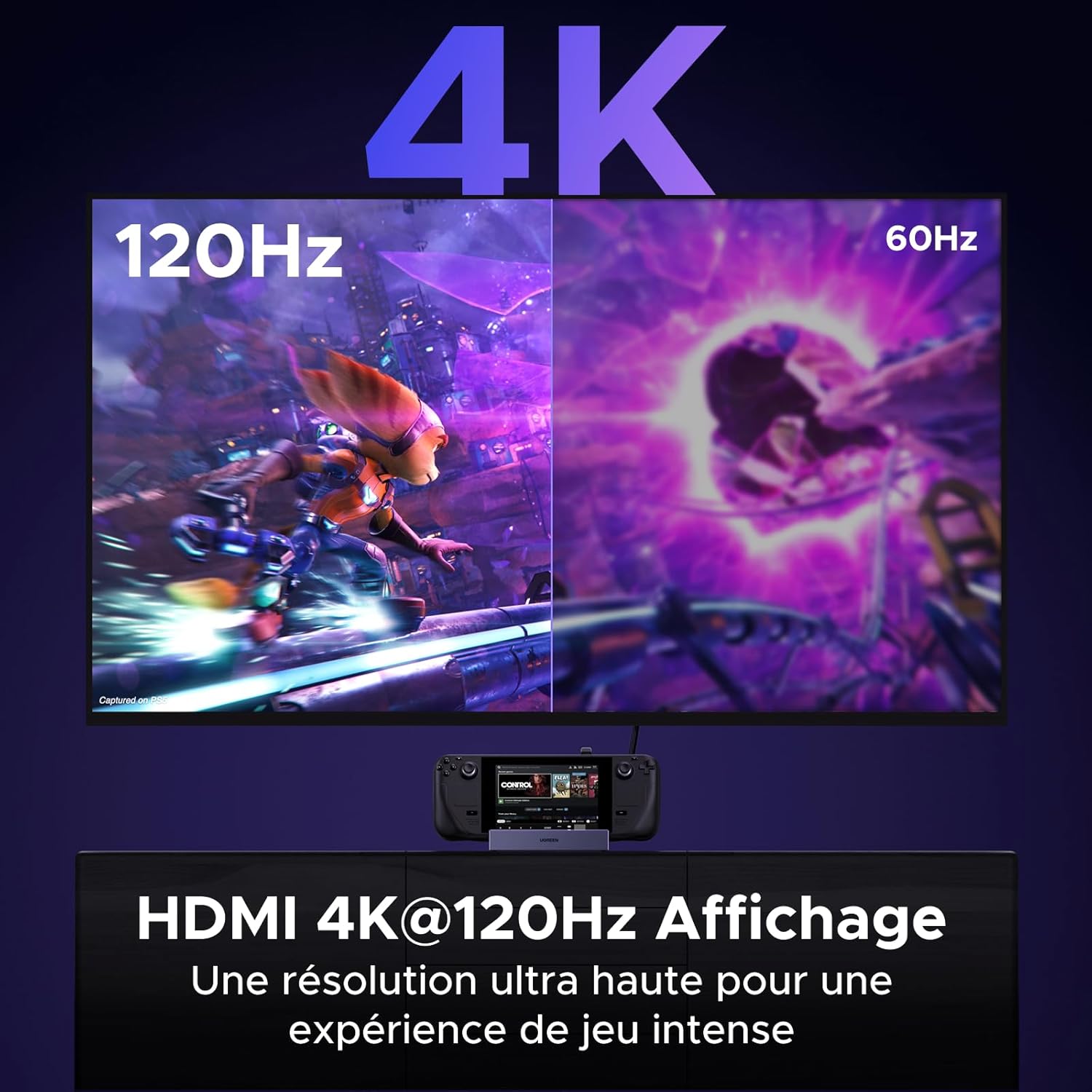
Image 3.1: A visual comparison demonstrating the difference between 4K 120Hz and 60Hz display quality when connected through the UGREEN docking station to a large screen.
3.2 Data Transfer
The docking station features two USB-A ports and one USB-C data port, all supporting data transfer speeds of up to 5Gbps. These ports are suitable for connecting various USB peripherals.
- Connecting Storage Devices: When connecting USB storage devices (e.g., external hard drives, USB flash drives) to a Steam Deck, you may need to switch the Steam Deck to 'Desktop Mode' first for proper recognition and access.
- Important Note: The USB data ports do not support video output.

Image 3.2: The UGREEN docking station connected to a Steam Deck, illustrating various USB peripherals such as a gamepad, mouse, keyboard, headset, and webcam connected to its data ports.
3.3 Network Connection
The Gigabit Ethernet port provides a reliable wired internet connection, offering speeds of 1000/100/10Mbps. This ensures a faster and more stable connection compared to typical Wi-Fi, which is beneficial for online gaming and large downloads.
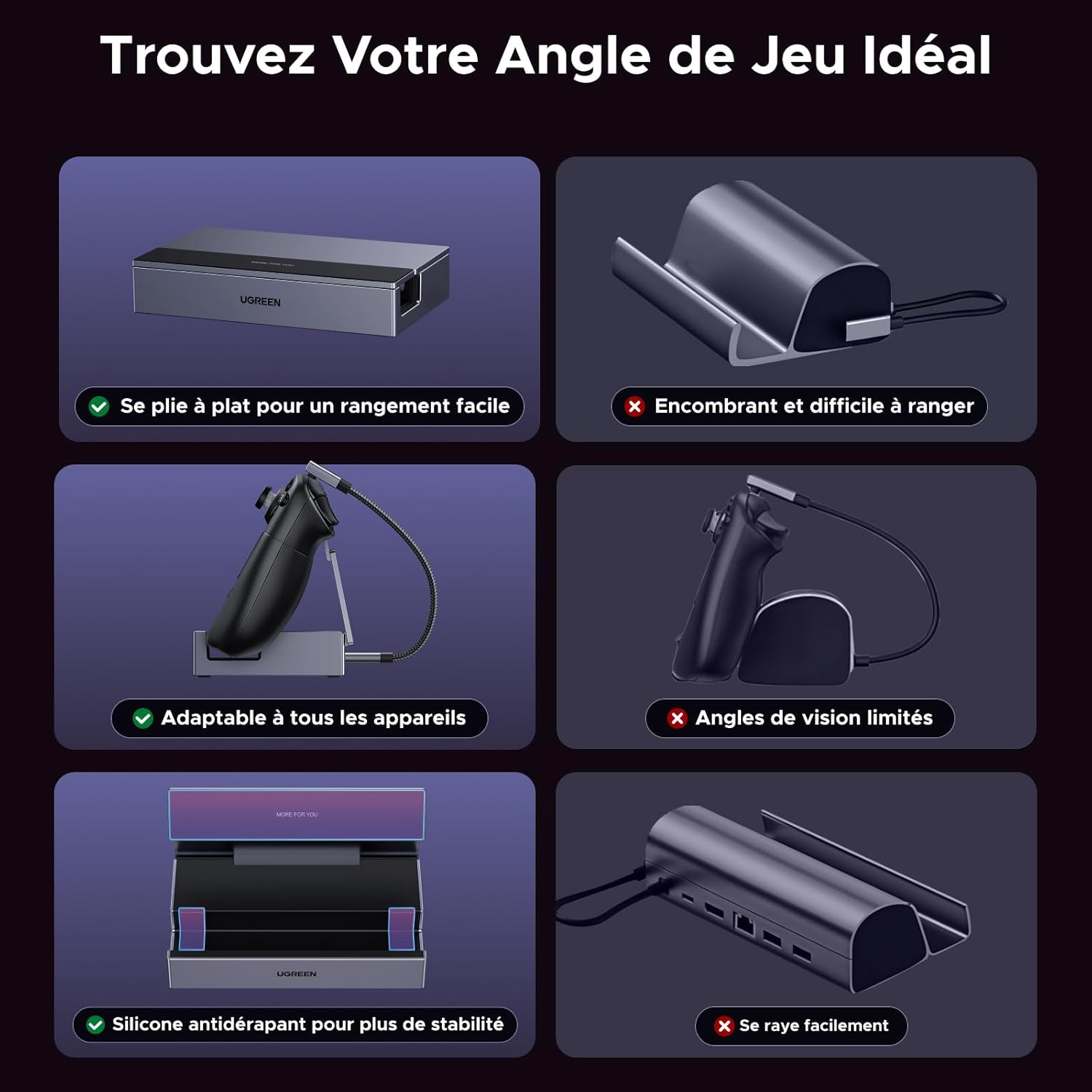
Image 3.3: A Steam Deck console docked in the UGREEN station, with an Ethernet cable connected, highlighting the stable wired network capability.
3.4 Adjustable Stand Functionality
The docking station features an adjustable stand that allows you to set your device at an optimal viewing angle. The stand is equipped with anti-slip silicone to ensure stability and prevent scratches, while also ensuring that cooling vents are not obstructed.

Image 3.4: A diagram illustrating the adjustable angles (0°, 45°, 90°) of the UGREEN docking station's integrated stand, providing flexible viewing options.
4. Maintenance
To ensure the longevity and optimal performance of your UGREEN 6-in-1 Docking Station, follow these simple maintenance guidelines:
- Cleaning: Use a soft, dry, lint-free cloth to gently wipe the surface of the docking station. Avoid using harsh chemicals, abrasive cleaners, or solvents, as these can damage the finish.
- Storage: When not in use, store the docking station in a cool, dry place away from direct sunlight and extreme temperatures.
- Handling: Avoid dropping the device or subjecting it to strong impacts. Do not attempt to disassemble the docking station, as this will void the warranty.
5. Troubleshooting
If you encounter issues with your UGREEN 6-in-1 Docking Station, please refer to the following common solutions:
- No Video Output or Incorrect Resolution/Refresh Rate:
- Ensure your host device (e.g., Steam Deck, ROG Ally) and the connected monitor/TV both support the desired resolution and refresh rate (e.g., 4K@120Hz).
- Check that the HDMI cable is securely connected at both ends.
- Try a different HDMI cable or monitor to rule out external component issues.
- USB Peripherals Not Detected:
- For Steam Deck, ensure the device is in 'Desktop Mode' when attempting to use USB storage devices.
- Verify that the USB devices are properly inserted into the docking station's data ports.
- Note that the USB data ports do not support video output.
- Slow Charging or Insufficient Power:
- The docking station consumes some power for its own operation. For optimal charging of your console, use a USB-C PD charger with a higher wattage than the original charger that came with your console.
- Ensure the USB-C PD power adapter is securely connected to the dock's PD port.
- No Network Connection via Ethernet:
- Check that the Ethernet cable is securely connected to both the docking station and your router/modem.
- Verify that your network is functioning correctly.
- Device Not Fitting Securely:
- Ensure your device is placed correctly in the stand. The anti-slip silicone is designed to provide stability.
6. Specifications
| Feature | Specification |
|---|---|
| Brand | UGREEN |
| Model Number | 75126 |
| Interface Hardware | USB Type C |
| Total USB Ports | 4 (2x USB-A, 1x USB-C data, 1x USB-C PD) |
| HDMI Ports | 1 |
| HDMI Resolution | Up to 4K@120Hz |
| Ethernet Speed | 1000/100/10Mbps |
| USB Data Transfer Speed | 5Gbps |
| Power Delivery | 100W (USB-C PD) |
| Compatible Devices | Steam Deck, Steam Deck OLED, ROG Ally, ROG Ally X, ROG Xbox Ally, ROG Xbox Ally X, Legion Go, etc. |
| Country of Origin | China |
7. Warranty and Support
7.1 Warranty Information
This UGREEN product is covered by a 24-month manufacturer's warranty from the date of purchase. Please retain your proof of purchase for warranty claims.
7.2 Customer Support
For technical assistance, troubleshooting, or warranty inquiries, please contact UGREEN customer support through their official website or the retailer where the product was purchased. Detailed contact information can typically be found on the UGREEN official website or product packaging.


