
Introduction
This manual provides detailed instructions to help you understand and effectively use your Motorola Moto G Stylus 5G. From initial setup to advanced features, this guide covers all aspects of your device to ensure a smooth and productive user experience.
The Moto G Stylus 5G combines powerful performance with the versatility of an integrated stylus, offering enhanced productivity and creative possibilities.
Setup
1. Unboxing and Initial Power On
Carefully remove your Moto G Stylus 5G from its packaging. Press and hold the Power button located on the side of the device until the Motorola logo appears. Follow the on-screen prompts to select your language and region.
2. SIM Card and microSD Card Installation
Locate the SIM tray on the side of your device. Use the provided SIM ejector tool to open the tray. Insert your Nano-SIM card with the gold contacts facing down. If desired, insert a microSD card into the designated slot for expanded storage. Ensure the tray is securely closed.
3. Google Account Setup
During the initial setup, you will be prompted to sign in with your Google account. This is essential for accessing the Google Play Store, Gmail, and other Google services. If you do not have an account, you can create one during this step.
4. Wi-Fi Connection
Connect your device to a Wi-Fi network to complete the setup process and download necessary updates. Go to Settings > Network & internet > Wi-Fi, select your network, and enter the password.
Mastering the Stylus
The integrated stylus is a key feature of your Moto G Stylus 5G, offering precision and convenience for various tasks.
- Stylus Removal: Gently pull the stylus from its slot at the bottom of the phone. The Stylus menu will automatically appear.
- Quick Note-Taking: From the Stylus menu, select "Moto Note" or a similar note-taking app to quickly jot down ideas without unlocking your phone.
- Drawing and Sketching: Utilize drawing applications to unleash your creativity with the stylus's fine tip.
- GIF Creation: Some applications allow you to capture screen recordings and convert them into GIFs using the stylus for precise selection.
- Screen Magnification: Use the stylus to magnify specific areas of your screen for better visibility.
Customizing Your Phone
Personalize your Moto G Stylus 5G to suit your preferences and enhance your user experience.
- Home Screen Layouts: Long-press on an empty area of your home screen to access wallpaper, widgets, and home settings.
- Widgets: Add widgets for quick access to information like weather, calendar, or music controls.
- Shortcuts: Create app shortcuts or direct dial shortcuts for frequently used contacts.
- Themes and Wallpapers: Change your device's appearance through Settings > Display > Wallpapers & style.
Pro Camera & Video Tips
Capture high-quality photos and videos with your Moto G Stylus 5G's camera system.
- Camera Modes: Explore various modes like Portrait, Panorama, Pro Mode, and Night Vision for different scenarios.
- Editing Photos: Use the built-in Gallery app or third-party photo editors to enhance your images.
- Video Recording: Adjust resolution and frame rate in camera settings for optimal video quality.
- Night Mode: For low-light conditions, switch to Night Vision mode to capture brighter and more detailed photos.
Speed & Performance Tricks
Optimize your device's performance and battery life.
- Boost Speed: Regularly clear recent apps and restart your phone to free up RAM.
- Free Up Storage: Go to Settings > Storage to identify and delete unnecessary files or apps. Consider using cloud storage for media.
- Extend Battery Life: Enable Adaptive Battery in Settings > Battery. Reduce screen brightness, limit background app activity, and turn off unused connectivity features like Bluetooth or GPS when not needed.
Security & Privacy Settings
Protect your device and personal data.
- Fingerprint Unlock: Set up fingerprint recognition for quick and secure device access via Settings > Security > Fingerprint.
- Face Unlock: Configure face recognition for an alternative biometric unlock method.
- Find My Device: Ensure this feature is enabled in Settings > Security to locate, lock, or erase your device remotely if lost or stolen.
- Safe Browsing: Use a secure browser and be cautious of suspicious links. Regularly review app permissions in Settings > Apps.
Making Calls & Messaging
Essential communication features of your smartphone.
- Blocking Spam Calls: Use the Phone app's settings to block unwanted numbers or enable caller ID and spam protection.
- Setting Up Voicemail: Contact your carrier for instructions on setting up and accessing your voicemail.
- Wi-Fi Calling: Enable Wi-Fi Calling in your Phone app settings or network settings to make calls over a Wi-Fi network when cellular signal is weak.
- Messaging: Use the Messages app for SMS/MMS. Explore RCS features for enhanced messaging if supported by your carrier.
5G, Wi-Fi & Connectivity
Connect to the internet and other devices efficiently.
- 5G Connectivity: Ensure your SIM card and plan support 5G. Your phone will automatically connect to 5G networks when available.
- Wi-Fi Setup: Connect to Wi-Fi networks via Settings > Network & internet > Wi-Fi.
- Mobile Hotspot: Share your phone's cellular data connection with other devices by enabling Settings > Network & internet > Hotspot & tethering > Wi-Fi hotspot.
- VPN Setup: For secure browsing, configure a VPN connection in Settings > Network & internet > VPN.
- Bluetooth Pairing: Connect to Bluetooth accessories like headphones or speakers via Settings > Connected devices > Connection preferences > Bluetooth.
Hidden Shortcuts & Moto Gestures
Enhance your interaction with the device using intuitive gestures.
- Quick Capture: Twist your wrist twice quickly to open the camera.
- Fast Flashlight: Make two chopping motions with your phone to turn the flashlight on or off.
- Three-Finger Screenshot: Touch and hold the screen with three fingers to take a screenshot.
- Lift to Unlock: Lift your phone to wake the screen and potentially unlock it with face recognition.
- These gestures can be managed and customized in the Moto app.
Operating Your Device
Navigation
Your Moto G Stylus 5G supports both gesture navigation and 3-button navigation. You can switch between these options in Settings > System > Gestures > System navigation.
Notifications and Quick Settings
Swipe down from the top of the screen to view notifications. Swipe down again to access Quick Settings for Wi-Fi, Bluetooth, flashlight, and other common functions.
App Management
To uninstall an app, long-press its icon and drag it to the "Uninstall" option. To force stop or clear data for an app, go to Settings > Apps > See all apps, select the app, then choose "Force stop" or "Storage & cache".
Maintenance
Software Updates
Regularly check for software updates to ensure your device has the latest features and security patches. Go to Settings > System > System updates.
Cleaning Your Device
Use a soft, lint-free cloth to clean the screen and body of your phone. For stubborn smudges, slightly dampen the cloth with water. Avoid harsh chemicals. Clean the stylus tip gently with a dry cloth.
Battery Care
To prolong battery life, avoid extreme temperatures. Use the original charger or a certified compatible charger. Avoid fully discharging the battery frequently.
Troubleshooting
Device Not Responding
If your phone becomes unresponsive, press and hold the Power button for about 10-15 seconds to force a restart.
Connectivity Issues (Wi-Fi/Bluetooth/5G)
Try toggling the respective connection off and on. Restart your phone. For Wi-Fi, restart your router. For cellular data, ensure your plan is active and you have signal. You can also try resetting network settings in Settings > System > Reset options > Reset Wi-Fi, mobile & Bluetooth.
App Crashing or Freezing
Clear the app's cache and data via Settings > Apps > See all apps > [App Name] > Storage & cache. If the issue persists, uninstall and reinstall the app.
Stylus Not Responding
Ensure the stylus is properly seated in its slot and then removed. If issues persist, restart your phone. Check for any physical damage to the stylus tip.
Specifications
While specific hardware details can vary by region and model year, the Moto G Stylus 5G typically features:
- Display: Large Full HD+ display with stylus support.
- Processor: Qualcomm Snapdragon 5G-enabled chipset.
- RAM: Multiple RAM configurations available.
- Storage: Internal storage options, expandable via microSD.
- Cameras: Multi-camera system (main, ultrawide, macro, depth) and a front-facing camera.
- Battery: High-capacity battery for extended usage.
- Operating System: Android with Moto enhancements.
- Connectivity: 5G, Wi-Fi (802.11ac), Bluetooth, GPS, USB-C.
- Stylus: Integrated stylus for precision input.
For precise specifications of your specific model, please refer to the packaging or Motorola's official website.
Warranty and Support
Your Motorola Moto G Stylus 5G comes with a limited manufacturer's warranty. The duration and terms of the warranty may vary by region and retailer. Please refer to the warranty card included with your device or visit the official Motorola support website for detailed information.
For technical support, troubleshooting assistance, or to inquire about repairs, please contact Motorola Customer Service or visit their online support portal. You can typically find contact information on the Motorola website or in the documentation provided with your phone.
For additional resources, you may refer to the ISBN: 979-8314924136 for related publications.
Product Images
Below are images related to the Moto G Stylus 5G user guide. Please note that these images are of the instructional book itself, not the phone.
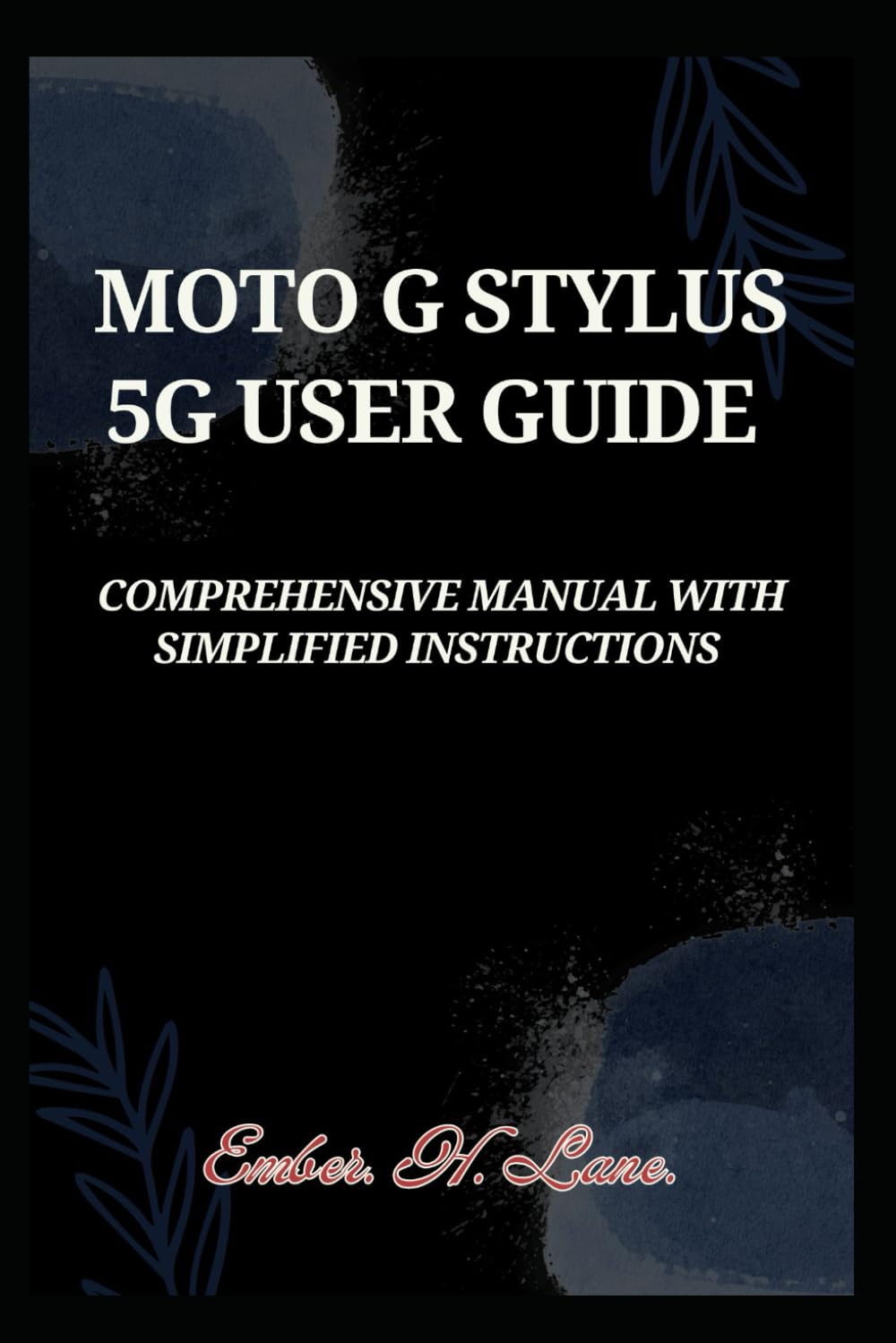
Image: Front cover of the "MOTO G STYLUS 5G USER GUIDE" book, featuring the title prominently.

Image: Back cover of the "MOTO G STYLUS 5G USER GUIDE" book, displaying the ISBN barcode and publication details.


