
1. Setup and Initial Use
1.1 Unboxing and Package Contents
Carefully unpack your Bnegynng Android 15 Tablet. Verify that all components are present:
- Bnegynng Android 15 Tablet (BNCP10)
- Bluetooth Keyboard
- Foldable Holster (Case)
- Wireless Mouse
- Stylus Pen
- Type-C Charging Cable
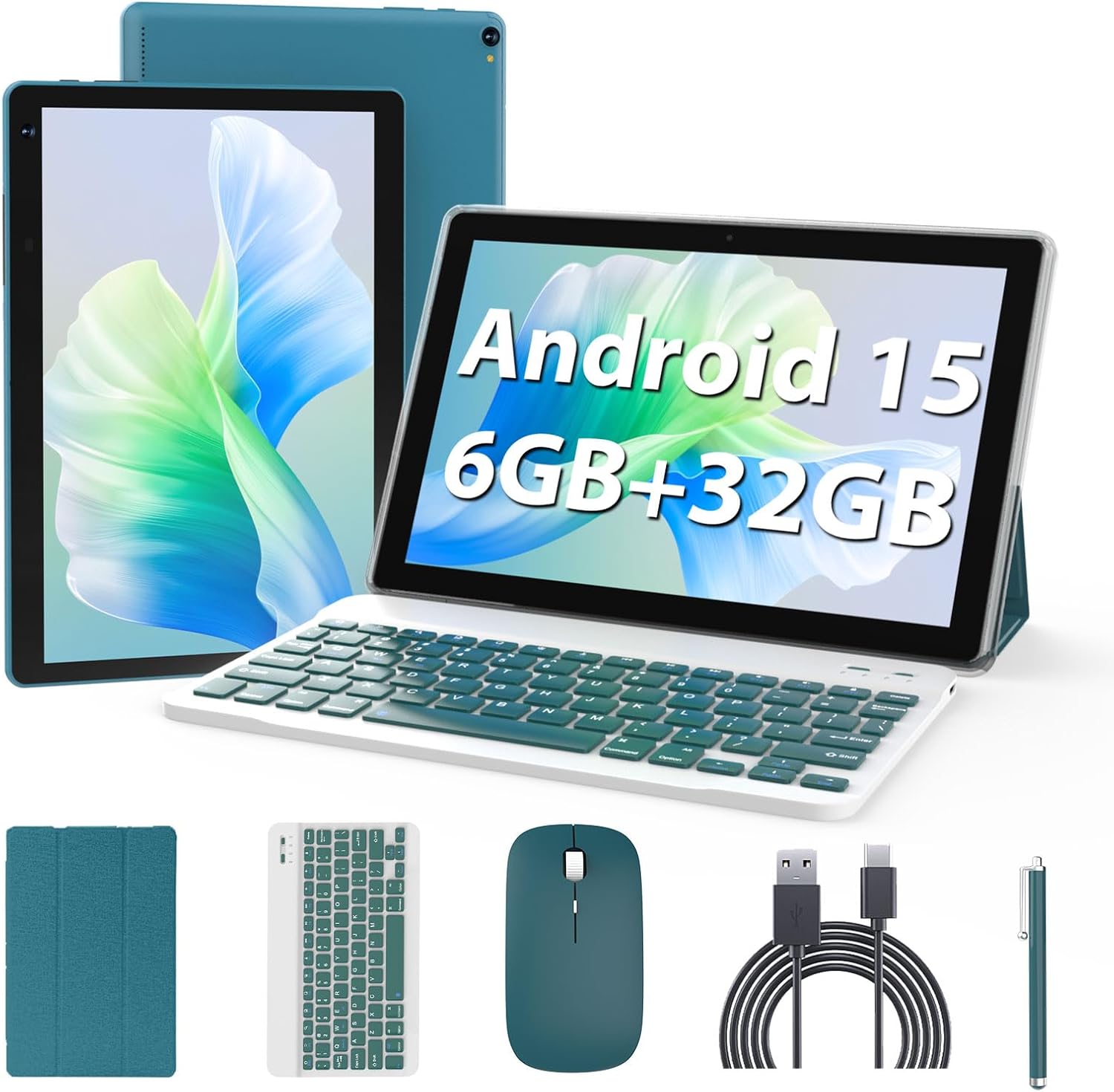
Image 1.1: The Bnegynng Android 15 Tablet with its full suite of accessories, including the keyboard, mouse, stylus, and case.
1.2 Initial Charging
Before first use, fully charge the tablet. Connect the provided Type-C charging cable to the tablet's charging port and plug the other end into a compatible USB power adapter (not included). The battery indicator on the screen will show charging status.
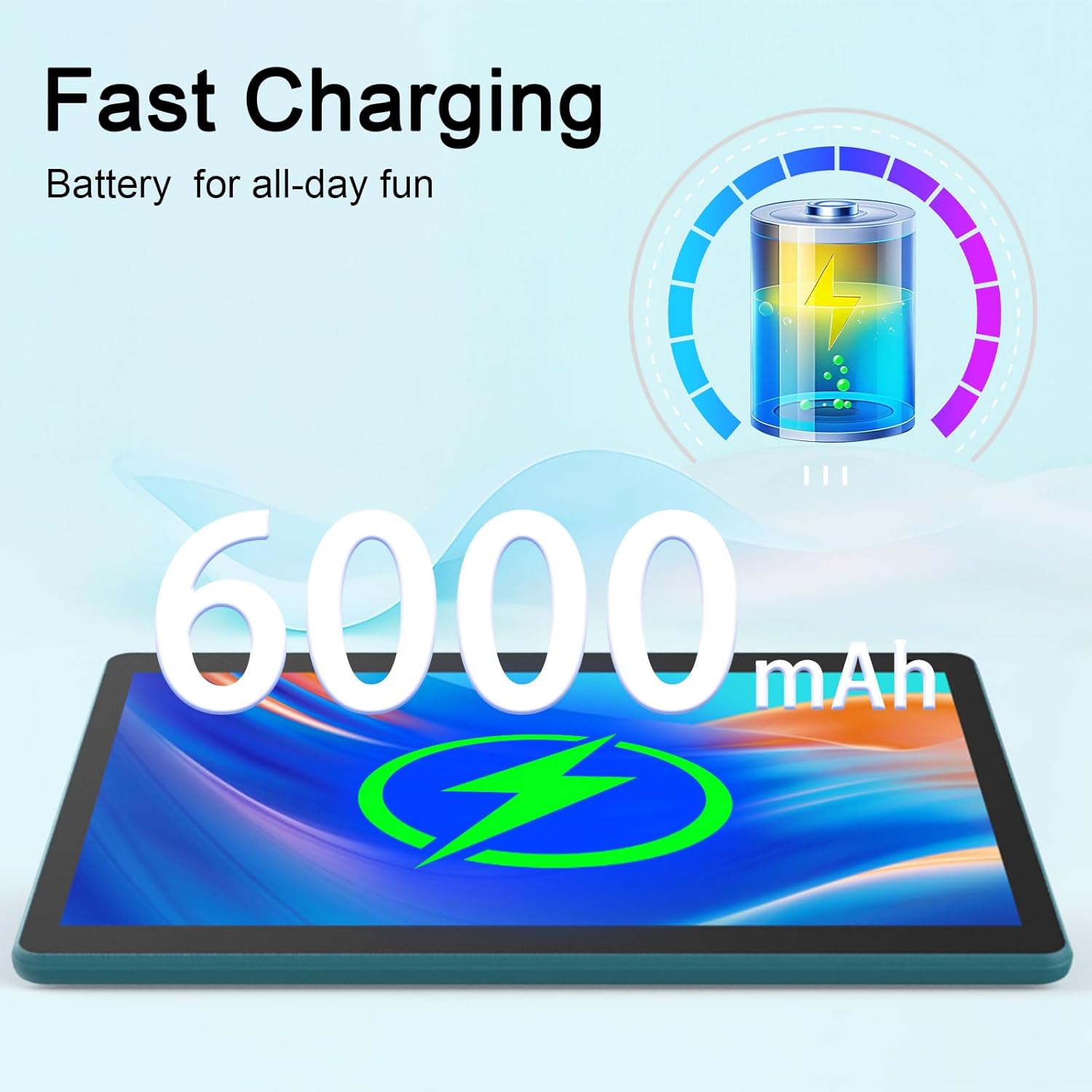
Image 1.2: The tablet features a 6000mAh battery, providing extended usage time.
1.3 Powering On/Off
- To Power On: Press and hold the Power button located on the side of the tablet until the Bnegynng logo appears.
- To Power Off: Press and hold the Power button, then select 'Power off' from the options that appear on the screen.
- To Restart: Press and hold the Power button, then select 'Restart' from the options.
1.4 Initial Android 15 Setup
Upon first power-on, the tablet will guide you through the initial setup process. Follow the on-screen prompts to:
- Select your language.
- Connect to a Wi-Fi network.
- Sign in with your Google account or create a new one. This is essential for accessing the Google Play Store and other Google services.
- Set up screen lock (PIN, pattern, or password).
1.5 Connecting Accessories
The tablet comes with a Bluetooth keyboard, mouse, and stylus for enhanced productivity.
- Bluetooth Keyboard/Mouse: Turn on the keyboard/mouse. Go to Settings > Connected devices > Bluetooth on your tablet. Enable Bluetooth and search for available devices. Select the keyboard/mouse from the list and follow any pairing instructions.
- Stylus: The stylus is generally passive and does not require Bluetooth pairing. Simply use it directly on the screen.

Image 1.3: The tablet running Android 15, ready for use with Google Play Store access and privacy features.
2. Operating Your Tablet
2.1 Basic Navigation
The Bnegynng tablet uses a touch-based interface. Common gestures include:
- Tap: To select an item or open an app.
- Swipe: To scroll through pages or lists.
- Pinch-to-Zoom: To zoom in or out on images and web pages.
- Long Press: To access contextual menus or move app icons.
2.2 Using the Keyboard, Mouse, and Stylus
Once connected, these accessories enhance your interaction with the tablet:
- Keyboard: Use for typing documents, emails, and navigating with keyboard shortcuts.
- Mouse: Provides precise cursor control, similar to a laptop.
- Stylus: Ideal for drawing, note-taking, and precise selections on the screen.

Image 2.1: A user interacting with the tablet using the external keyboard and mouse for productivity tasks.
2.3 Installing and Managing Applications
Your tablet is Google GMS certified, allowing full access to the Google Play Store.
- Install Apps: Open the 'Play Store' app, search for desired applications, and tap 'Install'.
- Uninstall Apps: Long-press an app icon on the home screen or app drawer, then drag it to 'Uninstall', or go to Settings > Apps > See all apps, select the app, and tap 'Uninstall'.

Image 2.2: The tablet supports a wide range of applications for study and entertainment.
2.4 Storage Management
The tablet comes with 32GB of internal storage (ROM) and supports expansion up to 1TB via a microSD card (not included).
- Insert MicroSD Card: Locate the card slot on the side of the tablet and gently insert the microSD card until it clicks into place.
- Manage Storage: Go to Settings > Storage to view storage usage and manage files.
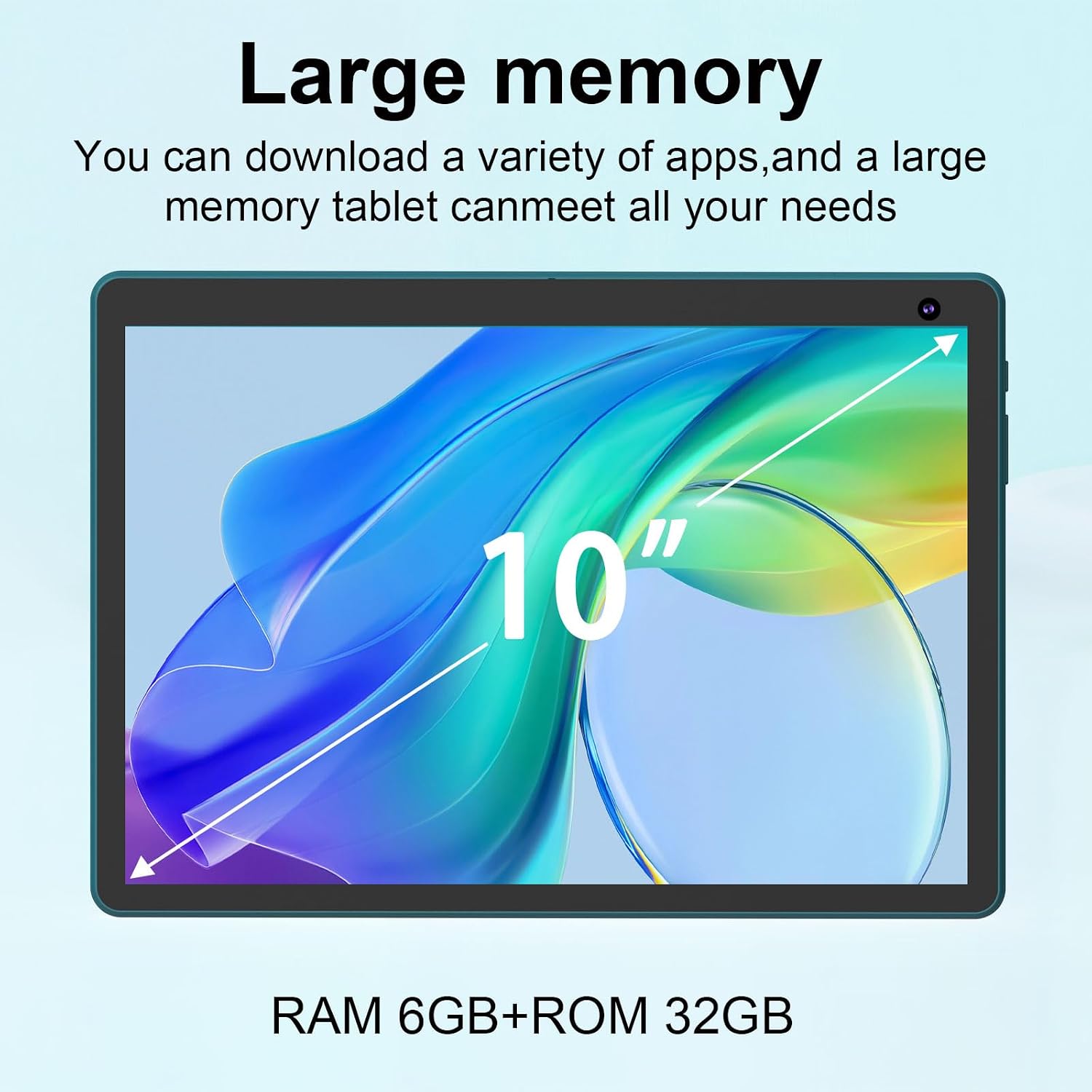
Image 2.3: The tablet offers 6GB RAM and 32GB ROM, expandable for extensive storage needs.
2.5 Camera Usage
The tablet features a 2MP front camera and an 8MP rear camera.
- Open the 'Camera' app to take photos or record videos.
- Switch between front and rear cameras using the icon on the screen.
2.6 Media Consumption
With a 10.1-inch HD IPS display (1280x800 resolution) and Widevine L1 certification, the tablet is suitable for viewing high-definition content.
- Use pre-installed media players or download others from the Play Store.
- Widevine L1 ensures secure playback of high-definition content from streaming services.

Image 2.4: Enjoy music and media on the tablet, enhanced by the optional keyboard and mouse.
3. Maintenance
3.1 Cleaning the Tablet and Accessories
- Use a soft, lint-free cloth to clean the screen and body of the tablet.
- For stubborn smudges, slightly dampen the cloth with water or a screen-cleaning solution. Avoid harsh chemicals.
- Clean the keyboard and mouse with a dry, soft cloth. Use compressed air to remove debris from keyboard crevices.
3.2 Software Updates
Regularly check for and install system updates to ensure optimal performance, security, and access to new features.
- Go to Settings > System > System update to check for available updates.
- Ensure your tablet is connected to Wi-Fi and has sufficient battery charge before starting an update.
3.3 Storage Optimization
To maintain performance, periodically manage your tablet's storage.
- Delete unnecessary apps, photos, and videos.
- Clear cache data for apps in Settings > Apps > [App Name] > Storage & cache.
- Move large files to an external microSD card.
3.4 Battery Care
To prolong battery life:
- Avoid extreme temperatures.
- Do not leave the tablet fully charged or fully discharged for extended periods.
- Use the provided charging cable.
4. Troubleshooting
4.1 Common Issues and Solutions
| Issue | Possible Solution |
|---|---|
| Tablet does not turn on | Ensure the battery is charged. Connect to charger for at least 30 minutes. Try holding the power button for 10-15 seconds. |
| Slow performance / Lagging | Close unused apps. Clear app caches. Restart the tablet. Check for system updates. Free up storage space. |
| Wi-Fi connectivity issues | Restart the tablet and your Wi-Fi router. Forget and reconnect to the Wi-Fi network. Ensure you are within range. |
| Bluetooth accessories not connecting | Ensure accessories are charged and in pairing mode. Turn Bluetooth off and on again on the tablet. Forget and re-pair the device. |
| Battery drains quickly | Reduce screen brightness. Close background apps. Disable Wi-Fi/Bluetooth when not in use. Check for apps consuming excessive power in battery settings. |
4.2 Factory Reset
If persistent issues occur, a factory reset can resolve many software-related problems. Warning: This will erase all data on your tablet. Back up important data before proceeding.
- Go to Settings > System > Reset options > Erase all data (factory reset).
- Confirm your decision and follow the on-screen prompts.
5. Specifications
| Feature | Detail |
|---|---|
| Model Number | BNCP10 |
| Operating System | Android 15 |
| Processor | Quad-Core Processor |
| RAM | 6GB (2GB + 4GB virtual memory) |
| Internal Storage (ROM) | 32GB |
| Expandable Storage | Up to 1TB via MicroSD card |
| Screen Size | 10.1 Inches |
| Screen Resolution | 1280 x 800 Pixels (HD IPS) |
| Cameras | Front: 2MP, Rear: 8MP |
| Battery Capacity | 6000mAh |
| Average Battery Life | Up to 8 hours |
| Wireless Connectivity | Wi-Fi (802.11b/g/n), Bluetooth |
| Dimensions (LxWxH) | 10 x 7 x 1 inches |
| Weight | 2.72 pounds |
| Certifications | Google GMS, Widevine L1 |
6. Warranty and Support
6.1 Product Warranty
Please refer to the warranty card included with your product packaging for specific warranty terms and conditions. Typically, Bnegynng products come with a limited manufacturer's warranty covering defects in materials and workmanship under normal use.
6.2 Customer Support
For technical assistance, troubleshooting beyond this manual, or warranty claims, please contact Bnegynng customer support through the retailer where the product was purchased or visit the official Bnegynng website for contact information.
When contacting support, please have your product model number (BNCP10) and purchase information readily available.