
1. Introduction
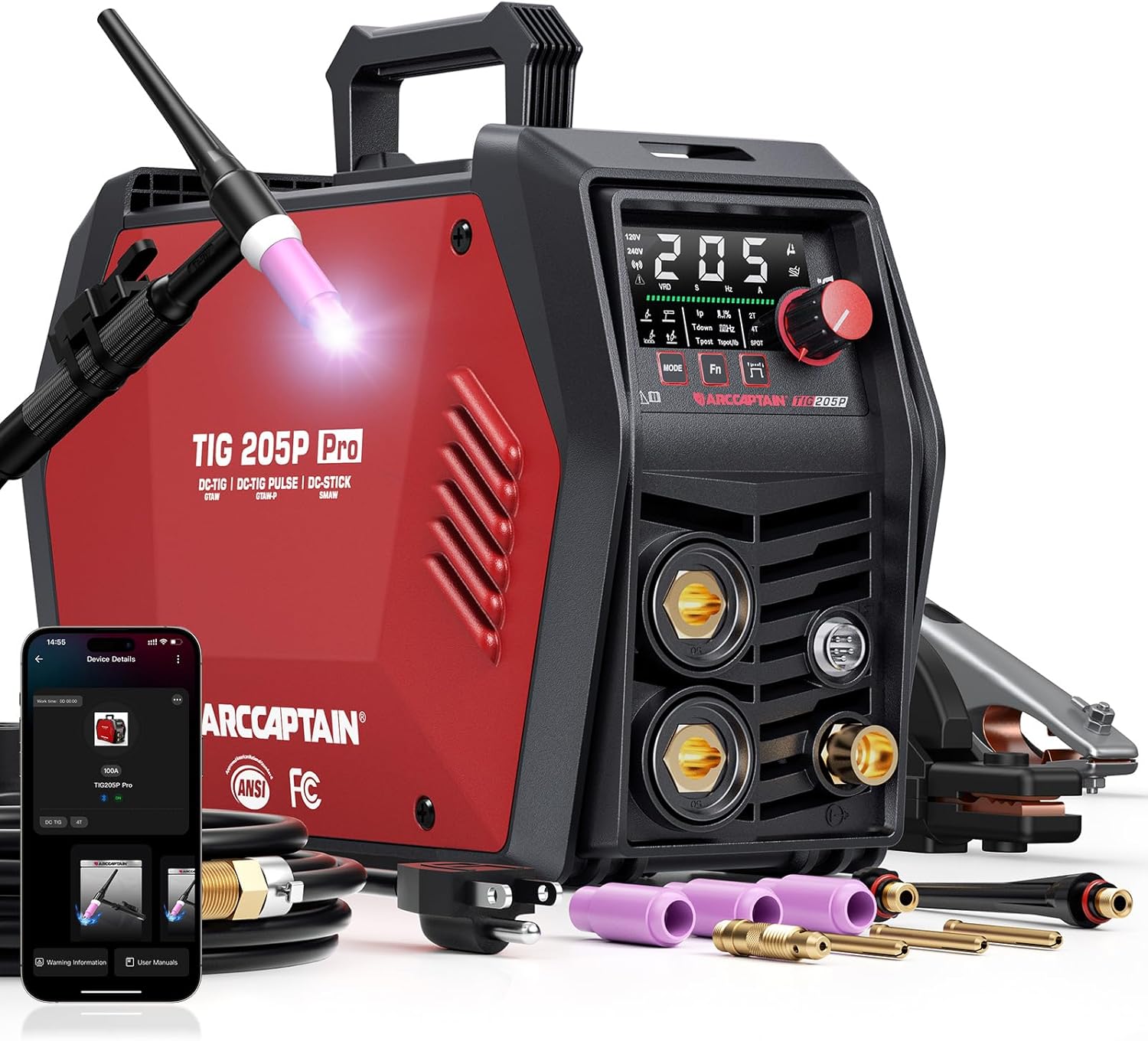
The ARCCAPTAIN iControl TIG 205P Pro is a versatile 5-in-1 welding machine designed for both professional and hobbyist use. It supports DC TIG, Pulse TIG, Lift TIG, Spot TIG, and MMA (Stick) welding, making it ideal for precise work on various metals including thin sheet, stainless steel, mild steel, and copper. This welder features advanced MCU precision control for superior arc striking and stability, along with smart MMA optimization for consistent stick welding performance.
A key innovation of this model is its APP control capability, allowing users to monitor status, select modes, adjust parameters, and analyze error codes directly from their smartphone. The machine is dual voltage compatible (120V/240V) and incorporates multiple safety protections, including VRD, smart fan, and safeguards against overheat, overcurrent, and undervoltage, ensuring reliable and safe operation.
2. Safety Information
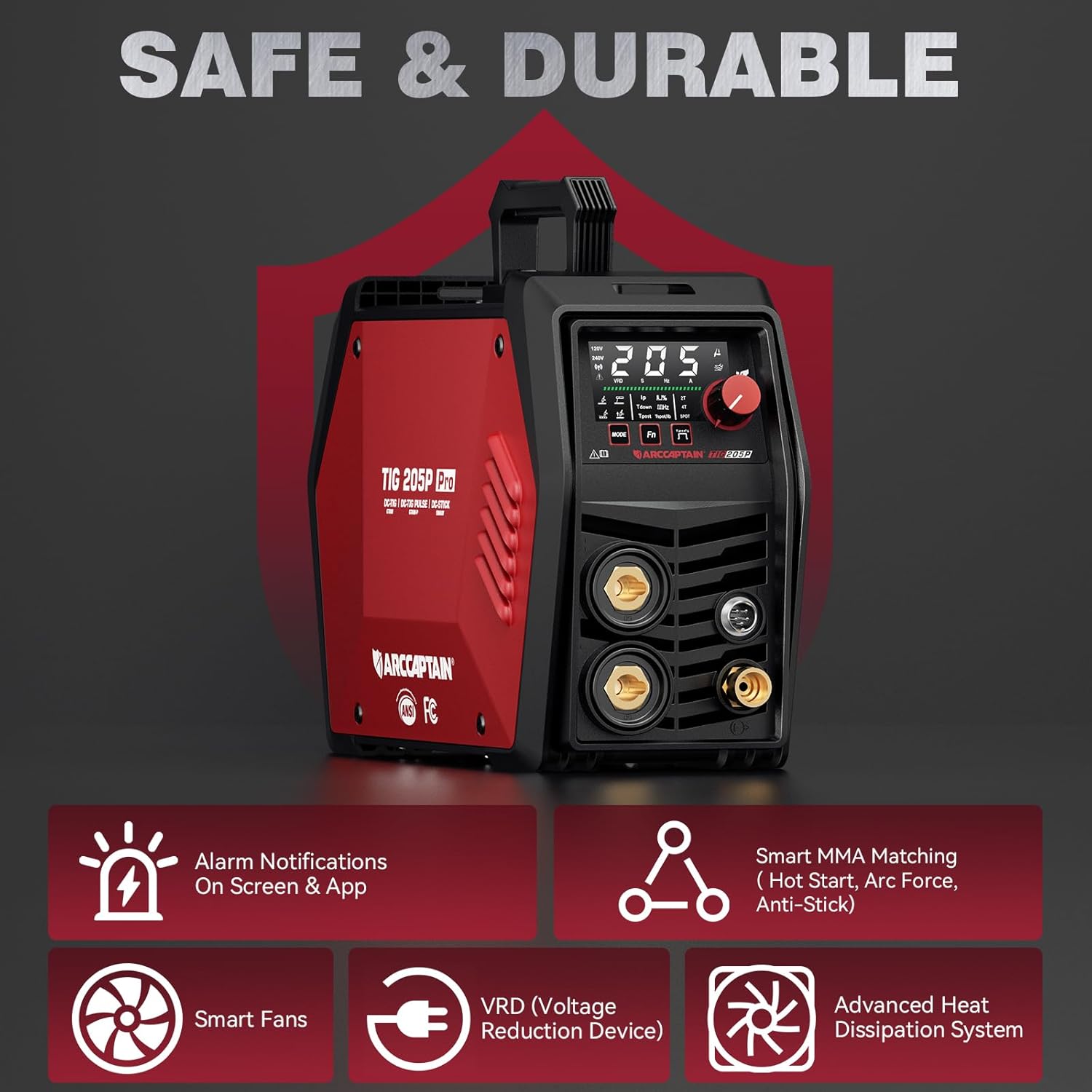
Always prioritize safety when operating welding equipment. This machine is equipped with several features to enhance user safety and product longevity:
- VRD (Voltage Reduction Device): Prevents electrocution by reducing open-circuit voltage.
- Smart Fan System: Runs only when needed, reducing noise and extending component lifespan.
- Advanced Heat Dissipation System: Improves heat dissipation by 130% for stable operation.
- Multiple Protections: Includes overheat, overcurrent, undervoltage, and overload protection.
- Alarm Function: Provides on-screen and app notifications for fault codes (e.g., Overcurrent reminder Fault code: E10).
Ensure proper ventilation, wear appropriate personal protective equipment (PPE), and follow all local safety regulations during operation.
3. Package Contents
Upon unpacking your ARCCAPTAIN iControl TIG 205P Pro Welder, please verify that all the following components are included:
- 1x TIG205P Pro Welding Machine
- 1x 13FT WP-26 TIG Torch
- 1x 10FT Earth Clamp
- 1x 10FT Electrode Holder
- 1x 10FT Gas Hose
- TIG Torch Accessories (various consumables)
- Shoulder Strap
- 1x 110/220V Power Adapter
- Dust Cover
- Product Manual (this document)


4. Setup
Before operating the welder, ensure it is properly set up according to these instructions:
4.1 Power Connection
The ARCCAPTAIN TIG 205P Pro supports dual voltage input (120V or 240V). Use the provided 110/220V power adapter to connect the machine to a suitable power outlet. Ensure the power source matches the machine's requirements and that the circuit can handle the welding current.
4.2 Connecting Welding Accessories
- TIG Torch: Connect the 13FT WP-26 TIG Torch to the appropriate port on the front panel. Ensure a secure connection for both power and gas.
- Earth Clamp: Attach the 10FT Earth Clamp to the workpiece or welding table, ensuring good electrical contact. Connect the other end to the designated earth clamp terminal on the welder.
- Electrode Holder (for MMA): If performing stick welding, connect the 10FT Electrode Holder to its designated terminal.
- Gas Hose: Connect the 10FT Gas Hose from the TIG torch to your inert gas cylinder (e.g., Argon) via a regulator. Ensure all gas connections are leak-free.
4.3 APP Control Connection
To utilize the APP control feature, download the ARCCAPTAIN APP on your smartphone. Scan the barcode on the welder to establish a connection. The APP allows for real-time monitoring, mode selection, parameter adjustment, and preset recall.
5. Operating Instructions
5.1 5-in-1 Welding Modes
The ARCCAPTAIN TIG 205P Pro offers five distinct welding processes:
- DC TIG (Direct Current Tungsten Inert Gas): Provides precise, clean welds on thin metals, stainless steel, and mild steel.
- Pulse TIG: Offers enhanced control over heat input, ideal for very thin materials and reducing distortion.
- Lift TIG: A contact-start TIG method that minimizes tungsten contamination.
- Spot TIG: For quick, consistent spot welds, often used in sheet metal fabrication.
- MMA (Manual Metal Arc) / Stick: For general-purpose welding with coated electrodes.

5.2 Front Panel Display and Controls
The large LED display provides clear visibility of welding parameters and settings. Use the control knob and buttons to navigate and adjust settings. Refer to the diagram below for an explanation of each icon and indicator.


5.3 APP Control Functionality
The ARCCAPTAIN APP provides comprehensive control and monitoring features:
- Real-time Monitoring: View welder status and current parameters.
- Welding Mode Selection: Easily switch between DC TIG, Pulse TIG, Lift TIG, Spot TIG, and MMA.
- Parameter Adjustment: Fine-tune settings such as post-flow time, down slope, spot weld time, interval time, pulse frequency, duty cycle, peak current, and base current.
- Preset Recall: Save and recall frequently used welding parameters.
- Error Code Analysis: Receive and understand error messages for quick troubleshooting.
- FAQs and Community: Access frequently asked questions and join the ARCCAPTAIN welding community.

5.4 Advanced TIG Functions
The welder offers fully adjustable TIG controls for high-level performance and arc control:
- Post-flow Time: Controls the duration of gas flow after the arc extinguishes, protecting the weld puddle and tungsten.
- Down Slope: Manages the gradual decrease of welding current at the end of a weld to prevent cratering.
- Spot Weld Time: Sets the duration for spot welding.
- Interval Time (for Pulse TIG): Controls the time between pulses.
- Pulse Frequency: Adjusts the number of pulses per second in Pulse TIG mode.
- Duty Cycle (for Pulse TIG): Determines the percentage of time the pulse is at peak current.
- Peak Current: The maximum current during a pulse.
- Base Current: The minimum current between pulses.
5.5 2T/4T Function
The 2T/4T function allows you to switch between two-touch and four-touch trigger modes for different welding styles:
- 2T (Two-Touch): Press and hold the trigger to start welding; release to stop. Suitable for short welds.
- 4T (Four-Touch): Press and release the trigger to start welding; press and release again to stop. Ideal for long welds, reducing hand fatigue.
5.6 Smart MMA Optimization
For stick welding, the machine automatically optimizes hot start, arc force, and anti-stick settings to ensure smooth arc starts, stable performance, and reduced electrode sticking, even on challenging jobs.
5.7 Applicable Materials
The ARCCAPTAIN TIG 205P Pro is suitable for welding:
- Thin Sheet
- Stainless Steel
- Low-Carbon Steel
- Copper
Note: This machine is not designed for welding non-ferrous metals like aluminum.

5.8 Optional Accessories
The welder supports additional accessories for enhanced control and versatility:
- 5-Pin TIG Foot Pedal: For hands-free current control, boosting efficiency and productivity. (Not included in package)
- Remote Welding Gun: A remote welding gun can be connected to the machine for specialized applications. (Not included in package)


6. Maintenance
Regular maintenance ensures the longevity and optimal performance of your welding machine.
6.1 Cleaning
Periodically clean the exterior of the machine with a dry, soft cloth. Ensure ventilation openings are free from dust and debris to maintain proper airflow.
6.2 Smart Fan System
The integrated smart fan system operates only when necessary, reducing dust intake and extending the fan's lifespan. No specific user maintenance is required for the fan itself, beyond ensuring clear airflow around the machine.

6.3 Advanced Heat Dissipation
The machine features an advanced heat dissipation system. Ensure the welder is placed in an area with adequate air circulation to allow this system to function effectively.
7. Troubleshooting
This section provides guidance for common issues you might encounter. For more detailed troubleshooting or issues not listed here, refer to the ARCCAPTAIN APP's error code analysis or contact customer support.
7.1 Error Codes
The welder's display and the ARCCAPTAIN APP will show specific error codes if a fault occurs. For example:
- Fault Code: E10 (Overcurrent reminder): Indicates that the current load exceeds the rated value, or the current/voltage is outside the safe range. Check your input power, welding parameters, and ensure no short circuits.

7.2 General Troubleshooting Tips
- No Power: Check power cable connections, circuit breaker, and ensure the power adapter is correctly used for your voltage (120V/240V).
- Poor Arc Start/Stability: Verify proper grounding, check tungsten electrode condition (for TIG), ensure correct gas flow, and adjust welding parameters.
- No Gas Flow: Check gas cylinder pressure, regulator settings, and ensure gas hose connections are secure and not kinked.
- Welder Overheating: Allow the machine to cool down. Ensure adequate ventilation and that the smart fan is operating. Reduce duty cycle if continuously welding at high currents.
8. Specifications
Below are the technical specifications for the ARCCAPTAIN TIG 205P Pro Welder:
| Specification | Value |
|---|---|
| Manufacturer | ARCCAPTAIN |
| Item Model Number | ARCCAPTAIN TIG 205P Pro |
| Item Weight | 22 pounds |
| Package Dimensions | 17 x 16 x 8 inches |
| Style | TIG205P Pro |
| Power Source | AC/DC (Dual Voltage 120V/240V) |
| TIG Current Range (240V) | 10A-205A |
| TIG Current Range (120V) | 10A-145A |
| MMA Current Range (240V) | 10A-205A |
| MMA Current Range (120V) | 10A-145A |
| Open Circuit Voltage (Uo) | 65V |
| Insulation Class | H |
| Protection Class | IP21S |
| Date First Available | June 19, 2025 |

9. Warranty and Support
The ARCCAPTAIN TIG 205P Pro Welder comes with a 3-year warranty, ensuring peace of mind regarding manufacturing defects and performance issues. Additionally, ARCCAPTAIN provides lifetime technical support to assist you with any operational questions or troubleshooting needs throughout the product's lifespan.
For warranty claims, technical assistance, or general inquiries, please refer to the contact information provided in your product packaging or visit the official ARCCAPTAIN website.