
1. Introduction
This manual provides detailed instructions for the installation, operation, and maintenance of your Dionlink Dual Band 4G LTE Router, Model ES-6GRT. Please read this manual thoroughly before using the device to ensure proper functionality and to prevent damage. Keep this manual for future reference.
2. Product Overview
The Dionlink ES-6GRT is a high-performance Dual Band 4G LTE Router designed to provide reliable internet connectivity. It features a SIM card slot for 4G LTE network access, dual-band Wi-Fi (2.4GHz and 5GHz), and multiple Ethernet ports for wired connections.
Key Features:
- Fast 4G LTE Connectivity: Supports download speeds up to 150Mbps and upload speeds up to 50Mbps. Compatible with AT&T and T-Mobile networks (SIM card not included).
- Dual Band Wi-Fi: Provides 2.4GHz (300Mbps) and 5GHz (900Mbps) bands for a combined 1200Mbps Wi-Fi signal, ensuring stable and fast connections.
- High Gain Antennas: Equipped with 6 external omnidirectional high-gain rotatable antennas for enhanced signal reception and transmission.
- Multi-Device Support: Capable of connecting up to 32 wireless devices simultaneously.
- Flexible Connectivity: Includes 1x RJ45 WAN port for broadband connection and 4x RJ45 Ethernet ports for wired devices.
- Automatic 4G Fallback: Automatically switches to the 4G network if the broadband connection is lost.

Image: Front view of the Dionlink ES-6GRT 4G LTE Router, showcasing its six external antennas and sleek black design.

Image: Diagram illustrating the Dionlink ES-6GRT router's compatibility with AT&T and T-Mobile networks, showing connections to various devices like mobile phones, laptops, desktops, and game consoles.
3. Package Contents
Verify that all items are present in your package:
- Dionlink Dual Band 4G LTE Router (Model ES-6GRT)
- Power Adapter
- SIM Adapter Kit
- User Manual (this document)
4. Safety Information
Please observe the following safety guidelines to prevent damage to the device or injury to yourself:
- Use only the provided power adapter.
- Do not expose the device to water, moisture, or extreme temperatures.
- Avoid placing the device near heat sources or in direct sunlight.
- Do not attempt to open or repair the device yourself. Refer all servicing to qualified personnel.
- Ensure proper ventilation around the router to prevent overheating.
5. Setup Instructions
Follow these steps to set up your Dionlink 4G LTE Router:
5.1. SIM Card Installation
- Ensure the router is powered off.
- Locate the SIM card slot on the router.
- Insert your standard 4G SIM card (15 x 25 mm) into the slot with the chip facing down and the corner inward, as shown in the diagram. Ensure it clicks into place.
- To remove the SIM card, gently press it inward until it pops out slightly, then pull it out.

Image: Illustration demonstrating the correct orientation for inserting a standard SIM card into the router's SIM card slot, with a visual guide for standard, micro, and nano SIM card sizes.
5.2. Powering On and Initial Connection
- Connect the power adapter to the router's power port and then to a power outlet.
- Wait for the router to power on. The LTE light should illuminate after a few minutes, indicating a successful 4G connection.
- Locate the Wi-Fi SSID (network name) and password printed on the label at the bottom of the router.
- On your computer or mobile device, connect to the Wi-Fi network using the provided SSID and password.

Image: Rear view of the Dionlink ES-6GRT router, highlighting the SIM card slot, power button, WAN port, and LAN ports, with a visual representation of Wi-Fi signals.
5.3. Accessing Router Settings
- Open a web browser on a device connected to the router's Wi-Fi.
- Enter the router's default IP address (e.g., 192.168.x.x) into the address bar. This IP address is typically found on the router's label.
- Log in using the default username and password, also found on the router's label.
- It is recommended to change the default Wi-Fi SSID and password to a unique, memorable, and secure combination for your network.
6. Operating Instructions
Once set up, your Dionlink 4G LTE Router provides versatile internet access.
6.1. Connecting Devices
- Wireless Devices: Connect smartphones, tablets, laptops, and other Wi-Fi enabled devices to the router's Wi-Fi network using the SSID and password you configured.
- Wired Devices: Use Ethernet cables to connect devices like desktop computers, smart TVs, or gaming consoles to the LAN ports on the back of the router.

Image: A visual representation of the router connecting to various devices such as laptops, cellphones, smart TVs, monitoring cameras, and notebooks, illustrating its multi-user compatibility.
6.2. Dual Band Wi-Fi Usage
The router broadcasts two Wi-Fi bands:
- 2.4GHz Band: Ideal for general internet use like web browsing, email, and social media. It offers wider coverage and better wall penetration.
- 5GHz Band: Recommended for high-bandwidth activities such as online gaming, HD video streaming, and large file transfers. It provides faster speeds but has a shorter range.

Image: A graphic illustrating the dual-band Wi-Fi capabilities of the router, showing separate 2.4GHz and 5GHz signals and their respective benefits for different network needs.
6.3. WAN/4G Automatic Failover
If you have a wired broadband connection connected to the WAN port, the router will prioritize this connection. In the event of a broadband outage, the router will automatically switch to the 4G LTE network via the inserted SIM card, ensuring uninterrupted internet access.
7. Maintenance
Proper maintenance ensures the longevity and optimal performance of your router.
7.1. Regular Restart
Periodically restarting your router (e.g., once a month) can help clear temporary glitches and improve network performance. Simply unplug the power adapter, wait 10 seconds, and plug it back in.
7.2. Firmware Updates
The router features a dual firmware design, which allows for automatic restoration in case of an abnormal upgrade. Check the router's web interface periodically for available firmware updates to ensure you have the latest features and security enhancements. Follow the on-screen instructions for any updates.
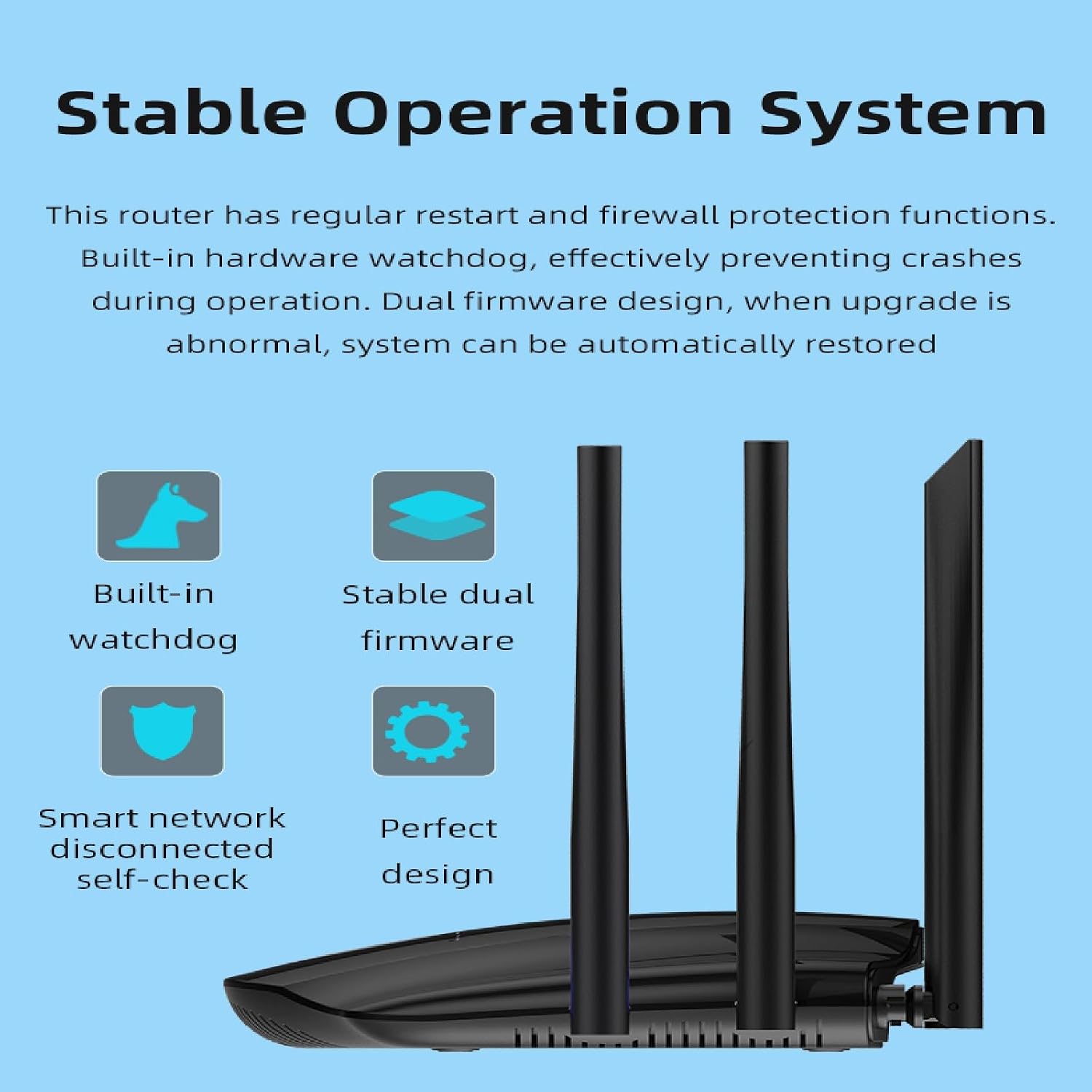
Image: Graphic detailing the router's stable operation system, including built-in watchdog, stable dual firmware, smart network disconnected self-check, and perfect design elements.
7.3. Cleaning
Use a soft, dry cloth to clean the exterior of the router. Do not use liquid cleaners or aerosols, as they may damage the device.
8. Troubleshooting
If you encounter issues with your router, refer to the following common problems and solutions:
8.1. No Internet Connection
- Check SIM Card: Ensure the 4G SIM card is correctly inserted and activated with a data plan. Verify it is compatible with AT&T or T-Mobile.
- Signal Strength: Check the LTE signal indicator on the router. If the signal is weak (e.g., only one bar), try repositioning the router to an open space or near a window for better reception.
- WAN Connection: If using a wired WAN connection, ensure the Ethernet cable is securely connected to both the router and your modem/ISP device.
- Restart Router: Power cycle the router by unplugging it for 10 seconds and plugging it back in.
8.2. Slow Wi-Fi Speed
- Band Selection: For faster speeds, ensure your device is connected to the 5GHz Wi-Fi band if it supports it and is within close range of the router.
- Interference: Move the router away from other electronic devices that might cause interference (e.g., microwaves, cordless phones).
- Device Load: Too many devices connected simultaneously can reduce speed. Disconnect unused devices.
- Signal Strength: Ensure your device has a strong Wi-Fi signal. Move closer to the router if necessary.
8.3. Cannot Access Router Settings Page
- IP Address: Verify you are entering the correct IP address for the router (usually 192.168.x.x).
- Connection: Ensure your device is connected to the router's Wi-Fi or via an Ethernet cable to a LAN port.
- Browser: Try a different web browser.
- Default Credentials: If you forgot your custom login, you may need to perform a factory reset (see section 8.4) to revert to default credentials.
8.4. Factory Reset
If troubleshooting steps do not resolve the issue, you may need to perform a factory reset. This will erase all custom settings and restore the router to its original factory defaults.
- With the router powered on, locate the Reset button (often a small pinhole) on the device.
- Use a paperclip or a similar pointed object to press and hold the Reset button for approximately 10 seconds.
- Release the button. The router will restart with factory default settings. You will need to reconfigure your Wi-Fi SSID, password, and any other custom settings.
9. Specifications
| Feature | Specification |
|---|---|
| Brand | Dionlink |
| Model Name | ES-6GRT |
| Model Number | ES-6GRT-220105 |
| Frequency Band Class | Dual-Band (2.4GHz & 5GHz) |
| Wireless Communication Standard | 802.11ac |
| Connectivity Technology | 4G LTE, Wi-Fi |
| Compatible Devices | Personal Computer, Mobile Devices, Smart TVs, Gaming Consoles |
| Color | Black |
| Antenna Type | Fixed, Omnidirectional High Gain |
| Number of Antennas | 6 |
| Security Protocol | WPA2, WPA3 |
| Number of Ports | 1x WAN, 4x LAN (RJ45) |
| Data Transfer Rate (Wi-Fi) | 1200 Mbps (900Mbps 5GHz + 300Mbps 2.4GHz) |
| LAN Port Bandwidth | 1000 Mbps |
| Maximum Upstream Data Transfer Rate (4G LTE) | 50 Mbps |
| Maximum Downstream Data Transfer Rate (4G LTE) | 150 Mbps |
| Router Firewall Security Level | Basic |
| Router Network Type | Dual-band |
| Is Modem Compatible | Yes |
| Item Weight | 730 Grams |
| UPC | 755574993653 |
10. Warranty Information
The Dionlink Dual Band 4G LTE Router (Model ES-6GRT) comes with a 1-year warranty from the date of purchase. This warranty covers manufacturing defects and malfunctions under normal use. It does not cover damage caused by misuse, accidents, unauthorized modifications, or acts of nature. Please retain your proof of purchase for warranty claims.
11. Customer Support
For technical assistance, troubleshooting, or warranty inquiries, please contact Dionlink customer support through the retailer's platform or visit the official Dionlink website for contact details.
- Online Support: Refer to the official Dionlink website for FAQs and support resources.
- Email Support: [Placeholder for support email, if available]
- Phone Support: [Placeholder for support phone number, if available]