
TRAUSI TG08
TRAUSI 1.83" HD Smartwatch User Manual
Model: TG08
1. Introduction and Overview
Welcome to the user manual for your new TRAUSI 1.83" HD Smartwatch. This guide provides detailed instructions on how to set up, operate, and maintain your device, ensuring you get the most out of its features. The TRAUSI Smartwatch is designed to enhance your daily life with its comprehensive health monitoring, fitness tracking, and smart notification capabilities.

Image: The TRAUSI 1.83" HD Smartwatch, showcasing its sleek design and vibrant display.
2. Product Features
The TRAUSI TG08 Smartwatch comes equipped with a range of features to support your health and connectivity needs:
- 1.83" Ultra HD Display: A large, clear screen for easy viewing of information.
- Comprehensive Health Monitoring: Includes 24-hour heart rate monitoring, SpO2 (blood oxygen) tracking, and sleep analysis.
- Extensive Sports Modes: Supports over 120 diverse sports tracking modes with precision performance metrics.
- Smart Notifications: Receive calls, messages, and app alerts directly on your wrist.
- Long-lasting Battery: Up to 5-7 days of active use and 30 days standby time on a single charge.
- Water Resistance: Designed to withstand splashes, but not suitable for swimming or submersion.
- Music Control: Manage your music playback directly from the watch.
- Weather Forecast: Get real-time weather updates.
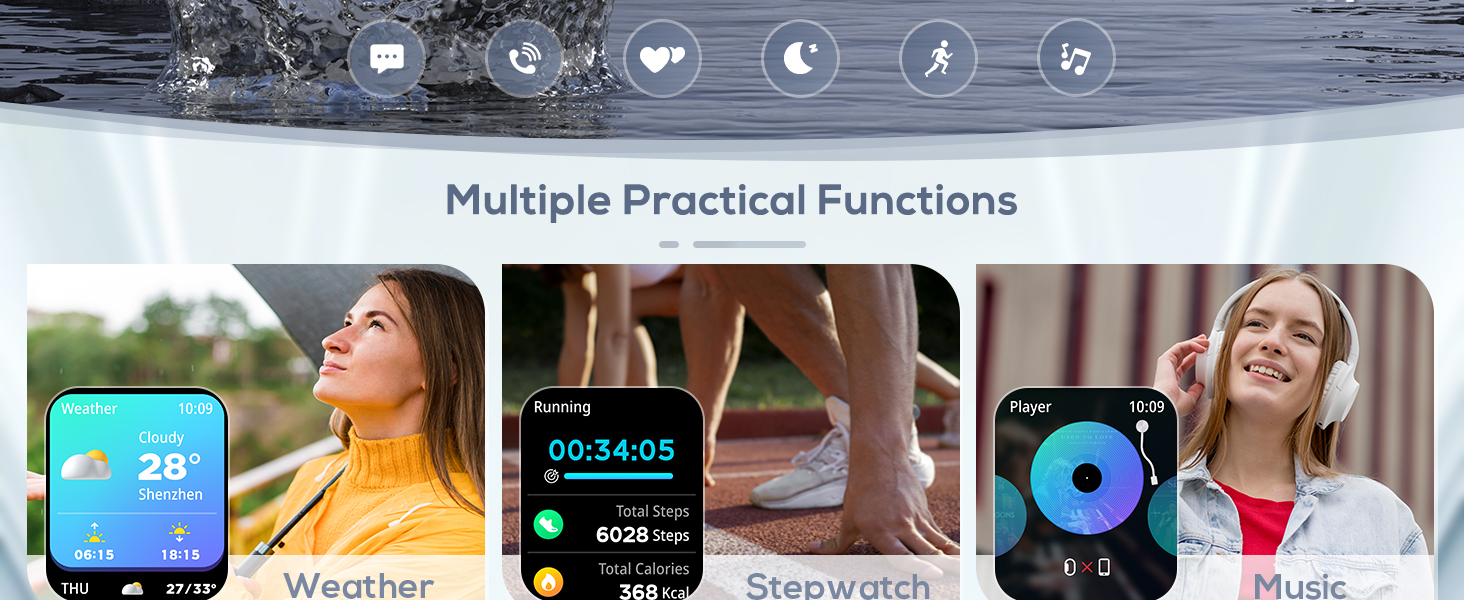
Image: The smartwatch highlighting its 1.83" Ultra HD Display for clear visuals.

Image: Various practical functions of the smartwatch, including weather, stopwatch, and music control.
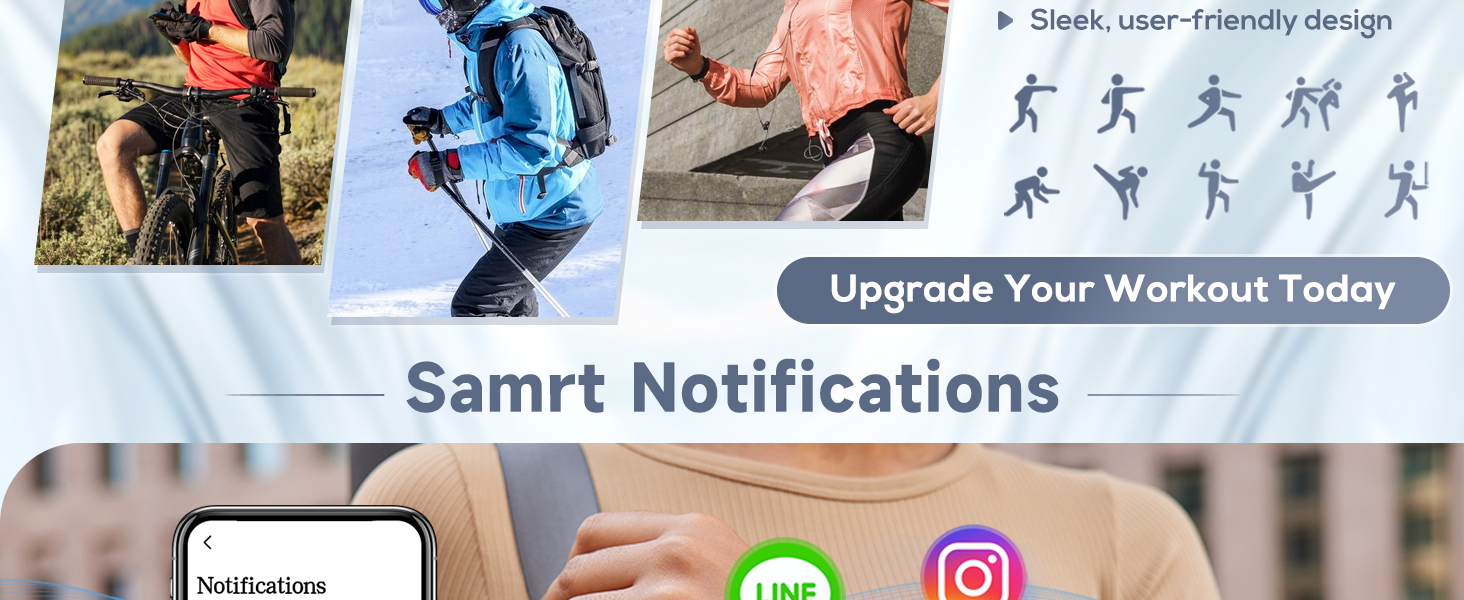
Image: Health and lifestyle features such as sleep tracking, SpO2 measurement, hydration reminders, and incoming call alerts.
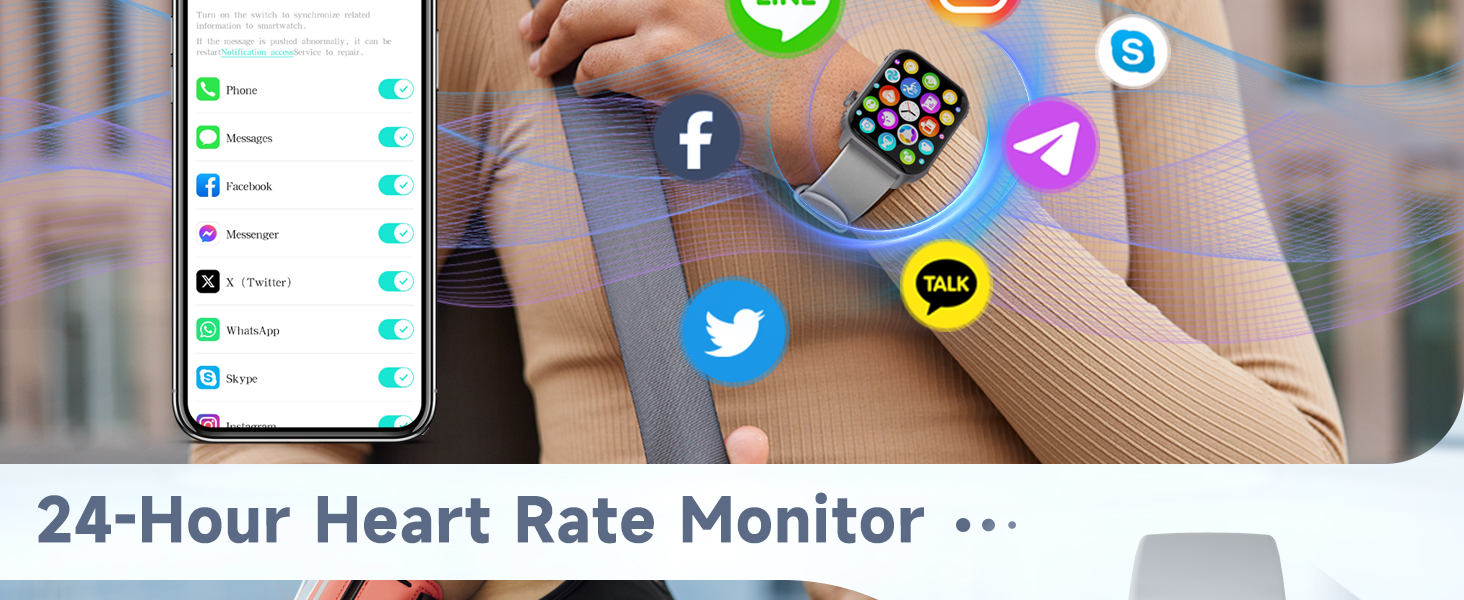
Image: Individuals participating in different sports, illustrating the smartwatch's 120+ sports tracking capabilities.
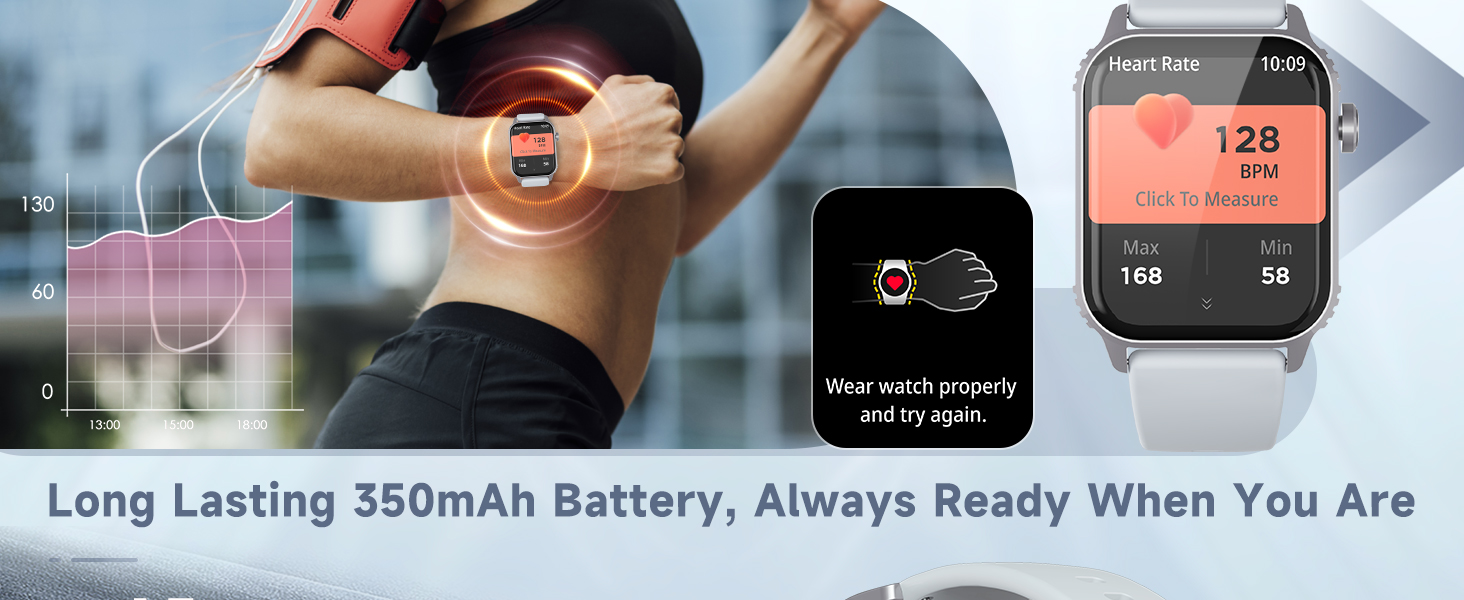
Image: The smartwatch showing smart notifications from popular messaging and social media applications.
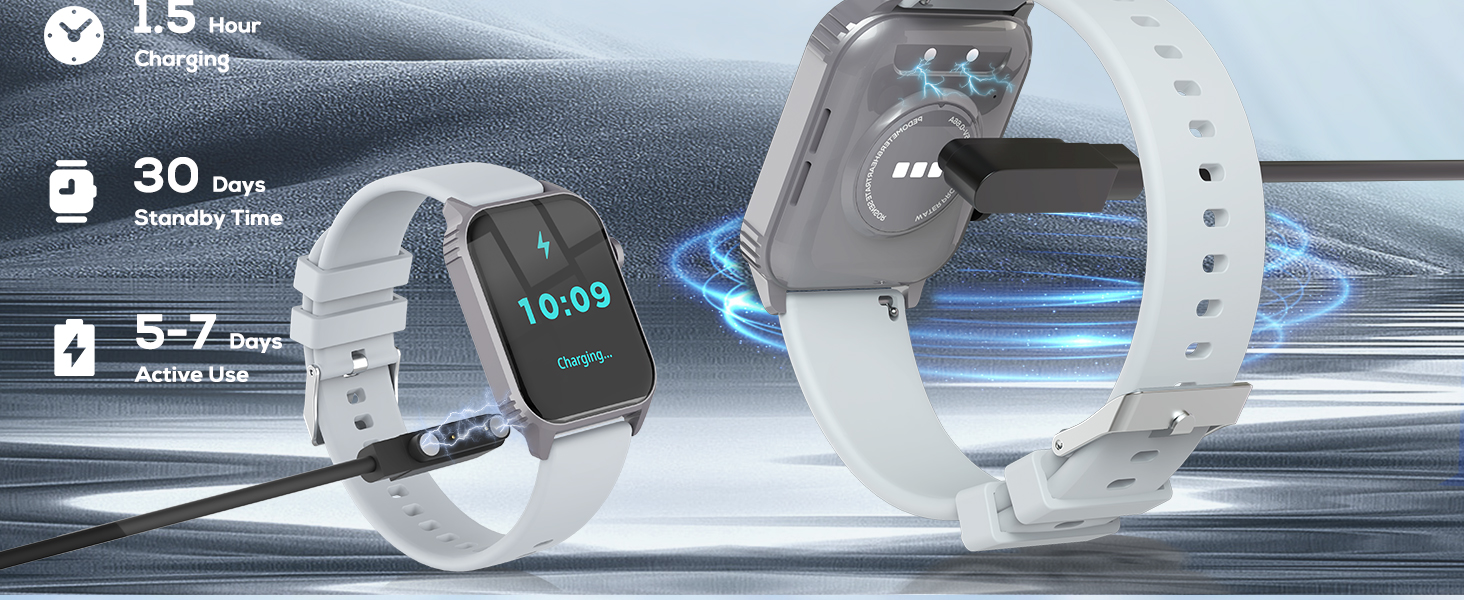
Image: The smartwatch actively monitoring heart rate, demonstrating its 24-hour heart rate tracking feature.

Image: The smartwatch being charged, illustrating its long-lasting 350mAh battery and charging time.
3. Setup Guide
3.1 Charging the Smartwatch
Before first use, fully charge your smartwatch. Connect the magnetic charging cable to the charging points on the back of the watch and plug the USB end into a power adapter (5V/1A recommended) or a computer USB port. A full charge takes approximately 1.5 hours.
3.2 App Download and Pairing
- Download the App: Scan the QR code in the watch's initial setup screen or search for the companion app (usually named 'FitCloudPro' or similar, check packaging for exact name) in your smartphone's app store (App Store for iOS, Google Play Store for Android).
- Install and Open: Install the app and open it on your smartphone.
- Enable Bluetooth: Ensure Bluetooth is enabled on your smartphone.
- Pair the Device: In the app, navigate to 'Device' or 'Add Device' and select your TRAUSI TG08 Smartwatch from the list of available devices. Follow the on-screen prompts to complete the pairing process.
- Grant Permissions: Allow necessary permissions (e.g., notifications, location, contacts) for the app to function correctly.
The smartwatch is compatible with iPhone (iOS 9.0 and above) and Android (5.0 and above) smartphones.
4. Operating Instructions
4.1 Basic Navigation
- Touchscreen: Tap to select, swipe left/right/up/down to navigate through menus and screens.
- Side Button: Typically used to wake the screen, return to the home screen, or access the main menu.
4.2 Health Monitoring
- Heart Rate: Swipe to the heart rate interface or select it from the menu. Ensure the watch is snug on your wrist for accurate readings.
- SpO2: Access the blood oxygen measurement function from the menu. Remain still during measurement.
- Sleep Tracking: Wear the watch to bed. It will automatically track your sleep patterns and provide data in the app.
4.3 Sports Modes
Select 'Workout' or 'Sports' from the main menu. Choose from over 120 available sports modes. Tap to start a workout. The watch will track duration, calories burned, heart rate, and other relevant metrics. End the workout by tapping the screen and selecting 'End'.
4.4 Smart Notifications
Once paired with your smartphone and app permissions are granted, your smartwatch will display incoming calls, messages, and notifications from selected apps. You can manage which app notifications appear on your watch through the companion app settings.
5. Maintenance and Care
- Cleaning: Regularly clean the watch and band with a soft, dry cloth. If necessary, use a slightly damp cloth and dry thoroughly. Avoid harsh chemicals or abrasive materials.
- Water Resistance: The watch is designed for splashes and light rain (IP67 rating). Do not submerge the watch in water, wear it while swimming, or expose it to hot water or steam. Damage due to water submersion is not covered under warranty.
- Storage: Store the watch in a cool, dry place when not in use. Avoid extreme temperatures.
- Charging: Use only the provided charging cable. Ensure the charging contacts are clean and dry before charging.
6. Troubleshooting
| Issue | Possible Solution |
|---|---|
| Watch not turning on | Ensure the watch is fully charged. Connect it to the charger for at least 30 minutes. |
| Cannot pair with smartphone | Ensure Bluetooth is on. Restart both the watch and phone. Make sure the app has necessary permissions. Forget the device in phone's Bluetooth settings and try pairing again. |
| Inaccurate step count/heart rate | Ensure the watch is worn snugly on your wrist, about one finger's width above the wrist bone. Calibrate steps in the app if available. |
| No notifications received | Check app notification settings and phone's system notification settings. Ensure the app is running in the background. |
| Screen issues (lines, unresponsive) | Restart the watch. If the issue persists, contact customer support. Avoid exposing the watch to excessive moisture or impact. |
| Battery drains quickly | Reduce screen brightness, turn off unnecessary features (e.g., continuous heart rate monitoring if not needed), and ensure the app is not constantly syncing in the background. |
If you encounter issues not listed here or if solutions do not resolve the problem, please refer to the Warranty and Support section for assistance.
7. Specifications
| Feature | Detail |
|---|---|
| Model Number | TG08 |
| Screen Size | 1.83 Inches |
| Resolution | 240 x 284 |
| Wireless Communication | Bluetooth |
| Compatible Devices | Smartphone (iPhone iOS 9.0+, Android 5.0+) |
| Band Material Type | Silicone |
| Band Width | 2 Centimeters |
| Battery Capacity | 350mAh |
| Charging Time | Approx. 1.5 hours |
| Active Use Time | 5-7 days |
| Standby Time | Up to 30 days |
| Water Resistance | IP67 (Splashes only, not for submersion) |
| Item Weight | 2.89 ounces |
| Package Dimensions | 5.63 x 3.31 x 0.75 inches |
8. Warranty and Support
8.1 Limited Warranty
The TRAUSI TG08 Smartwatch comes with a limited warranty. This warranty covers manufacturing defects under normal use. It does not cover damage caused by misuse, accidents, unauthorized modifications, or failure to follow the instructions in this manual, including water damage from submersion.
8.2 Customer Support
For technical support, warranty claims, or any questions regarding your TRAUSI Smartwatch, please contact TRAUSI customer service through the contact information provided on the product packaging or the official TRAUSI website. Please have your model number (TG08) and purchase details ready when contacting support.
Ask a question about this manual
Ask about setup, troubleshooting, compatibility, parts, safety, or missing instructions. Manuals+ will review the question and use this page’s manual context to help answer it.