
1. Introduction
This manual provides instructions for the FOSCAM 3K 5MP Security Camera, Model C5M. This indoor camera offers high-resolution video, smart detection capabilities, two-way audio, and flexible installation options for monitoring various indoor environments.
2. What's in the Box
- FOSCAM C5M 3K 5MP Security Camera
- Ethernet Cable
- AC Adapter & USB Type-C Cable
- Expansion Screws
- Quick Setup Guide
3. Key Features
- 3K Ultra HD Video: Captures clear 5MP resolution video with a 135° wide-angle lens and 20X digital zoom.
- Enhanced Night Vision: Provides clear black and white images up to 26 feet in low-light conditions without visible glow.
- Smart AI Detection: Distinguishes between humans, pets, and vehicles, reducing false alerts. Includes sound detection.
- Two-Way Audio: Allows for real-time communication through the camera.
- Dual-Band Wi-Fi: Supports both 2.4GHz and 5GHz Wi-Fi networks for stable connectivity.
- Flexible Installation: Features a strong magnetic base for attachment to metal surfaces, and supports wall mount or tabletop placement.
- Privacy Features: Includes Privacy Mask and Sleep Mode for enhanced privacy control.
- Local & Cloud Storage: Supports up to 256GB Micro SD card (not included) and cloud storage options.
- Smart Home Compatibility: Works with Alexa and Google Assistant.

Figure 1: FOSCAM C5M Security Camera with its magnetic base and adjustable stand.
4. Setup Guide
4.1 Initial Setup with Foscam App
- Download the Foscam App: Search for "Foscam" in your mobile device's app store (iOS or Android) and download the official application.
- Power On the Camera: Connect the camera to a power source using the provided AC adapter and USB Type-C cable. Wait for the camera to boot up.
- Add Camera in App: Open the Foscam app, create an account or log in. Tap the "+" icon to add a new device.
- Scan QR Code: Use the app to scan the QR code located on the bottom of your FOSCAM C5M camera.
- Connect to Wi-Fi: Follow the on-screen prompts to connect the camera to your 2.4GHz or 5GHz Wi-Fi network. Ensure your phone is connected to the same network during setup. Alternatively, you can use the Ethernet cable for a wired connection during initial setup.
- Complete Setup: Once connected, name your camera and set a password. The camera is now ready for use.
4.2 Ethernet Connection (Optional)
For a stable wired connection, plug one end of the provided Ethernet cable into the camera's Ethernet port and the other end into your router. The camera will automatically connect to the network. You can then add it via the Foscam app by searching for devices on your local network.

Figure 2: The FOSCAM C5M camera highlighting its Ethernet port and dual-band Wi-Fi capability.
5. Installation Options
The FOSCAM C5M offers versatile installation methods:
- Tabletop Placement: Place the camera on any flat surface like a desk, shelf, or cabinet.
- Magnetic Mount: The strong magnetic base allows direct attachment to metal surfaces such as refrigerators, metal shelves, or railings.
- Wall Mount: Use the included expansion screws to securely mount the camera to a wall. The flexible stand allows for manual 360° rotation and 180° vertical folding for optimal viewing angles.

Figure 3: Examples of the FOSCAM C5M camera installed on a wall and placed on a tabletop.

Figure 4: The flexible stand of the FOSCAM C5M camera allows for various adjustments, including wall mounting, tabletop placement, and magnetic attachment.
6. Operating Instructions
6.1 Live View and Recording
Access the live video feed through the Foscam app. You can manually record video or capture screenshots directly from the live view interface. The camera supports continuous recording, scheduled recording, or event-triggered recording.

Figure 5: The FOSCAM C5M camera provides 3K high-resolution video, capturing clear details.
6.2 Two-Way Audio
The built-in microphone and speaker enable two-way communication. Tap the microphone icon in the app to speak through the camera, and listen to audio from the camera's environment.
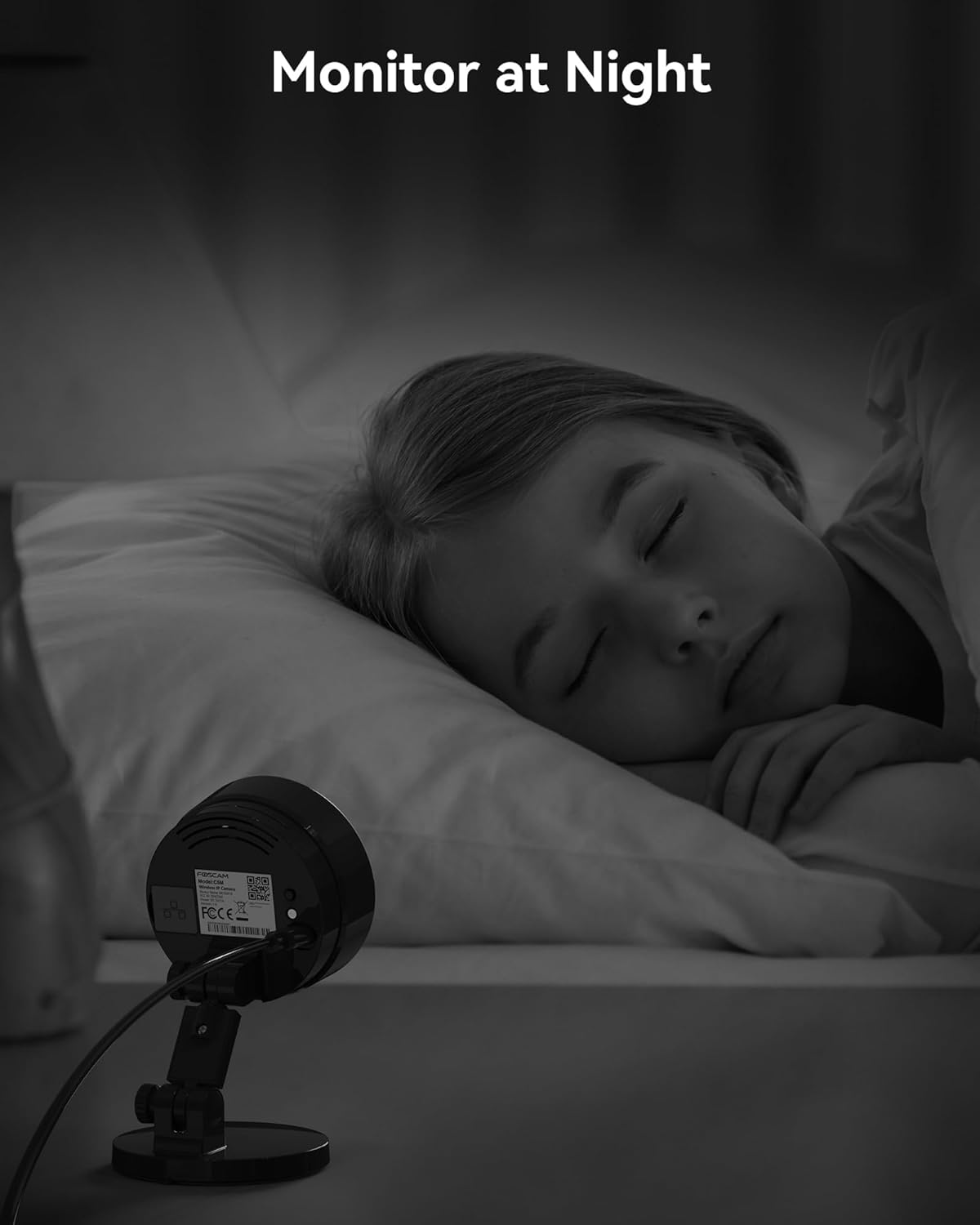
Figure 6: The FOSCAM C5M camera supports two-way audio, allowing communication with individuals near the camera.
6.3 Smart AI Detection
Configure detection settings in the Foscam app. The camera can detect and differentiate between humans, pets, and vehicles. You can set up specific detection zones and sensitivity levels to minimize false alarms.

Figure 7: The FOSCAM C5M camera's Smart AI Detection identifies humans and pets, providing specific alerts.
The camera also features sound detection, alerting you to unusual noises. You can enable an alarm siren to deter intruders or alert family members.

Figure 8: Users can specify custom detection areas within the camera's field of view to focus on critical zones.
6.4 Night Vision
The camera automatically switches to night vision mode in low light. Its no-glow infrared technology ensures discreet monitoring up to 26 feet.

Figure 9: The FOSCAM C5M camera provides clear night vision for monitoring in dark environments.
6.5 Privacy Mask and Sleep Mode
To protect privacy, you can define specific areas within the camera's view to be masked out, preventing them from being recorded or viewed. Sleep Mode allows you to disable the camera's recording and live view functions during specific times or when you are home.
6.6 Storage Options
The camera supports local storage via a Micro SD card (up to 256GB, not included). Foscam also offers cloud storage services for remote access to recordings and event history.
6.7 Smart Home Integration
The FOSCAM C5M is compatible with Amazon Alexa and Google Assistant. Follow the instructions in the Foscam app or your smart home device's app to link your camera for voice control and viewing on compatible smart displays.
7. Maintenance
- Cleaning: Use a soft, dry cloth to clean the camera lens and body. Avoid abrasive cleaners or solvents.
- Firmware Updates: Regularly check for and install firmware updates through the Foscam app to ensure optimal performance and security.
- Placement: Ensure the camera is placed in a location with good Wi-Fi signal strength and away from direct heat sources or extreme temperatures.
8. Troubleshooting
- Camera not connecting to Wi-Fi:
- - Ensure your Wi-Fi password is correct.
- - Verify the camera is within range of your Wi-Fi router.
- - Try connecting via Ethernet cable first, then configure Wi-Fi through the app.
- - Reboot your router and the camera.
- Frequent disconnections:
- - Check Wi-Fi signal strength in the camera's location. Consider moving the camera closer to the router or using a Wi-Fi extender.
- - Ensure your router supports dual-band (2.4GHz and 5GHz) and the camera is connected to the appropriate band.
- False motion detection alerts:
- - Adjust the detection sensitivity in the Foscam app.
- - Define specific detection zones to exclude areas with frequent, non-threatening movement (e.g., trees swaying outside a window).
- - Utilize the AI detection features to filter for humans, pets, or vehicles.
- No night vision:
- - Ensure the camera's infrared (IR) lights are enabled in the app settings.
- - Check for any obstructions blocking the IR sensors.
- Camera runs warm:
- - It is normal for the camera to generate some heat during operation. Ensure it has adequate ventilation and is not enclosed in a confined space.
9. Technical Specifications
| Feature | Detail |
|---|---|
| Model Name | C5M |
| Video Capture Resolution | 3K (5MP) |
| Connectivity Technology | Wireless (2.4G & 5G Wi-Fi), Ethernet |
| Indoor/Outdoor Usage | Indoor |
| Viewing Angle | 135 degrees |
| Digital Zoom | 20X |
| Night Vision Range | 26 feet (Infrared) |
| Storage | Micro SD card (up to 256GB), Cloud Storage |
| Audio | Two-Way Audio |
| Detection Types | Motion, Human, Pet, Vehicle, Sound |
| Power Source | Corded Electric (5V, 4.8W) |
| Dimensions | 2.76 x 4.72 x 2.76 inches |
| Compatible Devices | Smartphone, Alexa, Google Assistant |
10. Warranty and Support
FOSCAM provides comprehensive customer support for its products.
- Technical Support: 24/7 Fast Reply & Lifetime Tech Support.
- Quality Guarantee: 180-Day Quality Guarantee.
- Returns: 30-Day Free Returns.
- Replacements: Free Replacement & Fast Delivery.
For further assistance, please visit the official FOSCAM website or contact their customer service directly.

Figure 10: Foscam customer care details, including support and warranty information.