
1. Product Overview
The FLYRUIT 15.6-inch Digital Picture Frame offers a vibrant 1920x1080 Full HD IPS touchscreen display, designed for easy sharing and viewing of photos and videos. With 32GB of built-in storage, expandable via SD card or USB drive, it provides ample space for your memories. The frame integrates seamlessly with the Frameo application for instant sharing from anywhere.
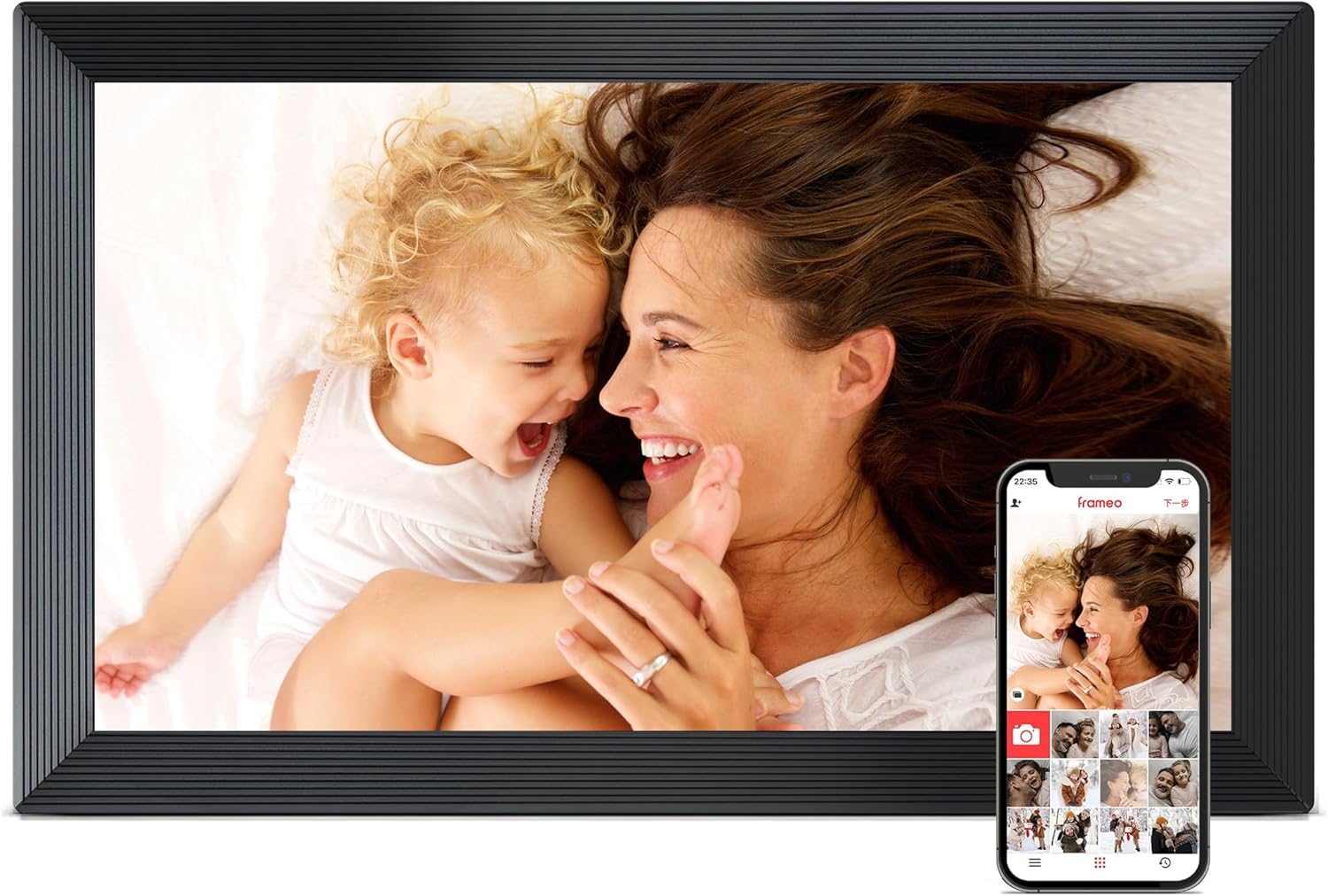
Figure 1: FLYRUIT 15.6-inch Digital Picture Frame and Frameo App Interface.
- Display: 15.6-inch Full HD (1920x1080) IPS Touchscreen
- Storage: 32GB internal, expandable up to 32GB via full-sized SD Card or USB Drive (FAT32 format, not included)
- Connectivity: Wi-Fi enabled, USB-C for PC connection
- App Compatibility: Frameo APP for remote sharing
- Supported Formats: JPG/JPEG/BMP/PNG images, MP4 videos
2. Setup Guide
2.1 Unboxing and Initial Power On
Carefully remove all components from the packaging. The digital picture frame is hardwired and requires continuous power. Connect the power adapter to the DC port on the back of the frame and plug it into a power outlet.
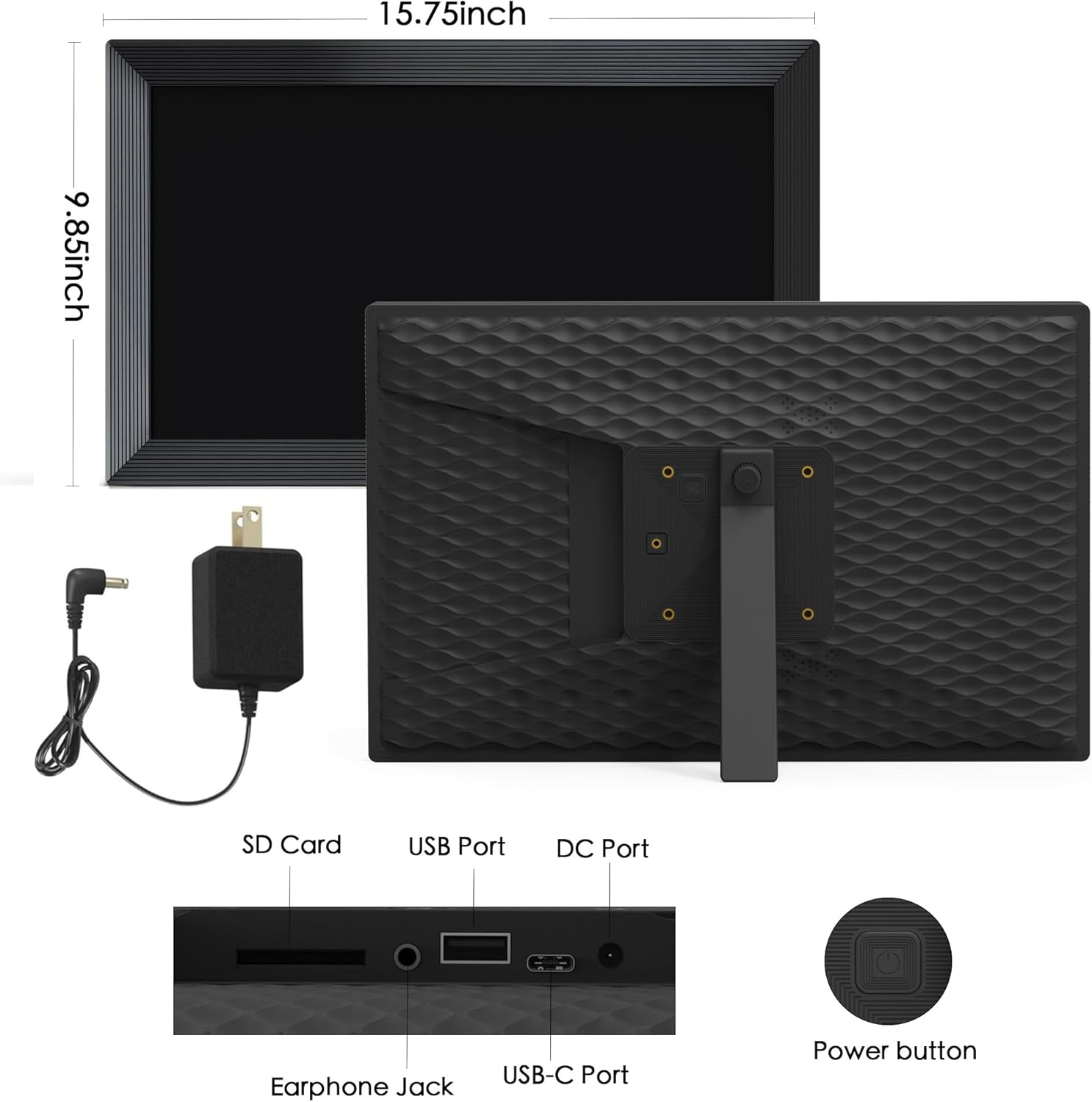
Figure 2: Rear view of the frame with port details and dimensions.
2.2 Stand and Mounting Options
The frame comes with a removable and repositionable stand, allowing for both tabletop display and wall mounting. To wall mount, detach the stand and use appropriate wall mounting hardware (not included) with the designated mounting points on the back of the frame.
2.3 Network Connection
Upon first power-on, follow the on-screen prompts to connect the frame to your Wi-Fi network. A stable Wi-Fi connection is required for using the Frameo app features.
2.4 Frameo App Installation
Download the "Frameo" application from your smartphone's app store (available for iOS and Android). Follow the in-app instructions to pair your smartphone with your digital picture frame. This typically involves entering a unique code displayed on the frame into the app.

Figure 3: Seamless photo sharing via Frameo App.
3. Operating Instructions
3.1 Touchscreen Navigation
The 15.6-inch IPS Full HD touchscreen allows for intuitive navigation. Tap to select, swipe to scroll, and pinch to zoom on images. The responsive interface makes managing your photos effortless.
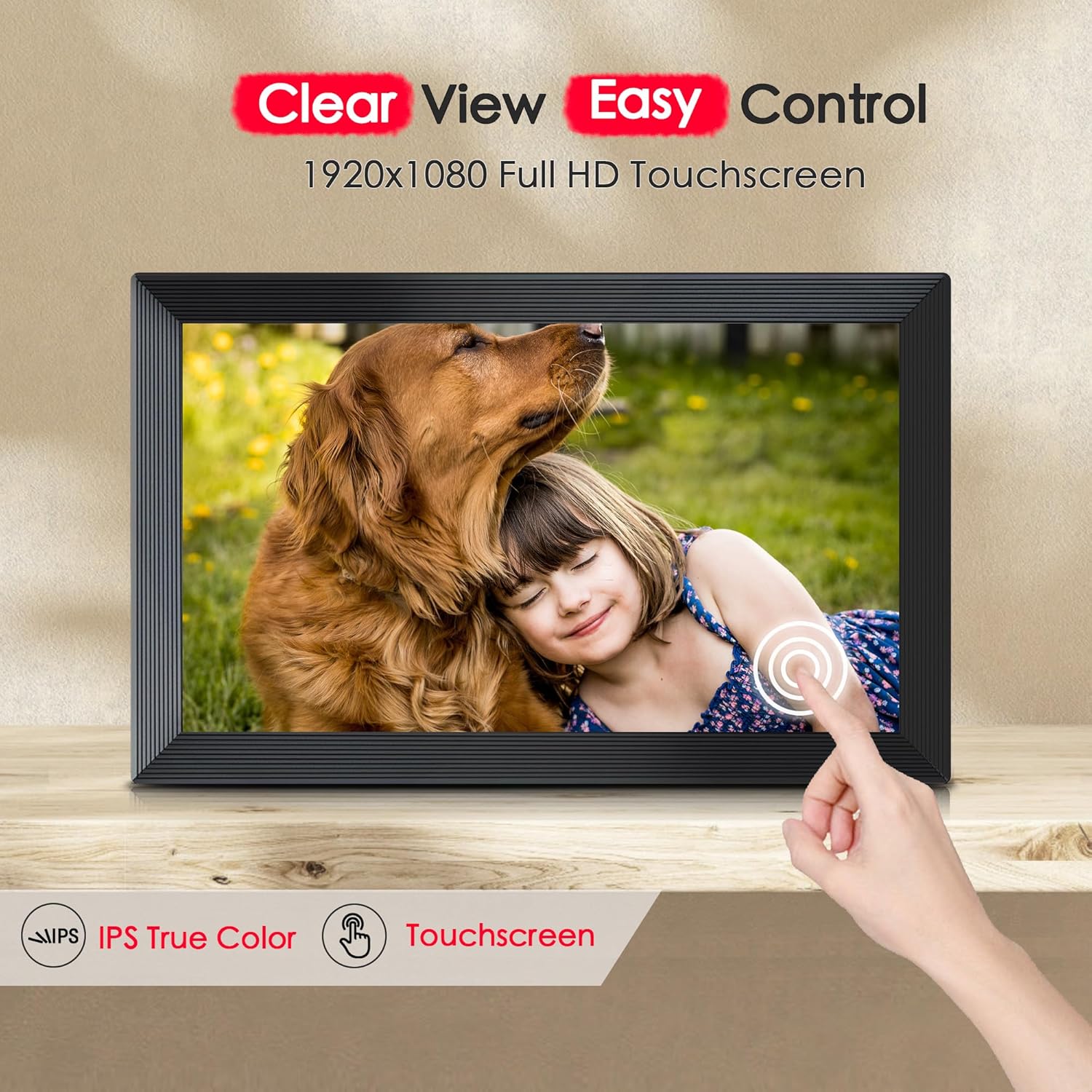
Figure 4: Touchscreen interaction for easy control.
3.2 Adding Photos and Videos
- Via Frameo App (Recommended):
- Open the Frameo app on your smartphone.
- Select the photos or videos you wish to send.
- Choose your connected frame as the recipient.
- Optionally, add a caption or adjust the preview.
- Send the media. It will appear on your frame almost instantly.
- Via SD Card or USB Drive (Offline Mode):
Insert a full-sized SD card or USB drive (FAT32 format) containing your JPG/JPEG/BMP/PNG images or MP4 videos into the corresponding port on the frame. The frame will detect the media and allow you to import them directly. This method does not require a Wi-Fi connection.
- Via USB-C Cable:
Connect the frame to a computer using a USB-C cable (Windows systems only). You can then transfer photos and videos directly from your computer to the frame's internal storage.
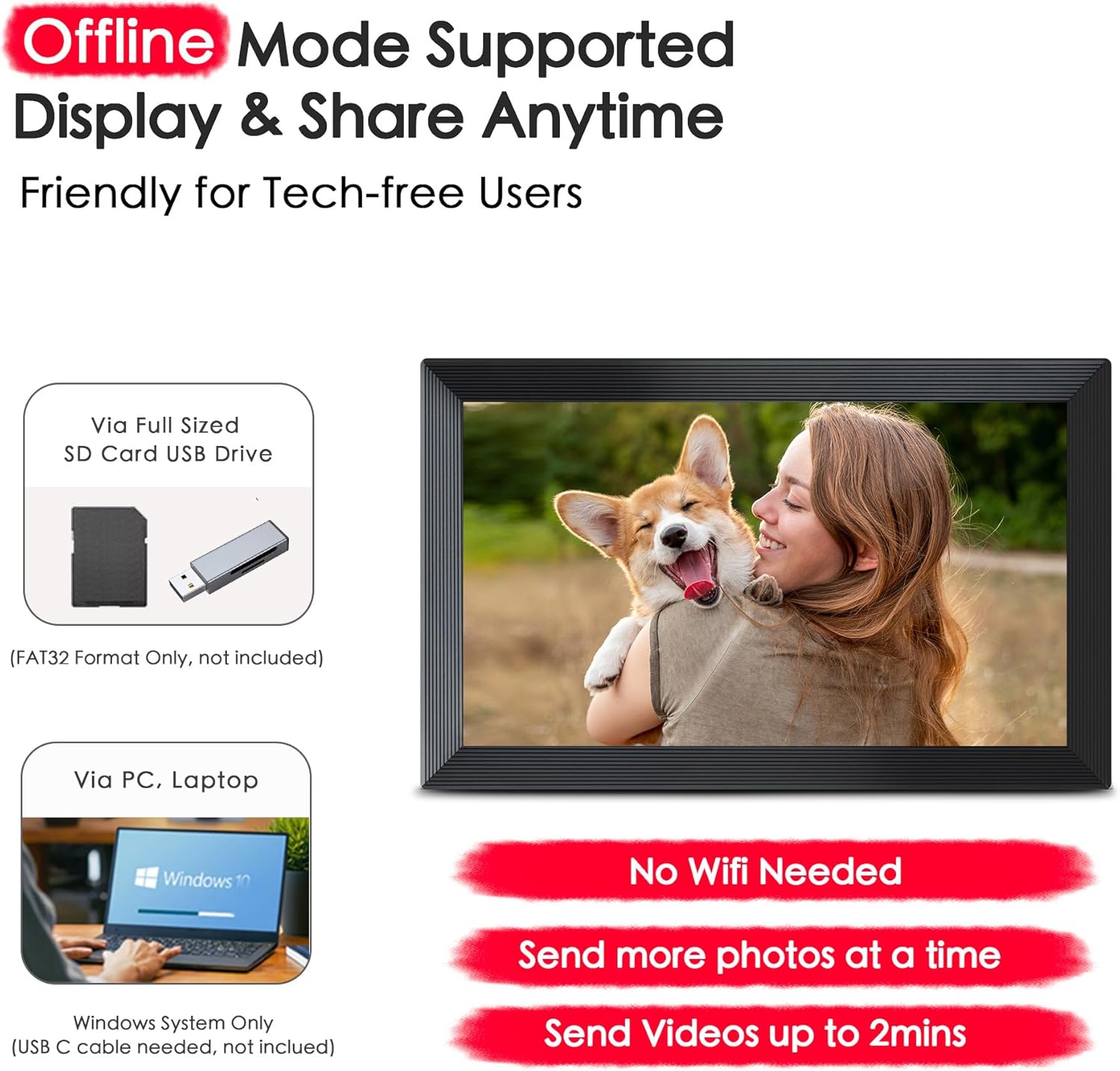
Figure 5: Offline mode and PC transfer options.
3.3 Managing Photos on the Frame
From the frame's interface, you can browse your photos, delete unwanted images, and adjust display settings. The frame automatically rotates between portrait and landscape modes based on its orientation.
3.4 Additional Features
- Greeting Function: Send themed pictures for special occasions.
- React Function: Respond to received pictures with emojis.
- Auto-Rotate: Automatically adjusts display orientation.
- Image Zooming: Zoom in on details of your photos.
- Clock Display: Shows current time.
- Weather Display: Provides local weather information.
- Sleep Mode: Set a schedule for the frame to turn off/on to save energy or avoid brightness during sleep.
- Adjustable Brightness: Customize screen brightness for optimal viewing.
- Show/Hide Photos: Control which photos are displayed in the slideshow.
4. Maintenance
To ensure the longevity and optimal performance of your digital picture frame, follow these maintenance guidelines:
- Cleaning: Use a soft, dry, lint-free cloth to clean the screen and frame. Avoid abrasive cleaners or sprays directly on the screen.
- Placement: Place the frame on a stable surface or mount it securely on a wall. Avoid direct sunlight, high humidity, or extreme temperatures.
- Software Updates: Periodically check for and install any available software updates through the frame's settings to ensure the best performance and security.
5. Troubleshooting
If you encounter any issues with your FLYRUIT Digital Picture Frame, please refer to the following common solutions:
- Frame Not Turning On: Ensure the power adapter is securely connected to both the frame and a working power outlet.
- Cannot Connect to Wi-Fi: Verify your Wi-Fi password is correct. Try restarting your router and the frame. Ensure the frame is within range of your Wi-Fi signal.
- Photos Not Appearing:
- If using the Frameo app, ensure the frame is online and connected to Wi-Fi. Check your app's upload status.
- If using SD card/USB drive, ensure it is formatted to FAT32 and contains supported file types (JPG/JPEG/BMP/PNG for images, MP4 for videos).
- Screen Unresponsive: Try restarting the frame by unplugging it for a few seconds and plugging it back in.
For persistent issues or further assistance, please contact FLYRUIT customer support.
6. Specifications
| Feature | Detail |
|---|---|
| Product Dimensions | 10 x 16 x 0.99 inches |
| Item Weight | 3.47 pounds |
| Model Number | FRAME156 |
| Resolution | 1920*1080 |
| Screen Size | 15.6 Inches |
| Compatible Devices | Personal Computer, Smartphone |
| Color | Black |
| Manufacturer | FLYRUIT |
7. Warranty and Support
FLYRUIT is committed to providing high-quality products and excellent customer service. Your digital picture frame comes with quality assurance from the manufacturer.
For technical support, setup assistance, or any inquiries, our dedicated team is available 24/7. Please refer to the contact information provided in your product packaging or visit the official FLYRUIT website for support details.
As an official Frameo partner, FLYRUIT ensures a trusted and stable app experience for seamless photo sharing.