
1. Introduction
The zelotes F35C is an ergonomic vertical mouse designed for comfort and versatility. It features dual-mode connectivity (2.4G wireless and Bluetooth 5.0/3.0), a built-in rechargeable battery, and an integrated display for monitoring connection mode, battery level, and DPI settings. This manual provides instructions for setting up, operating, and maintaining your F35C mouse.
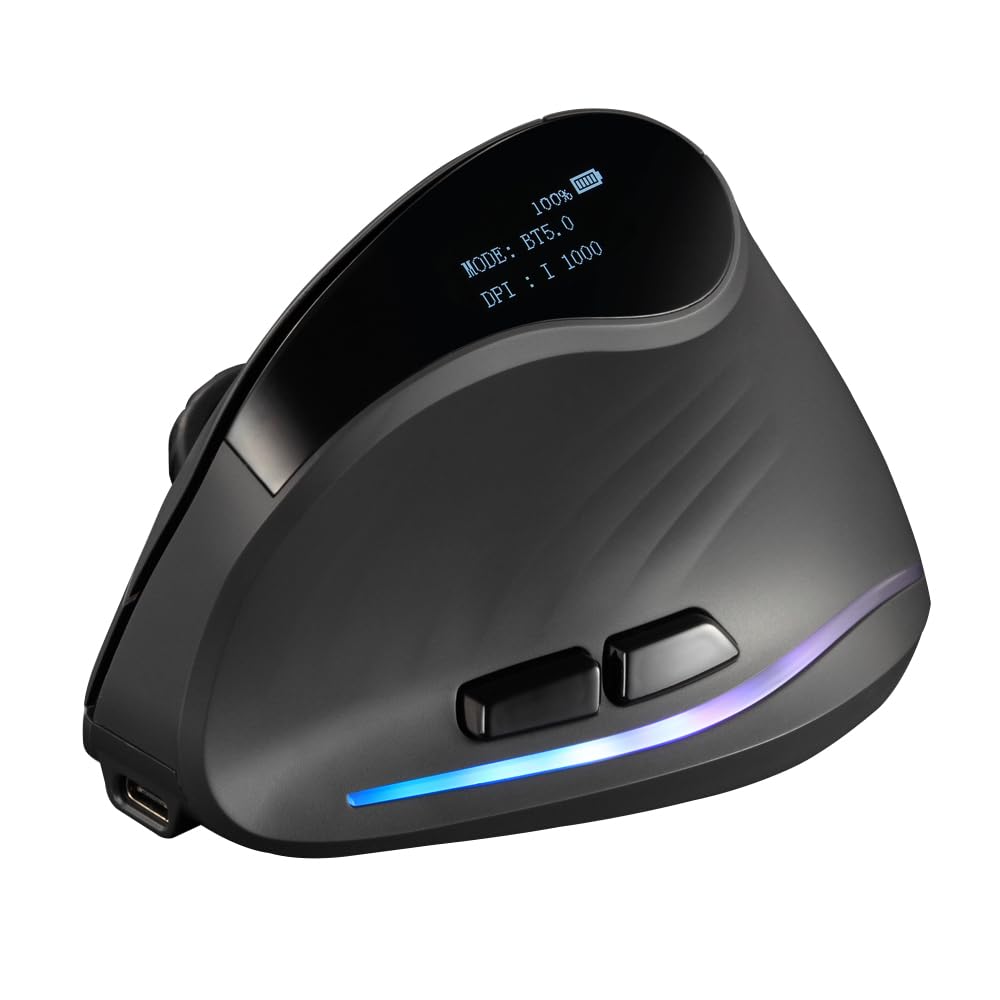
Image 1.1: The zelotes F35C vertical mouse, showcasing its ergonomic design and integrated display.
2. Package Contents
Please check the package for the following items:
- 1 x zelotes F35C Ergonomic Bluetooth Wireless Mouse
- 1 x USB Receiver (stored in the mouse's battery compartment)
- 1 x USB Charging Cable
- 1 x User Manual (this document)
3. Product Features
- Integrated Display: A small screen on the mouse shows the current connection mode (2.4G, BT 5.0, BT 3.0), battery level, and DPI setting.
- Dual Mode Connectivity: Connects via 2.4G USB receiver or Bluetooth (BT 5.0 and BT 3.0). Supports connection to three devices simultaneously (one via 2.4G, two via Bluetooth).
- Rechargeable Battery: Built-in 800mAh high-capacity rechargeable battery. Can be used while charging.
- Ergonomic Vertical Design: Designed to reduce wrist pressure and discomfort during prolonged use.
- Adjustable DPI: Five adjustable DPI levels: 1000/1600/2400/3200/4000 DPI for precise cursor control.
- 7 Buttons: Includes left, right, scroll wheel, DPI switch, forward, back, and mode switch buttons.
4. Setup Guide
4.1 Initial Charging
Before first use, fully charge the mouse. Connect the provided USB charging cable to the mouse's charging port and to a USB power source (e.g., computer USB port, USB wall adapter). The display will indicate charging status. You can continue to use the mouse while it charges.

Image 4.1: The mouse connected to a charging cable, illustrating its wired mode capability.
4.2 Connecting via 2.4G USB Receiver
- Locate the USB receiver stored in the compartment at the bottom of the mouse.
- Plug the USB receiver into an available USB port on your computer.
- Turn on the mouse using the power switch located on the bottom.
- Press the mode switch button (usually on the bottom or top, refer to diagram) until the display shows "MODE: 2.4G". The mouse should automatically connect.
4.3 Connecting via Bluetooth
The mouse supports two Bluetooth channels: BT 5.0 and BT 3.0.
- Turn on the mouse.
- Press the mode switch button to select either "MODE: BT 5.0" or "MODE: BT 3.0".
- Press and hold the mode switch button for 3-5 seconds until the Bluetooth icon on the display starts flashing, indicating pairing mode.
- On your device (PC, laptop, tablet, smartphone), go to Bluetooth settings and search for new devices.
- Select "zelotes F35C" (or similar name) from the list of available devices to pair.
- Once paired, the Bluetooth icon on the mouse display will stop flashing and remain solid.
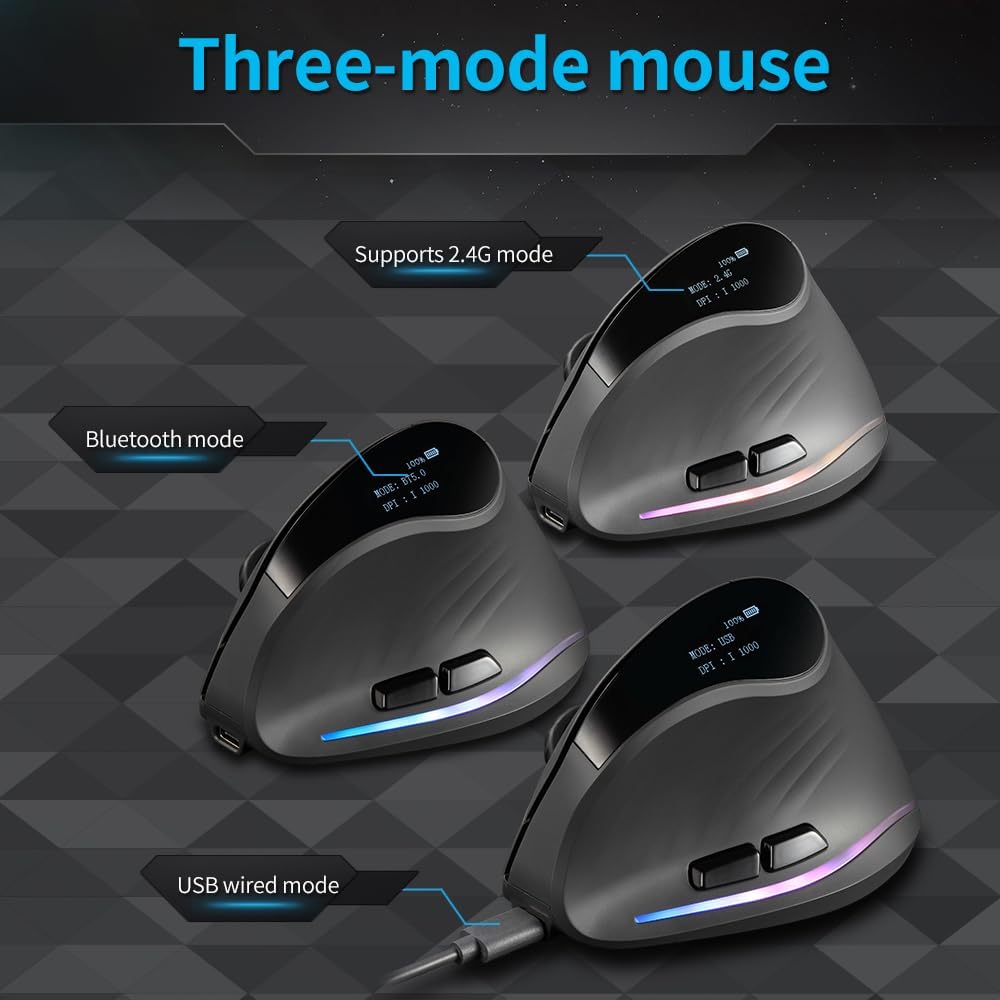
Image 4.2: Illustration of the mouse's three connection modes: 2.4G wireless, Bluetooth, and USB wired (for charging/use).
4.4 Switching Between Devices/Modes
To switch between connected devices or modes (2.4G, BT 5.0, BT 3.0), simply press the mode switch button on the mouse. The display will show the currently active mode. You can switch control between up to three devices seamlessly.
5. Operating Instructions
5.1 DPI Adjustment
The mouse offers 5 adjustable DPI levels: 1000, 1600, 2400, 3200, and 4000. To change the DPI, press the DPI button (usually located near the scroll wheel). Each press will cycle through the available DPI settings, and the current DPI value will be shown on the display.

Image 5.1: The mouse's display showing current DPI and connection mode.
5.2 Button Functions
- Left Click: Standard primary click function.
- Right Click: Standard secondary click function.
- Scroll Wheel: Scroll up/down, and middle click.
- DPI Button: Cycles through DPI settings.
- Forward Button: Navigates forward in web browsers or file explorers.
- Back Button: Navigates backward in web browsers or file explorers.
- Mode Switch Button: Switches between 2.4G, BT 5.0, and BT 3.0 modes. Long press for Bluetooth pairing.
5.3 Ergonomic Design Benefits
The vertical design of the zelotes F35C mouse positions your hand in a natural handshake posture. This design aims to reduce muscle strain in the arm and wrist, which can be beneficial for users who spend long hours at the computer.

Image 5.2: A hand comfortably gripping the ergonomic vertical mouse.

Image 5.3: Visual comparison highlighting the ergonomic advantages of a vertical mouse for wrist and arm comfort.
6. Maintenance
- Cleaning: Use a soft, dry cloth to clean the mouse. For stubborn dirt, slightly dampen the cloth with water. Avoid using harsh chemicals or abrasive materials.
- Battery Care: To prolong battery life, avoid fully discharging the mouse frequently. Charge the mouse when the battery indicator on the display shows low power. If storing the mouse for an extended period, charge it to about 50% and recharge every few months.
- Storage: Store the mouse in a cool, dry place away from direct sunlight and extreme temperatures.
7. Troubleshooting
| Problem | Solution |
|---|---|
| Mouse not responding. |
|
| Bluetooth connection issues. |
|
| Cursor movement is erratic or slow. |
|
| Mouse not charging. |
|
8. Specifications
| Feature | Detail |
|---|---|
| Model Name | F35C |
| Connectivity Technology | Bluetooth (BT 5.0/3.0), 2.4G USB Wireless |
| DPI Levels | 1000 / 1600 / 2400 / 3200 / 4000 (Adjustable) |
| Movement Detection | Optical |
| Number of Buttons | 7 |
| Battery Capacity | 800mAh (Rechargeable) |
| Hand Orientation | Right |
| Compatible Operating Systems | Win11, Win10, Win8, Win7, Mac OS, Chrome OS, Android 5.0 or higher |
| Product Dimensions | 110 x 72 x 75 mm (approximate) |
| Product Weight | 130g (approximate) |
| Color | Black |
9. Warranty and Support
The zelotes F35C mouse comes with a 1-Year Manufacturer Warranty. For warranty claims or technical support, please refer to the contact information provided on the product packaging or visit the official zelotes website. Keep your purchase receipt as proof of purchase for warranty services.


