
1. Introduction
Thank you for choosing the NIIMBOT B31 Label Maker Machine. This portable thermal label printer is designed for efficient and versatile labeling, compatible with smartphones and PCs. It supports a wide range of label sizes and offers fast printing speeds without the need for ink or toner. This manual provides essential information for setting up, operating, maintaining, and troubleshooting your device to ensure optimal performance.
2. Product Overview
The NIIMBOT B31 is a compact and efficient label printer, ideal for various labeling needs. It features thermal printing technology, eliminating the need for ink cartridges. The device supports label widths from 0.78 inches to 3 inches (20-75mm) and boasts a print speed of 80 mm/s.
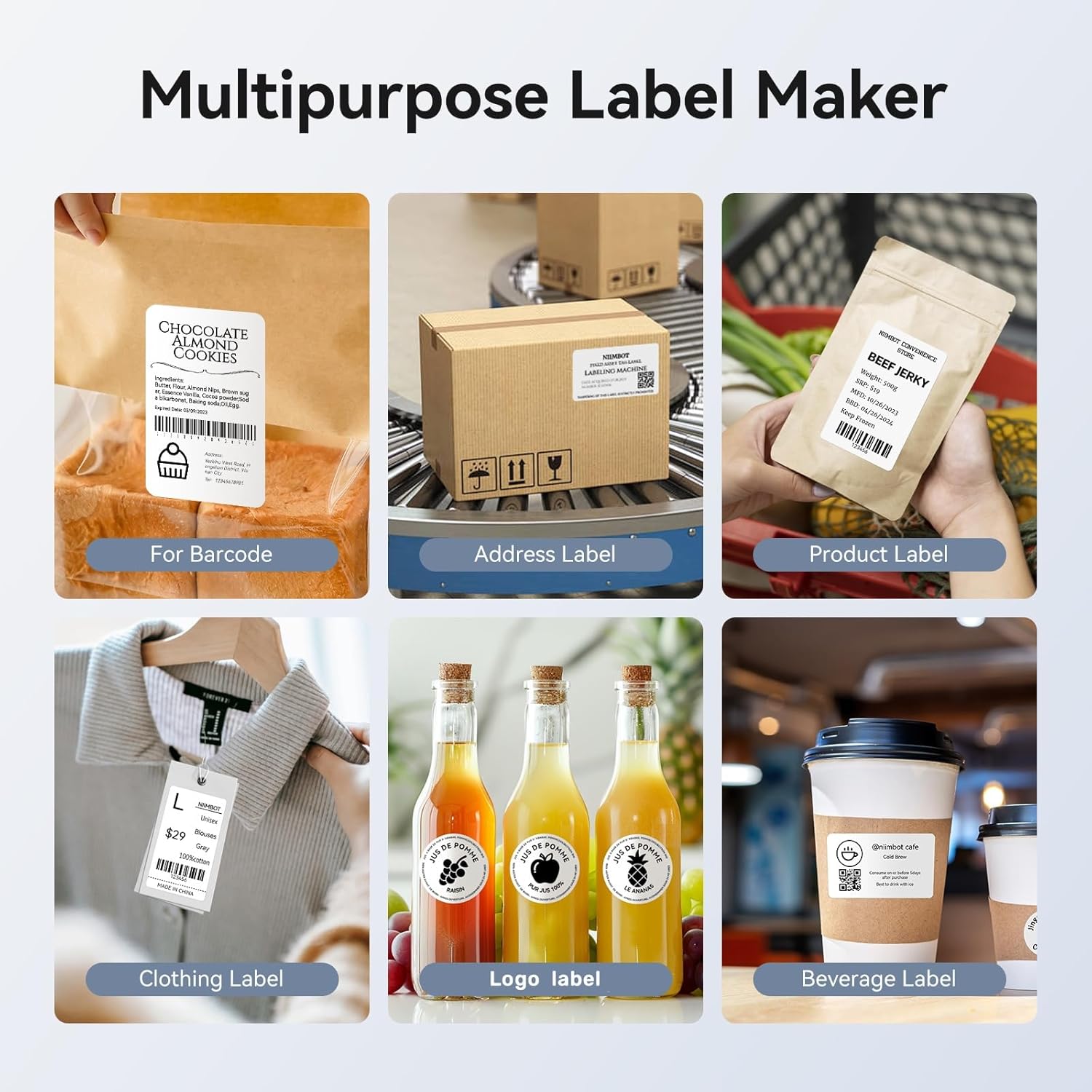
Figure 2.1: Multipurpose Label Applications

Figure 2.2: Supported Label Widths (0.78"-3" / 20-75mm)

Figure 2.3: High-Speed Printing Capability

Figure 2.4: Key Features for Ease of Use
3. Setup
3.1 Loading Labels
To load label tape, open the printer cover. Push the baffle aside and place the label roll into the paper bin. Ensure the label tape is properly aligned and the side baffles clamp automatically. Close the cover firmly.

Figure 3.1: Label Tape Loading Process
3.2 App Installation and Connection
The NIIMBOT B31 is compatible with iOS and Android smartphones, as well as Windows 7/10 PCs. It is not recommended for use with tablets.
For Smartphones:
- Download the NIIMBOT app from the App Store (iOS) or Google Play Store (Android).
- Enable Bluetooth on your smartphone.
- Open the NIIMBOT app and select the B31 printer model to connect via Bluetooth.

Figure 3.2: Smartphone App Connection Steps
For PC (Windows 7/10):
Download the necessary driver from the official NIIMBOT website. Connect the printer to your PC using a USB cable.

Figure 3.3: PC USB Cable Connection
Multi-Bluetooth Connection:
The NIIMBOT B31 supports simultaneous connection with multiple smartphones (up to 6, e.g., 1 iOS + 5 Android devices).

Figure 3.4: Multi-Bluetooth Connectivity
4. Operating Instructions
4.1 Creating Labels with the NIIMBOT App
The NIIMBOT app offers extensive customization options for your labels. You can create various types of labels using its features:
- Fonts & Languages: Over 10 fonts and multiple language options.
- Borders & Symbols: Access to over 100 borders and 1500+ symbols.
- Barcodes & QR Codes: Generate and print various barcode and QR code formats.
- Icons, Time, Pictures, Photos: Integrate these elements into your label designs.
- OCR Print: Optical Character Recognition for printing text from images.
- Templates: Utilize numerous pre-made templates for commercial and daily use.
Note: While many features are free, some advanced fonts, templates, and icons may require additional payment for VIP access.
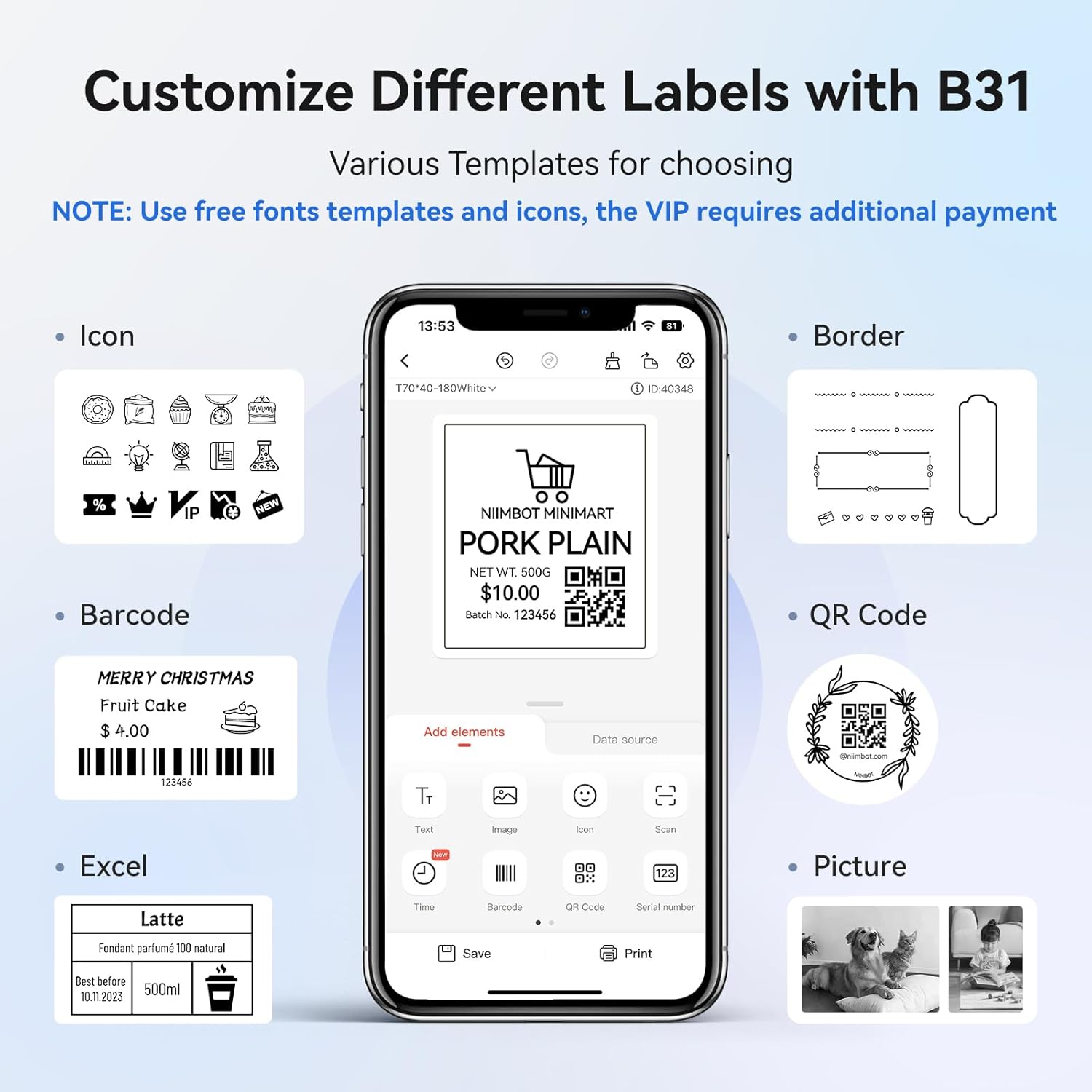
Figure 4.1: NIIMBOT App Label Customization Interface

Figure 4.2: Powerful Functions in NIIMBOT App
4.2 Printing Labels
After designing your label in the app, select the print option. The printer will automatically align the first label to ensure accurate printing without offset. The label exposure distance should be less than 30mm (1.18 inches).

Figure 4.3: Automatic First Label Alignment
5. Maintenance
5.1 Cleaning
Regular cleaning helps maintain print quality. Use a soft, dry cloth to wipe the exterior of the printer. For the print head, use a specialized thermal printer cleaning pen or a cotton swab lightly dampened with isopropyl alcohol. Ensure the printer is turned off and cooled down before cleaning the print head.
5.2 Battery Care
The NIIMBOT B31 features a built-in rechargeable battery. To prolong battery life:
- Charge the device using the provided Type-C cable.
- The printer will auto-turn off after a 15-minute pause to save energy. This auto power-off setting can be adjusted (15min, 30min, 60min, never) in the app.
- Avoid exposing the printer to extreme temperatures.

Figure 5.1: Type-C Fast Charging
6. Troubleshooting
6.1 Bluetooth Connection Issues (Android)
If you experience Bluetooth connection problems with Android phones, upgrade the printer's Bluetooth firmware. This can be done via an iOS device or PC cloud printing. After the upgrade, double-press the printer's power button to print a self-test page. The Bluetooth version should update to 7470, confirming a successful upgrade.
6.2 Label Detection and Printing Errors
The NIIMBOT B31 printer utilizes RFID technology to detect label size and pattern. For optimal performance and to avoid issues such as labels cutting off incorrectly or printing blank labels, it is recommended to use NIIMBOT specific labels. The printer is designed to work best with labels containing an RFID chip that it can recognize.

Figure 6.1: RFID Technology and Label Compatibility
7. Specifications
| Feature | Description |
|---|---|
| Brand | NIIMBOT |
| Model Name | B31-02 |
| Connectivity Technology | Bluetooth |
| Printing Technology | Thermal |
| Special Feature | Portable |
| Color | Dark blue |
| Printer Output | Monochrome |
| Max Print Speed Monochrome | 60 sheets 50x50 labels/min (80 mm/s) |
| Item Weight | 0.8 Kilograms |
| Product Dimensions (D x W x H) | 5.2" x 4.65" x 2.72" |
| Print Media | Labels |
| Maximum Media Size | 3 Inch (supports 0.78" - 3" width) |
| Paper Size | 1-3 INCH |
| Additional Printer Functions | Print Only |
| Specific Uses | Address labeling, barcode printing, price tagging, date labeling, ingredient labeling, product labeling, bakery, crafts, retail, clothing, jewelry, small business, online shop, school, office, home organization |
| Built-In Media | Labels |
8. Warranty and Support
The NIIMBOT B31 Label Maker Machine comes with a 1-year limited warranty from the date of purchase. For warranty claims or technical support, please contact NIIMBOT customer service through their official website or the contact information provided with your product packaging. Please retain your proof of purchase for warranty validation.
9. Safety Information
- Do not disassemble or modify the printer.
- Keep the printer away from water and other liquids.
- Use only NIIMBOT approved power adapters and accessories.
- Store the printer in a cool, dry place when not in use.
- Keep out of reach of children.


