
1. Product Overview
The VGKE Mini 4K Portable Projector is designed to deliver a high-quality visual experience with advanced features for both indoor and outdoor use. This manual provides essential information for setting up, operating, and maintaining your projector.

Figure 1: VGKE Mini 4K Portable Projector highlighting its features including Android 13, 15000 Lumens, 2000:1 Contrast Ratio, Bluetooth 5.2, Dual-band WiFi, built-in speakers, autofocus, zoom, and auto keystone correction.
Key Features:
- Autofocus AI & Automatic Keystone Correction: Effortless projection with sharp, perfectly rectangular images without manual adjustments.
- Ultra-Portable & 90° Foldable Design: Weighing only 0.99 kg with compact dimensions (22x9.7x9.7 cm), featuring an innovative 90° foldable design for easy portability and versatile projection angles.
- 15000 Lux Brightness & 4K Support: Delivers vivid images with 15000 Lux brightness and Full HD 4K resolution support, suitable for moderately lit environments.
- Ultrafast Wi-Fi 6 & Bluetooth 5.2: Seamless connectivity for streaming and wireless screen mirroring, with Bluetooth 5.2 for connecting headphones, speakers, or using the projector as a standalone Bluetooth speaker.
- Universal Compatibility: Equipped with HDMI, USB, and AV ports for connecting various devices including gaming consoles, laptops, smartphones, and older devices.
2. What's in the Box
Upon unboxing your VGKE Mini 4K Portable Projector, please ensure all the following items are present:
- VGKE Mini 4K Portable Projector
- Remote Control
- Power Adapter
- User Manual (this document)
3. Product Diagram
Familiarize yourself with the projector's components and connection ports:
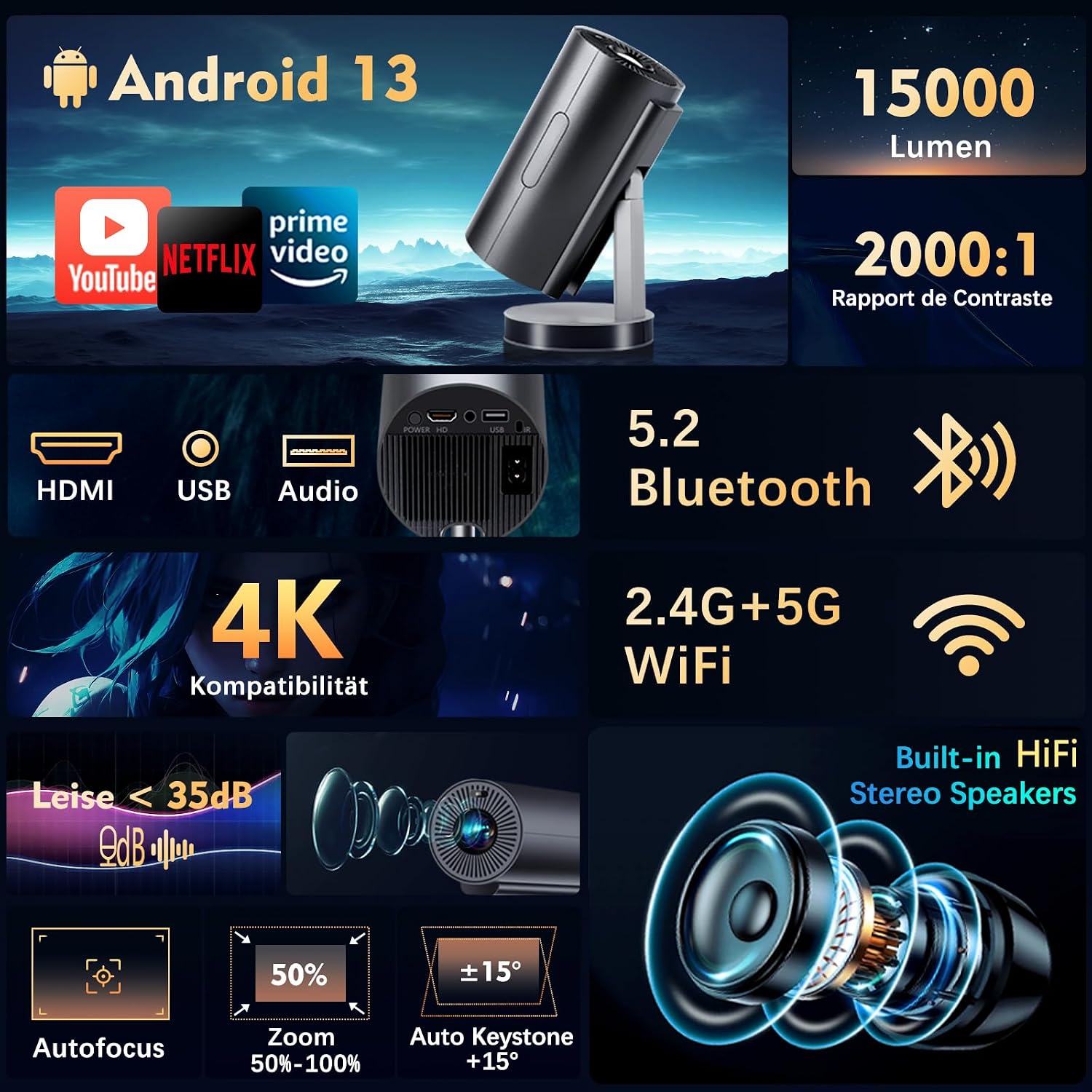
Figure 2: Front and rear view of the projector, indicating the lens, ventilation, and various input/output ports.
Ports and Controls:
- Power Input: Connect the power adapter here.
- HDMI Port: Connect to laptops, gaming consoles (PS5/Xbox/Switch), Blu-ray players, etc.
- USB Port: Connect USB drives for media playback.
- AV Port: Connect to older devices using an AV cable (not included).
- Audio Out (3.5mm Jack): Connect external headphones or speakers.
- Focus Adjustment: Automatic AI autofocus.
- Power Button: To turn the projector on/off.
4. Setup Instructions
4.1 Powering On/Off
- Connect the power adapter to the projector's power input and then to a power outlet.
- Press the Power Button on the projector or the remote control to turn it on.
- To turn off, press the Power Button again and confirm shutdown.
4.2 Placement and Adjustment
The projector's versatile design allows for various placement options:
- Tabletop Projection: Place the projector on a flat surface. The integrated stand allows for 90° rotation, enabling ceiling projection.
- Tripod Mounting: The projector features a standard tripod mount for stable and adjustable positioning.

Figure 3: Projector demonstrating 90-degree continuous adjustment for flexible projection angles, including ceiling projection.
4.3 Initial Configuration
The projector is equipped with intelligent features for quick setup:
- Autofocus AI: The projector automatically adjusts the focus for a clear image upon startup or movement.
- Automatic Keystone Correction: The image will automatically correct its shape to be rectangular, even if the projector is placed at an angle.
- Digital Zoom (50%-100%): Use the remote control to adjust the image size without moving the projector.

Figure 4: Demonstration of the projector's automatic autofocus feature, ensuring a sharp image.
Figure 5: Automatic keystone correction in action, adjusting the projected image for optimal viewing.
4.4 Network Connection (Wi-Fi 6)
- Navigate to the 'Settings' menu on the projector's home screen.
- Select 'Network' or 'Wi-Fi Settings'.
- Turn on Wi-Fi and select your desired 2.4G or 5G network from the list.
- Enter the password if prompted and connect.

Figure 6: Seamless dual-band Wi-Fi 6 connectivity for smooth streaming and screen mirroring from various devices.
4.5 Bluetooth Connection (Bluetooth 5.2)
- Go to 'Settings' and select 'Bluetooth'.
- Turn on Bluetooth. The projector will search for nearby devices.
- Select your Bluetooth headphones or speaker from the list to pair.
- The projector can also function as a standalone Bluetooth speaker for music playback.
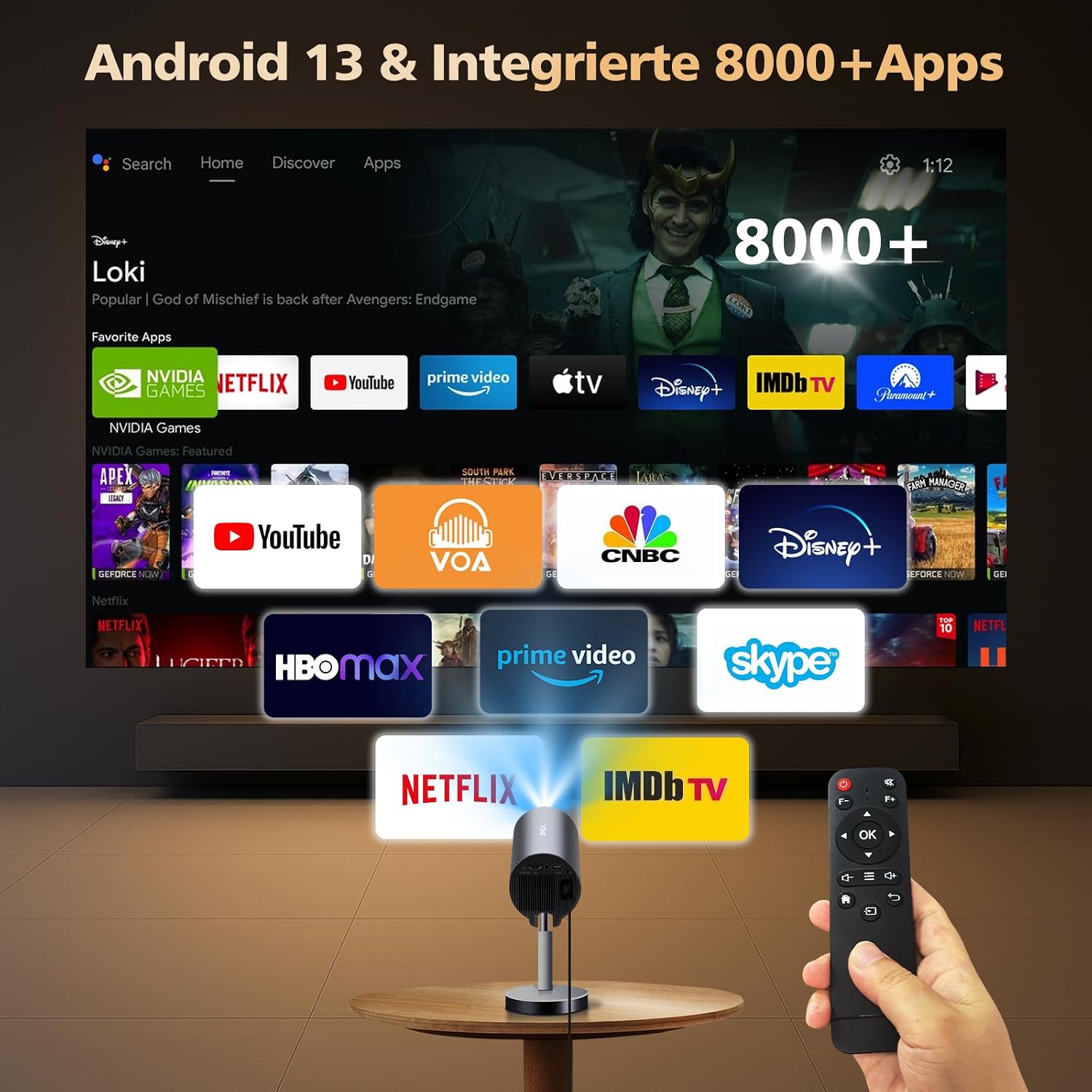
Figure 7: Enhanced Bluetooth 5.2 functionality, allowing connection to external audio devices or use as a Bluetooth speaker.
5. Operating Instructions
5.1 Connecting External Devices
The projector supports various input methods:
- HDMI: Connect your device using an HDMI cable. The projector will automatically detect the input.
- USB: Insert a USB drive into the USB port. The projector's file manager will allow you to browse and play media files.
- AV: Use an AV cable to connect older devices.
- Smartphone Mirroring: Utilize Wi-Fi 6 for seamless screen mirroring from your iOS or Android smartphone. Access the 'ScreenCast' or 'Miracast' app on the projector's home screen and follow the on-screen instructions.

Figure 8: Android 13 interface with over 8000 integrated apps, offering a wide range of entertainment options.

Figure 9: Versatile connectivity options for the projector, supporting a wide array of devices.
5.2 Using Smart TV Android
The projector runs on Android 13 and comes with over 8000 pre-installed apps, including popular streaming services. Ensure you are connected to Wi-Fi to access these features.
- Navigate the home screen using the remote control.
- Click on app icons to launch streaming services like Netflix, YouTube, Prime Video, Disney+, etc.
- Download additional apps from the integrated App Store.

Figure 10: Access to over 8000 pre-installed applications for diverse entertainment.
5.3 Audio Output
The projector features built-in HiFi stereo speakers. For a more immersive experience or private listening:
- Connect Bluetooth headphones or speakers as described in Section 4.5.
- Use the 3.5mm Audio Out jack to connect wired headphones or external speakers.
6. Maintenance
Regular maintenance ensures optimal performance and longevity of your projector.
6.1 Cleaning the Lens
- Use a soft, lint-free cloth specifically designed for optical lenses.
- Gently wipe the lens in a circular motion to remove dust or smudges.
- Avoid using abrasive materials or harsh cleaning chemicals, as these can damage the lens coating.
6.2 General Cleaning
- Wipe the exterior of the projector with a soft, dry cloth.
- Ensure ventilation ports are clear of dust and debris to prevent overheating. Use a soft brush or compressed air if necessary.
7. Troubleshooting
If you encounter issues with your projector, refer to the following common problems and solutions:
| Problem | Possible Cause | Solution |
|---|---|---|
| No image or blurry image | Incorrect focus, input source not selected, cable issue. | Check input source. Allow autofocus to adjust. Ensure cables are securely connected. |
| No sound | Volume too low, incorrect audio output selected, external device muted. | Increase projector volume. Check external device volume. Ensure correct audio output (internal speakers, Bluetooth, 3.5mm jack). |
| Wi-Fi connection unstable | Weak signal, incorrect password, network interference. | Ensure projector is within Wi-Fi range. Re-enter password. Try connecting to a different Wi-Fi band (2.4G/5G). |
| Remote control not working | Low batteries, obstruction, not pointed at IR receiver. | Replace batteries. Remove obstructions. Point remote directly at the projector's IR receiver. |
| Projector overheating | Blocked ventilation, prolonged use in hot environment. | Ensure ventilation ports are clear. Operate in a well-ventilated area. Allow the projector to cool down. |
8. Specifications
| Feature | Detail |
|---|---|
| Brand | VGKE |
| Model | Mini 4K Portable Projector |
| Display Technology | LCD, LED |
| Native Resolution | 3840 x 2160 (4K Supported) |
| Brightness | 15000 Lumens |
| Contrast Ratio | 2000:1 (High) |
| Connectivity | Wi-Fi 6 (2.4G/5G), Bluetooth 5.2 |
| Input Interfaces | HDMI, USB, AV |
| Special Features | Autofocus AI, Automatic Keystone Correction, 90° Rotatable Stand, Digital Zoom (50%-100%) |
| Operating System | Android 13 (with 8000+ apps) |
| Recommended Use | Home Cinema, Outdoor, Gaming, Presentations |
| Dimensions | 22 x 9.7 x 9.7 cm (approx.) |
| Weight | 0.99 kg (approx.) |
| Included Components | Remote Control |
9. Warranty and Support
For warranty information and technical support, please refer to the documentation included with your product or visit the official VGKE website. Keep your purchase receipt as proof of purchase for warranty claims.
10. Product Illustration Video
Watch this video for a practical illustration of the product's features and usage:
Video 1: Practical product illustration. This video demonstrates various aspects of the projector's functionality and design.