
Introduction
This manual provides detailed instructions for the setup, operation, and maintenance of your SEUNKWANG EWEADN G5 Wired Gaming Mouse. Please read this manual thoroughly to ensure proper use and to maximize your gaming experience.

Image: Top-down view of the SEUNKWANG EWEADN G5 Wired Gaming Mouse, showcasing its ergonomic design and RGB lighting.
Setup
1. Connecting the Mouse
The EWEADN G5 is a plug-and-play wired gaming mouse.
- Locate an available USB port on your PC or laptop.
- Plug the USB connector of the EWEADN G5 mouse into the USB port.
- The mouse will be automatically recognized by your operating system (Windows XP/7/8/10/11).
- The RGB lighting will illuminate, indicating the mouse is powered on and ready for use.
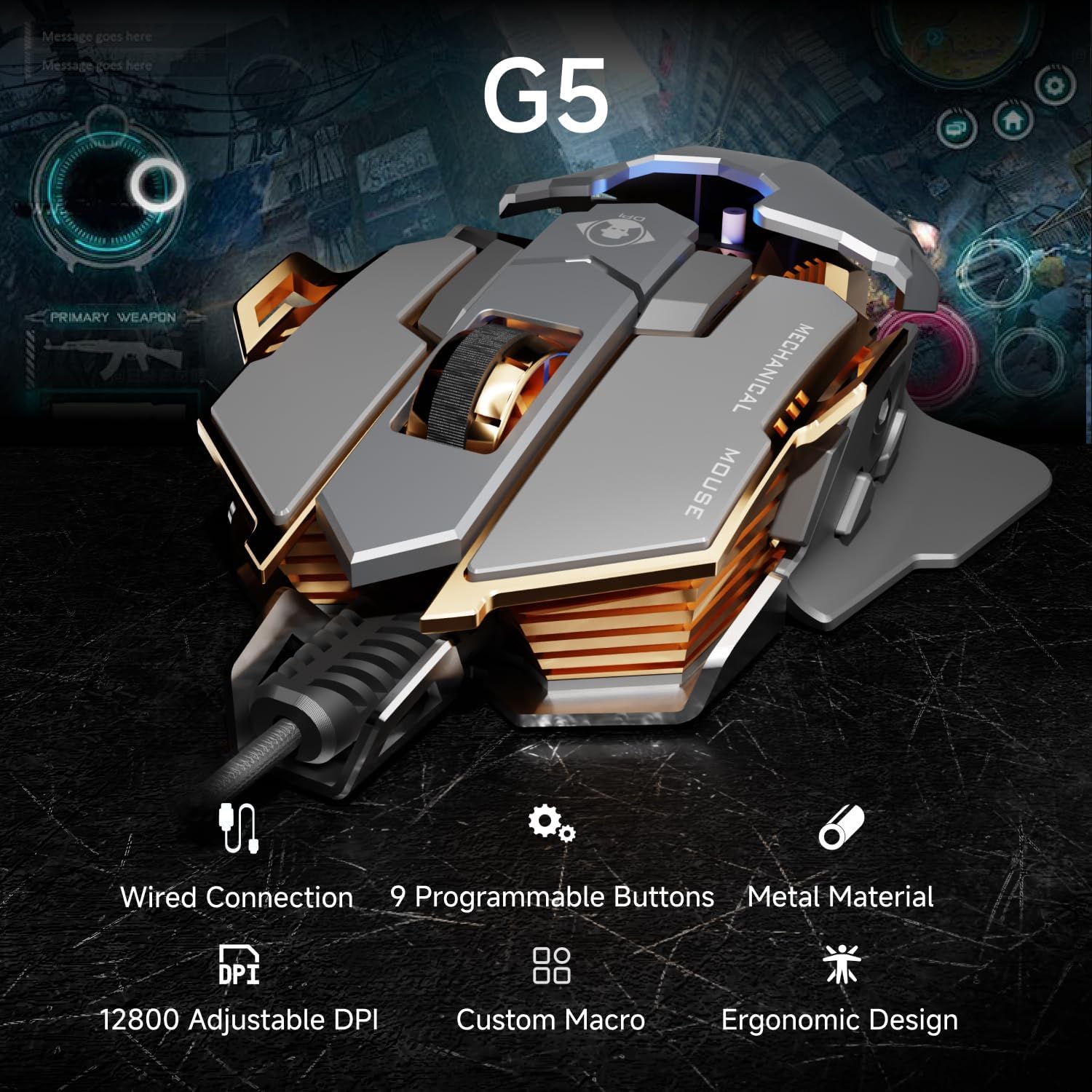
Image: The EWEADN G5 mouse highlighting its wired connection, programmable buttons, metal material, 12800 adjustable DPI, custom macro capabilities, and ergonomic design.
2. Software Installation (Optional)
For advanced customization of DPI, report rate, RGB lighting, and macro settings, dedicated software is available. Please visit the official SEUNKWANG website to download the latest driver software for the EWEADN G5 mouse.
- Download the software from the official product support page.
- Follow the on-screen instructions to install the software.
- Once installed, launch the software to access customization options.

Image: Screenshot of the EWEADN G5 Macro Drivers software interface, showing options for button assignment, macros, performance, and backlight settings.
Operating Instructions
1. DPI Adjustment
The EWEADN G5 mouse features 6 adjustable DPI levels, ranging from 1200 to 12800 DPI. You can cycle through these levels using the dedicated DPI button located on the top of the mouse.
- Default DPI Levels: 1200, 2000, 3200, 4800, 7200, 12800.
- Press the DPI button to switch between sensitivity settings.
- The current DPI level may be indicated by a change in the mouse's RGB lighting color or pattern (refer to software for specific indications).
- Further customization of DPI options (2000-12800) is available via the software.

Image: Visual representation of the 6 adjustable DPI levels (1200, 2000, 3200, 4800, 7200, 12800) available on the EWEADN G5 mouse.
2. Programmable Buttons
The EWEADN G5 mouse is equipped with 9 programmable buttons, allowing for personalized commands, macros, and rapid fire functions.
- Standard Buttons: Left Click, Right Click, Scroll Wheel (click), Forward, Backward.
- Specialized Buttons: Double Click Button, Firepower Button, Boss Button, DPI Button.
- Use the dedicated software to assign custom functions, macros, or keybinds to these buttons.

Image: An annotated diagram of the EWEADN G5 mouse, labeling the Left Button, Right Button, Scroll Wheel, Double Click Button, Firepower Button, Forward Button, Backward Button, Boss Button, and DPI Button.
3. Rapid Fire Button
A dedicated rapid fire button is included, which triggers three left-clicks with a single press. This feature is particularly useful in fast-paced gaming scenarios.
- Locate the rapid fire button (typically on the left side, near the thumb rest).
- Press this button for quick, repeated left-click actions.
- Customization of this function may be available through the software.
4. RGB Lighting
The mouse features 7 RGB lighting modes and supports full customization with nearly 16.8 million colors via the software.
- Cycle through preset lighting modes using the software.
- Adjust colors, brightness, and effects to match your preference.

Image: The ergonomic design of the EWEADN G5 mouse is shown fitting comfortably in a user's hand, emphasizing its comfort for extended use.
Maintenance
Cleaning
To maintain optimal performance and appearance, regularly clean your EWEADN G5 mouse.
- Disconnect the mouse from your computer before cleaning.
- Use a soft, dry cloth to wipe the surface of the mouse.
- For stubborn dirt, a slightly damp cloth with mild soap can be used, ensuring no liquid enters the mouse.
- Use compressed air to clear dust from crevices and around buttons.
- Avoid using harsh chemicals or abrasive materials, as these can damage the mouse's finish.
Durability
The EWEADN G5 mouse is built for longevity, rated for 30 million keystrokes, ensuring reliable performance over extended use.
Troubleshooting
Mouse Not Responding
- Ensure the USB cable is securely plugged into a functioning USB port on your computer.
- Try plugging the mouse into a different USB port.
- Restart your computer.
- Test the mouse on another computer to determine if the issue is with the mouse or your system.
Software Customization Issues
- "Apply" Button Off-Screen: If the "Apply" button in the software is not visible, adjust your display scaling settings. Navigate to Display Settings in Windows and temporarily change "Change the size of text, apps, and other items" to a lower percentage (e.g., 100% or 125%) to make the button accessible. Remember to revert your display scaling after applying changes.
- Settings Not Applying: Ensure you have the correct and latest version of the software installed from the official SEUNKWANG website. Restart the software and your computer after making changes.
- RGB Lighting Not Changing: Verify that the RGB settings are correctly configured within the software and applied. Some settings may require a mouse restart (unplug and replug) to take effect.
Mouse Gliding Issues
- Protective Film: Check the bottom of the mouse for a thin, transparent protective film over the mouse feet (pads). This film should be removed for optimal gliding performance. It may have a slight blue tint and can be difficult to see. Use a piece of tape to gently lift and remove it if present.
- Ensure your mouse pad surface is clean and free of debris.
Specifications
| Model Number | EWEADN-G5 |
| Connectivity Technology | USB, Wired |
| Movement Detection Technology | Optical |
| Adjustable DPI | Up to 12800 (6 levels: 1200, 2000, 3200, 4800, 7200, 12800) |
| Programmable Buttons | 9 |
| RGB Lighting | 7 modes, 16.8 million colors (customizable via software) |
| Keystroke Lifespan | 30 Million Clicks |
| Product Dimensions | 3.66 x 2.52 x 0.1 inches |
| Item Weight | 8.8 ounces |
| Compatibility | Windows XP/7/8/10/11 |

Image: The EWEADN G5 mouse is compatible with various Windows operating systems, including XP, 7, 8, 10, and 11.
Warranty Information
Specific warranty details for the SEUNKWANG EWEADN G5 Wired Gaming Mouse are typically provided at the point of purchase or on the manufacturer's official website. Please retain your proof of purchase for warranty claims. For detailed information regarding warranty coverage, terms, and conditions, please refer to the documentation included with your product or contact SEUNKWANG customer support.
Customer Support
Should you encounter any issues or have questions not covered in this manual, please contact SEUNKWANG customer support.
- Email Support: eweadnkeyboard@outlook.com
- Online Support: Visit the official SEUNKWANG store page on Amazon or their official website for FAQs and additional support resources.

Image: Visual guides for contacting support via Amazon and direct email.