
1. Introduction and Overview
Thank you for choosing the DOOGEE Blade 20 Ultra Rugged Phone. This device is engineered for durability and high performance, designed to withstand challenging environments while providing a seamless smartphone experience. It combines robust construction with advanced features, making it ideal for outdoor enthusiasts, professionals, and anyone seeking a reliable and powerful mobile companion.
Product Overview

Figure 1: Front and rear view of the DOOGEE Blade 20 Ultra, highlighting its 10300mAh battery, 32GB RAM, 512GB storage, and 1.54" rear display.
The DOOGEE Blade 20 Ultra is a rugged smartphone featuring a massive 10300mAh battery, up to 32GB RAM (8GB base + 24GB extended), and 512GB UFS storage, expandable up to 2TB. It boasts a 1.54" IPS rear display for quick access to information and controls, a 6.6" HD+ 90Hz notch-less punch-hole main display, and runs on Android 14. Equipped with a 50MP main camera and 8MP front camera, it is built to military-grade standards (IP68/IP69K/MIL-STD-810H) for water, dust, and shock resistance.
Video 1: An overview of the DOOGEE Blade 20 Ultra Rugged Phone, showcasing its design and key features.
2. Key Features
Massive 32GB RAM + 512GB ROM, Expandable to 2TB
The DOOGEE Blade 20 Ultra offers exceptional speed and storage capacity. With up to 32GB of RAM (8GB base + 24GB extended virtual RAM) and a generous 512GB of UFS storage, this device ensures lightning-fast multitasking, smooth application launches, and lag-free gaming. Storage can be easily expanded with a microSD card up to 2TB, providing ample space for all your files, photos, and videos.

Figure 2: Illustration of the Unisoc T7250 processor and memory configuration (32GB RAM, 512GB ROM).

Figure 3: Visual representation of the phone's large storage and RAM for enhanced user experience.
Video 2: Demonstrates the boosted performance and reduced consumption of the phone's processor and memory.
1.54” Smart Rear Display – Efficient & Customizable
The upgraded 1.54" IPS rear display (240×240 resolution) on the DOOGEE Blade 20 Ultra offers enhanced functionality. Users can instantly check the time, date, battery level, and notifications, control music playback, or use the compass without unlocking the main screen. This display is highly customizable, allowing personalization to match individual lifestyles and providing convenient access to key features.
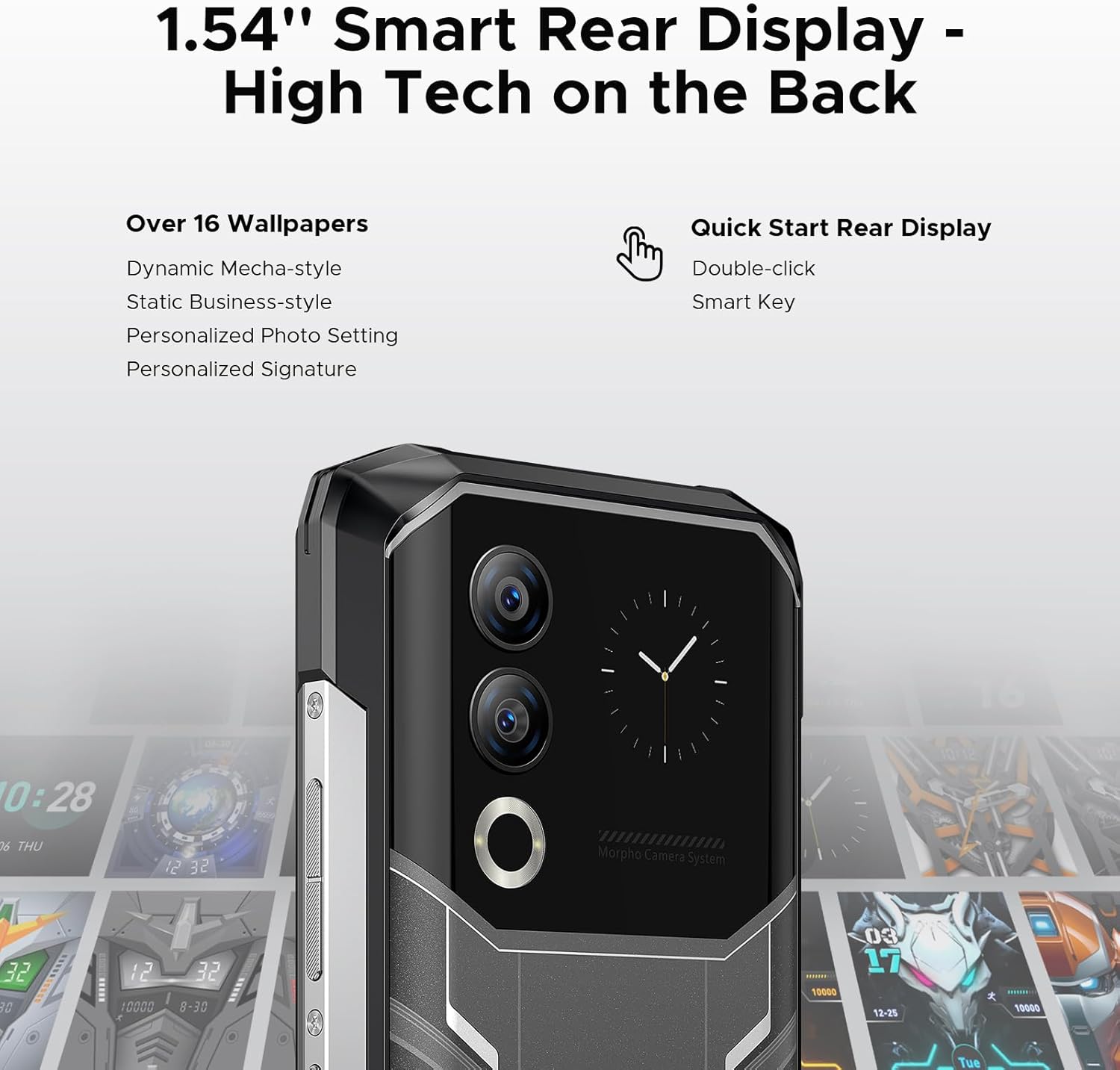
Figure 4: The 1.54-inch IPS rear display on the DOOGEE Blade 20 Ultra.

Figure 5: Detailed view of the smart rear display, showcasing various wallpaper options and quick access features.
Video 3: Highlights the innovative 1.54" rear display and its various functionalities.
10300mAh Massive Battery – Power That Lasts for Days
Equipped with a powerful 10300mAh dual-cell battery, the DOOGEE Blade 20 Ultra delivers exceptional endurance. It offers up to 1415 hours on standby or 31 hours of nonstop music playback, making it perfect for extended travel or outdoor work. With 18W fast charging support, the device quickly recharges, minimizing downtime and eliminating battery anxiety.

Figure 6: Exploded view illustrating the innovative 10300mAh battery design.

Figure 7: Visualizing the extensive battery life for movies and music playback.
Video 4: Showcases the phone's slim design despite its large 10300mAh battery.
6.6"HD+ IPS Notch-less Punch Display+90Hz
Experience vibrant visuals on the DOOGEE Blade 20 Ultra’s 6.6" HD+ notch-less punch-hole display. The 90Hz refresh rate ensures ultra-smooth scrolling, fluid animations, and lag-free transitions, perfect for watching videos, gaming, or multitasking. Powered by Android 14, the device offers enhanced privacy controls, security upgrades, and deep customization options for a smarter, more personalized smartphone experience.

Figure 8: The 6.6-inch 90Hz display, ideal for immersive viewing and gaming.

Figure 9: The 90Hz display provides a seamless experience for gaming and media consumption.
Make Every Shot a Masterpiece
The DOOGEE Blade 20 Ultra rugged smartphone features a 50MP main camera and an 8MP front camera, delivering stunning photo quality for every moment. Whether capturing breathtaking landscapes or snapping the perfect selfie, this smartphone ensures every shot is sharp, vibrant, and effortless with just a single click.

Figure 10: Overview of the phone's camera system, including the 50MP main camera and 8MP front camera.

Figure 11: Highlighting the clarity and detail captured by the 50MP main camera.
Triple Slot Cards + IP68 / IP69K Rugged Phone
The DOOGEE Blade 20 Ultra features a convenient triple slot design, supporting 2 SIM cards and 1 TF card for seamless connectivity and ample storage. With IP68, IP69K, and MIL-STD-810H certifications, this indestructible phone is built to withstand the toughest conditions. It’s waterproof up to 1.5 meters, dustproof, and shockproof, making it an ideal companion for outdoor workers and adventurers.

Figure 12: Visual representation of the phone's military-grade durability against water, dust, and drops.

Figure 13: Detailed explanation of the phone's IP ratings and military-grade durability.
Video 5: An unboxing video of the DOOGEE BLADE 20 ULTRA Rugged Phone, demonstrating its physical attributes and contents.
Dual SIM 4G Unlocked Rugged Smartphone
This unlocked rugged smartphone supports dual 4G SIM cards for flexible connectivity. Please note that Verizon and AT&T are not supported. Users should confirm compatibility with their local carrier’s frequency bands before purchase. Supported bands include GSM: B2/B3/B5/B8, WCDMA: B1/B2/B4/B5/B8, FDD: B1/2/3/4/5/7/8/18/19/20/25/26/28AB/66, and TDD-LTE: B34/B38/B39/B40/B41.
3. Setup Guide
3.1 Unboxing and Initial Inspection
Upon receiving your DOOGEE Blade 20 Ultra, carefully open the packaging and inspect all contents. The box should include the smartphone, a USB-C charging cable, a power adapter, a SIM ejector tool, a user manual, and screen protector accessories.
3.2 SIM Card and MicroSD Card Installation
The phone features a triple slot design. To install SIM cards and/or a MicroSD card:
- Locate the SIM card tray on the side of the phone.
- Insert the SIM ejector tool into the small hole next to the tray and push gently until the tray pops out.
- Place your Nano-SIM cards and/or MicroSD card into the designated slots on the tray. Ensure they are correctly oriented as indicated on the tray.
- Carefully push the tray back into the phone until it clicks into place. Ensure the tray is fully sealed to maintain water and dust resistance.

Figure 14: Illustration of the 3-card slot supporting two SIM cards and one TF card.
3.3 Initial Power On and Charging
Press and hold the power button (located on the side) until the DOOGEE logo appears. Follow the on-screen prompts to complete the initial setup, including language selection, Wi-Fi connection, and Google account setup. It is recommended to fully charge the device before first use. Connect the USB-C cable to the phone's charging port and the other end to the power adapter, then plug it into a wall outlet. The phone supports 18W fast charging.

Figure 15: Demonstrates the long-lasting battery life for extended use.
4. Operating Instructions
4.1 Using the 1.54" Rear Display
The rear display provides quick access to various functions without needing to activate the main screen. Double-click the smart key to activate it. You can check time, date, battery level, notifications, control music, and use the compass. Swipe left or right to navigate through different widgets.

Figure 16: The rear display functioning as a power-saving compass for outdoor navigation.

Figure 17: Using the rear display for taking clearer selfies.

Figure 18: Seamless music control via the rear display during activities.
4.2 Camera Functions
The 50MP main camera and 8MP front camera offer various modes for capturing high-quality photos and videos. Access the camera app from the home screen. Available modes include Photo, Video, Portrait, Night Mode, Beauty Mode, Time-lapse, HDR, and more. The AI recognition feature automatically identifies 12 independent scenarios to optimize settings.

Figure 19: Overview of different camera modes available for diverse photography needs.

Figure 20: The phone's capability to capture photos underwater.
4.3 Security and Privacy Features
The DOOGEE Blade 20 Ultra offers multiple security options including Face ID and a side-mounted fingerprint sensor for quick and secure unlocking. It also includes features like Anti-peeping, Phone Manager, APP Lock, APP Cloning, Anti-theft Alarm, and Fingerprints Extension Tools to secure your data and privacy.

Figure 21: Various privacy and security features of the phone.
4.4 Other Features
- NFC: For convenient mobile payments and quick data transfer.
- Accurate Navigation System: Supports GPS, Glonass, Galileo, and Beidou for precise positioning.
- Reverse Charging: Use your phone as a power bank to charge other devices.
- Custom Button: A programmable side button for quick access to apps or functions like flashlight or screenshot.

Figure 22: Using NFC for convenient mobile payments.

Figure 23: The phone's accurate navigation system in use.

Figure 24: The phone's reverse charging capability, acting as an emergency power bank.

Figure 25: The custom side button and the Android 14 operating system.
5. Maintenance
5.1 Cleaning Your Device
To clean your DOOGEE Blade 20 Ultra, use a soft, lint-free cloth. For stubborn smudges, slightly dampen the cloth with water. Avoid using harsh chemicals, abrasive cleaners, or compressed air, as these can damage the device's finish or internal components. Ensure all ports are dry before charging or connecting accessories.
5.2 Water and Dust Resistance Care
While the phone is IP68/IP69K rated for water and dust resistance, it is not impervious to damage. Always ensure the SIM tray and all port covers are securely closed before exposing the phone to water or dust. Avoid exposing the phone to high-pressure water, extreme temperatures, or corrosive liquids. If the phone gets wet, dry it thoroughly before charging.

Figure 26: Comparison showing the slim profile of the DOOGEE Blade 20 Ultra.

Figure 27: Highlighting the aviation-grade aluminum titanium alloy frame for enhanced durability.
5.3 Battery Care
To maximize battery lifespan, avoid fully discharging the battery frequently. Charge the phone using the provided charger and cable. Avoid exposing the phone to extreme temperatures, as this can degrade battery performance and lifespan.
6. Troubleshooting
| Problem | Possible Cause | Solution |
|---|---|---|
| Phone does not power on | Low battery; software crash | Charge the phone for at least 30 minutes. Press and hold the power button for 10-15 seconds to force restart. |
| Cannot connect to network | Incorrect SIM card installation; unsupported carrier; network issue | Reinsert SIM card. Check carrier compatibility (Verizon and AT&T are not supported). Contact your carrier for network issues. |
| Apps crashing or freezing | Insufficient RAM; app conflict; outdated app | Close background apps. Clear app cache. Update apps from Play Store. Restart phone. |
| Water/dust ingress (despite ratings) | Port covers not sealed; extreme conditions | Ensure all port covers and SIM tray are securely closed. Avoid high-pressure water or prolonged submersion beyond specified limits. If damage occurs, contact support. |
7. Specifications
| Feature | Specification |
|---|---|
| Model Name | BLADE20ULTRA |
| Operating System | Android 14 |
| RAM Memory Installed Size | 32 GB (8GB base + 24GB extended) |
| Memory Storage Capacity | 512 GB (Expandable up to 2TB via TF card) |
| Battery Capacity | 10300mAh |
| Main Display Size | 6.6 Inches HD+ |
| Refresh Rate | 90 Hz |
| Rear Display Size | 1.54 Inches IPS (240x240 resolution) |
| Main Camera | 50MP |
| Front Camera | 8MP |
| Ruggedness Rating | IP68, IP69K, MIL-STD-810H |
| Connectivity Technologies | Bluetooth, Wi-Fi, NFC |
| Cellular Technology | 4G (Dual SIM) |
| Item Weight | 1.26 pounds |
| Package Dimensions | 7.6 x 4.09 x 2.24 inches |
8. Warranty and Support
8.1 Warranty Information
The DOOGEE Blade 20 Ultra comes with a 2-Year Limited Warranty. Please retain your proof of purchase for warranty claims. For specific terms and conditions, refer to the warranty card included in your product packaging or visit the official DOOGEE website.
8.2 Customer Support
For technical assistance, troubleshooting, or general inquiries, please contact DOOGEE customer support. You can also visit the official DOOGEE Store on Amazon for more information and resources:
For issues related to your purchase, you may also contact the seller, yingyuankeji08, through Amazon's messaging system.