
1. Introduction
This user manual provides comprehensive instructions for the MeetEasy 360-Degree Panoramic Video Conference Camera, Model LM-10B. Please read this manual carefully before using the product to ensure proper operation and to maximize its performance. Keep this manual for future reference.
2. Product Overview
2.1 Key Features
- Immersive Remote Video Conferencing: Experience a 360° panoramic view from a central point, combined with real-time close-up tracking of the main speaker, significantly enhancing remote collaboration efficiency.
- Intelligent 4 Fisheye Lenses: Equipped with four 2MP fisheye lenses and on-chip real-time intelligent stitching, delivering distortion-free 1080P Full HD 360° panoramic images from a natural human eye perspective.
- Plug and Play Operation: Ready for immediate use by simply connecting to a power source. The included USB cable supports both data transfer and power supply. An additional stand-alone power cable is provided for situations requiring extra power.
- Wide Compatibility: No complex driver software download or installation is required. Compatible with most PC and Mac-based video conferencing tools that support external USB cameras.
- 2-Year Exchange Warranty: Enjoy peace of mind with a 2-year exchange warranty, allowing for new product replacement without repair delays.
2.2 Package Contents
Verify that all items are present in the package:
- MeetEasy 360-Degree Panoramic Video Conference Camera (x1)
- Tripod (x1)
- USB Cable (x1)
- Power Cord (x1)
- USB-C Adapter (x1)
2.3 Component Identification
Familiarize yourself with the camera's components and controls:

Figure 1: MeetEasy 360-Degree Panoramic Video Conference Camera
- System Light: Indicates system status.
- MUTE Button: Mutes/unmutes the microphone output.
- Display Style (SELECTION) Button: Cycles through display styles.
- Camera Light: Indicates camera status.
- Mode Selection (MODEL) Button: Switches between operating modes.
- Recording Light: Indicates recording status.
- Four Lenses: Capture 360-degree video.
- Eight Microphone Array: For clear audio capture.
- TF (Micro SD) Slot: For local storage.
- USB Port: For connection to PC and power.
- RJ45 Port: For network connection (if applicable).
- RESET Button: Resets the device.
- Infrared Sensor (Optional): For remote control.
- 5V/2A Power Input: For external power supply.
3. Setup
3.1 Connecting the Camera
- Place the camera on a stable surface, such as a conference table, using the provided tripod. Ensure it is centrally located for optimal 360-degree capture.
- Connect the camera to your PC using the supplied USB cable. The camera will automatically power on, and the four button indicator lights will illuminate.
- If additional power is required, connect the external power cord to the 5V/2A power input port on the camera and plug it into a power outlet.
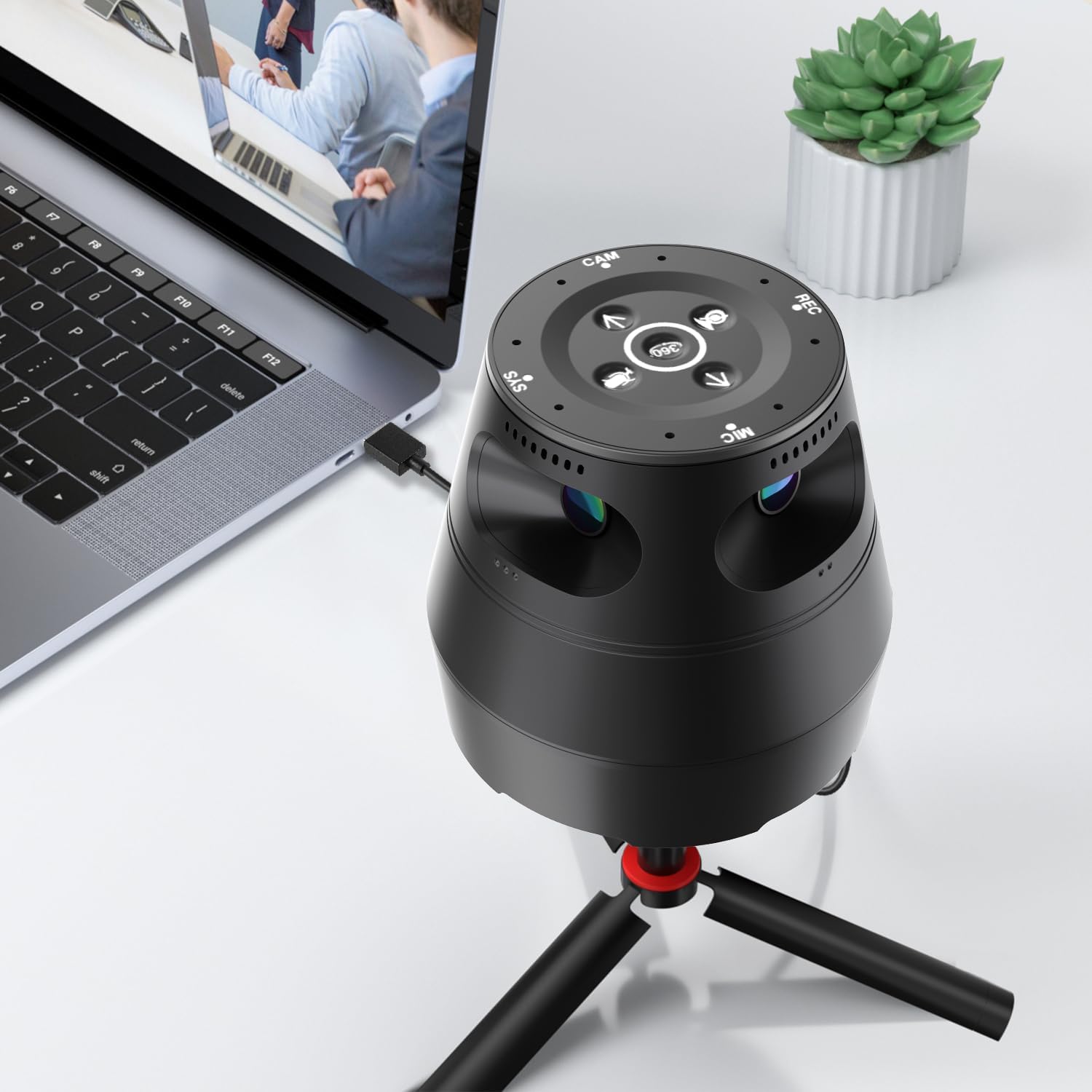
Figure 2: Camera connected to a laptop
3.2 Initial Power-On Sequence
Upon connecting the camera, the system light will flash while the application loads and initializes. During this time, the MIC, CAM, and REC status lights will also flash (note: TF card slot is not active during initialization). Once the system startup is complete, the camera will automatically enter "Speaker Tracking Mode".

Figure 3: Optimal placement in conference rooms
4. Operating Instructions
4.1 Basic Button Functions
- MUTE Button: Press to disable microphone output. Press again to re-enable. The MIC status light will turn off when muted.
- MODEL Button: Upon startup, the camera defaults to "Speaker Tracking Mode". Each press of this button cycles between "360 Split Display Mode" and "Speaker Tracking Mode".
- SELECTION Button: In "Speaker Tracking Mode", this button automatically adjusts the close-up image left or right and fixes it in an appropriate position, entering "Pin Speaker Mode".
- SHUTDOWN CAMERA Button: Pressing this button sequentially turns off the cameras. When all cameras are stopped, the CAM status light will turn off. Pressing the same button again will re-enable the stopped cameras.
4.2 Display Modes
The camera offers three display modes to suit various meeting scenarios:

Figure 4: Selectable Display Modes
- Speaker Tracking Mode (Voice Tracking Mode): The panoramic camera automatically tracks and displays a close-up of the speaker based on their voice, while also showing the overall view of the conference room. This allows for smooth team collaboration by understanding both the speaker and the general situation.
- Pin Speaker Mode: In addition to the full conference room image, a specific person can be selected and displayed prominently. This mode suppresses ambient noise and clearly delivers the speaker's voice, enhancing participant concentration and supporting smooth meeting progress.
- 360 Split Display Mode (180 Degree Patrol Mode): The screen is divided, displaying two 180° images. Since the entire conference room is shown in 360°, remote participants can easily grasp the situation.
4.3 Compatibility with Video Conferencing Applications
The MeetEasy camera is compatible with most major video conferencing applications, offering seamless integration without additional settings. This includes:

Figure 5: Compatible Video Conferencing Applications
- Google Meet
- Microsoft Teams
- GoTo Meeting
- Zoom
- Skype
- Cisco Webex
When combined with a Hi-Fi audio device, the camera provides high-definition video and immersive audio, creating a meeting experience as if you were in the same room.
5. Maintenance
- Cleaning: Use a soft, dry cloth to clean the camera body. For lenses, use a specialized lens cleaning cloth and solution. Do not use harsh chemicals or abrasive materials.
- Storage: When not in use, store the camera in a cool, dry place away from direct sunlight and extreme temperatures.
- Handling: Avoid dropping or subjecting the camera to strong impacts, as this may damage internal components.
6. Troubleshooting
If you encounter issues with your MeetEasy camera, please refer to the following common problems and solutions:
| Problem | Possible Cause | Solution |
|---|---|---|
| Camera not recognized by PC | Loose USB connection, faulty USB port, driver issue. | Ensure USB cable is securely connected. Try a different USB port or cable. Restart your PC. |
| No video output | Camera is off, incorrect application settings, camera blocked. | Check if the camera is powered on. Verify camera selection in your video conferencing software. Ensure lenses are not obstructed. |
| No audio input | Microphone muted, incorrect audio settings, faulty microphone. | Press the MUTE button to unmute. Check microphone selection in your video conferencing software. |
| Image distortion or stitching issues | Camera placement, software glitch. | Ensure the camera is placed centrally and on a flat surface. Restart the camera and application. |
If the problem persists after trying these solutions, please contact customer support.
7. Specifications
| Feature | Detail |
|---|---|
| Brand | MeetEasy |
| Model Number | LM-10B |
| Video Capture Resolution | 1080p |
| Photo Sensor Technology | CMOS |
| Focal Length (Wide) | 2.9 |
| Focal Length (Telephoto) | 2.9 |
| Max Focal Length | 2.9 |
| Min Focal Length | 2.9 |
| Lens Configuration | Zoom |
| Flash Memory Type | Micro SD Card |
| Video Capture Format | MP4 |
| Supported Audio Format | AAC |
| Video Camera Type | Webcam |
| Motor Type | Digital |
| Dimensions | 18.2 x 16 x 14.1 cm |
| Weight | 700 g |
8. Warranty and Support
8.1 Warranty Information
This MeetEasy product comes with a 2-year exchange warranty from the date of purchase. In the event of a manufacturing defect or malfunction under normal use, a new product replacement will be provided without the need for repair. Please retain your proof of purchase for warranty claims.
8.2 Customer Support
For technical assistance, troubleshooting, or warranty claims, please contact MeetEasy customer support through the retailer where you purchased the product or visit the official MeetEasy website for contact information.
Please have your product model number (LM-10B) and proof of purchase ready when contacting support.

