
HP BD-DJ4158E-II-BTS-HQ
HP DeskJet 4158e All-in-One Printer User Manual
Your complete guide to setup, operation, and maintenance.
1. Product Overview
The HP DeskJet 4158e is a versatile all-in-one printer designed for home and small office use, offering print, copy, scan, and fax functionalities. It features wireless connectivity, an automatic document feeder, and is compatible with the HP Smart app for enhanced mobile management.
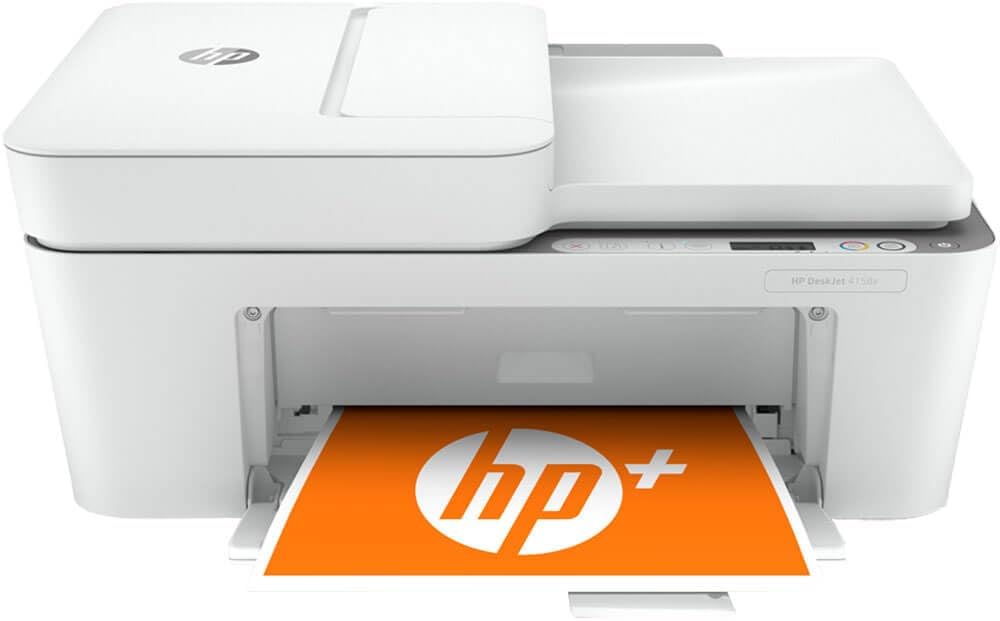
Image: Front view of the HP DeskJet 4158e All-in-One Printer, showcasing its compact design and paper output tray.
Key Features:
- Print, Copy, Scan, and Fax: Comprehensive functionality for all your document needs.
- 60-Sheet Input Tray: Ample capacity for standard printing tasks.
- 25-Sheet Output Tray: Conveniently collects printed documents.
- Print Speed: Up to 8.5 pages per minute for black and white, and 5.5 pages per minute for color.
- Wireless Printing: Seamless connectivity via Wi-Fi and Bluetooth for printing from various devices.
- 35-page Auto Feeder: For quick scanning and copying of multiple pages.
- HP Smart App: Enables mobile fax, scanning to cloud/email, and customizable shortcuts.
2. Setup Guide
Follow these steps to set up your HP DeskJet 4158e printer for the first time.
2.1 Unboxing and Power Connection
- Carefully remove the printer from its packaging.
- Remove all packing materials, tapes, and protective films from the exterior and interior of the printer.
- Connect the power cord to the printer and then to a wall outlet.
- Press the Power button to turn on the printer.
2.2 Ink Cartridge Installation
Install the ink cartridges as follows:
- Open the ink cartridge access door.
- Wait for the carriage to move to the center.
- Unpack the new HP ink cartridges.
- Insert the color cartridge into the left slot and the black cartridge into the right slot. Push firmly until they click into place.
- Close the ink cartridge access door.

Image: The HP DeskJet 4158e with its front access panel open, revealing the ink cartridge installation area.
2.3 Loading Paper
Load paper into the input tray:
- Raise the input tray.
- Slide the paper width guide to its outermost position.
- Load a stack of plain white paper into the input tray, print side down.
- Adjust the paper width guide until it rests against the edge of the paper.
- Pull out the output tray extender.

Image: Side view of the HP DeskJet 4158e showing paper loaded in the rear input tray and extending into the output tray.
2.4 Software and Wireless Setup
For full functionality, install the HP Smart app:
- Download the HP Smart app from your device's app store (iOS, Android) or from hpsmart.com on your computer.
- Follow the on-screen instructions in the app to connect your printer to your wireless network. The app will guide you through the setup process, including connecting to Wi-Fi and registering your printer.
- Ensure your device is connected to the same Wi-Fi network as the printer for seamless operation.
3. Operating the Printer
Learn how to use the print, copy, scan, and fax features of your HP DeskJet 4158e.
3.1 Printing Documents
To print from your computer or mobile device:
- From a Computer: Open the document you wish to print, select 'Print' from the application's menu, choose your HP DeskJet 4158e printer, adjust settings (e.g., paper size, quality), and click 'Print'.
- From a Mobile Device (HP Smart App): Open the HP Smart app, select 'Print Documents' or 'Print Photos', navigate to the file, select your printer, and tap 'Print'.
3.2 Copying Documents
Use the control panel or the HP Smart app to make copies:

Image: Close-up view of the HP DeskJet 4158e control panel, showing buttons for copy, scan, and wireless status.
- Using the Control Panel: Place the original document face-down on the scanner glass or face-up in the automatic document feeder (ADF). Press the 'Color Copy' or 'Black Copy' button on the printer's control panel.
- Using HP Smart App: Open the app, select 'Copy', place your document, and follow the prompts to adjust settings and initiate the copy.
3.3 Scanning Documents
Scan documents to your computer, cloud, or email:
- Using HP Smart App: Open the app, select 'Scan', choose your scan source (scanner glass or ADF), adjust scan settings (e.g., resolution, file type), and then scan. You can then save, share, or send the scanned document to cloud services or email.
- From Computer (Software): Use the HP printer software installed on your computer to initiate a scan.

Image: The HP DeskJet 4158e printer alongside a smartphone displaying the HP Smart app interface, highlighting mobile connectivity.
3.4 Sending Mobile Fax
The HP DeskJet 4158e supports mobile faxing via the HP Smart app for 24 months:
- Open the HP Smart app on your smartphone, tablet, or PC.
- Select the 'Mobile Fax' option.
- Follow the on-screen instructions to enter recipient details, attach documents, and send your fax.
4. Maintenance
Regular maintenance ensures optimal performance and longevity of your printer.
4.1 Replacing Ink Cartridges
Replace ink cartridges when print quality deteriorates or the printer indicates low ink levels. Refer to section 2.2 for installation steps.
4.2 Cleaning the Printer
- Exterior: Wipe the exterior surfaces with a soft, damp, lint-free cloth.
- Scanner Glass: Use a soft cloth lightly dampened with glass cleaner (non-abrasive) to clean the scanner glass. Do not spray cleaner directly onto the glass.
- Printhead Cleaning: If print quality issues persist (e.g., streaks, faded colors), use the HP Smart app or printer software to perform a printhead cleaning cycle.
5. Troubleshooting
Common issues and their solutions.
5.1 Connectivity Issues
- Printer Offline: Ensure the printer is powered on and connected to the same Wi-Fi network as your device. Restart both the printer and your router.
- Wireless Connection Drops: The printer features dual-band Wi-Fi with self-reset for better range and reliability. If issues persist, try moving the printer closer to the router or checking for network interference.
5.2 Print Quality Problems
- Faded or Streaky Prints: Check ink levels and replace cartridges if low. Perform a printhead cleaning cycle through the HP Smart app or printer software.
- Incorrect Colors: Ensure you are using genuine HP ink cartridges. Run a printhead alignment if available in the printer software.
5.3 Paper Jams
- Turn off the printer and unplug it.
- Carefully remove any jammed paper from the input tray, output tray, or inside the printer. Avoid tearing the paper.
- Ensure paper is loaded correctly and the paper guides are snug against the stack.
- Plug in and turn on the printer.
For more complex issues, refer to the HP support website or contact HP customer service.
6. Specifications
| Feature | Specification |
|---|---|
| Model Name | BD-DJ4158E-II-BTS-HQ |
| Functions | Print, Copy, Scan, Fax |
| Printing Technology | Inkjet |
| Connectivity Technology | Wi-Fi, Bluetooth |
| Max Print Speed (Black) | 8.5 ppm |
| Max Print Speed (Color) | 5.5 ppm |
| Max Print Resolution (Black) | 1200 x 1200 dpi |
| Max Print Resolution (Color) | 1200 x 1200 dpi |
| Scanner Type | Automatic Document Feeder (ADF) |
| Max Input Sheet Capacity | 60 sheets |
| Output Tray Capacity | 25 sheets |
| Duplex Printing | Automatic (via software/driver) |
| Ink Color | Black, Cyan, Magenta, Yellow |
| Product Dimensions | 18.4 x 9.4 x 15.6 inches |
| Item Weight | 14.1 pounds |
7. Warranty and Support
Your HP DeskJet 4158e printer comes with a 2-year extended HP warranty when you activate HP+ during setup. Additionally, activating HP+ provides 6 months of free ink with HP Instant Ink, enough to print up to 700 pages a month, with new ink automatically sent when you run low. A credit card is required for enrollment in HP Instant Ink, but you can cancel or change your plan at any time.
For further assistance, troubleshooting guides, driver downloads, and contact information, please visit the official HP support website.
Related documentsBD-DJ4158E-II-BTS-HQ


Ask a question about this manual
Ask about setup, troubleshooting, compatibility, parts, safety, or missing instructions. Manuals+ will review the question and use this page’s manual context to help answer it.