
TOLEDO V180NXUS514
Contents
TOLEDO Nexus Smart Electronic Deadbolt User Manual (Model V180NXUS514)
Your comprehensive guide to installation, operation, and maintenance.
Introduction
The TOLEDO Nexus Smart Electronic Deadbolt offers advanced security and convenient access for your home or office. This smart lock integrates multiple access methods including fingerprint, numeric code, mechanical keys, access cards, and smartphone control. It is designed for easy installation and compatibility with smart home systems like Alexa and Google Assistant. This manual provides detailed instructions to ensure proper setup, operation, and maintenance of your new smart deadbolt.
Setup and Installation
1. Unpacking and Component Check
Before beginning installation, verify that all components are present:
- Front Panel and Back Panel
- Mortise
- Strike & Strike Box
- Screws
- 2 Mechanical Keys
- 3 Access Cards
- 1 Wi-Fi Gateway (included with specific models)
2. Door Preparation
Ensure your door meets the following specifications for proper installation:
- Backset: Fits standard backsets from 2 3/8” (60mm) to 2 3/4” (70mm).
- Door Thickness: Suitable for metal or wood doors with a thickness of 1 3/8” to 1 1/4” (35mm–45mm).
- Hole Diameters: Door face hole diameter: 2 1/8” (54mm). Deadbolt latch hole diameter: 1” (25.4mm).

Figure 1: Hole-drilling diagram. Follow these measurements for accurate door preparation.

Figure 2: Dimensional drawing of the TOLEDO Nexus Smart Electronic Deadbolt, showing front, side, and top views with measurements.
3. Installation Steps
Installation requires no wiring and operates with 4 AAA alkaline batteries (not included). Refer to the detailed installation guide provided in the product packaging for step-by-step instructions. General steps include:
- Install the mortise into the door edge.
- Attach the exterior front panel to the door.
- Install the interior back panel, ensuring proper alignment.
- Secure the lock with the provided screws.
- Install the strike plate and strike box on the door frame.
- Insert 4 AAA alkaline batteries into the battery compartment.
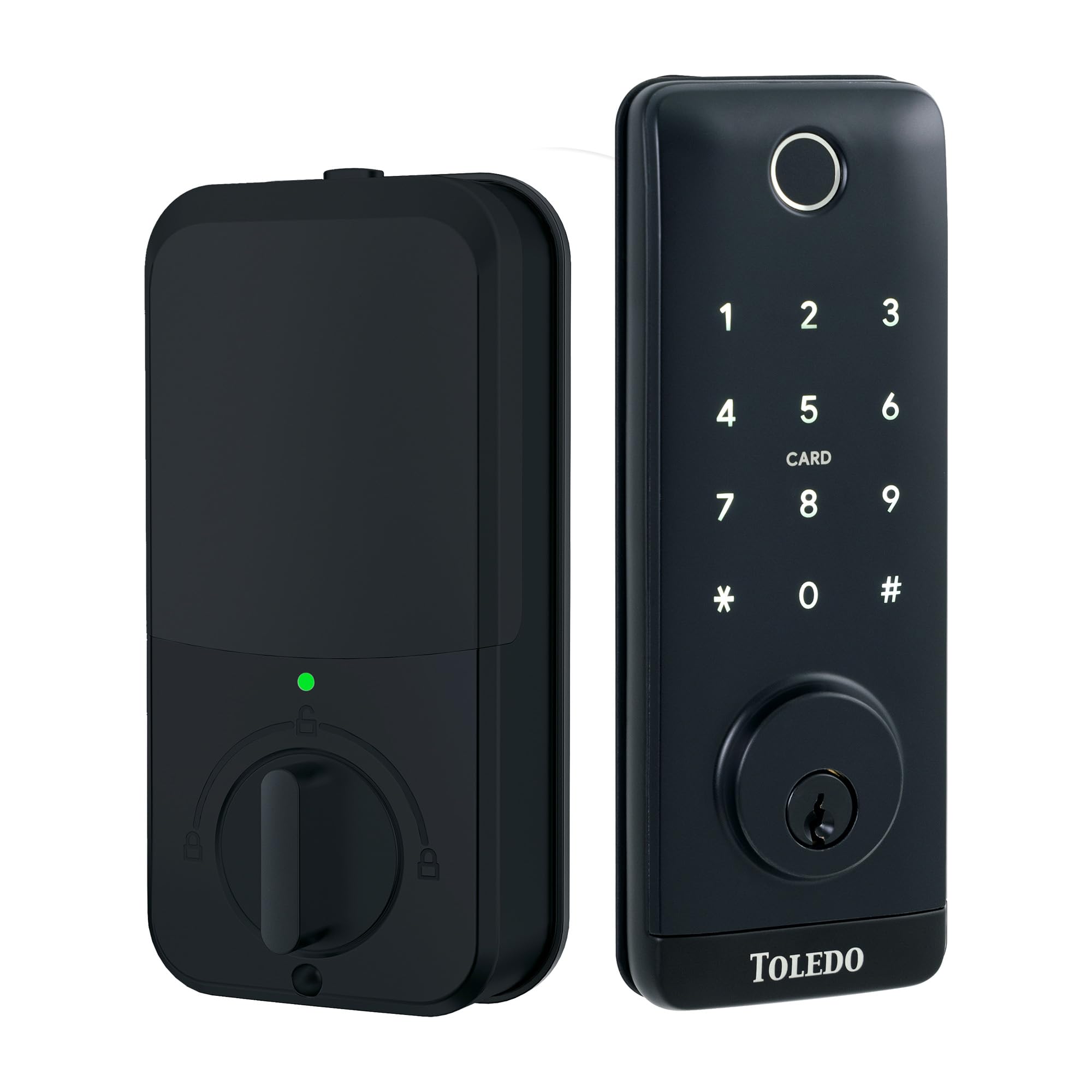
Figure 3: The TOLEDO Nexus Smart Electronic Deadbolt in matte black finish, installed on a wooden door, showcasing its rectangular design and keypad.
Operating Instructions
1. Multiple Access Methods
The Nexus Smart Deadbolt offers various ways to unlock your door:
- Fingerprint: Register up to 200 unique fingerprints for quick and secure access.
- Numeric Code: Program up to 150 unique passwords using the backlit keypad.
- Mechanical Keys: Use the included physical keys as a traditional backup.
- Access Cards: Tap the included access cards for convenient entry.
- Smartphone App: Control and manage your lock remotely via the dedicated smartphone application (iOS compatible).
2. Automatic Locking
The deadbolt features an automatic locking function, enhancing security by ensuring your door is always locked after entry or exit. This feature can typically be configured via the smartphone app.
3. Smart Home Integration
Control your lock with voice commands through popular smart assistants:
- Amazon Alexa: Link your lock to Alexa for voice-activated locking and unlocking.
- Google Assistant: Integrate with Google Assistant for similar voice control capabilities.
4. App Management
Utilize the smartphone app to manage access control from anywhere in the world. This includes adding/deleting users, setting temporary codes, viewing access logs, and adjusting lock settings.
5. Voice Notifications
The lock provides speaker voice notifications in English or Spanish for locked/unlocked status.
Maintenance
1. Battery Replacement
The lock operates on 4 AAA alkaline batteries. When the battery indicator signals low power, replace all four batteries promptly to ensure continuous operation. Batteries are not included with the product.
2. Cleaning
Clean the lock's exterior surfaces with a soft, damp cloth. Avoid using abrasive cleaners or solvents, as these can damage the finish or electronic components. Ensure the fingerprint sensor and keypad are kept clean for optimal performance.
Troubleshooting
1. Emergency Power
In case of complete battery depletion, the lock features a USB emergency power port. Connect a portable power bank to this port to temporarily power the lock and gain access.
2. Common Issues
- Lock Not Responding: Check battery levels. If low, replace batteries or use USB emergency power.
- Fingerprint Not Recognized: Ensure your finger is clean and dry. Re-register your fingerprint if issues persist.
- Keypad Not Responding: Verify batteries. Ensure no debris is obstructing the buttons.
- App Connectivity Issues: Ensure your Wi-Fi gateway is properly connected and within range. Check your home Wi-Fi network status.
- Door Not Locking/Unlocking Smoothly: Check for any obstructions in the door frame or deadbolt path. Ensure the mortise is correctly aligned.
Specifications
| Feature | Detail |
|---|---|
| Model Name | Rectangular Nexus Smart Electronic Deadbolt |
| Model Number | V180NXUS514 |
| UPC | 810055042616 |
| Lock Type | Deadbolt |
| Material | Alloy Steel, Aluminum, Plastic (Body in Aluminum and Stainless Steel 304 Alloy) |
| Color | Black (Matte Black Finish) |
| Shape | Rectangular |
| Item Dimensions (L x W x H) | 2.86 x 2.04 x 6.69 inches |
| Item Weight | 1.55 kg |
| Power Source | 4 AAA Alkaline Batteries (not included) |
| Emergency Power | USB Emergency Power |
| Connectivity Protocol | Wi-Fi (with included Gateway) |
| Control Method | App, Touch |
| Controller Type | Amazon Alexa, Google Assistant, Touch, iOS |
| Fingerprint Capacity | Up to 200 |
| Password Capacity | Up to 150 |
| Door Backset | 2 3/8” (60mm) to 2 3/4” (70mm) |
| Door Thickness | 1 3/8” to 1 1/4” (35mm–45mm) |
| Working Temperature | -10ºC to 55ºC |
| Special Features | Anti-Bump, Auto-Lock, Back-Lit Keypad, Battery Indicator, Fingerprint, Waterproof rubber plate, Reversible right and left function |
| Recommended Uses | Entrance, Home Security, Office Security, Airbnb |
Warranty and Support
TOLEDO stands behind the quality of its products. For specific warranty information, please refer to the documentation included with your purchase or visit the official TOLEDO brand store. For technical support, troubleshooting assistance, or any inquiries regarding your TOLEDO Nexus Smart Electronic Deadbolt, please contact TOLEDO customer service through their official channels.
You can find more information and support resources by visiting the TOLEDO Store on Amazon.
Ask a question about this manual
Ask about setup, troubleshooting, compatibility, parts, safety, or missing instructions. Manuals+ will review the question and use this page’s manual context to help answer it.