
1. Introduction
Thank you for choosing the realme Air 7 True Wireless Earbuds. This manual provides detailed instructions on how to set up, operate, and maintain your earbuds to ensure optimal performance and longevity. Please read this manual thoroughly before using the product.

Image 1.1: realme Air 7 True Wireless Earbuds (Lavender Purple) in their charging case. The earbuds are visible inside the open case, ready for use or charging.
2. Package Contents
Ensure all items listed below are present in your product package:
- realme Air 7 True Wireless Earbuds (Left and Right)
- Wireless Charging Case
- USB Charging Cable
- Eartips (various sizes)
- User Manual (this document)
3. Product Overview
Familiarize yourself with the components of your realme Air 7 earbuds and charging case.

Image 3.1: Side view of the realme Air 7 earbuds, highlighting their ergonomic design and stem. Each earbud features a touch control area and microphone openings.
Earbud Components:
- Touch Control Area: For managing playback, calls, and noise control modes.
- Microphones: Six microphones for clear calls and active noise cancellation.
- Eartip: Silicone tips for a comfortable and secure fit, available in multiple sizes.
- Charging Contacts: Located at the bottom of the earbud stem for charging within the case.
Charging Case Components:
- Earbud Slots: Securely hold and charge the earbuds.
- Charging Indicator Light: Displays charging status and battery level.
- USB-C Port: For wired charging of the case.
- Pairing Button: (If applicable, usually inside or near the charging port) For manual pairing or resetting.
4. Setup
4.1 Charging the Earbuds and Case
Before first use, fully charge the earbuds and the charging case.
- Place the earbuds into the charging case. Ensure they are correctly seated, and the indicator lights on the earbuds (if present) illuminate.
- Connect the USB charging cable to the USB-C port on the charging case and to a power source (e.g., computer USB port, wall adapter).
- The indicator light on the charging case will show the charging status. A full charge typically takes approximately 2 hours for the case and earbuds.
- A 10-minute charge can provide up to 7 hours of music playback.

Image 4.1: Top view of the realme Air 7 earbuds securely placed within their charging case. The case's indicator light is visible, showing charging status.
4.2 Initial Pairing
Follow these steps to pair your earbuds with a new device:
- Open the charging case. The earbuds will automatically enter pairing mode, indicated by a flashing light on the case or earbuds.
- On your device (smartphone, tablet, computer), enable Bluetooth.
- Search for available Bluetooth devices and select "realme Air 7" from the list.
- Once connected, a confirmation sound will play, and the indicator light will stop flashing.

Image 4.2: This diagram illustrates the Google Fast Pair feature, allowing quick connection by opening the case near an Android device, and highlights the touch control areas on the earbuds for smart interaction.
Google Fast Pair:
For Android devices, simply open the charging case near your phone. A pop-up notification will appear on your screen, prompting you to connect. Tap to pair instantly.
4.3 Wearing the Earbuds
For optimal sound quality and comfort, choose the correct eartip size and ensure a secure fit.
- Select the eartips that provide the best seal and comfort for your ears.
- Gently insert each earbud into your ear canal.
- Rotate the earbud slightly until it feels secure and comfortable. A good seal is crucial for effective noise cancellation and bass response.
5. Operating Instructions
5.1 Touch Controls
The realme Air 7 earbuds feature intuitive touch controls on each earbud. Functions can often be customized via the realme Link app.
| Action | Function |
|---|---|
| Double Tap (Left/Right) | Play/Pause music, Answer/End call |
| Triple Tap (Left/Right) | Next track |
| Press and Hold (Left/Right) | Switch Noise Control Mode (ANC On/Transparency/Off) |
| Press and Hold Both Earbuds | Enter/Exit Game Mode (Low Latency) |
Note: Specific touch control functions may be customizable through the realme Link application.
5.2 Active Noise Cancellation (ANC)
The realme Air 7 earbuds feature 50dB Active Noise Reduction, effectively minimizing ambient noise.
- Active Noise Cancellation (ANC) On: Reduces external noise for an immersive listening experience.
- Transparency Mode: Allows you to hear your surroundings without removing the earbuds.
- Normal Mode (ANC Off): Standard audio playback without noise cancellation.
To switch between modes, press and hold the touch control area on either earbud.

Image 5.1: This visual representation details key features including 52dB Active Noise Reduction for quiet environments, Hi-Res Audio with LHDC for superior sound quality, the powerful 12.4mm Dynamic Bass Driver, and IP55 water and dust resistance for durability.
5.3 Call Functions
The earbuds are equipped with 6 microphones for clear call quality.
- Answer/End Call: Double tap either earbud.
- Reject Call: Press and hold either earbud for 2 seconds.
5.4 Music Playback
Enjoy high-fidelity audio with Hi-Res Sound and LHDC technology.
- Play/Pause: Double tap either earbud.
- Next Track: Triple tap either earbud.
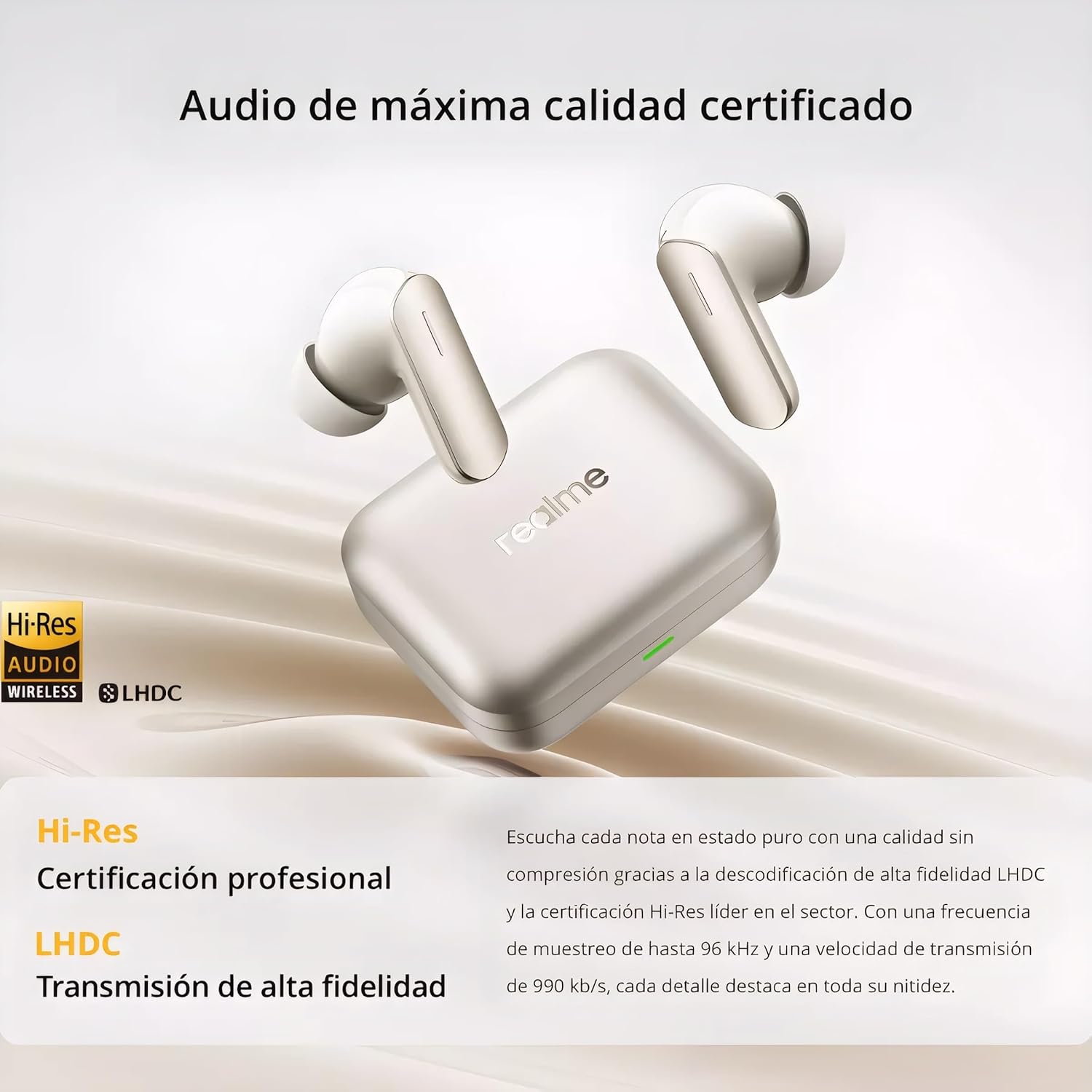
Image 5.2: This image highlights the professional certification for Hi-Res Audio and the LHDC 5.0 high-definition audio codec, ensuring uncompressed, high-fidelity sound with a sampling rate up to 96 kHz and a transmission speed of 990 kb/s.

Image 5.3: A detailed view of the 12.4mm dynamic bass driver, showcasing its components: a titanized diaphragm for high rigidity and low distortion, an N52 magnet for impressive low-frequency performance, and an SHTW copper coil for high temperature resistance, fast response, and excellent sound quality.
5.5 Game Mode (Low Latency)
Activate Game Mode for an ultra-low latency experience (55ms), ideal for gaming and video playback.
- Activate/Deactivate: Press and hold both earbuds simultaneously for 2 seconds. A voice prompt will confirm the mode change.
5.6 Dual Device Connection
The earbuds support simultaneous connection to two devices, allowing seamless switching between them.
To use this feature, ensure both devices are paired with the earbuds. The earbuds will intelligently switch audio sources based on activity (e.g., answering a call on one device while listening to music on another).

Image 5.4: This comprehensive diagram highlights several advanced features: up to 52 hours of total playback, seamless dual device connectivity, Bluetooth 5.4 for stable connections, 360-degree spatial audio effect, ultra-low 45ms latency for gaming, a stylish crystal alloy design, Swift Pair functionality for quick setup, and 6-microphone call noise cancellation for clear communication.
6. Maintenance
6.1 Cleaning
Regular cleaning helps maintain sound quality and hygiene.
- Use a soft, dry, lint-free cloth to wipe the earbuds and charging case.
- Gently remove any earwax or debris from the eartips and speaker mesh using a small brush or cotton swab.
- Do not use abrasive materials, alcohol, or chemical cleaners.
6.2 Storage
When not in use, always store the earbuds in their charging case to protect them and keep them charged.
- Store in a cool, dry place, away from extreme temperatures and direct sunlight.
- Avoid exposing the earbuds or case to excessive moisture.
6.3 Water Resistance (IP55)
The realme Air 7 earbuds are rated IP55 for water and dust resistance. This means they are protected against limited dust ingress and low-pressure water jets from any direction.
- IP55 rating does not mean they are waterproof. Do not submerge the earbuds in water.
- Avoid using them in heavy rain or while swimming.
- The charging case is not water-resistant.
- Water resistance may decrease over time with normal use.
7. Troubleshooting
If you encounter issues with your realme Air 7 earbuds, refer to the following common solutions:
7.1 Earbuds Not Connecting/Pairing
- Ensure the earbuds and charging case are sufficiently charged.
- Make sure Bluetooth is enabled on your device.
- Place the earbuds back into the case, close the lid, wait a few seconds, then open it again to re-enter pairing mode.
- Try forgetting "realme Air 7" from your device's Bluetooth settings and re-pairing.
- Reset: With both earbuds in the charging case and the lid open, press and hold the function button on the case (if present, usually near the charging port) for about 10-15 seconds until the indicator light flashes rapidly. This will clear previous pairing records.
7.2 No Sound or Low Volume
- Check the volume level on both your device and the earbuds.
- Ensure the earbuds are properly seated in your ears and have a good seal.
- Clean any debris from the eartips and speaker mesh.
- Try reconnecting the earbuds to your device.
7.3 One Earbud Not Working
- Place both earbuds back into the charging case, close the lid, and then open it again.
- Ensure both earbuds are charged.
- Perform a factory reset as described in section 7.1.
7.4 Charging Issues
- Ensure the charging cable is securely connected to both the case and the power source.
- Try a different USB-C cable and power adapter.
- Clean the charging contacts on both the earbuds and inside the case.
8. Specifications
| Feature | Detail |
|---|---|
| Model Name | Air 7 |
| Model Number | RMA7PADRE |
| Connectivity | Bluetooth 5.4 |
| Bluetooth Range | Up to 10 meters (33 feet) |
| Noise Control | 50dB Active Noise Cancellation (ANC) |
| Audio Driver | 12.4mm Dynamic Bass Driver |
| Audio Codec | LHDC, Hi-Res Audio certified |
| Microphones | 6 Mics for Clear Call |
| Battery Life (Total) | Up to 52 hours (with charging case) |
| Fast Charging | 10 min charge for 7 hours playback |
| Low Latency | 55ms (Game Mode) |
| Water Resistance | IP55 (Earbuds only) |
| Control Type | Touch Control |
| Weight | Approximately 4.6 ounces (130 grams) |
| Dimensions | 0.39 x 0.39 x 0.39 inches (earbud, approximate) |
9. Warranty and Support
9.1 Warranty Information
realme products come with a limited warranty from the date of purchase. The warranty covers defects in materials and workmanship under normal use. Please refer to the warranty card included in your package or visit the official realme website for detailed warranty terms and conditions specific to your region.
- Keep your proof of purchase (receipt or invoice) for warranty claims.
- The warranty does not cover damage caused by misuse, accidents, unauthorized modifications, or normal wear and tear.
9.2 Customer Support
For further assistance, technical support, or service inquiries, please contact realme customer support through one of the following channels:
- Official Website: Visit the realme official website for FAQs, support articles, and contact information.
- realme Link App: Download the realme Link app for additional features, firmware updates, and direct access to support.
- Email/Phone: Refer to your product packaging or the realme website for regional contact details.