
Introduction
The Philips DVT1170 VoiceTracer is a digital audio recorder designed for clear and reliable sound capture. This device features an 8GB internal memory, a 360° microphone for excellent sound quality, and supports voice-activated recording. It records in WAV format and includes a MicroSD card slot for expanded storage. This manual provides essential information for setting up, operating, and maintaining your VoiceTracer.

Figure 1: Philips DVT1170 VoiceTracer Audio Recorder.
Product Overview
The DVT1170 VoiceTracer is equipped with a high-quality 360° microphone to capture sound from all directions, ensuring clear recordings. Its compact design makes it easy to carry, and the intuitive controls simplify operation.

Figure 2: Front view of the Philips DVT1170 VoiceTracer, showing the display and control buttons.
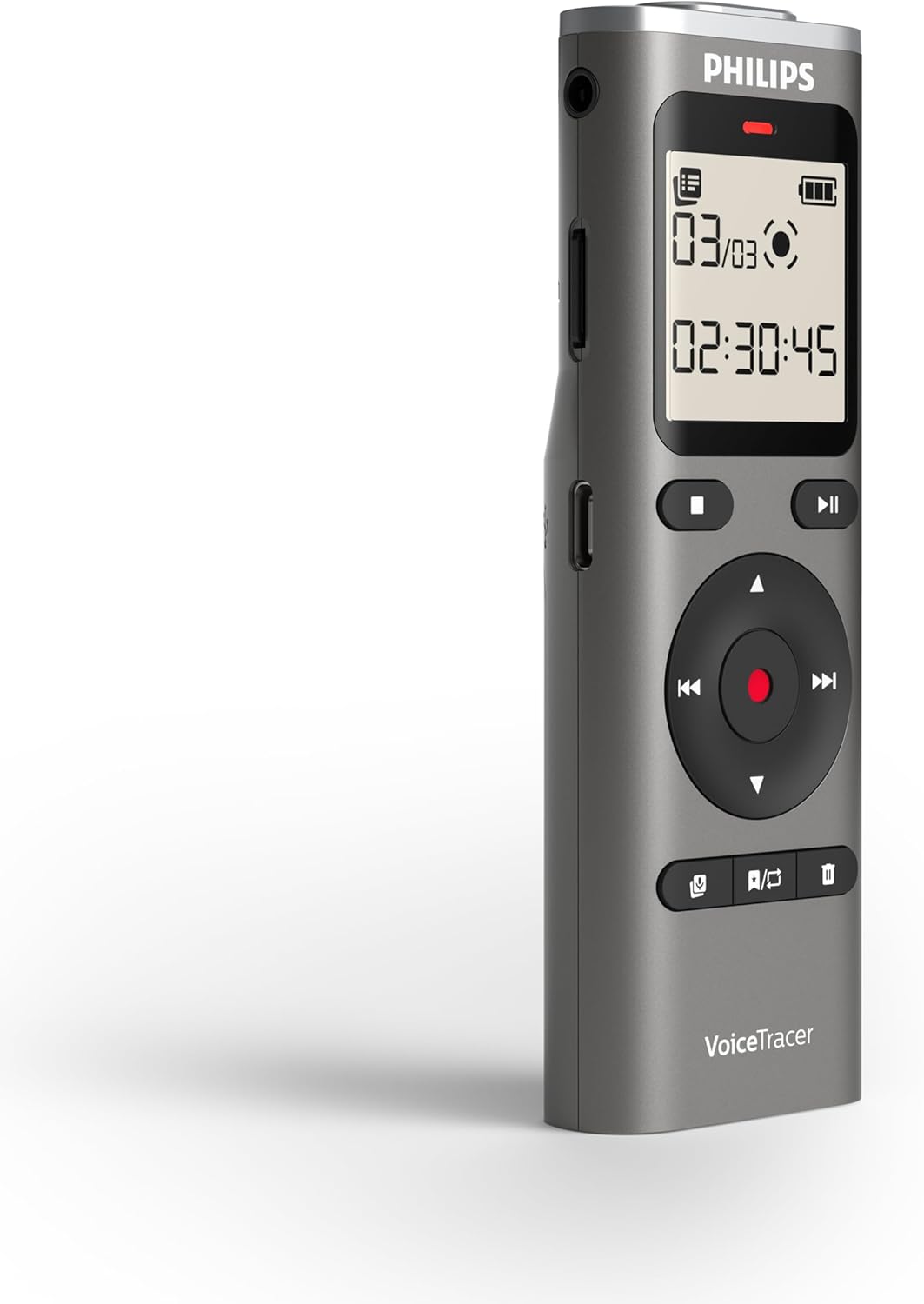
Figure 3: Side view of the Philips DVT1170 VoiceTracer, highlighting the power switch and USB port.
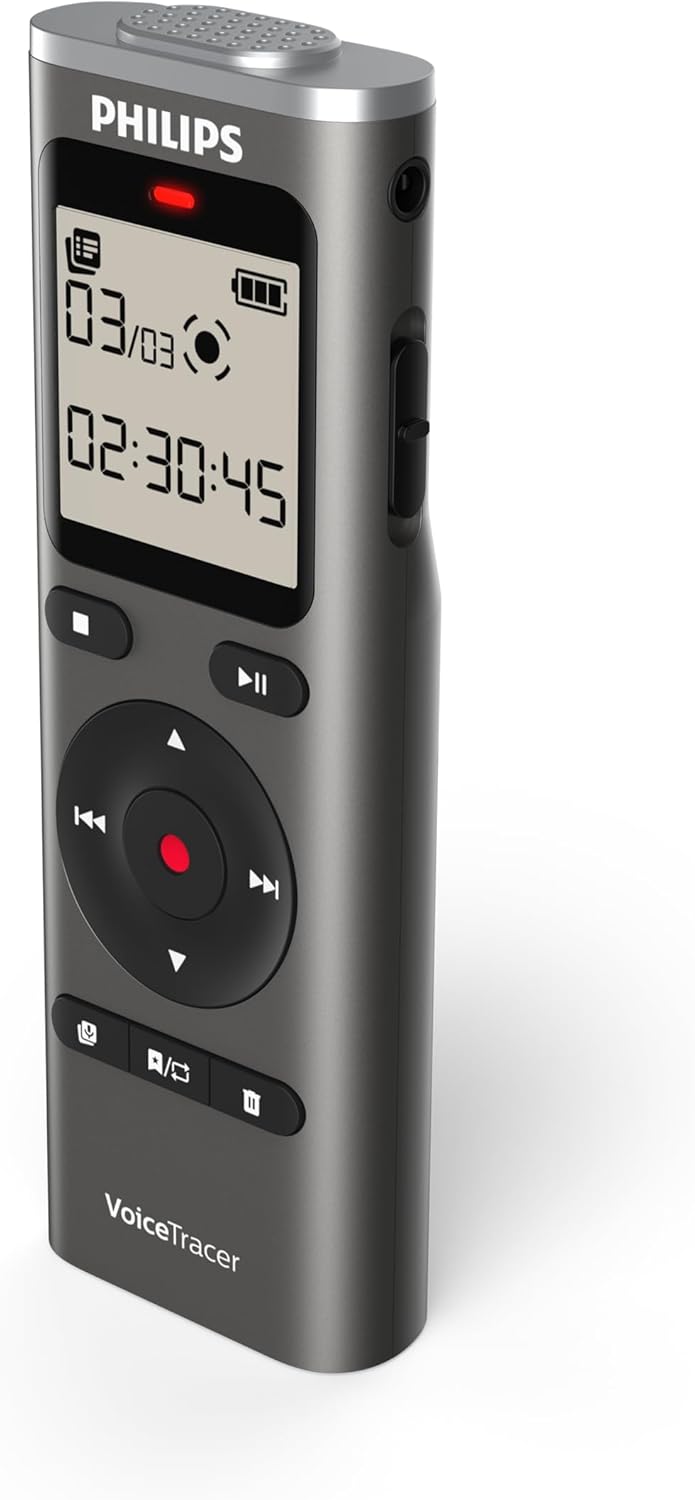
Figure 4: Back view of the Philips DVT1170 VoiceTracer, showing the battery compartment.
Key Features:
- High-quality 360° microphone: Captures clear, stereo-quality sound from all directions.
- Clear voice recording in WAV format: Ensures high-fidelity audio capture.
- Voice-activated recording: Allows for hands-free operation, starting recording automatically when sound is detected.
- Time-stamped files: For easy organization and navigation of your recordings.
- 8 GB of internal memory: Provides ample space for extended recording sessions.
- MicroSD card slot: For expanding storage capacity beyond the internal 8 GB.
- Extra long battery runtime: Ensures uninterrupted recording sessions.
What's in the Box
Your Philips DVT1170 VoiceTracer package includes:
- Philips DVT1170 VoiceTracer Audio Recorder
- 2 AAA batteries
Setup
1. Battery Installation
The Philips DVT1170 VoiceTracer requires 2 AAA batteries for operation. These are included in your package.
- Locate the battery compartment on the back of the device.
- Open the compartment cover.
- Insert the 2 AAA batteries, ensuring correct polarity (+/-).
- Close the battery compartment cover securely.
2. MicroSD Card (Optional)
To expand the storage capacity beyond the internal 8GB, you can insert a MicroSD card.

Figure 5: Philips DVT1170 VoiceTracer showing the MicroSD card slot.
- Locate the MicroSD card slot on the side of the device.
- Gently insert the MicroSD card into the slot until it clicks into place.
- To remove, gently press the card until it pops out, then pull it out.
3. Charging
The device can be charged or powered via its USB-C port.

Figure 6: Philips DVT1170 VoiceTracer connected to a USB-C cable for charging or data transfer.
- Connect the USB-C cable to the device's USB-C port.
- Connect the other end of the USB cable to a power adapter or a computer's USB port.
- The device will indicate charging status on the display.
Operating Instructions
1. Power On/Off
- To turn on the device, slide the power switch located on the side of the recorder upwards.
- To turn off the device, slide the power switch downwards.
2. Basic Recording
The DVT1170 VoiceTracer supports one-touch recording for quick and easy audio capture.

Figure 7: Icon representing one-touch recording functionality.
- Ensure the device is powered on.
- Press the REC button to start recording. The recording indicator light will illuminate.
- Press the STOP button to stop recording. The file will be automatically saved.
3. Voice-Activated Recording
Enable voice-activated recording for hands-free operation. The recorder will automatically start recording when sound is detected and pause when silence occurs.

Figure 8: Icon representing voice-activated recording functionality.
- Navigate to the recording settings menu.
- Select and enable the Voice-Activated Recording (VAR) option.
- Adjust the sensitivity level as needed.
- Press the REC button to begin voice-activated recording.
4. Playback
To listen to your recorded files:
- Navigate to the file list or recording library.
- Use the navigation buttons to select the desired file.
- Press the PLAY button to start playback.
- Use the volume buttons to adjust the playback volume.
- Press the STOP button to end playback.
5. File Management
Recordings are automatically time-stamped for easy organization.

Figure 9: Icon representing time-stamped files for easy organization.
- Access the file list from the main menu.
- Use the navigation buttons to browse through your recordings.
- To delete a file, select the file and press the DELETE button, then confirm.
6. Connecting to a Computer
Transfer files to and from your computer using the USB-C cable.
- Connect the VoiceTracer to your computer using the provided USB-C cable.
- The device will appear as a removable drive on your computer.
- Drag and drop files to transfer them.
Maintenance
- Keep the device clean and dry. Avoid immersing it in water or other liquids.
- Do not use organic solvents to clean the device, as this may cause damage.
- Avoid exposing the device to strong magnetic/electromagnetic fields, radio waves, or high voltage environments.
- If the device is left unused for an extended period, kindly recharge and discharge the product once every 2 months to maintain battery lifespan.
Troubleshooting
- Device not turning on: Ensure batteries are correctly installed and charged.
- Poor audio quality: Check microphone placement. Ensure no obstructions. Consider using the noise reduction feature if available.
- Storage full: Delete unnecessary files or insert a MicroSD card for more space.
- Device unresponsive: Try turning the device off and on again. If the issue persists, consult the warranty information.
Specifications
| Feature | Specification |
|---|---|
| Brand | Philips |
| Model Number | DVT1170 |
| Memory Storage Capacity | 8 GB (expandable via MicroSD card slot) |
| Microphone Form Factor | Built-In (360° microphone) |
| Format | WAV |
| Hardware Interface | USB 2.0 |
| Headphones Jack | 3.5 millimeters |
| Number of Batteries | 2 AAA batteries required (included) |
| Product Dimensions | 4.4"D x 0.6"W x 1.4"H |
| Item Weight | 89 Grams |
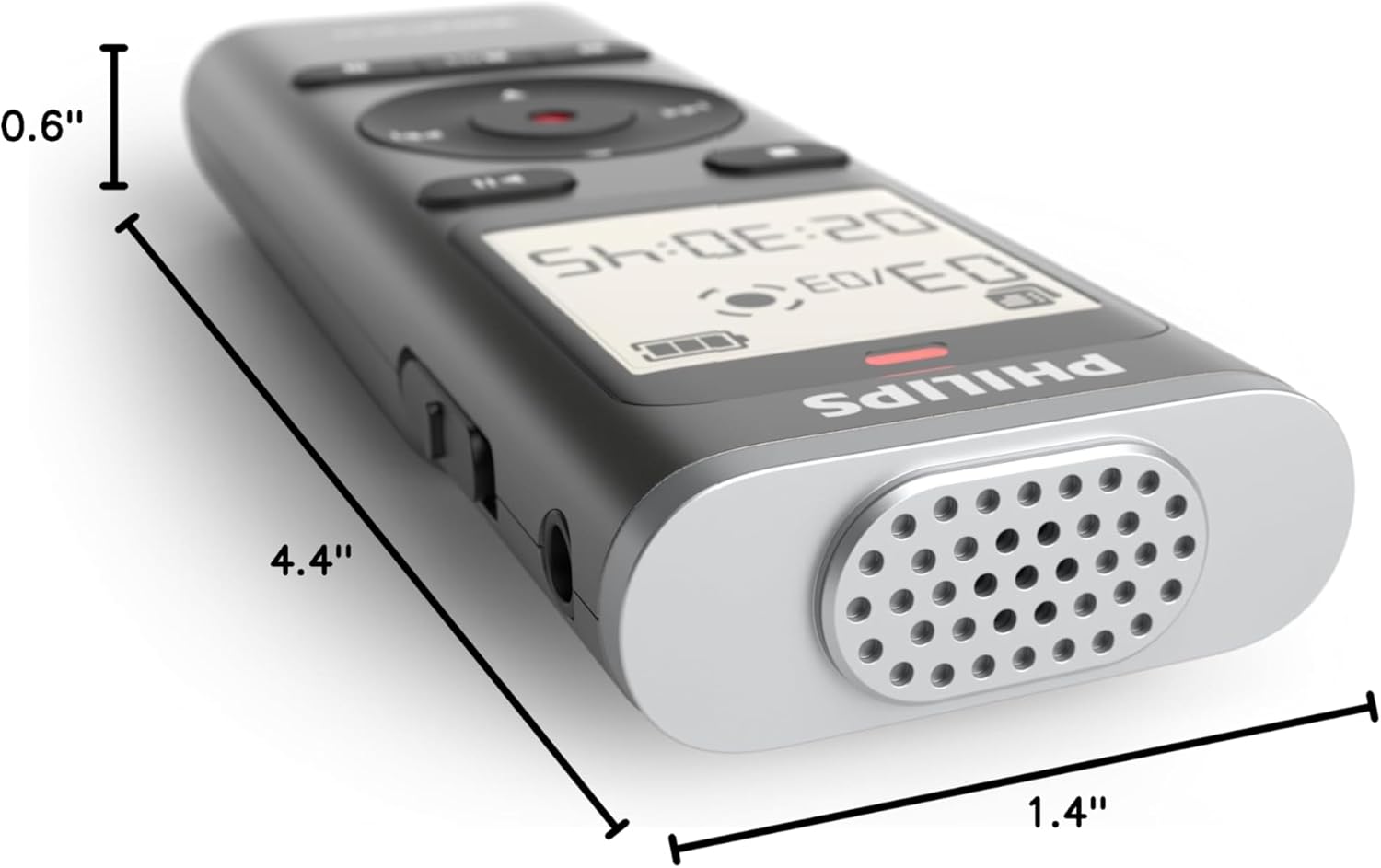
Figure 10: Dimensions of the Philips DVT1170 VoiceTracer.
Warranty & Support
The Philips DVT1170 VoiceTracer comes with a 1 Year Manufacturer Warranty. For any support or warranty claims, please contact Speech Processing Solutions, the manufacturer, directly.
For additional assistance, you may refer to the official Philips support website or contact their customer service.
Product Video Overview
Video 1: Official product overview of the Philips DVT1170 VoiceTracer, demonstrating its features and usage.


