
1. Introduction
This manual provides detailed instructions for setting up, operating, maintaining, and troubleshooting your MAMBASNAKE Attack Shark X65PRO HE Hall Effect Magnetic Keyboard and X11 Superlight Gaming Mouse combo. Please read this manual thoroughly before using the product to ensure optimal performance and longevity.

Image 1.1: The Attack Shark X65PRO HE keyboard and X11 mouse, showcasing their combined design and features.
2. Package Contents
Verify that all items are present in your package:
- Attack Shark X65PRO HE Hall Effect Magnetic Keyboard
- Attack Shark X11 Superlight Gaming Mouse
- Magnetic Charging Dock for X11 Mouse
- USB-C Cable
- 2.4GHz Wireless Receiver
- User Manual (this document)
3. Setup Guide
3.1 Initial Charging
Before first use, it is recommended to fully charge both the keyboard and mouse.
- Keyboard: Connect the USB-C cable to the keyboard and a power source (e.g., computer USB port, USB wall adapter).
- Mouse: Place the X11 mouse onto the magnetic charging dock. Connect the USB-C cable to the charging dock and a power source. The dock features RGB lighting that may indicate charging status.
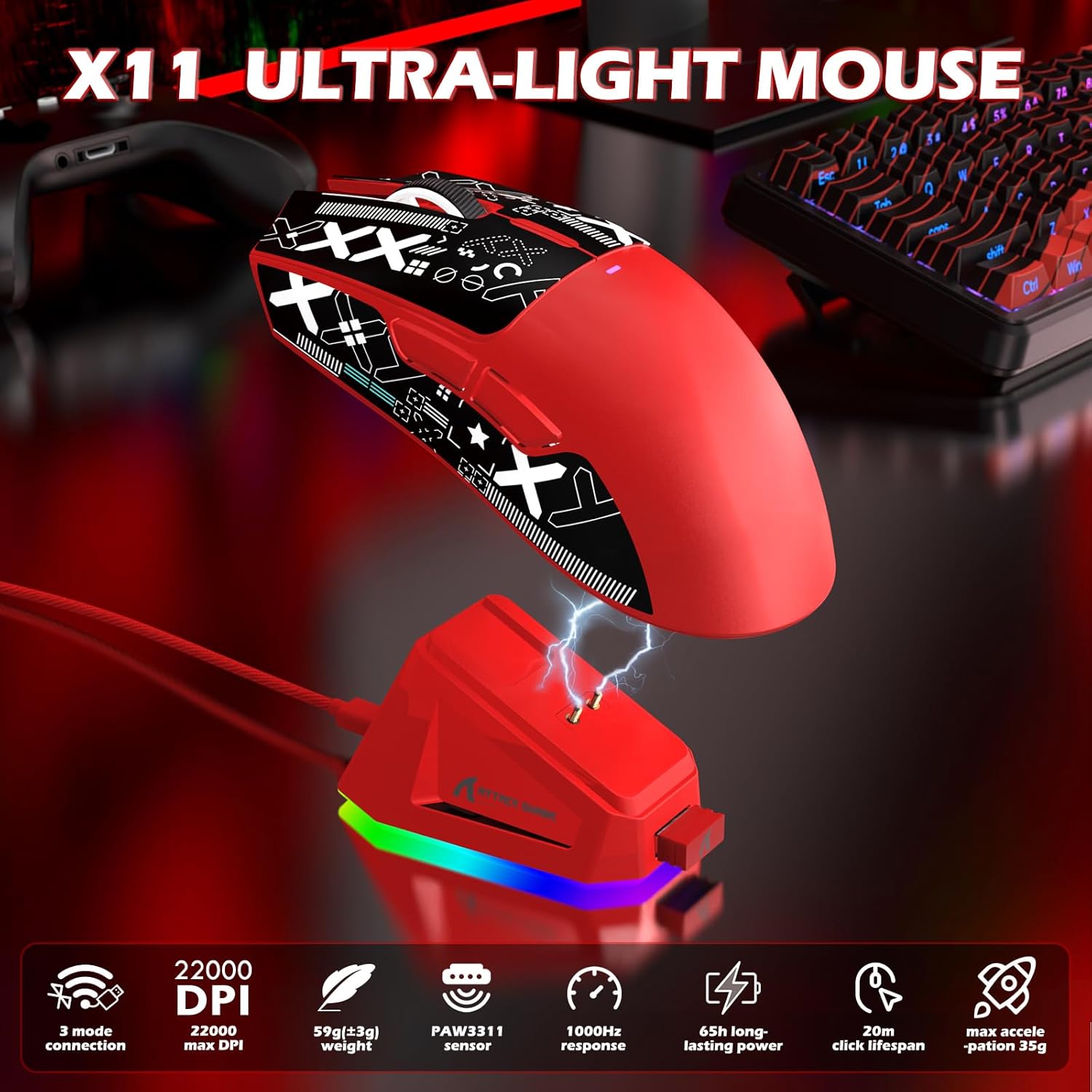
Image 3.1: The X11 mouse placed on its magnetic charging dock, illustrating the charging process.
3.2 Connectivity Modes
Both the X65PRO HE keyboard and X11 mouse support three connection modes: Wired (USB-C), 2.4GHz Wireless, and Bluetooth.
3.2.1 Wired Connection
- Connect the USB-C cable directly from the device (keyboard or mouse) to your computer's USB port.
- The device will be automatically recognized and ready for use.
3.2.2 2.4GHz Wireless Connection
- Insert the 2.4GHz wireless receiver into an available USB port on your computer.
- For Keyboard: Switch the mode selector on the keyboard to 2.4G.
- For Mouse: Switch the mode selector on the mouse to 2.4G.
- The devices should connect automatically.
3.2.3 Bluetooth Connection
- For Keyboard: Switch the mode selector on the keyboard to BT. Press and hold the Fn + 1/2/3 keys to enter pairing mode (indicator light will flash).
- For Mouse: Switch the mode selector on the mouse to BT. Press and hold the BT toggle button for 3 seconds to enter pairing mode.
- On your computer or device, go to Bluetooth settings and search for available devices. Select "Attack Shark X65PRO HE" or "Attack Shark X11" to pair.
- Both devices support multi-device Bluetooth pairing, allowing you to switch between up to three paired devices.

Image 3.2: Visual representation of the three available connectivity modes for the gaming combo.
4. Operating Instructions
4.1 X65PRO HE Keyboard Features
4.1.1 Hall Effect Magnetic Switches
The X65PRO HE keyboard utilizes Hall Effect magnetic switches, offering precise and customizable actuation.
- Adjustable Actuation: Customize the actuation point for each key from 0.1mm to 3.4mm using the web-based driver.
- 0.01mm Trigger Accuracy: Provides highly accurate and responsive key presses.
- Rapid Trigger: Allows for instant reset of keys, enabling faster repeated inputs.

Image 4.1: Detailed view of the magnetic switches within the X65PRO HE keyboard, highlighting their design.

Image 4.2: Explanation of the 0.01mm trigger accuracy feature of the keyboard.
4.1.2 8000Hz Polling Rate
The keyboard supports an 8000Hz polling rate, providing a response time as low as 0.125ms in wired mode for minimal input lag.

Image 4.3: The X65PRO HE keyboard highlighting its 8000Hz polling rate and 0.125ms response time.
4.1.3 CNC Multifunctional Knob
The integrated CNC-machined knob allows for quick adjustments of volume, RGB lighting effects, and system controls.

Image 4.4: Close-up view of the CNC metal knob, indicating its functionality for quick adjustments.
4.1.4 Ergonomic Design
The keyboard features a compact 60% layout and a two-stage adjustable kickstand for three ergonomic typing angles.
4.2 X11 Mouse Features
4.2.1 PixArt 3311 Sensor
Equipped with a PixArt 3311 sensor, the X11 mouse offers high precision and responsiveness.
- DPI: Up to 22,000 DPI with 6 levels of adjustment.
- IPS: 300 IPS (Inches Per Second) tracking speed.
- Polling Rate: 1000Hz return rate.
Image 4.5: The X11 mouse with an overlay highlighting the PixArt PAW3311 gaming sensor and its capabilities.
4.2.2 Ultra-Lightweight Design
The X11 mouse weighs approximately 63g, designed for fast movements and reduced fatigue during extended use.

Image 4.6: The X11 mouse emphasizing its ultra-lightweight design at 63 grams.
4.2.3 Magnetic Charging Dock
The included magnetic charging dock provides convenient charging and features customizable RGB lighting effects.
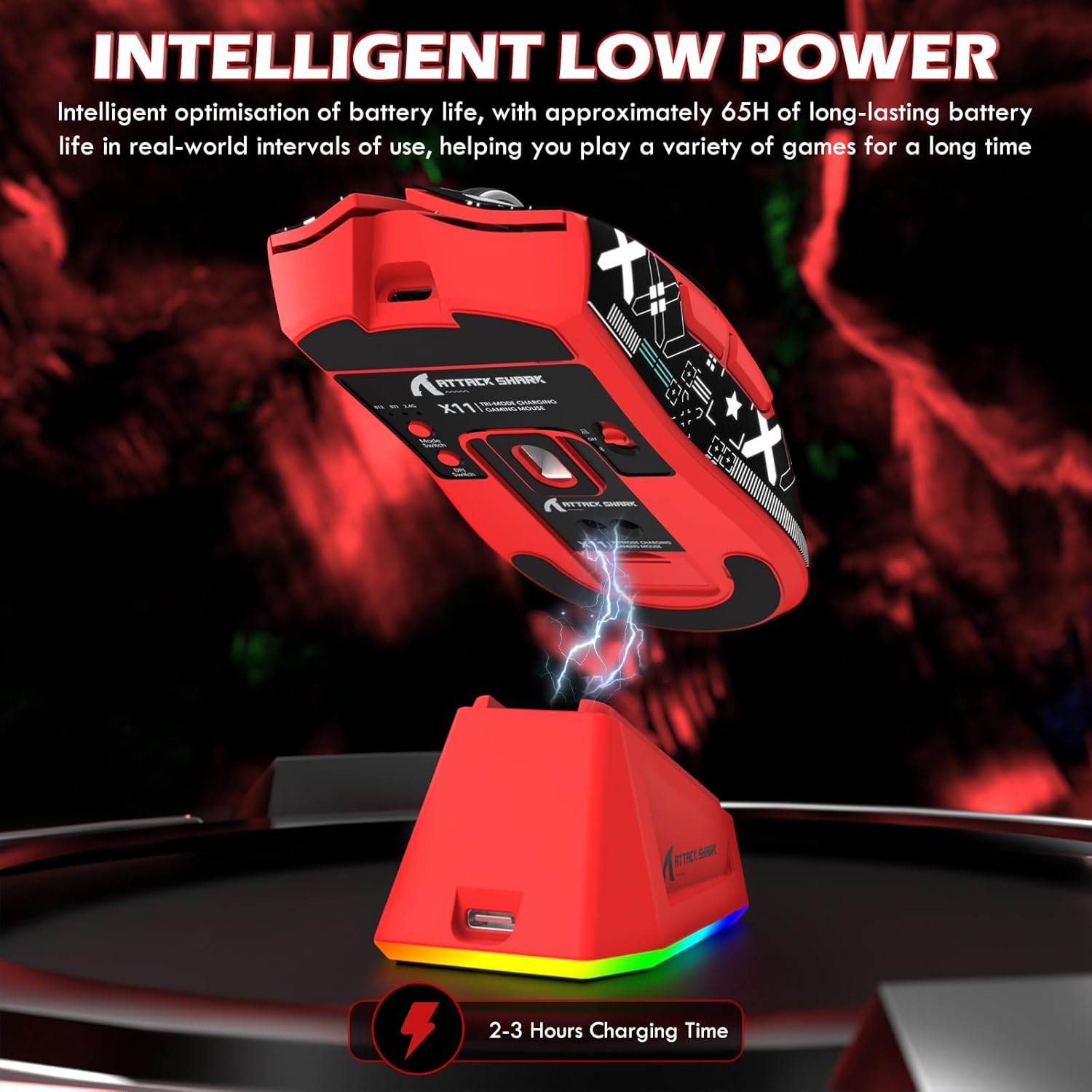
Image 4.7: The X11 mouse intelligently charging on its low-power magnetic dock, showing RGB lighting.
4.3 Customization with Web-Based Driver
Both devices can be customized using a web-based driver, eliminating the need for software installation.
- Keyboard (X65PRO HE): Adjust actuation points per key, program macros, remap keys, and customize RGB lighting.
- Mouse (X11): Adjust DPI settings, polling rate, program macros, and customize button functions.
- Access the web driver via the official MAMBASNAKE or Attack Shark website.
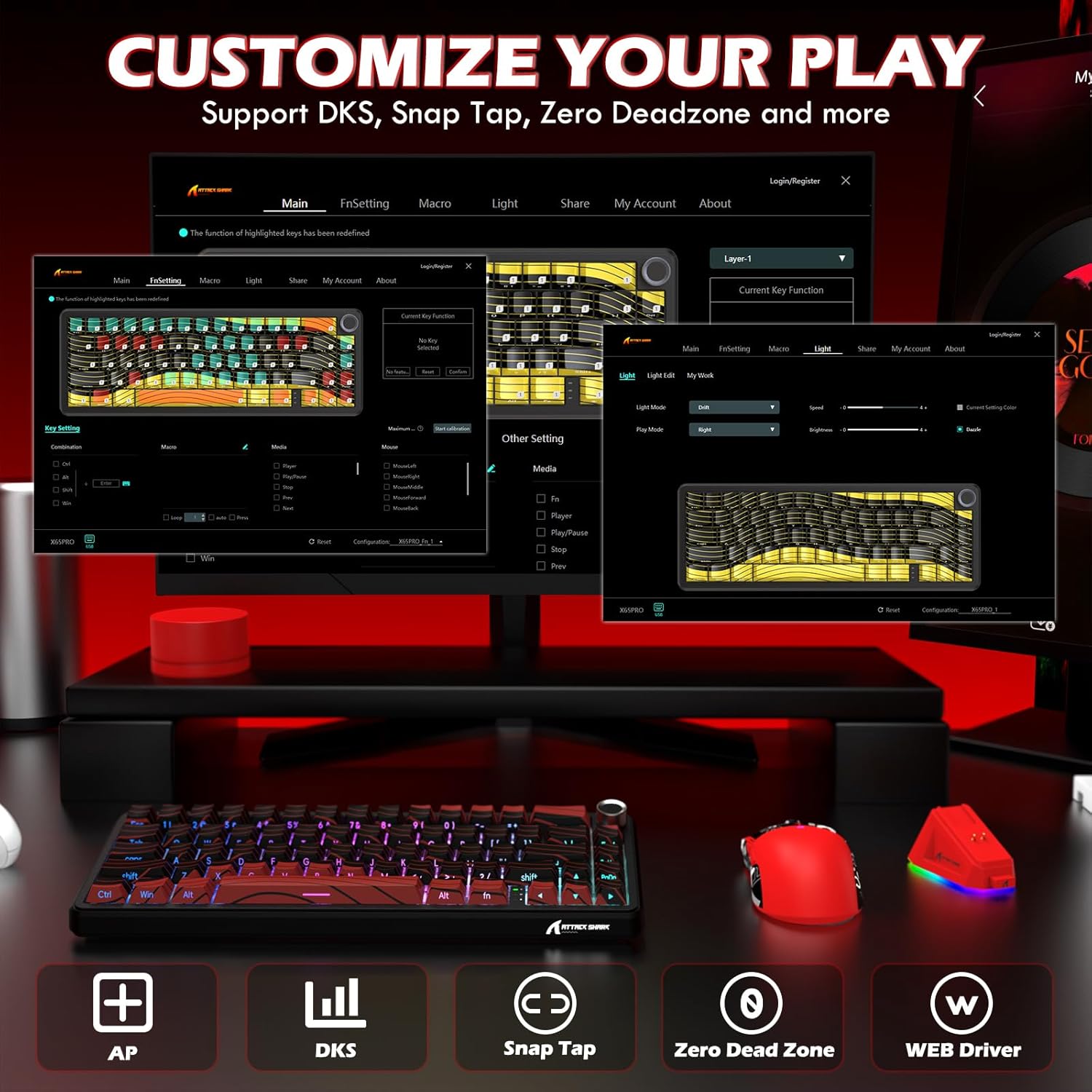
Image 4.8: Screenshot of the web-based driver interface, demonstrating options for customizing key functions, macros, and lighting.
5. Maintenance
5.1 Cleaning
- Disconnect devices from power before cleaning.
- Use a soft, dry cloth to wipe down the surfaces of the keyboard and mouse.
- For stubborn dirt, slightly dampen the cloth with water or a mild cleaning solution. Avoid harsh chemicals.
- Use compressed air to remove dust and debris from between keyboard keys.
5.2 Hot-Swappable Switches (Keyboard)
The X65PRO HE keyboard features hot-swappable Hall Effect magnetic switches, allowing for easy replacement without soldering.
- Gently pull the keycap off the switch using a keycap puller.
- Use a switch puller to carefully remove the switch from the keyboard plate.
- Align the pins of the new switch with the sockets on the PCB and press firmly until it clicks into place.
- Replace the keycap.
6. Troubleshooting
6.1 Connectivity Issues
- Device not responding: Ensure the device is charged. Check the connection mode (Wired, 2.4G, BT) and ensure it matches your computer's connection.
- 2.4GHz connection unstable: Ensure the wireless receiver is plugged directly into a USB port, preferably on the front of your computer, and not through a hub. Minimize interference from other wireless devices.
- Bluetooth pairing failed: Ensure the device is in pairing mode (indicator light flashing). Remove previous pairings from your computer's Bluetooth settings and try pairing again.
6.2 Performance Issues
- Lag or unresponsiveness: Ensure the device is fully charged. For optimal performance, use wired or 2.4GHz wireless mode. Check for driver updates or recalibrate settings via the web-based driver.
- Keys not registering (Keyboard): Check if the actuation point is set too high for your preference. Clean under the keycap. If a switch is faulty, consider replacing it (hot-swappable feature).
- Mouse tracking issues: Clean the mouse sensor. Ensure you are using a suitable mouse pad. Adjust DPI settings via the web-based driver.
6.3 RGB Lighting Issues
- Lights not working: Ensure the device is powered on. Check RGB settings in the web-based driver or use the keyboard's built-in controls (Fn + keys) to cycle through effects.
- Charging dock RGB: The dock's RGB lighting can be customized via its touch-sensitive switch.
7. Specifications
| Feature | Specification |
|---|---|
| Brand | MAMBASNAKE |
| Model | X65PRO HE (Keyboard) & X11 (Mouse) |
| Connectivity Technology | USB-C (Wired), 2.4GHz Wireless, Bluetooth |
| Keyboard Type | Mechanical, Hall Effect Magnetic Switches |
| Keyboard Layout | 60% QWERTY (61 Keys) |
| Keyboard Polling Rate | Up to 8000Hz |
| Keyboard Actuation | Adjustable 0.1mm-3.4mm, 0.01mm RT Accuracy |
| Mouse Sensor | PixArt 3311 |
| Mouse DPI | Up to 22,000 DPI (6 Levels Adjustment) |
| Mouse Weight | 63g |
| Mouse Switches | HUANO Micro Switches (20 million clicks) |
| Power Source | Wired, Rechargeable via Dock |
| Compatible Devices | Gaming Console, Laptop, PC, Tablet |
| Operating System Support | Windows 10+, Mac OS 12+, Ubuntu 22.04+ |
| Included Components | Magnetic Charging Dock |
8. Warranty Information
The MAMBASNAKE Attack Shark X65PRO HE & X11 Gaming Combo comes with a 1-year manufacturer's warranty from the date of purchase. This warranty covers defects in materials and workmanship under normal use. It does not cover damage caused by misuse, accidents, unauthorized modifications, or normal wear and tear.
For warranty claims or service, please contact the retailer where you purchased the product or visit the official MAMBASNAKE support website.
9. Support
For further assistance, technical support, or to download the latest web-based driver, please visit the official MAMBASNAKE website or refer to the product page on Amazon:
- MAMBASNAKE Store: Visit the MAMBASNAKE Store on Amazon
- Product Page: Amazon Product Page (B0F1THT3C6)