1. Introduction
Thank you for choosing the SWITCHFLUX USB C to Dual HDMI Adapter. This device is designed to expand your display capabilities, allowing you to connect two HDMI monitors to a single USB-C port on your compatible laptop or tablet. It supports resolutions up to 4K@60Hz on dual displays simultaneously and includes a 100W Power Delivery (PD) charging function and a USB 3.0 port for enhanced connectivity.
This manual provides detailed instructions for setting up, operating, and troubleshooting your adapter to ensure optimal performance.

Image 1.1: The SWITCHFLUX USB C to Dual HDMI Adapter, showcasing its compact design and multiple ports for dual HDMI output, USB 3.0, and PD 100W input.
2. Product Features
- Dual 4K@60Hz Display: Supports simultaneous output to two monitors at 3840x2160@60Hz. Also supports 2K@60Hz and 1080P@60Hz.
- 100W Power Delivery (PD): Allows for fast charging of your host device while using the adapter.
- USB 3.0 Port: Provides a data transfer rate up to 5Gbps, suitable for connecting peripherals like keyboards and mice.
- Extended & Mirror Mode: Supports both extended and mirror display modes (note: extended mode is Windows-only).
- Plug and Play: No drivers or software installation required for most operating systems.
- Durable Design: Features an aluminum alloy housing for heat dissipation, a braided nylon cable, and 24K gold-plated connectors for longevity.
3. Package Contents
- 1 × SWITCHFLUX USB C to Dual HDMI Adapter (Gray)
4. Setup Instructions
Follow these steps to connect your SWITCHFLUX USB C to Dual HDMI Adapter:
- Verify USB-C Port Compatibility: Ensure your host device's USB-C port supports video output (DisplayPort Alternate Mode). Not all USB-C ports support this function. Compatible ports include those with Thunderbolt 3/4, USB-C 3.1 Gen 2 with DisplayPort Alt Mode, or USB-C 3.2 with DisplayPort Alt Mode. Ports that only support data transfer or charging will not work for video output.

Image 4.1: Important compatibility notice for USB-C ports. The adapter requires a USB-C 3.0 or above port with video output capabilities (DisplayPort Alt Mode or Thunderbolt).
- Connect HDMI Cables: Connect your HDMI monitors to the two "Output" HDMI ports on the adapter using high-quality HDMI 2.0 or higher cables for optimal 4K@60Hz performance.
- Connect to Host Device: Plug the USB-C male connector of the adapter into a compatible USB-C port on your laptop, tablet, or graphics card.
- Connect Power (Optional but Recommended): For stable performance and to charge your host device, connect a USB-C power adapter (up to 100W PD) to the "PD 100W" port on the adapter.
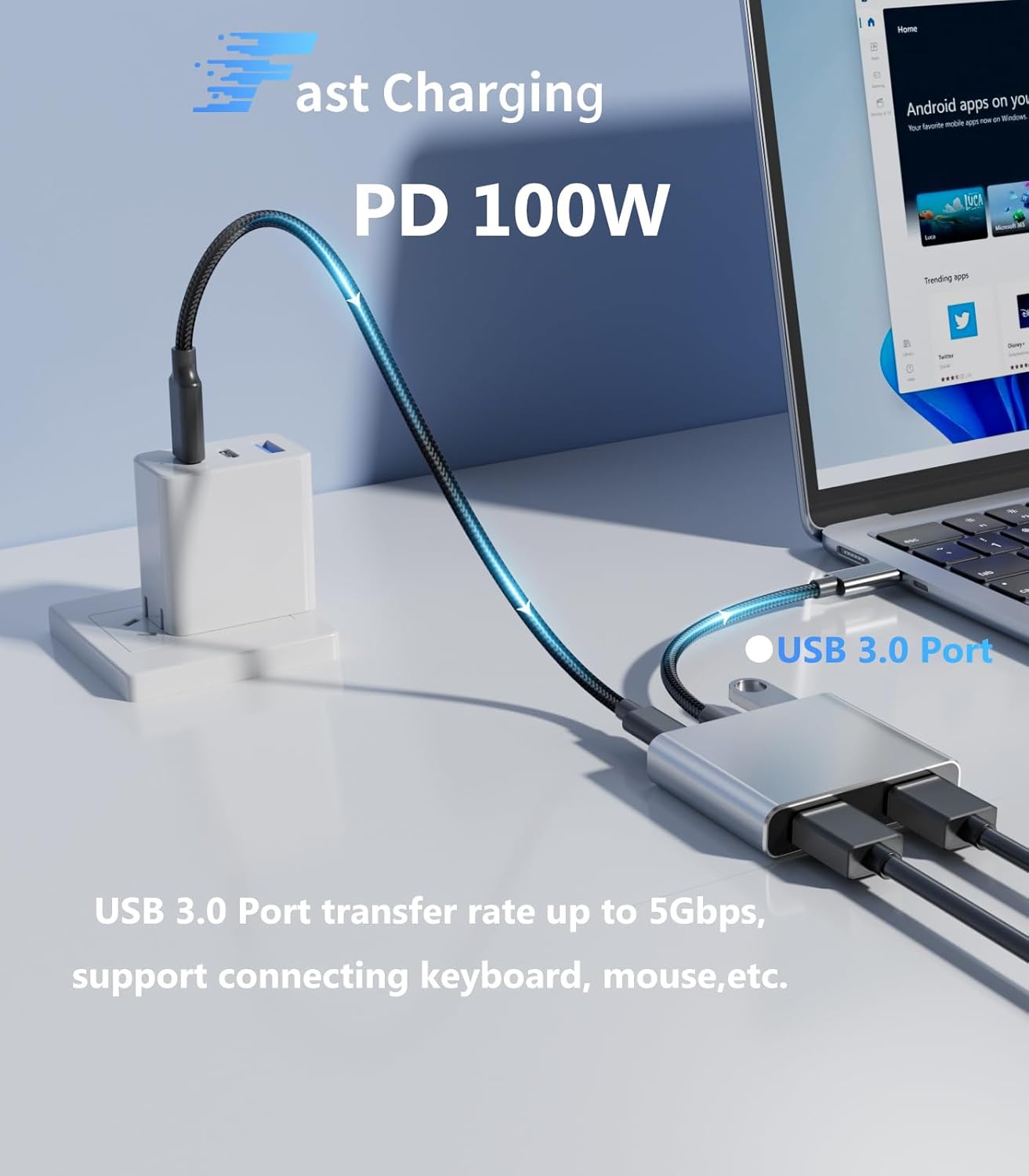
Image 4.2: The adapter connected to a laptop, demonstrating the use of the 100W Power Delivery port for charging and the USB 3.0 port for peripherals.
- Connect USB Peripherals (Optional): If desired, connect USB 3.0 devices such as a keyboard, mouse, or USB flash drive to the "USB 3.0" port on the adapter.
- Configure Display Settings: Your operating system should automatically detect the connected monitors. You may need to adjust display settings (resolution, arrangement, mirror/extend mode) in your system's display preferences.
Note: Before use, please ensure your display is modulated to the correct HDMI port to receive the signal.
5. Operating Instructions
The SWITCHFLUX USB C to Dual HDMI Adapter supports various display configurations:
- Single HDMI Output: Connect one HDMI monitor for a single external display.
- Dual HDMI Output (Mirror Mode): Duplicate your host device's screen onto two external monitors. This mode is supported on Windows, macOS, and Linux.
- Dual HDMI Output (Extended Mode): Extend your desktop across two external monitors, providing a wider workspace. This mode is supported on Windows and Linux.Important: Extended mode (MST - Multi-Stream Transport) is only supported on Windows and Linux. macOS only supports Mirror (SST - Single-Stream Transport) mode for dual external displays with this adapter.

Image 5.1: Illustration of supported display modes (SST and MST) across different operating systems, highlighting that MST (extended display with distinct content on each monitor) is Windows-exclusive.
To switch between display modes, access your operating system's display settings:
- Windows: Right-click on the desktop, select "Display settings," then choose "Extend these displays" or "Duplicate these displays."
- macOS: Go to "System Settings" > "Displays." You can arrange displays or select "Mirror Displays."

Image 5.2: Visual representation of the adapter enabling single, mirror, and extended display configurations at 4K 60Hz.
6. Maintenance
To ensure the longevity and optimal performance of your SWITCHFLUX USB C to Dual HDMI Adapter, please follow these maintenance guidelines:
- Cleaning: Gently wipe the adapter with a soft, dry cloth. Avoid using liquid cleaners or solvents, as they may damage the device.
- Storage: Store the adapter in a cool, dry place away from direct sunlight and extreme temperatures.
- Handling: Avoid bending or twisting the cable excessively. Do not drop the adapter or subject it to strong impacts.
- Connection: Always plug and unplug connectors carefully to prevent damage to the ports.
7. Troubleshooting
If you encounter issues with your adapter, please refer to the following common troubleshooting steps:
- No Display on Monitors:
- Ensure your host device's USB-C port supports video output (DisplayPort Alt Mode or Thunderbolt). Refer to your device's specifications.
- Check all cable connections. Ensure HDMI cables are securely plugged into both the adapter and the monitors, and the USB-C cable is firmly connected to your host device.
- Verify that your monitors are powered on and set to the correct HDMI input source.
- Try connecting only one monitor at a time to isolate if the issue is with a specific monitor or cable.
- Restart your host device.
- Incorrect Resolution or Refresh Rate:
- Ensure your monitors and HDMI cables support the desired resolution and refresh rate (e.g., 4K@60Hz). Lower quality cables or older monitors may limit performance.
- Adjust display settings in your operating system to select the preferred resolution and refresh rate.
- If experiencing 4K@30Hz instead of 4K@60Hz, verify that all components (source, adapter, cables, monitors) are 4K@60Hz compatible.
- Extended Display Not Working on macOS:
- This adapter supports Mirror (SST) mode for dual external displays on macOS, not Extended (MST) mode. macOS limitations prevent distinct extended displays via this adapter.
- Charging Not Working:
- Ensure your USB-C power adapter is connected to the "PD 100W" port on the SWITCHFLUX adapter.
- Verify that your power adapter and USB-C cable support Power Delivery (PD) and are capable of delivering sufficient wattage for your host device.
- USB 3.0 Port Not Functioning:
- Ensure the USB 3.0 device is properly connected.
- Test the USB 3.0 device directly with your host device to confirm it is functional.
- Adapter is Hot:
- It is normal for the adapter to become warm during operation, especially when handling 4K video and power delivery. The aluminum alloy housing is designed for efficient heat dissipation. If it becomes excessively hot, disconnect it and contact support.
Important Note: This adapter is NOT bi-directional. It only supports connecting a USB-C source device to HDMI display devices. Do not use it with any docking station, hub, or KVM switch simultaneously, as this may cause compatibility issues.
8. Specifications
| Feature | Detail |
|---|---|
| Model | 4 IN 1 Dual HDMI Adapter |
| Input Connector | USB-C 3.0 Male (Gold-plated) |
| Output Connectors | 2 × HDMI 2.0 Female (Gold-plated) |
| Other Ports | 1 × USB 3.0 Port, 1 × USB-C PD 100W Charging Port |
| Max Resolution (Dual Display) | 3840x2160@60Hz (4K@60Hz) |
| Power Delivery | Up to 100W |
| USB 3.0 Data Transfer Rate | Up to 5Gbps |
| Housing Material | Aluminum Alloy |
| Cable Material | Braided Nylon |
| Dimensions | 5.67 x 3.94 x 0.75 inches (Package) |
| Item Weight | 2.39 ounces |
| Compatible Devices | Laptops, Tablets with compatible USB-C ports (e.g., MacBook Pro/Air, Dell, HP, Lenovo, iPhone 15 series) Image 8.1: The adapter's wide compatibility with devices such as laptops, tablets, iPhone 15 series, PCs, HD TVs, and projectors. |
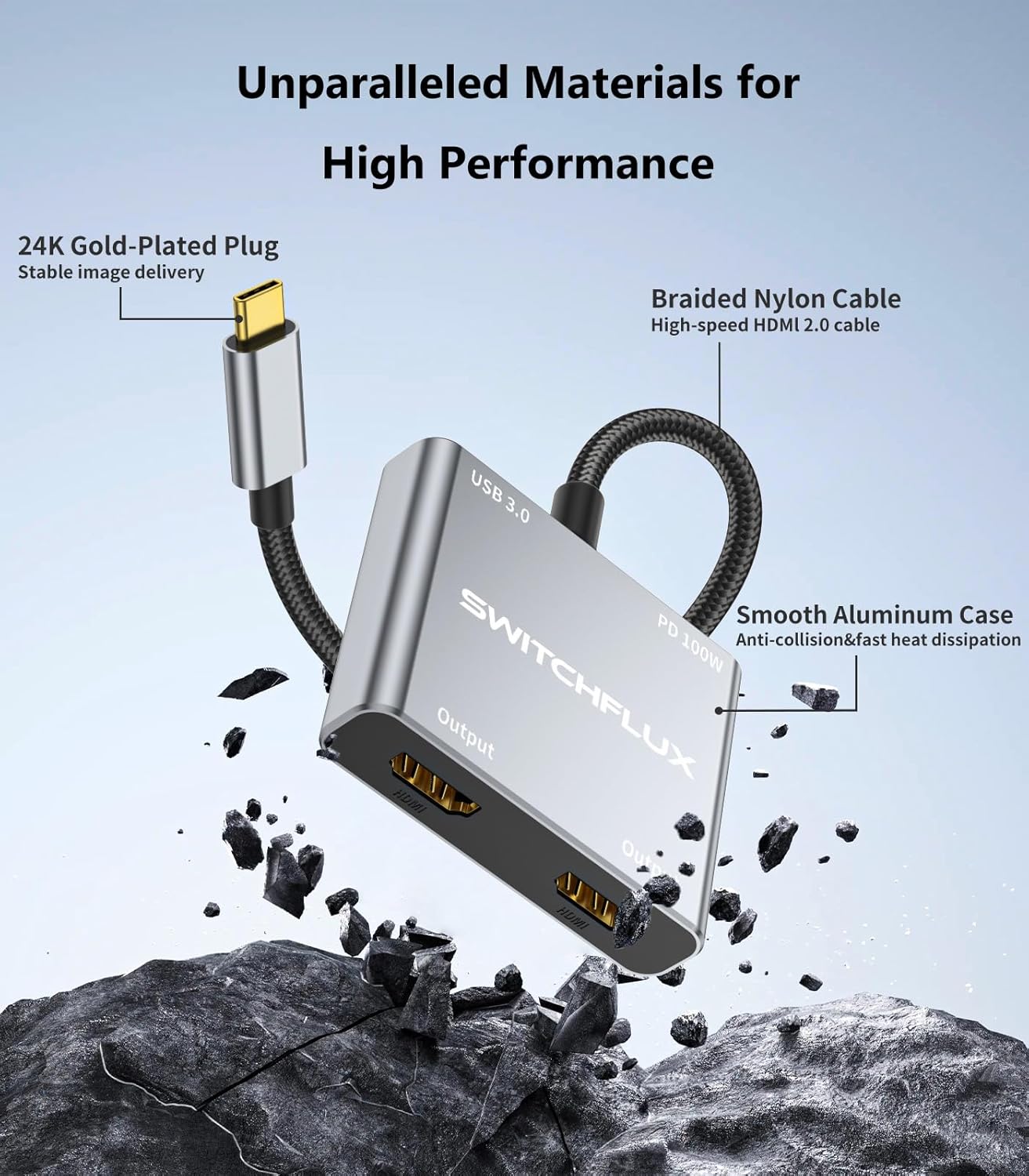
Image 8.2: Detailed view of the adapter's construction, emphasizing the 24K gold-plated plug, braided nylon cable, and smooth aluminum case for durability and performance.
9. Warranty and Support
SWITCHFLUX is dedicated to providing high-quality products and excellent customer service.
- For any questions, technical assistance, or support inquiries, please contact SWITCHFLUX customer service.
- We aim to provide fast and responsible support within 18 hours.
- Please refer to your purchase documentation or the official SWITCHFLUX website for specific warranty details.


