
1. Introduction
This manual provides detailed instructions for the installation, operation, and maintenance of your AINAVIGO 6.36" Single DIN Car Stereo. This unit features Wireless CarPlay and Android Auto compatibility, a Linux operating system, HD IPS touchscreen, Bluetooth 5.0, USB-C/USB/FM radio, and EQ controls. Please read this manual thoroughly before use to ensure proper functionality and safety.
2. What's Included
Carefully unpack the box and ensure all items listed below are present and in good condition.
- 6.36-Inch Single DIN Touchscreen Car Stereo (Head Unit)
- User Manual
- Power Cable
- Microphone
- Frame Removal Tool
- GPS Antenna
- USB 6Pin Cable
- Snap*4 (Mounting Brackets)

Image: Components included in the product package. This shows the main head unit, car microphone, radio antenna, power cable, and four mounting snaps.
3. Setup and Installation
Installation of the AINAVIGO Single DIN Car Stereo requires basic automotive electrical knowledge. If you are unsure, professional installation is recommended.
3.1 Physical Installation
- Preparation: Disconnect the vehicle's negative battery terminal before starting any electrical work.
- Remove Old Unit: Carefully remove your existing car stereo using appropriate tools.
- Mounting: The AINAVIGO unit is a standard single DIN size. Secure the head unit into the dashboard opening using the provided mounting brackets (snaps).
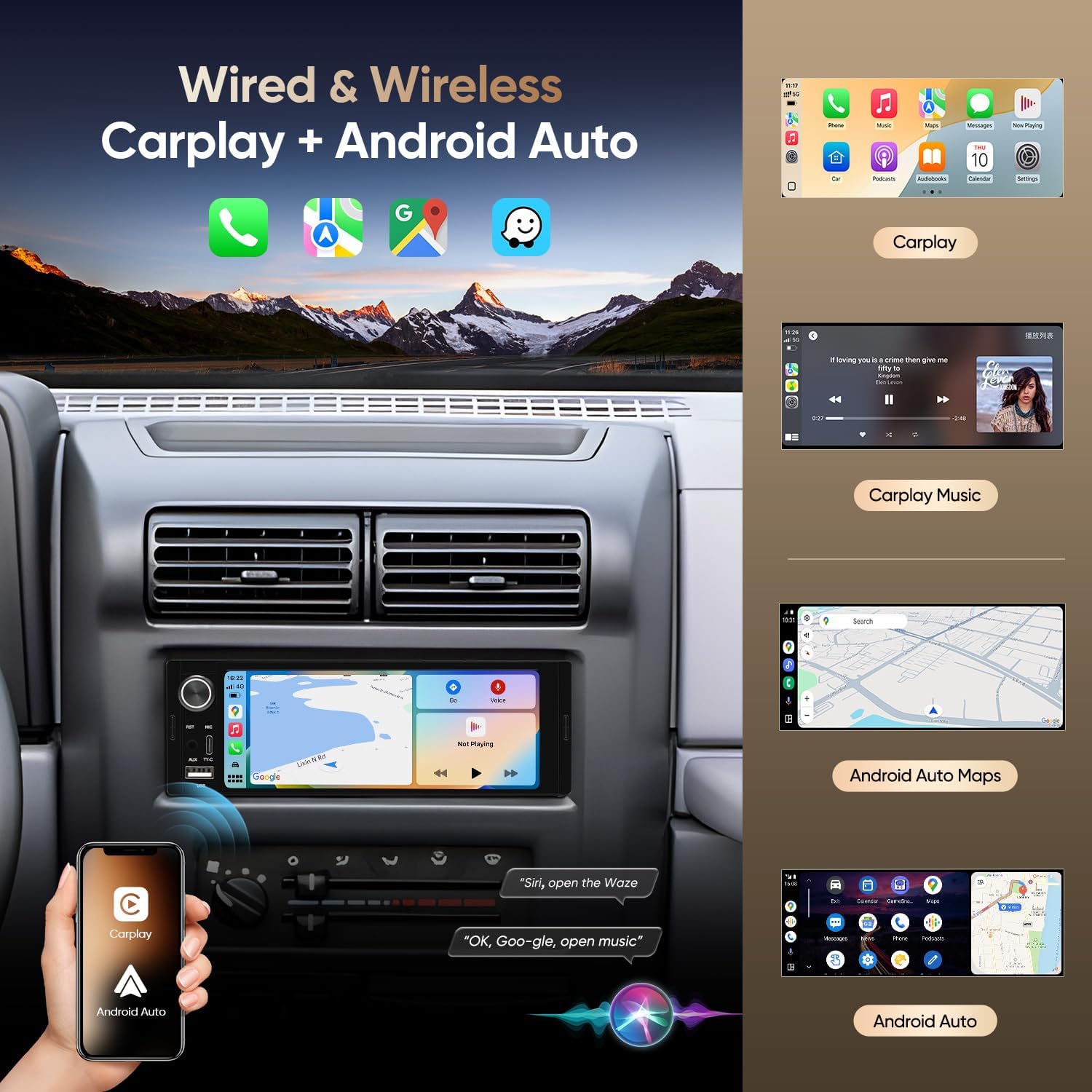
Image: Visual comparison showing a car dashboard before and after the installation of the AINAVIGO car stereo, demonstrating the integrated appearance.
3.2 Wiring Connections
Refer to the wiring diagram provided with your power cable. Key connections include:
- Power Cable: Connect the power cable to your vehicle's wiring harness. Ensure correct connections for constant power (yellow), accessory power (red), and ground (black).
- Speaker Wires: Connect the speaker output wires to your vehicle's speakers. Pay attention to positive and negative terminals for each speaker.
- Microphone: Plug the external microphone into the designated port for hands-free calling and voice commands.
- GPS Antenna: Connect the GPS antenna and mount it in a location with a clear view of the sky for optimal signal reception.
- USB/USB-C: Connect the provided USB cables for data transfer and device charging.
3.3 Rear Camera Connection (Optional)
If installing a rear view camera, follow the diagram below for proper connection:

Image: Wiring diagram for connecting a rear view camera to the car stereo. It details how to connect the camera's power to the reversing light and the video signal to the head unit's CVBS input.
4. Operating Instructions
This section details the primary functions and how to operate your AINAVIGO car stereo.
4.1 Wireless CarPlay and Android Auto
Connect your smartphone wirelessly to access navigation, music, calls, and voice assistants directly on the stereo's display.
- Enable Bluetooth: Ensure Bluetooth is enabled on your smartphone and the car stereo.
- Pair Device: On the stereo, navigate to the Bluetooth settings and pair with your phone.
- Activate CarPlay/Android Auto: Once paired, select the CarPlay or Android Auto icon on the stereo's main menu. Follow any on-screen prompts on your phone to complete the connection.

Image: The car stereo screen showing the Apple CarPlay interface with various app icons, and a hand holding a smartphone displaying the CarPlay and Android Auto logos.

Image: An overview of the wired and wireless CarPlay and Android Auto functionalities, showing examples of navigation, music playback, and voice assistant interaction on the stereo screen.
4.2 Bluetooth Hands-Free and Music Streaming
The built-in Bluetooth 5.0 allows for safe hands-free communication and wireless audio playback.
- Pairing: Enable Bluetooth on your phone and search for the stereo (usually named "AINAVIGO" or similar). Select it to pair.
- Hands-Free Calls: Once paired, you can make and receive calls directly through the stereo. Use the external microphone for clear audio.
- Music Playback: Stream audio from your phone to the stereo. Control playback (play/pause, skip) from the stereo's touchscreen.

Image: The car stereo interface showing Bluetooth functions, including a dial pad for calls and music playback controls. A smartphone is depicted receiving an incoming call via Bluetooth.
4.3 FM Radio
Access local radio stations with the integrated FM tuner.
- Tuning: Select the FM radio application. Use the touchscreen to manually tune or auto-scan for available stations.
- Saving Presets: You can save up to 18 FM stations for quick access.
4.4 USB and USB-C Connectivity
The unit supports both standard USB and USB-C connections.
- Data Transfer: Connect USB drives to play media files (audio/video) directly from the storage.
- Charging: Use the USB ports to charge compatible devices.

Image: A detailed view of the USB and USB-C ports on the car stereo, indicating their use for USB data transfer and Type-C connections.
4.5 EQ Controls
Adjust the audio output to your preference using the built-in equalizer.
- Access EQ: Navigate to the audio settings or EQ menu on the touchscreen.
- Adjust Settings: Modify bass, treble, balance, fader, and other sound parameters. Preset EQ modes may also be available.

Image: The car stereo's display showing the Digital Sound Processor (DSP) and Equalizer (EQ) interface, allowing users to fine-tune audio output with various frequency bands and sound field adjustments.
5. Maintenance
Proper maintenance ensures the longevity and optimal performance of your car stereo.
- Cleaning the Screen: Use a soft, lint-free cloth to gently wipe the touchscreen. Avoid abrasive cleaners or solvents.
- General Cleaning: Keep the unit free from dust and debris. Use a soft brush or compressed air for hard-to-reach areas.
- Software Updates: Periodically check the manufacturer's website for any available software updates to improve performance and add features.
6. Troubleshooting
This section addresses common issues you might encounter. For more complex problems, contact customer support.
- No Power: Check all power connections (yellow, red, black wires). Ensure the vehicle's fuse for the stereo is not blown.
- No Sound: Verify speaker connections. Check volume levels and EQ settings. Ensure the mute function is not active.
- CarPlay/Android Auto Not Connecting: Ensure Bluetooth is on and paired. Try restarting both the stereo and your smartphone. Check USB cable connection if using wired mode.
- Poor Radio Reception: Check the GPS antenna connection and placement. Ensure the antenna is not obstructed.
- Touchscreen Unresponsive: Try restarting the unit. If the issue persists, a factory reset might be necessary (refer to settings menu).
7. Specifications
| Feature | Specification |
|---|---|
| Model Number | 01b514b3-346c-4768-9599-6cfc156957a0 |
| Display Size | 6.36 inches (Visible screen diagonal: 7" / 17 cm) |
| System | Linux |
| Connectivity | Wireless, Bluetooth 5.0, Wired, Wi-Fi, USB, Type-C |
| Compatible Devices | Smartphone (CarPlay, Android Auto) |
| Audio Output Mode | Stereo |
| Item Weight | 1.65 pounds |
| Package Dimensions | 7.95 x 5.12 x 5 inches |
8. Warranty and Support
AINAVIGO is committed to providing quality products and customer service. Your product includes:
- 24-Hour Engineer Support: Access to pre-sale and after-sale services from qualified engineers.
For any issues, missing accessories, or operational difficulties, please contact the seller directly through your purchase platform. Provide your order details for prompt assistance.

Image: A visual guide demonstrating how to contact technical support through the Amazon platform by navigating to the seller's store and using the 'Ask a question' feature.