
1. Product Overview
The DC HOUSE Bluetooth Lithium Battery Monitor is designed to provide real-time monitoring of up to four LiFePO4 batteries simultaneously. It supports a voltage range of 8 to 75 Volts and includes customizable alarm functions for various battery conditions. The monitor features a 3.5-inch display with a simple interface, making it easy to operate without specialized training. It is suitable for applications such as golf carts, RVs, and solar power systems.
This monitor offers flexible connectivity options, allowing users to view battery information directly on the device, or remotely via Bluetooth or Wi-Fi using a mobile application.

Image 1: The DC HOUSE Bluetooth Lithium Battery Monitor simultaneously displaying data for four connected batteries, along with a smartphone app interface showing detailed battery parameters.
2. Setup and Installation
2.1 What's in the Box
Before installation, ensure all components are present:
- DC HOUSE Bluetooth Lithium Battery Monitor
- Power Adapter
- Connection Cable (red and black wires)
- Stylus
- Mounting Screws (M6*30mm and M4*30mm)
- User Manual

Image 2: Contents of the product box, including the battery monitor, power adapter, connection cable, stylus, mounting screws, and user manual.
2.2 Physical Installation
- Choose a suitable location for the monitor, ensuring it is easily accessible and visible.
- Use the provided mounting screws to secure the monitor in place.
2.3 Wiring Connections
- Connect the red wire of the provided cable to the positive terminal of your battery system.
- Connect the black wire of the provided cable to the negative terminal of your battery system.
- Ensure all connections are secure and properly insulated to prevent short circuits.
3. Operation
3.1 Powering On/Off
Once connected to the battery system, the monitor will power on automatically. To power off, disconnect the power cable or use the designated power button if available on your model.
3.2 Display Navigation
Use the included stylus to interact with the 3.5-inch display. The interface is designed for intuitive navigation through various battery parameters and settings.
3.3 Connecting to Mobile App (Bluetooth/Wi-Fi)
The monitor supports remote synchronization with a mobile application via Bluetooth or Wi-Fi. This allows you to check the battery's operating status from your smartphone.
- Download the official DC HOUSE battery monitoring app from your device's app store.
- Enable Bluetooth or connect to the Wi-Fi network broadcast by the monitor (refer to the app's instructions for specific pairing steps).
- Once connected, the app will display real-time battery information.
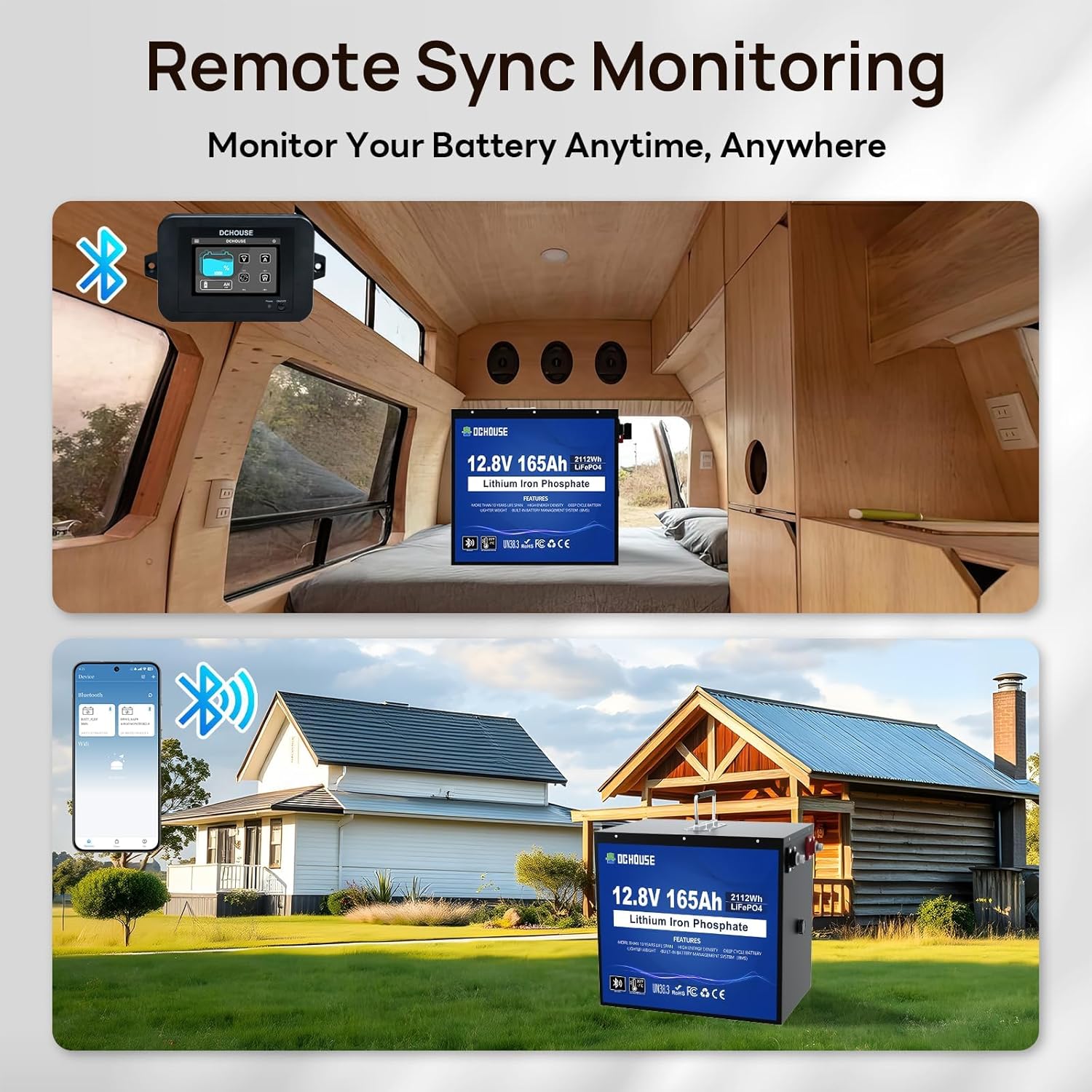
Image 3: The battery monitor and a smartphone displaying remote synchronization of battery data, illustrating monitoring capabilities in an RV and a home solar setup.
3.4 Monitoring Multiple Batteries
The monitor can track up to four batteries simultaneously. Based on your battery configuration, you can select the appropriate combination mode. The monitor will automatically calculate and display comprehensive or individual real-time battery information.

Image 4: Illustration of the smart battery information calculation feature, showing real-time data updates based on user usage and different display modes on the mobile app.
4. Smart Warning System
The monitor is equipped with a smart warning system that alerts you to potential battery issues. You can set custom thresholds for four key monitoring parameters:
- High Voltage: Alerts if the battery voltage exceeds a safe upper limit.
- Low Voltage: Alerts if the battery voltage drops below a safe lower limit.
- Overcurrent: Alerts if the current draw exceeds the maximum safe level.
- Low State of Charge (SOC): Alerts when the battery's charge level falls below a specified percentage.
When any monitored parameter falls outside the preset range, the system will promptly issue a corresponding warning.

Image 5: The battery monitor displaying the smart warning system, indicating alerts for high voltage, low voltage, overcurrent, and low State of Charge (SOC).
5. Compatibility
This monitor is specifically designed for use with DC HOUSE Bluetooth Batteries. Ensure your batteries are compatible to guarantee proper functionality and accurate readings.

Image 6: The battery monitor shown alongside various DC HOUSE Bluetooth batteries (12V 50Ah, 12V 100Ah, 12V 165Ah, 12V 150Ah), emphasizing its compatibility.
6. Specifications
| Feature | Specification |
|---|---|
| Brand | DC HOUSE |
| Model | FBA-US-L131211800091-1 |
| Power Source | Electric Cable |
| Style | Battery Monitor |
| Color | Black |
| Product Weight | 1.48 Pounds (0.67 kg) |
| Minimum Operating Voltage | 8 Volts |
| Maximum Operating Voltage | 75 Volts |
| UPC | 810127138315 |
| ASIN | B0F1T4Z29Q |
7. Maintenance
To ensure the longevity and optimal performance of your DC HOUSE Bluetooth Lithium Battery Monitor, follow these maintenance guidelines:
- Cleaning: Regularly wipe the monitor's screen and casing with a soft, dry cloth. Avoid using abrasive cleaners or solvents that could damage the display or finish.
- Connection Integrity: Periodically check all wiring connections to ensure they remain secure and free from corrosion. Loose connections can lead to inaccurate readings or power interruptions.
- Environmental Conditions: Operate the monitor within its specified temperature and humidity ranges. Avoid exposing it to extreme temperatures, direct sunlight for prolonged periods, or excessive moisture.
- Ventilation: Ensure the monitor has adequate ventilation if installed in an enclosed space to prevent overheating.
8. Troubleshooting
If you encounter issues with your battery monitor, consider the following common troubleshooting steps:
- Monitor Not Powering On: Check the power cable connection to the battery and ensure the battery itself has sufficient charge. Verify that the power adapter is functioning correctly.
- Inaccurate Readings: Ensure all wiring connections are tight and correct. Verify that the monitor is properly configured for your specific battery type and number of batteries.
- App Connectivity Issues: Make sure Bluetooth or Wi-Fi is enabled on your smartphone. Restart both the monitor and your phone. Ensure the app is updated to the latest version. If using Wi-Fi, confirm you are connected to the monitor's network.
- Alarms Triggering Frequently: Review the custom alarm thresholds set in the monitor or app. Adjust them if necessary to match your operational requirements, or investigate the underlying battery condition if alarms persist.
- Stylus Unresponsive: Ensure the screen is clean and free of debris. If the stylus is damaged, contact support for a replacement.
For persistent issues not resolved by these steps, refer to the Warranty and Support section for contact information.
9. Warranty and Support
DC HOUSE offers a 30-day return policy for this product. For detailed information regarding warranty coverage, technical support, or to initiate a return, please contact DC HOUSE customer service through the retailer where the product was purchased or visit the official DC HOUSE website. Please have your model number (FBA-US-L131211800091-1) and proof of purchase ready when contacting support.

