
1. Introduction
This manual provides detailed instructions for setting up, operating, and maintaining your Tenda AX3000 Dual Band Gigabit Wi-Fi 6 Router (Model: RX12 Pro). This high-performance router is designed to deliver a reliable and fast wireless experience for your home or office network, supporting the latest Wi-Fi 6 standards.
The RX12 Pro features dual-band AX3000 speeds, multiple gigabit ports, and advanced technologies like MU-MIMO and OFDMA to ensure stable connections for numerous devices. It also includes enhanced security features and parental controls for a secure and managed network environment.
2. Package Contents
Please verify that all items are present in your package:
- AX3000 Smart Dual-band Wi-Fi 6 Router RX12Pro x 1
- Power Adapter x 1
- Quick Installation Guide x 1
- RJ45 Ethernet Cable x 1
3. Initial Setup
Follow these steps to connect your Tenda RX12 Pro router and establish an internet connection.
Video: Installation Guide for Tenda RX12Pro Router. This video demonstrates the physical connections and initial configuration steps for your router.
3.1. Connect the Router
Ensure your modem is powered off before connecting the router.
- Power Connection: Connect the included power adapter to the router's power port and then plug it into a power outlet. The LED indicator on the router will light up.
- WAN Port Connection: Connect the WAN port (blue) of the Tenda RX12 Pro router to your modem's LAN port using an Ethernet cable.

Image: Rear view of the Tenda RX12 Pro router, highlighting the power connector, WPS/RESET button, Gigabit WAN port (blue), and Gigabit LAN/IPTV ports (yellow).
3.2. Connect to the Internet (via Web UI)
You can configure the router using a web browser on a computer or smartphone.
- Connect to Router's Wi-Fi: On your wireless device (smartphone or computer), enable Wi-Fi and connect to the default Wi-Fi network name (SSID) found on the bottom label of the router. There is no default password.
- Access Web UI: Open a web browser and enter
tendawifi.comin the address bar. You will be redirected to the router's web management interface. - Follow On-screen Instructions: The router will automatically detect your internet connection type (e.g., PPPoE, Dynamic IP). If PPPoE is detected, enter the username and password provided by your Internet Service Provider (ISP).
- Set Wi-Fi Name and Password: Create a new Wi-Fi name (SSID) and a strong password for your wireless network. You can also set a separate login password for the router's management interface.
- Complete Setup: Once the settings are applied, the router will restart. The LED indicator will turn solid green, indicating a successful internet connection.
3.3. Access the Internet
After successful setup, you can connect your devices:
- Wireless Devices: Connect your smartphones, tablets, and other wireless devices to the new Wi-Fi network using the Wi-Fi name and password you just set.
- Wired Devices: Connect your computers, gaming consoles, or smart TVs to the LAN ports (yellow) on the back of the router using Ethernet cables.
4. Operating Modes and Wi-Fi+ Functionality
The Tenda RX12 Pro supports various operating modes, including Router Mode, Access Point Mode, and Wi-Fi Extender Mode. Its unique Wi-Fi+ function allows for easy mesh networking to extend coverage.
Video: Wi-Fi+ Setup Guide for Tenda RX12Pro. This video illustrates how to set up the Wi-Fi+ function to create a mesh network.
4.1. Wi-Fi+ Mesh Networking
If you have an existing Tenda Wi-Fi+ router and wish to extend your Wi-Fi coverage, you can add another RX12 Pro as an add-on node. Ensure the new router has not been previously configured; if it has, reset it first.
- Button Networking:
- Place the new RX12 Pro router within 3 meters of your existing Wi-Fi+ router.
- Press the WPS/MESH button on the new router for approximately 3 seconds. The LED indicator will blink green rapidly.
- Within 2 minutes, press the WPS/MESH button on your existing Wi-Fi+ router for approximately 3 seconds. Its LED indicator will also blink rapidly.
- When the LED indicator on both routers turns solid green, the mesh networking is successful. The new router becomes a secondary node.
- Scanning Networking (via Web UI or Tenda WiFi App):
- Connect your smartphone to the Wi-Fi network of the existing router.
- Open a web browser and go to
tendawifi.comor launch the Tenda WiFi App. Log in to the router's management interface. - Navigate to 'Network Topology' and tap 'Add Node'. The system will search for available new routers.
- Once the new RX12 Pro is found, verify its MAC address against the label on the router and tap 'Start' or 'Add'.
- Follow the prompts to complete the addition of the new node.
- Wired Networking:
- Connect an Ethernet cable from a LAN port of your existing router to a LAN port of the new RX12 Pro router.
- The routers will automatically start networking. Once the LED indicator on the new router lights solid green, the wired networking is successful.
- After the Ethernet cable is removed, wireless networking will automatically start.
4.2. Relocate the New Router
After successfully adding the new router as a secondary node, you can relocate it to an area with weak Wi-Fi signal. It is recommended that the new router is not separated from the existing router by more than two walls to maintain optimal signal strength.
Power on the new router in its desired location. Observe the LED indicator after approximately 3 minutes:
- Solid Green: Excellent connection quality.
- Solid Yellow: Fair connection quality.
- Solid Red or Blinking Green: Poor connection quality. Relocate the new router closer to the existing router.

Image: Illustration of two Tenda RX12 Pro routers working together to provide ultra-wide Wi-Fi coverage throughout a home, ensuring seamless connectivity.
5. Key Features
The Tenda RX12 Pro is equipped with advanced features to enhance your networking experience.
Video: Tenda AX3000 Smart WiFi 6 Router RX12Pro Overview. This video highlights the main features and benefits of the RX12Pro router.
5.1. Performance
- Next-Gen Wi-Fi 6: Dual-band AX3000 delivers up to 2402 Mbps on 5 GHz and 574 Mbps on 2.4 GHz, providing a reliable Wi-Fi experience for 4K streaming, web conferencing, and large downloads.
- Powerful Processing: Armed with a 1.7GHz Quad-Core Broadcom high-performance CPU for faster Wi-Fi speeds (up to 2976Mbps) and stable network.
- 160MHz Bandwidth: Supports 160MHz ultra-large bandwidth, allowing compatible mobile devices to achieve higher speeds and reduce interference.

Image: Visual representation of the Tenda RX12 Pro's AX3000 dual-band speeds, showing 2402 Mbps on the 5GHz band and 574 Mbps on the 2.4GHz band.
5.2. Coverage
- Stronger Wi-Fi Signal: 5 high-performance signal enhancement modules and 5 external 6dBi high-gain antennas combine to extend strong and reliable Wi-Fi throughout your home, covering up to 1200 sq.ft (equivalent to a three-bedroom house).
- Ultra-wide Coverage with Wi-Fi+: Equipped with the Wi-Fi+ function, multiple RX12 Pro units can be easily networked without configuration, realizing a high-speed whole-home Wi-Fi experience for larger units.

Image: An illustration demonstrating the network signal coverage of the Tenda RX12 Pro, indicating effective signal extension up to 1200 square feet.
5.3. Connectivity
- 4 Gigabit Ports: Supports Gigabit broadband access and achieves high-speed and stable network through LAN port connections, ideal for IPTV and 4K streaming devices.

Image: The Tenda RX12 Pro router showcasing its four Gigabit ports, emphasizing ultra-speed connectivity for devices such as desktops, IPTV boxes, and monitors.
5.4. Security and Smart Features
- WPA3 Security: Features the latest WPA3 Wi-Fi security protocol to safeguard your devices and network.
- One-click Intelligent Diagnosis: When you encounter network issues like freezes or dropped connections, you can use the one-key optimization feature on the web management interface to quickly self-check and repair network problems.
- Powerful OpenVPN Feature: Supports OpenVPN and WireGuard (via latest firmware update) along with PPTP/L2TP, providing flexible and secure remote connections for home or office networks.
- Parental Controls: Manage internet time control, device terminal management, and website filtering through the APP & Web Page Setup.
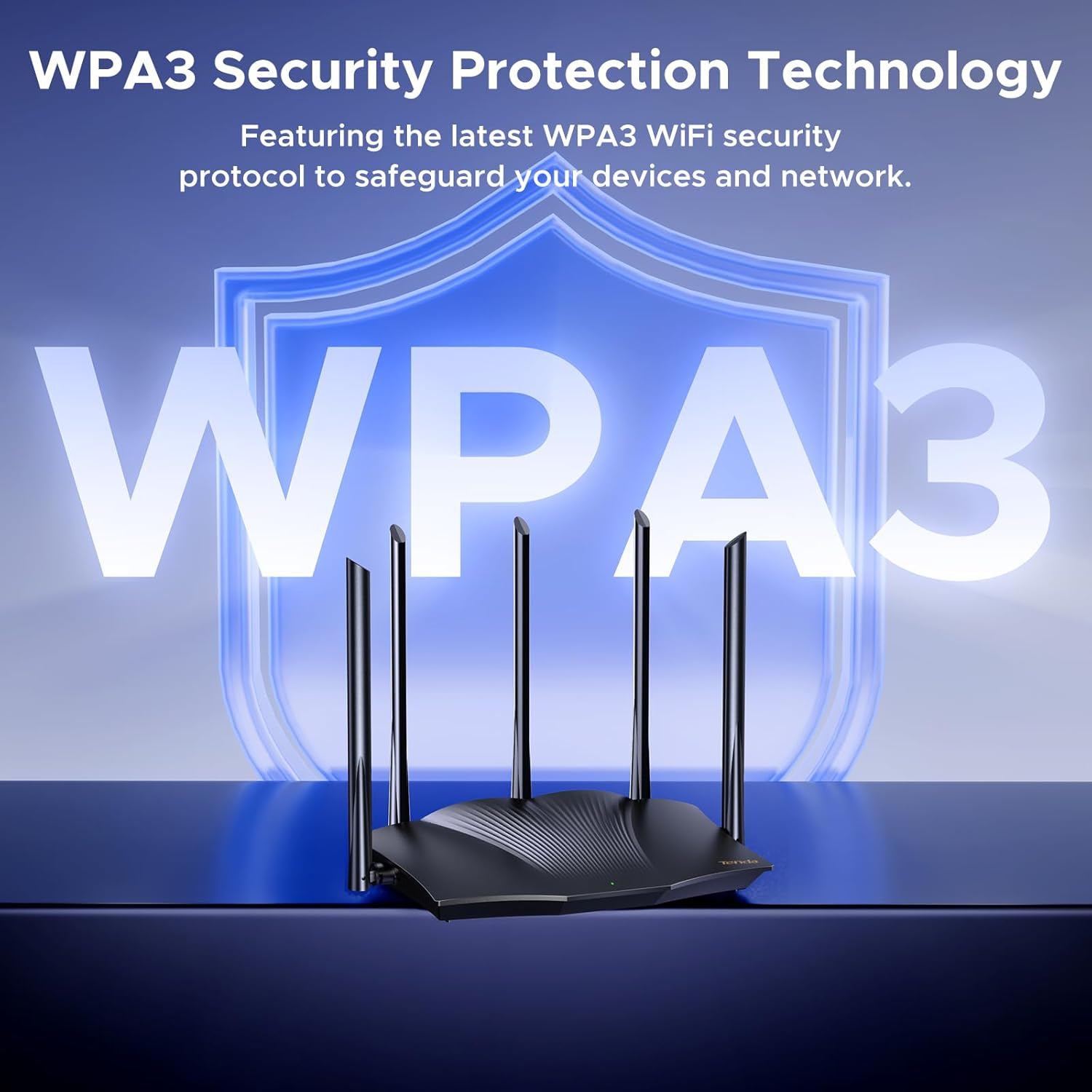
Image: The Tenda RX12 Pro router emphasizing its WPA3 Security Protection Technology, designed to safeguard connected devices and the network.
5.5. Multi-Device Connectivity
- Stable Multi-Device Connections: Built with Wi-Fi 6 technologies such as MU-MIMO and OFDMA, this wireless router manages many devices at once with lower latency and steady throughput, ideal for smart homes and gaming setups, supporting over 40 concurrent devices.

Image: The Tenda RX12 Pro router demonstrating its capability to connect over 40 concurrent devices, ensuring smooth performance for family gatherings, multi-player gaming, and smart home ecosystems.
6. Maintenance
To ensure optimal performance and longevity of your Tenda RX12 Pro router, consider the following maintenance tips:
- Regular Firmware Updates: Check the Tenda website (
www.tendacn.com) periodically for the latest firmware updates. Updating firmware can improve performance, add new features, and enhance security. - Optimal Placement: Place the router in a central location in your home, away from obstructions and devices that emit electromagnetic interference (e.g., microwave ovens, cordless phones).
- Periodic Reboot: Rebooting your router every few weeks can help clear its memory and resolve minor performance issues. Simply unplug the power adapter, wait 10 seconds, and plug it back in.
- Cleanliness: Keep the router free from dust and debris to prevent overheating. Use a soft, dry cloth for cleaning.
7. Troubleshooting
If you encounter issues with your Tenda RX12 Pro router, try the following solutions:
- No Internet Access:
- Check all cable connections (power, WAN, LAN) to ensure they are secure.
- Verify that your modem is working correctly.
- Use the 'One-click Intelligent Diagnosis' feature in the router's web UI or Tenda WiFi App to identify and resolve network problems.
- Contact your ISP to confirm your internet service is active.
- Weak Wi-Fi Signal or Dead Zones:
- Relocate the router to a more central position, away from large metal objects or thick walls.
- Adjust the antennas for better signal direction.
- Consider using the Wi-Fi+ mesh networking feature with an additional RX12 Pro router to extend coverage.
- Slow Internet Speed:
- Ensure your devices are connected to the 5 GHz band for higher speeds, if supported.
- Limit the number of concurrent high-bandwidth activities (e.g., 4K streaming, large downloads).
- Check for any background applications or devices consuming bandwidth.
- Perform a speed test to verify your actual internet speed.
- Cannot Access Router's Web UI:
- Ensure your device is connected to the router's Wi-Fi network or via an Ethernet cable.
- Clear your browser's cache and cookies, or try a different browser.
- If you forgot your login password, you may need to reset the router to factory defaults (this will erase all custom settings).
8. Specifications
| Feature | Detail |
|---|---|
| Model Name | RX12 Pro |
| Wireless Standard | 802.11ax (Wi-Fi 6) |
| Frequency Band Class | Dual-Band (2.4GHz & 5GHz) |
| Max Wireless Speed | AX3000 (2402 Mbps on 5GHz, 574 Mbps on 2.4GHz) |
| CPU | 1.7GHz Quad-Core Broadcom |
| Antennas | 5 external 6dBi high-gain antennas |
| Ethernet Ports | 1x Gigabit WAN, 3x Gigabit LAN/IPTV |
| Security | WPA3, WPA2-PSK, WPA/WPA2-PSK |
| Special Features | Beamforming, Guest Mode, Internet Security, Parental Control, MU-MIMO, OFDMA, Wi-Fi+, VPN (OpenVPN, WireGuard, PPTP/L2TP) |
| Product Dimensions | 10.51 x 6.54 x 8.74 inches |
| Item Weight | 1.7 pounds |
| Color | Black |
9. Warranty and Support
The Tenda AX3000 Dual Band Gigabit Wi-Fi 6 Router (RX12 Pro) comes with a 3-Year Warranty, ensuring peace of mind for your purchase.
For further information, technical support, or to download the latest firmware and user manuals, please visit the official Tenda website: www.tendacn.com.


