
Introduction
This manual provides detailed instructions for the installation, operation, and maintenance of your Haudio 10.1 Inch Wireless Double DIN Car Stereo. Please read this manual thoroughly before using the product to ensure proper functionality and safety. Keep this manual for future reference.
Product Overview
The Haudio 10.1 Inch Wireless Double DIN Car Stereo is designed to enhance your in-car entertainment and connectivity. It features a high-definition touchscreen, wireless smartphone integration, advanced audio processing, and support for various media and navigation functions.
Key Features:
- Seamless CarPlay & MirrorLink Connectivity: Enjoy integration with Apple CarPlay and Android/iOS MirrorLink for navigation, calls, and app control on the 1280x720P HD capacitive touchscreen.
- Premium Audio with 14-Band DSP EQ: Elevate your audio experience with a 14-band DSP EQ, dedicated bass enhancement, and lossless audio support, paired with Bluetooth 5.0 for high-quality wireless music streaming (A2DP).
- Crisp HD Display for Multitasking: A vibrant 720P LCD screen supports CarPlay visuals, video playback (720/1080P), and picture-in-picture mode for simultaneous navigation and media.
- Dual USB & Advanced DVR Integration: Dual USB ports enable charging and support USB DVR playback, dash cam previews, and real-time recording via 720/1080P AHD cameras, including quick-reverse assist.
- Powerful 50W x 4 Output & GPS Precision: Delivers robust sound for entertainment, while built-in GPS and network hotspot support ensure accurate, real-time navigation overlays and traffic updates. Stay connected with Bluetooth 5.0 for hands-free calls, music sharing, and internet tethering.
- 64GB Storage & APK Flexibility: Expandable storage for apps, music, and videos, compatible with CarPlay and Android Auto. Install third-party APKs for personalized functionality.
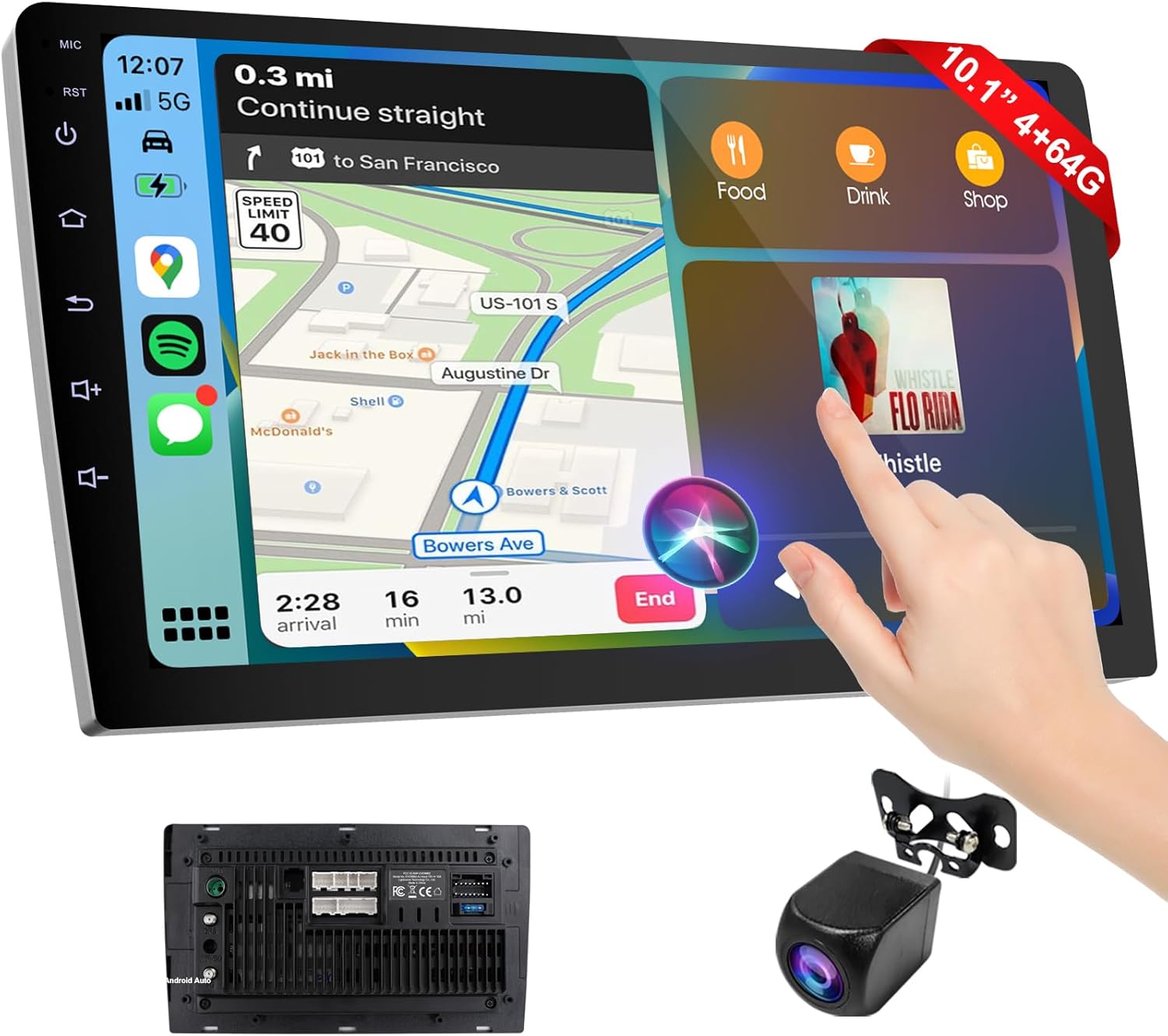
Figure 1: Haudio 10.1 Inch Wireless Double DIN Car Stereo.
What's in the Box
Verify that all components are present upon unpacking:
- Haudio 10.1 Inch Wireless Double DIN Car Stereo Unit
- Rear Camera
- Power Cable (x2)
- 4P-USB Wire (x1)
- 6P-USB Wire (x1)
- Rear View Interface Wire (x1)
- GPS Antenna (x1)
- 20P-RCA Wire (x1)
- Installation Screws
- User Manual
- Brackets (x2)
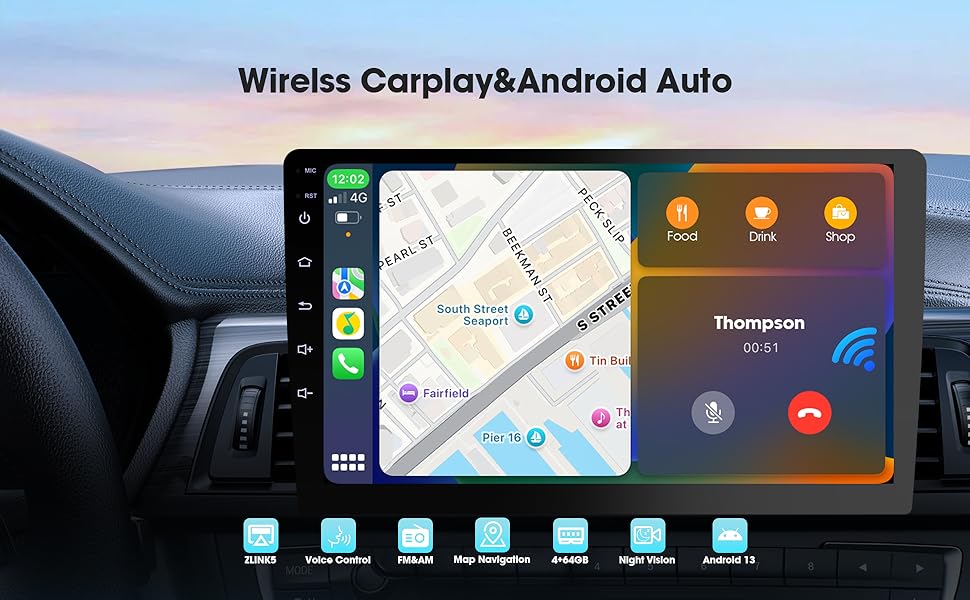
Figure 2: Packaging list and included accessories.
Setup and Installation
Professional installation is recommended. Ensure the vehicle's power is disconnected before beginning installation.
1. Mounting the Unit:
- Carefully remove the existing car stereo and dashboard trim.
- Attach the provided brackets to the sides of the Haudio stereo unit using the installation screws.
- Slide the unit into the double DIN slot in your vehicle's dashboard.
2. Wiring Connections:
- Connect the appropriate power cable (Power Cable x1 or x2) to the unit and the vehicle's wiring harness.
- Connect the GPS antenna to the designated port on the rear of the unit. Position the antenna in a location with a clear view of the sky.
- Connect the USB wires (4P-USB Wire, 6P-USB Wire) for external devices and charging.
- For the rear camera, connect the camera input cable to the unit and route the camera cable to the rear of the vehicle. Ensure proper power connection for the camera.
- Connect the 20P-RCA wire for audio input/output and subwoofer connections.
Video 1: Haudio Car Stereo Installation Tutorial. This video demonstrates the physical installation process and wiring connections for the car stereo unit.

Figure 3: Rear operation and RCA connection diagram.
Operating Instructions
1. Initial Power On:
After installation, turn on your vehicle's ignition. The Haudio logo will appear, followed by the Android operating system startup. The system will then display the main interface.
2. Wireless CarPlay & Android Auto:
- Ensure Bluetooth is enabled on your smartphone.
- On the car stereo, navigate to the CarPlay/Android Auto application (e.g., "ZLINK5").
- Pair your phone via Bluetooth. Once paired, the system will automatically connect to CarPlay or Android Auto.
- Use voice commands (e.g., "Hey Siri" or "Hey Google") for navigation, calls, and music control.
Video 2: Wireless Double Din Car Stereo features, including CarPlay and Android Auto functionality.
3. Mirror Link:
Connect your smartphone to the stereo via Wi-Fi hotspot or USB to mirror your phone's screen. This allows you to display apps like Netflix, TikTok, or YouTube directly on the car stereo's display.

Figure 4: Wireless HD Mirror Link in action.
4. Audio and Equalizer Settings:
- Access the "DSP" or "Settings" menu to adjust the 14-band DSP EQ for customized sound profiles.
- Utilize the balance settings to optimize sound distribution within the vehicle.
- The unit supports FM/AM/RDS radio. Tune to your preferred stations and save presets.
Video 3: Haudio operating mode demonstration, including audio settings and radio functions.
5. Navigation:
The built-in GPS and network hotspot support provide real-time navigation. Use pre-installed map applications or those accessed via CarPlay/Android Auto.
6. Backup Camera:
When the vehicle is shifted into reverse, the display will automatically switch to the rear camera view, providing a 130° wide-angle view with parking guidelines.

Figure 5: HD Backup Camera Night Vision display.
Maintenance
- Screen Cleaning: Use a soft, lint-free cloth to gently wipe the touchscreen. Avoid abrasive cleaners or solvents.
- Software Updates: Periodically check for software updates to ensure optimal performance and access to new features. Follow the on-screen instructions for any available updates.
- General Care: Avoid exposing the unit to extreme temperatures, direct sunlight for prolonged periods, or excessive moisture.
Troubleshooting
| Problem | Possible Cause | Solution |
|---|---|---|
| Unit does not power on. | Incorrect wiring; Blown fuse; Vehicle battery low. | Check power connections; Inspect vehicle fuses; Charge vehicle battery. |
| No sound output. | Volume too low; Mute activated; Speaker wiring issue. | Increase volume; Deactivate mute; Check speaker connections. |
| CarPlay/Android Auto not connecting. | Bluetooth not enabled; Phone not paired; App not running. | Ensure Bluetooth is on; Pair phone via Bluetooth; Open CarPlay/Android Auto app on stereo. |
| Backup camera not displaying. | Camera wiring issue; Reverse trigger not connected. | Check camera power and video connections; Verify reverse trigger wire is correctly connected. |
Specifications
| Brand | Haudio |
| Model Number | CVD1943-ZA |
| Display Size | 10.1 Inches |
| Product Dimensions | 1.77 x 9.92 x 5.79 inches |
| Item Weight | 1.43 pounds |
| Connectivity Technology | Bluetooth, USB, Wi-Fi |
| Controller Type | Android (Android 13) |
| Audio Output Mode | Stereo |
| Surround Sound Channel Configuration | 2.0 |
| Compatible Devices | Smartphone, Speaker, Tablet |
| Color | Black |
Warranty Information
The Haudio 10.1 Inch Wireless Double DIN Car Stereo comes with a 1-year warranty policy from the date of purchase. This warranty covers manufacturing defects and malfunctions under normal use. Please retain your proof of purchase for warranty claims.
For any questions regarding product use or warranty claims, please contact Haudio customer support.
Customer Support
If you encounter any issues or have questions about your Haudio car stereo, please refer to the following resources:
- Online Support: Visit the official Haudio website for FAQs, troubleshooting guides, and software downloads.
- Email Support: Contact our customer service team via email for personalized assistance.
- Phone Support: For immediate assistance, please call our support hotline.
Our customer service team is available to assist you 24/7 as per the product description.


