
1. Introduction
This manual provides detailed instructions for the installation, operation, and maintenance of your MUBILIFE 4K Wireless Outdoor Security Camera System. Please read this manual thoroughly before using the product to ensure proper setup and functionality. Keep this manual for future reference.
The MUBILIFE 4K Wireless Outdoor Security Camera System offers advanced surveillance features including 4K Ultra HD resolution, color night vision, 360° pan-tilt motion tracking, and dual-band Wi-Fi connectivity. It includes a HomeBase with 64GB local storage, eliminating the need for monthly subscription fees for core features.
Safety Information
- Ensure all power connections are secure and correctly installed.
- Do not expose the cameras or HomeBase to extreme temperatures outside the specified operating range (-4°F to 140°F / -20°C to 60°C).
- Avoid placing the HomeBase in basements or areas with poor Wi-Fi signal.
- Keep the solar panels unobstructed for optimal charging efficiency.
- Use only the provided power adapter and cables.
2. Package Contents
Verify that all items listed below are included in your package. If any items are missing or damaged, please contact customer support.

Image: All components included in the MUBILIFE 2-Cam Kit.
| Item | Quantity |
|---|---|
| 4K Security Camera | 2 |
| High-Performance Solar Panel | 2 |
| HomeBase (with 64GB built-in storage) | 1 |
| Mounting Bracket | 2 |
| Ethernet Cable | 1 |
| USB Cable | 2 |
| Power Adapter | 1 |
| Screw Pack | 4 |
| Instruction Manual | 1 |
| Service Card | 1 |
3. Setup
3.1. Power On the HomeBase
Connect the HomeBase to your home router's LAN port and power port. Ensure the HomeBase is placed on a tabletop at least 4 feet high and maintain a minimum 5-foot distance from the router to prevent signal interference. Avoid basement placement for optimal Wi-Fi coverage.

Image: HomeBase connection and positioning guidelines.
3.2. Camera Installation
- Mounting: Choose a location for your camera that provides optimal sunlight exposure for the solar panel and a clear view of the area you wish to monitor. Use the provided mounting brackets and screws to securely attach the camera.
- Adjust Solar Panel Angle: Position the solar panel at approximately a 45° angle, facing upward, to maximize sunlight absorption. Ensure there are no obstructions like leaves or branches blocking the panel.
- Connect Solar Panel to Camera: Remove the rubber cover from the camera's charging port. Feed the Type-C connector through the silicone grommet and insert it into the camera's charging port.
- Ensure Weatherproofing: After connecting, ensure the rubber plug fully covers the charging port, providing a tight and secure seal to maintain the IP66 weatherproof rating.

Image: Proper solar panel angle adjustment for efficient charging.

Image: Connecting the solar panel to the camera.
3.3. App Installation and Pairing
The MUBILIFE camera system operates with the Koocam app. Download the app to your smartphone or tablet.
- Scan the QR code below or visit this link to download the Koocam app from the App Store or Google Play.

Image: Koocam App download options.
- Account Registration: Open the Koocam app and follow the on-screen instructions to register a new account or log in if you already have one.
- Pairing Cameras: In the app, select 'Add Device' and scan the QR code located on the camera or HomeBase to initiate the pairing process. Follow the in-app prompts to complete the connection.

Image: Scanning QR code for device pairing.
4. Operating the System
4.1. Key Features
- 4K Ultra HD Resolution & Color Night Vision: Monitor your property with exceptional clarity. The 8MP camera provides 4K Ultra HD video, capturing fine details even when zoomed in 4X. Full-color night vision ensures vivid images in low-light conditions.
- 360° Pan-Tilt & AI Motion Tracking: The cameras offer 360° coverage with automatic tracking. When motion is detected, the camera will follow and record the movement, eliminating blind spots. AI detection differentiates between humans, vehicles, and pets.
- Dual-Band Wi-Fi & HomeBase Signal Enhancement: The HomeBase supports both 2.4GHz and 5GHz Wi-Fi for faster speeds and wider coverage. It extends Wi-Fi range up to 300 meters (unobstructed) for stable streaming.
- Local Storage & Cloud Options: The HomeBase includes 64GB of built-in storage, supporting up to 180 days of loop recording without monthly fees. Optional cloud storage is also available for additional backup.
- Multi-Camera Monitoring & Event Tracking: View live Ultra HD footage from up to 4 cameras simultaneously on a split-screen display within the Koocam app. AI-powered detection intelligently links events across multiple cameras to create a seamless security timeline.
- Two-Way Audio & Alarm Push: Communicate with visitors or deter intruders using the built-in two-way audio. Receive instant alerts via the app when suspicious activity is detected.
- Custom Zone & Time Monitoring: Define specific monitoring zones and set custom surveillance schedules to reduce false alerts and protect privacy.
- Multi-User Sharing: Share live camera feeds with up to 4 users, ideal for families or teams requiring remote monitoring.
- Voice Assistant Linkage: Seamlessly connect your security system to smart home platforms like Amazon Alexa and Google Assistant for voice control.
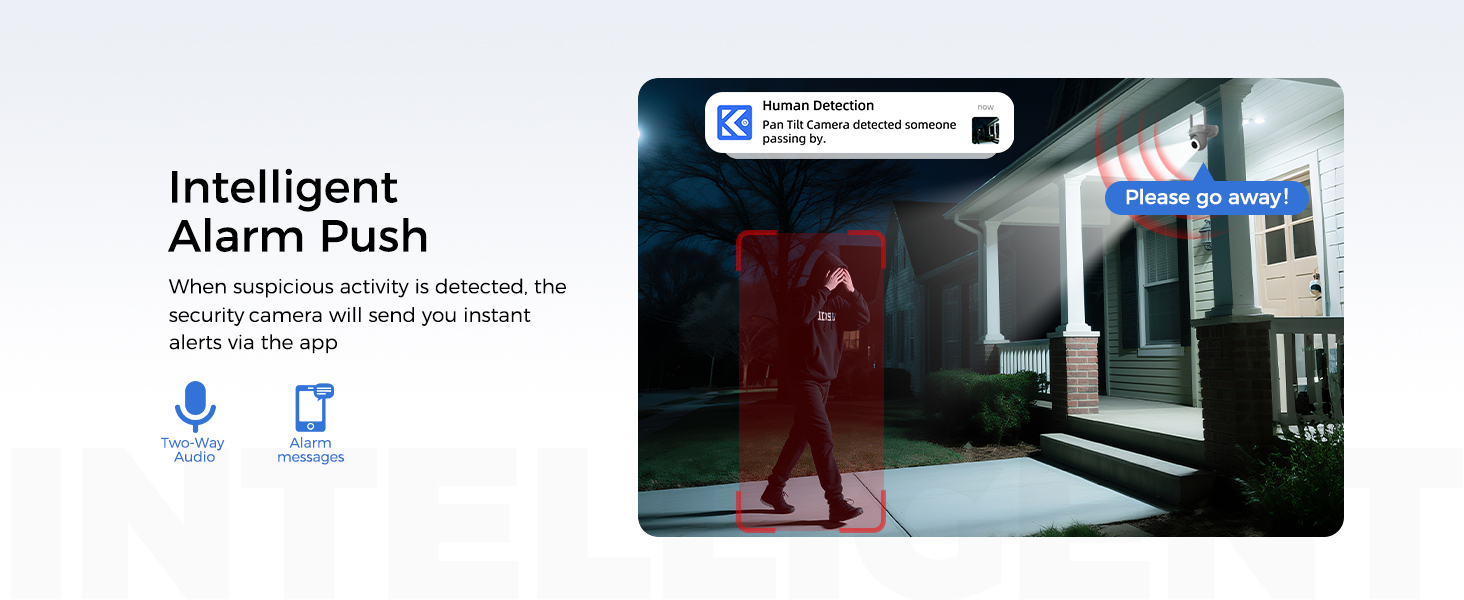
Image: 8MP Color Night Vision capability.

Image: Circle-to-Zoom feature for detailed viewing.
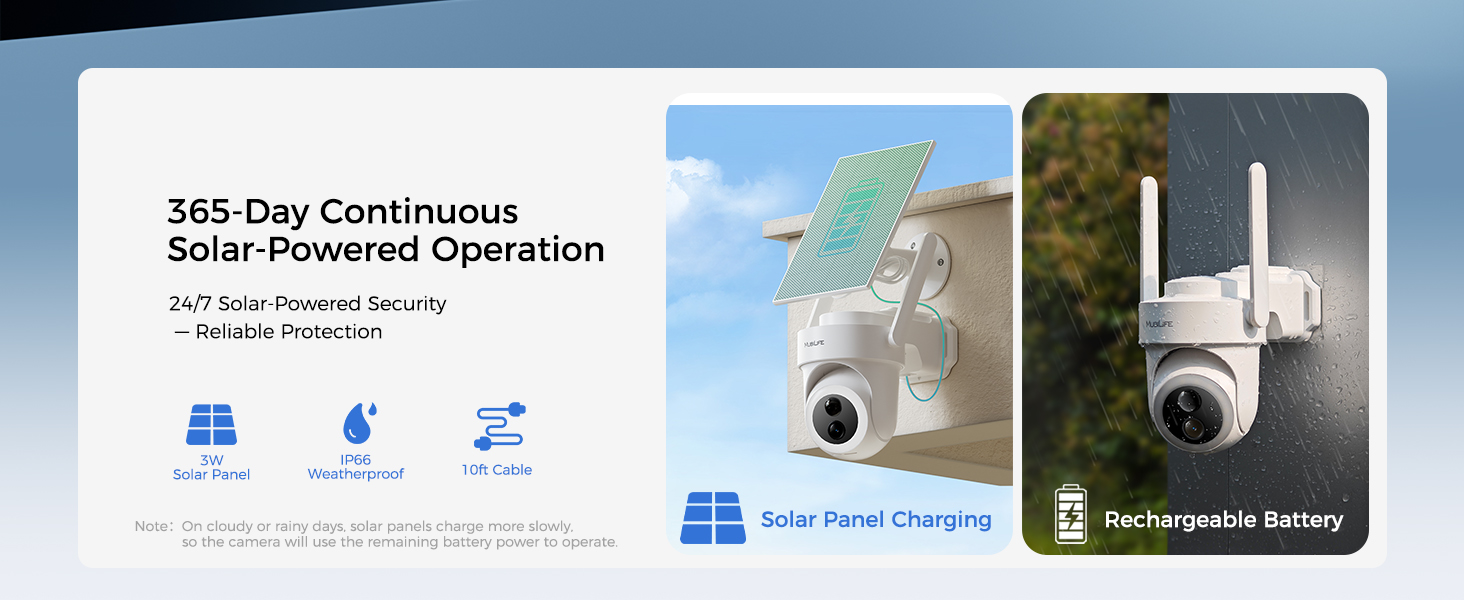
Image: 360° Camera Angle and AI Motion Detection.

Image: AI Motion Tracking identifying humans, vehicles, and pets.
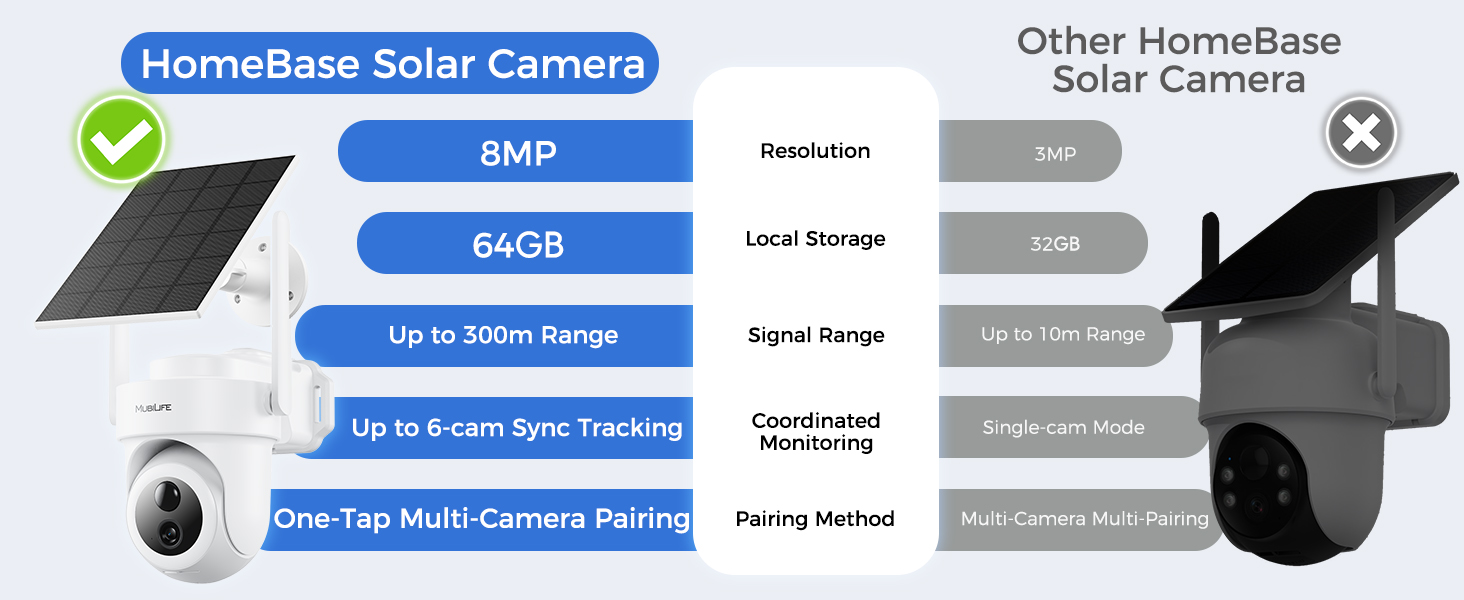
Image: HomeBase enhancing Wi-Fi signal coverage.
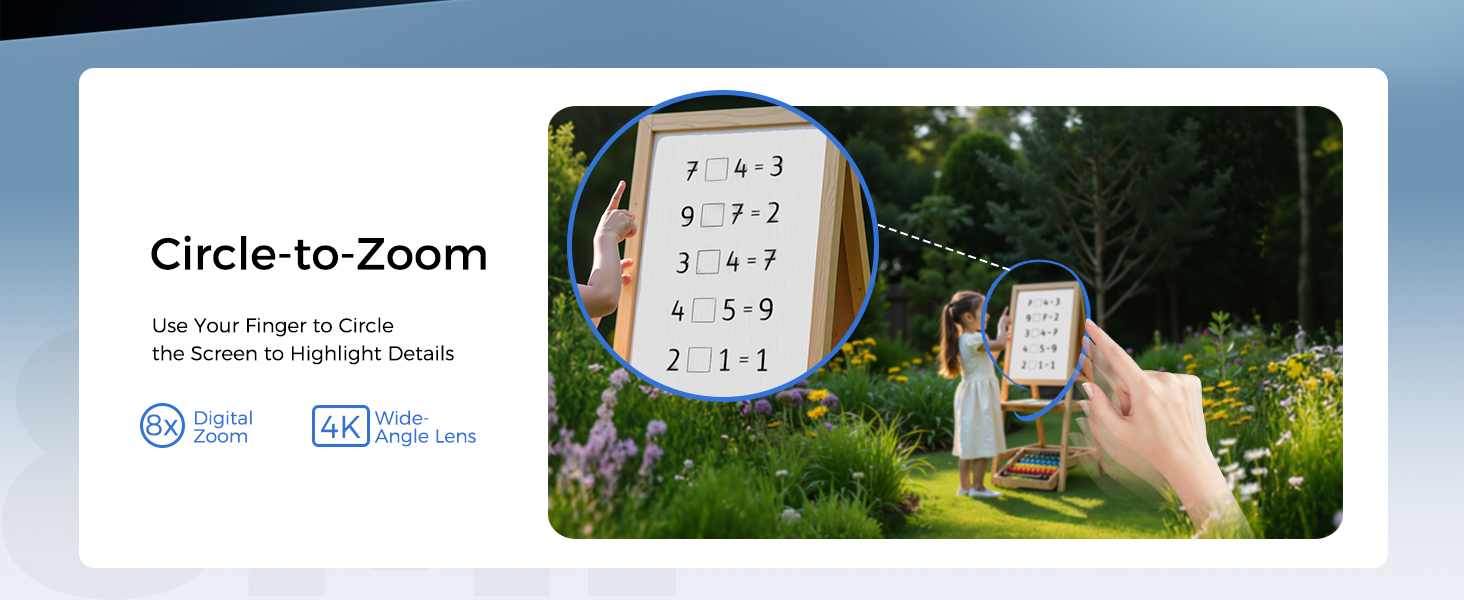
Image: Secure data storage in HomeBase with local and optional cloud storage.

Image: Simultaneous multi-area monitoring via the Koocam app.
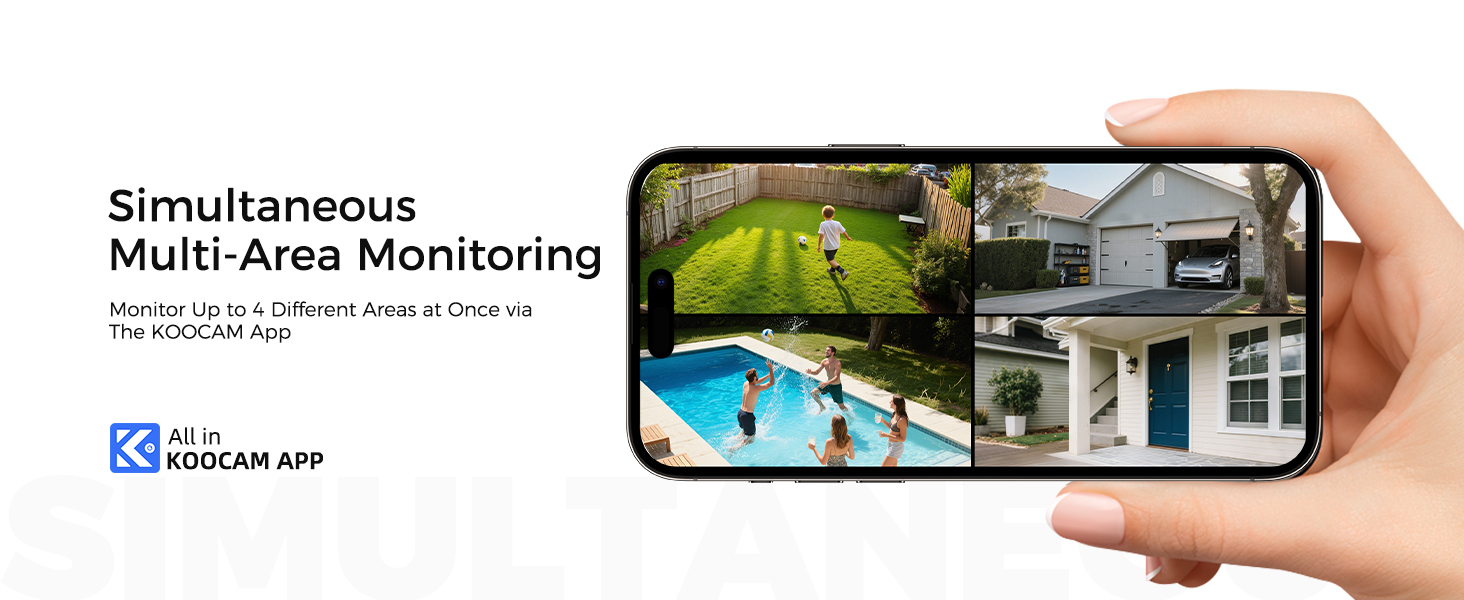
Image: Multi-camera event tracking and smart splicing in the Koocam app.

Image: Intelligent alarm push with two-way audio and app alerts.
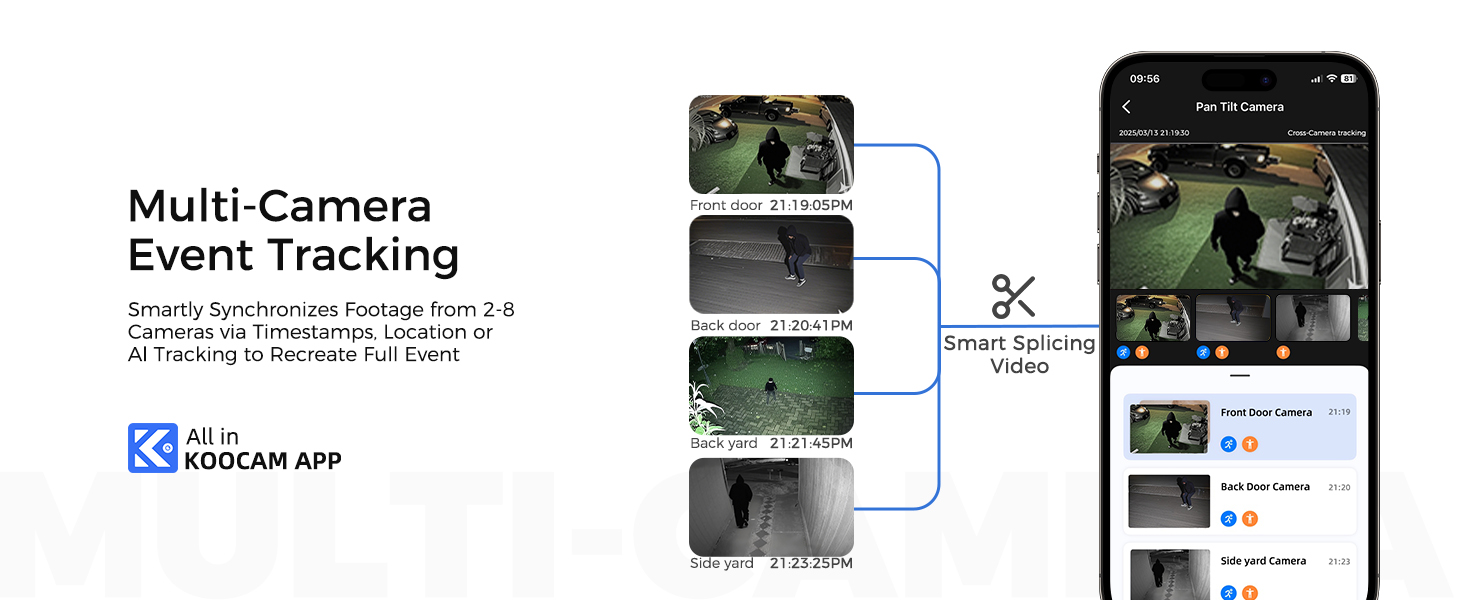
Image: Custom zone and time monitoring settings.

Image: Multi-user sharing functionality.

Image: Voice assistant linkage with Alexa and Google Assistant.
4.2. App Usage
The Koocam app provides a comprehensive interface for managing your security system:
- Live View: Access real-time video feeds from all connected cameras.
- Playback: Review recorded footage stored on the HomeBase or cloud.
- Settings: Adjust camera sensitivity, motion detection zones, notification preferences, and other system configurations.
- Pan/Tilt Control: Manually adjust the camera's viewing angle.
- Two-Way Talk: Use the microphone and speaker functions to communicate.
5. Maintenance
- Solar Panel Cleaning: Regularly wipe the solar panels with a soft, damp cloth to remove dust, dirt, or debris that may reduce charging efficiency.
- Battery Care: The cameras are designed for continuous solar power. If the battery level drops significantly due to prolonged cloudy weather, you may temporarily charge the camera using a USB-C cable and power adapter.
- Firmware Updates: Periodically check the Koocam app for available firmware updates. Keeping your system updated ensures optimal performance and security.
- Lens Cleaning: Gently clean the camera lens with a microfiber cloth to ensure clear image quality.
6. Troubleshooting
If you encounter issues with your MUBILIFE security camera system, refer to the following common troubleshooting steps:
| Problem | Possible Solution |
|---|---|
| Camera not connecting to HomeBase | Ensure HomeBase is powered on and connected to the router. Check Wi-Fi signal strength. Re-attempt pairing through the Koocam app. |
| Poor video quality or lag | Verify strong Wi-Fi signal between camera and HomeBase. Reduce distance if possible. Check for network congestion. Ensure camera lens is clean. |
| Solar panel not charging | Ensure solar panel is unobstructed and positioned at an optimal angle (approx. 45°). Check cable connection to the camera. Prolonged cloudy weather may affect charging. |
| Motion detection not working | Check motion detection settings in the Koocam app. Adjust sensitivity and ensure custom detection zones are correctly configured. |
| No audio or two-way talk issues | Check microphone and speaker settings in the app. Ensure device volume is up. Verify network connection. |
For further assistance, please contact MUBILIFE customer support.
7. Specifications
Key technical specifications for the MUBILIFE 4K Wireless Outdoor Security Camera System (Model M802):
| Feature | Detail |
|---|---|
| Model Name | M802 |
| Video Capture Resolution | 4K (8MP) |
| Viewing Angle | 360 Degrees (Pan-Tilt) |
| Connectivity Technology | Wireless (Wi-Fi, 5G/2.4G Dual-Band) |
| Power Source | Solar Powered |
| Local Storage | 64GB (Built-in HomeBase, expandable up to 128GB with SD card) |
| Weather Resistance | IP66 Waterproof |
| Night Vision | Color Night Vision, Infrared Night Vision (25 Feet Range) |
| Motion Detection | AI-powered (Human, Vehicle, Pet), Motion Only Alert Type |
| Two-Way Audio | Yes |
| Compatible Voice Assistants | Amazon Alexa, Google Assistant |
| Operating Temperature | -4°F to 140°F (-20°C to 60°C) |
| Dimensions (Camera) | 3 x 3 x 4 inches |
| Item Weight (Camera) | 1.5 Pounds |
| UPC | 768825600392 |
8. Warranty & Support
MUBILIFE is committed to providing high-quality products and customer satisfaction.
- Warranty: Your MUBILIFE security camera system comes with a 1-year replacement warranty.
- Returns: Enjoy a 30-day free return policy.
- Technical Support: Lifetime technical support is available for all MUBILIFE products.
- Contact Support: For any questions, technical assistance, or warranty claims, please contact our customer service team at support@mubilife.net.

Image: MUBILIFE customer support commitment.


