
1. Introduction
Thank you for choosing the UGREEN Full HD 1080P Webcam. This manual provides essential information for setting up, operating, and maintaining your webcam. This device is designed to deliver clear video and audio for various applications, including video conferencing, online learning, and streaming.
Key features include Full HD 1080P resolution, dual noise-canceling microphones, automatic low-light correction, an 85° field of view, fixed focus, and a built-in privacy cover. It offers plug-and-play functionality and wide compatibility with multiple operating systems and platforms.
2. What's in the Box
- UGREEN Full HD 1080P Webcam
- USB Cable (integrated)
- Privacy Cover
- User Manual (this document)
3. Setup
3.1 Physical Installation
The UGREEN webcam offers flexible installation options:
- On a Monitor/Laptop: Unfold the clip base and place the webcam securely on top of your monitor or laptop screen. Adjust the angle to ensure stability.
- On a Table: Fold the clip base to form a stand and place the webcam on a flat surface.
- On a Tripod: The webcam features a standard tripod screw thread on its base. Attach it to a compatible tripod (not included) for more versatile positioning.
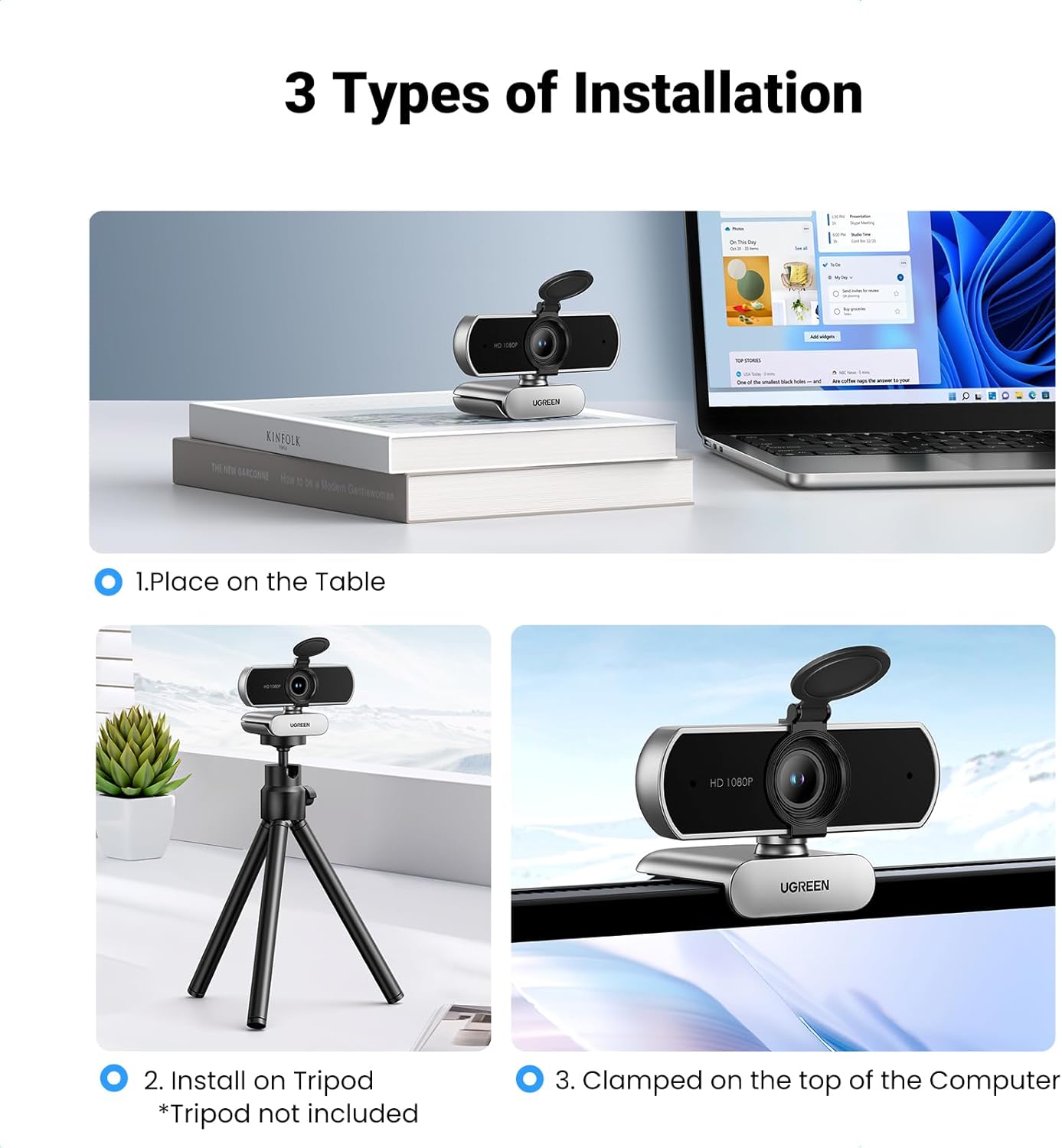
Figure 3.1: Webcam installation methods (table, tripod, monitor clip).
3.2 Connecting to Your Computer
The UGREEN webcam is a plug-and-play device, requiring no additional drivers for most operating systems.
- Connect the integrated USB cable from the webcam into an available USB port on your computer.
- Wait a few moments for your operating system to recognize and install the device.
- Open your preferred video conferencing or recording application (e.g., Zoom, Skype, Microsoft Teams) and select the UGREEN webcam as your video and audio input device.
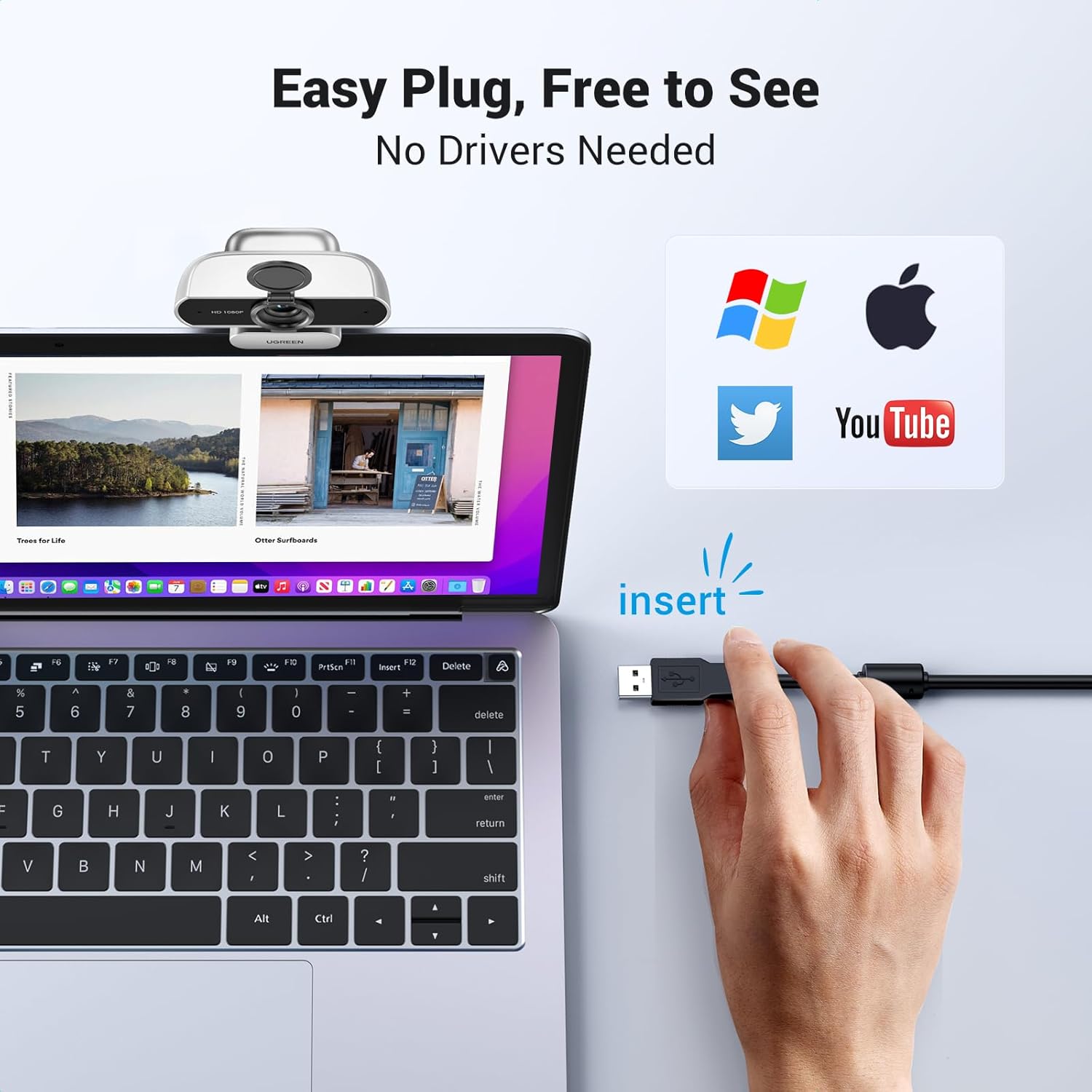
Figure 3.2: Connecting the webcam via USB.
3.3 Privacy Cover Installation
The included privacy cover can be attached to the webcam to physically block the lens when not in use, ensuring your privacy.
- Peel off the adhesive backing from the privacy cover.
- Carefully align the cover over the webcam lens, ensuring it does not obstruct the microphones or indicator lights.
- Press firmly to secure the cover in place. You can slide it open or closed as needed.
4. Operation
4.1 Video Quality and Features
The UGREEN webcam provides Full HD 1080P video at 30 frames per second, ensuring clear and detailed images.
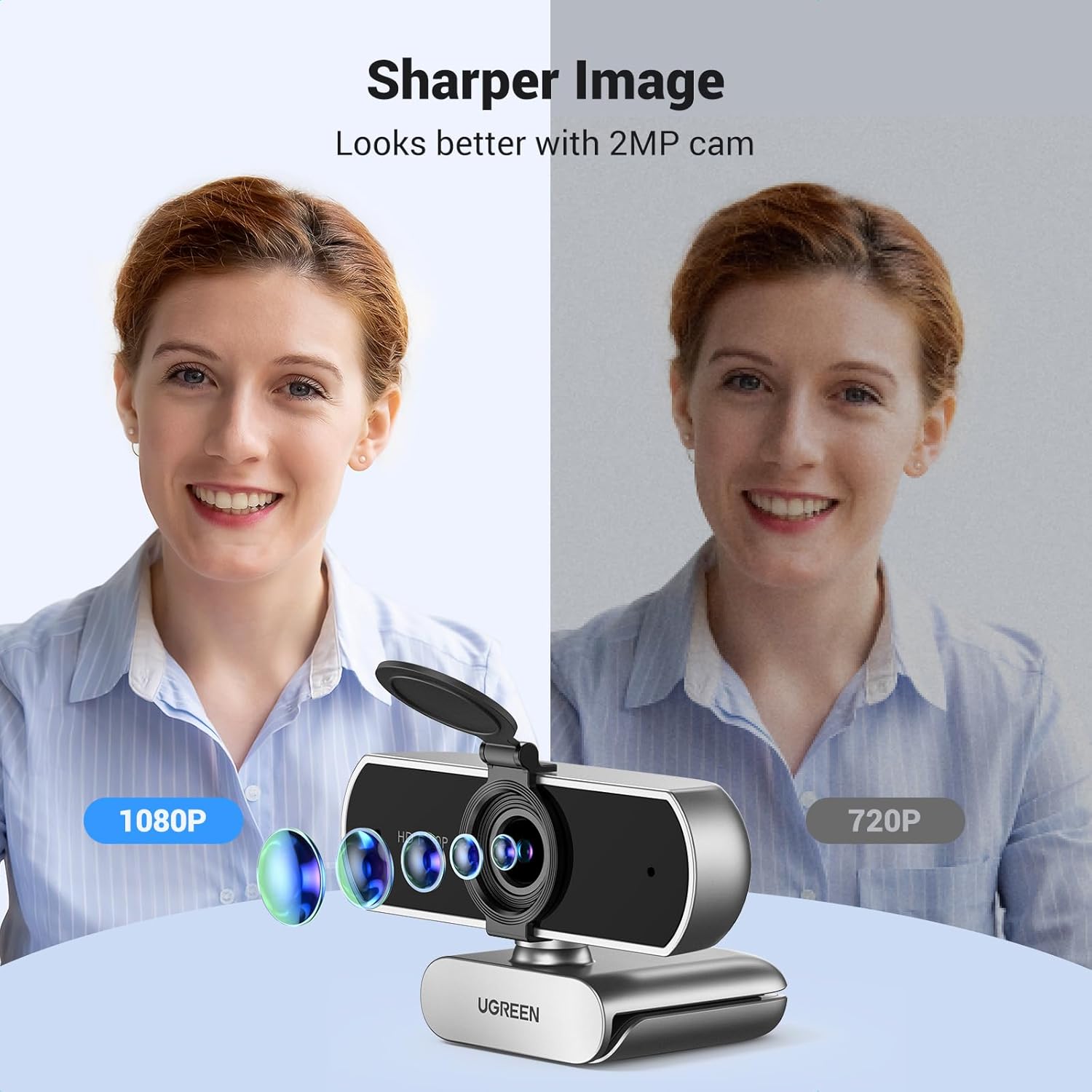
Figure 4.1: 1080P vs. 720P video quality comparison.
It features automatic low-light correction (DRCGain digital wide dynamic function) to adjust color temperature and brightness, providing a clear image even in dim lighting conditions.

Figure 4.2: Automatic low-light correction in action.
The fixed focus lens ensures objects at approximately 20 inches (50 cm) remain sharp without manual adjustment.
4.2 Audio Quality
Equipped with two built-in noise-canceling microphones, the webcam can pick up sound from up to 10 feet (3 meters) away. The 2D digital noise reduction technology filters out environmental noise for clear audio during calls and recordings.
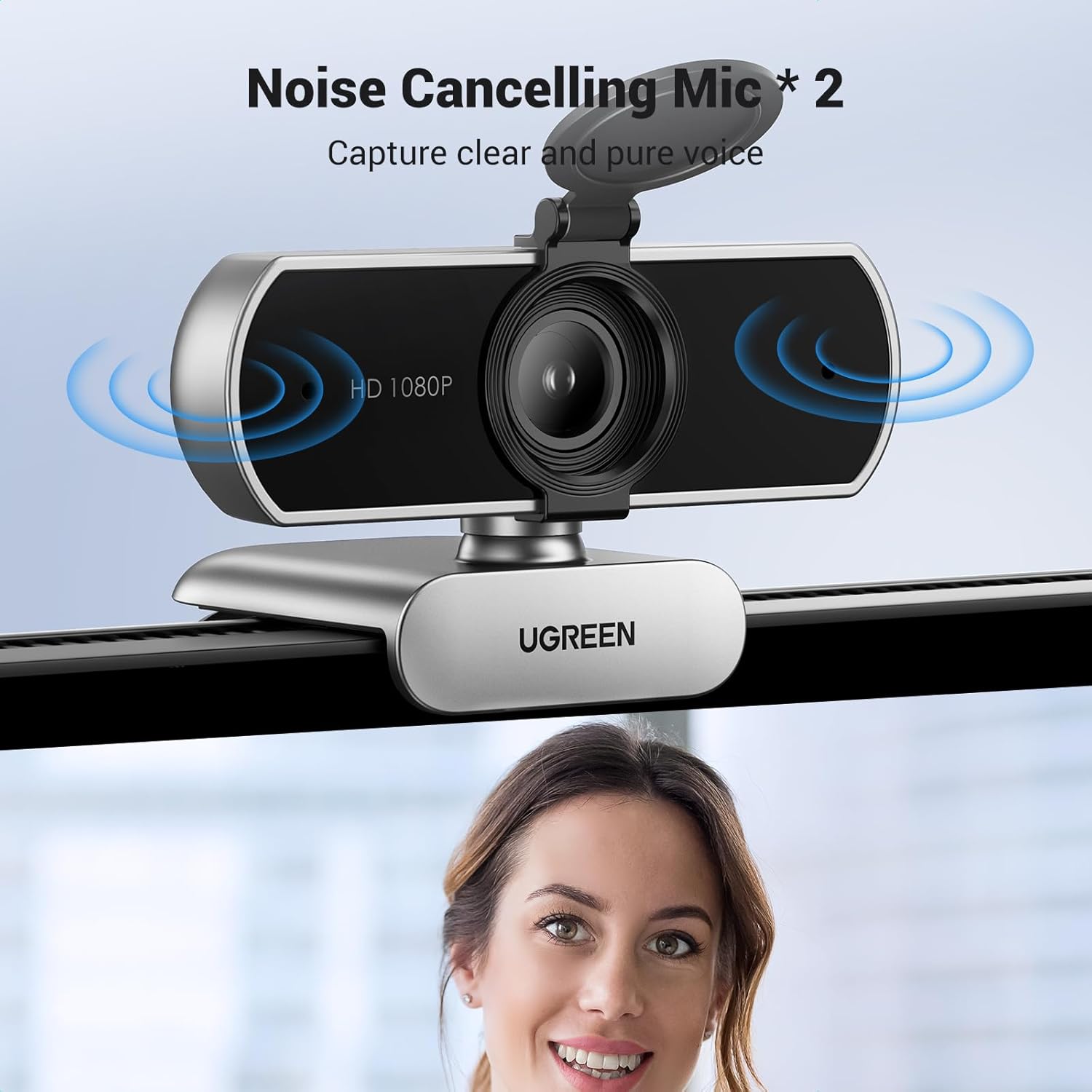
Figure 4.3: Dual noise-canceling microphones.
4.3 Field of View and Rotation
The webcam offers an 85° wide-angle lens, accommodating multiple participants in a single frame. The built-in gimbal ball allows for 360° horizontal rotation and approximately 15° vertical tilt, providing flexibility in camera positioning.

Figure 4.4: 85° wide field of view.

Figure 4.5: 360° flexible rotation.
4.4 Compatibility
The webcam is widely compatible with various operating systems and applications:
- Operating Systems: Windows 7/8/10/11, Mac OS 10.6 and above, Linux, Android.
- Applications: Zoom, Skype, YouTube, Facetime, Twitch, Facebook, Microsoft Teams, Google Meet, GoToMeeting, and more.
- Gaming Consoles: Compatible with Switch 2 (requires a USB-C to USB adapter, not included).

Figure 4.6: Universal compatibility with systems and applications.
5. Maintenance
To ensure optimal performance and longevity of your UGREEN webcam, follow these maintenance guidelines:
- Cleaning the Lens: Gently wipe the lens with a soft, lint-free cloth. For stubborn smudges, use a lens cleaning solution specifically designed for optical surfaces. Avoid abrasive materials or harsh chemicals.
- Cleaning the Body: Use a soft, dry cloth to clean the webcam's exterior. Do not use liquid cleaners directly on the device.
- Protecting the Lens: Always use the privacy cover when the webcam is not in use to protect the lens from dust, scratches, and accidental damage.
- Storage: Store the webcam in a cool, dry place away from direct sunlight and extreme temperatures.
- Cable Care: Avoid bending or twisting the USB cable excessively to prevent internal damage.
6. Troubleshooting
If you encounter issues with your UGREEN webcam, refer to the following common problems and solutions:
- No Image/Video:
- Ensure the USB cable is securely connected to both the webcam and your computer.
- Try connecting the webcam to a different USB port.
- Verify that the privacy cover is open.
- Check your application's settings (e.g., Zoom, Skype) to ensure the UGREEN webcam is selected as the video input device.
- Restart your computer.
- No Sound/Microphone Not Working:
- Ensure the webcam is selected as the audio input device in your computer's sound settings and your application's audio settings.
- Check the microphone volume levels in your system settings.
- Ensure no other application is exclusively using the microphone.
- Blurry Image:
- Clean the webcam lens with a soft, lint-free cloth.
- Ensure you are within the optimal fixed focus range (approximately 20 inches / 50 cm from the camera).
- Check lighting conditions; while the webcam has auto-correction, extreme low light can affect clarity.
- Webcam Not Recognized:
- Try connecting to a different USB port or a different computer to rule out port or system issues.
- For some Linux distributions, specific configurations might be required if not automatically detected. Refer to your distribution's documentation.
If these steps do not resolve the issue, please contact UGREEN customer support for further assistance.
7. Specifications
| Feature | Specification |
|---|---|
| Brand | UGREEN |
| Model Number | 75326 |
| Video Capture Resolution | 1080p (Full HD) |
| Photo Sensor Technology | CMOS |
| Field of View (FOV) | 85° |
| Focus Type | Fixed Focus |
| Microphones | 2 Noise-Canceling Mics |
| Special Features | Auto Light Correction, Privacy Cover, USB Connectivity |
| Connectivity Technology | USB |
| Item Weight | 6.3 ounces (approx. 178g) |
| Package Dimensions | 4.96 x 4.61 x 2.48 inches |
| Color | Silver Grey |
8. Warranty and Support
For warranty information and customer support, please refer to the official UGREEN website or contact their customer service directly. Keep your purchase receipt for warranty claims.
UGREEN Official Website: www.ugreen.com