
1. Introduction
This manual provides detailed instructions for the installation, operation, and maintenance of your new GYVCBREU Car Radio system. Please read this manual thoroughly before installation and use to ensure proper functionality and safety. This unit is specifically designed for the Toyota Land Cruiser Prado 150 models manufactured between 2018 and 2023.
2. Vehicle Compatibility
This car stereo radio is engineered for direct fitment and connection to the original car wiring of the following vehicles:
- Toyota Land Cruiser Prado 150 (2018)
- Toyota Land Cruiser Prado 150 (2019)
- Toyota Land Cruiser Prado 150 (2020)
- Toyota Land Cruiser Prado 150 (2021)
- Toyota Land Cruiser Prado 150 (2022)
- Toyota Land Cruiser Prado 150 (2023)
The system features an Android 13 operating system, an 8-Core CPU, 4GB RAM, 64GB ROM, and a 12.3-inch 1920*720 high-resolution touchscreen with built-in RDS.
3. Setup and Installation
3.1 Pre-Installation Checklist
- Ensure the vehicle's ignition is off and the battery is disconnected before starting installation.
- Verify all components listed in the package contents are present.
- If unsure about compatibility, send a photo of your vehicle's control system to customer service for assistance.
3.2 Installation Steps
- Carefully remove the original car radio unit from the dashboard. Refer to your vehicle's service manual for specific removal instructions.
- Connect the provided wiring harness to the vehicle's original wiring. This unit is designed for plug-and-play installation.
- Connect the antenna, GPS antenna, and any other peripheral cables (e.g., USB, backup camera) to the new car radio unit.
- Mount the new car radio unit into the dashboard opening, ensuring it is securely fastened.
- Reconnect the vehicle's battery and turn on the ignition to test the unit.
Note: If the radio fails to work after installation, please contact customer service immediately for a free replacement wiring harness kit.

Image: Comparison of the dashboard before and after installing the GYVCBREU car radio in a Toyota Land Cruiser Prado 150. The new 12.3-inch screen seamlessly integrates into the vehicle's interior.
4. Operating Instructions
4.1 CarPlay & Android Auto
The unit supports both wired and wireless CarPlay and Android Auto. This allows seamless integration of your smartphone for navigation, communication, and entertainment.
- Wireless Connection: Connect your smartphone via Bluetooth to the car stereo. Then, open the 'Tlink5' app on the car stereo to initiate wireless CarPlay or Android Auto.
- Voice Control: Utilize Siri or Google Assistant for hands-free operation. Simply connect your smartphone and use voice commands to access maps, contacts, emails, notifications, and music.

Image: Diagram illustrating the steps for connecting Wireless CarPlay and Android Auto, along with examples of voice commands and the user interface.
4.2 Bluetooth Connectivity (Bluetooth 5.0)
The system features Bluetooth 5.0 for stable and fast connections, enabling hands-free calling and audio streaming.
- Hands-Free Calling: Pair your phone to make and receive calls directly from the car radio screen. Access your phonebook for convenience.
- Bluetooth Music: Stream audio from your smartphone to the car's speakers.

Image: The car radio display showing an incoming call interface, demonstrating Bluetooth 5.0 and voice control capabilities for phone calls.
4.3 WiFi & 4G Connectivity
With built-in WiFi and 4G module support, you can stay connected on the go.
- Online Navigation: Access real-time traffic updates and online map services.
- Online Entertainment: Enjoy smooth online video playback and download popular apps like YouTube, Netflix, and Facebook from the app store.

Image: The car radio displaying a GPS navigation map, alongside an illustration of WiFi connectivity, highlighting online features.
4.4 GPS Navigation
The unit is equipped with GPS functionality, offering both online and offline map navigation.
- Precise Navigation: Get real-time traffic updates, optimal route optimization, and clear turning directions.
- Map Services: Supports popular map services such as Apple Maps, Google Maps, and Waze.

Image: A visual representation of the car radio's capability to display both online and offline navigation maps, showing different map views.
4.5 AHD Backup Camera & Steering Wheel Control
- Backup Camera: Features a 1080P high-definition backup camera with a 170° ultra-wide viewing angle and waterproof function. It supports the original car camera and includes an additional camera for enhanced safety during parking.
- Steering Wheel Control (SWC): Connects to your vehicle's existing steering wheel controls, allowing you to manage calls, adjust volume, and change songs without taking your hands off the wheel.

Image: The car radio display showing a 1080P HD backup camera view with parking guidelines, alongside an image of a steering wheel and the on-screen steering wheel control configuration menu.
4.6 FM AM/RDS Radio & DSP Processor
- FM AM/RDS Radio: Supports automatic and manual search for radio stations. You can easily drag and drop preferred stations to a channel list.
- DSP Processor: Equipped with a powerful DSP chip, the unit supports equalizer adjustments, providing greater control over various audio frequencies for a customized sound experience.
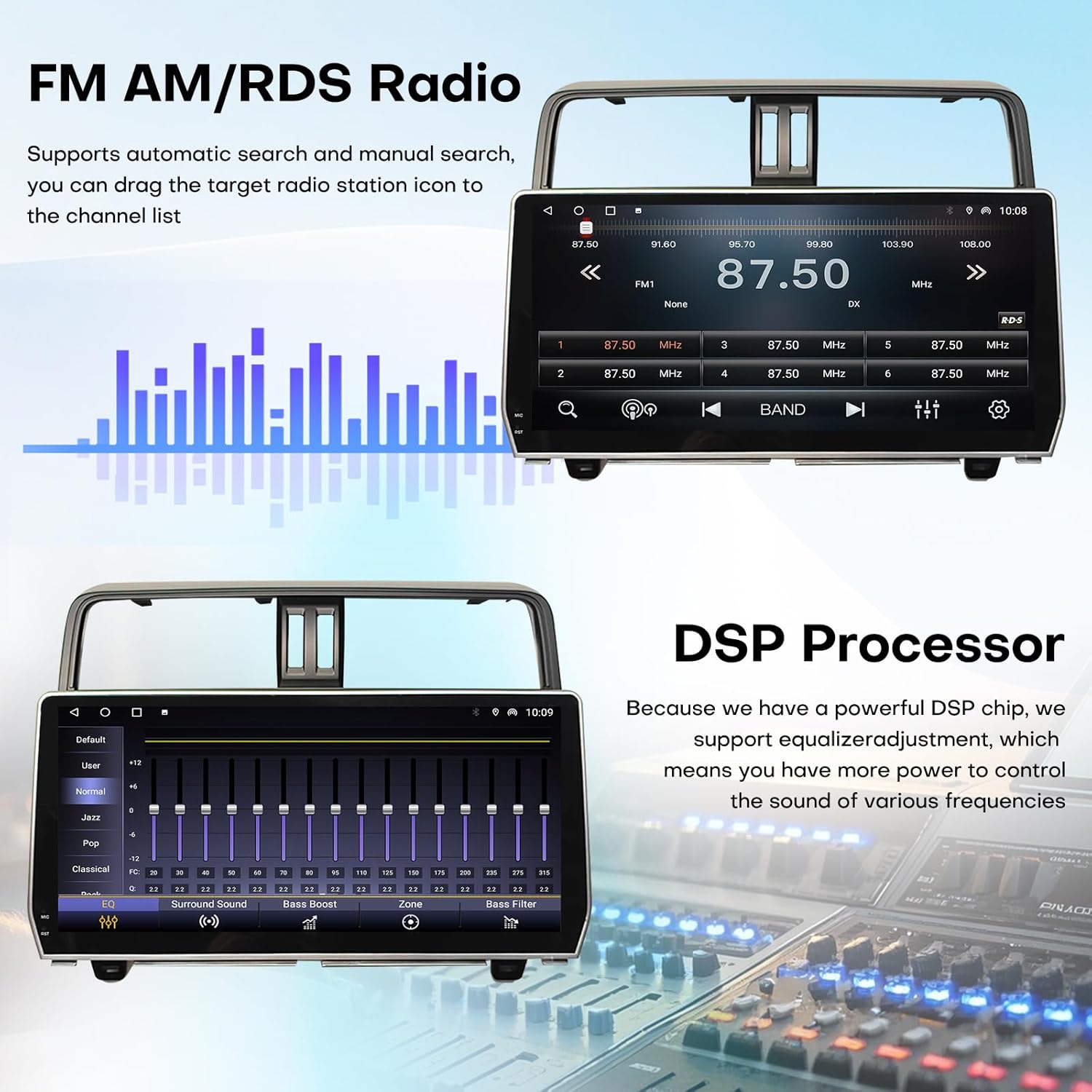
Image: The car radio display showing the FM radio interface with station lists and frequency display, and a separate screen illustrating the DSP equalizer settings for sound customization.
5. Maintenance
5.1 Screen Care
- Clean the touchscreen with a soft, lint-free cloth. For stubborn smudges, use a screen cleaner specifically designed for electronic displays.
- Avoid using abrasive materials or harsh chemicals, as these can damage the screen surface.
5.2 Software Updates
Periodically check for software updates to ensure optimal performance and access to the latest features. Updates can typically be found through the system's settings menu or the manufacturer's website.
6. Troubleshooting
6.1 Common Issues and Solutions
- No Power: Check all power connections and fuses. Ensure the vehicle's battery is properly connected.
- No Sound: Verify speaker connections. Check volume levels and audio settings. Ensure the mute function is not activated.
- Bluetooth/WiFi Connectivity Issues: Ensure Bluetooth/WiFi is enabled on both the car radio and your device. Try restarting both devices. For WiFi, check network password and signal strength.
- GPS Signal Loss: Ensure the GPS antenna is properly installed and has a clear view of the sky.
Important: If the radio fails to work after installation, please contact customer service immediately for a free replacement wiring harness kit.
7. Specifications
| Feature | Specification |
|---|---|
| Display Size | 12.3 Inches |
| Display Resolution | 1920x720 HD IPS |
| Operating System | Android 13 |
| CPU | 8 Core |
| RAM | 4GB |
| ROM (Internal Storage) | 64GB |
| Connectivity Technology | Bluetooth 5.0, Wi-Fi, 4G |
| Navigation | GPS (Online/Offline Maps) |
| Special Features | CarPlay, Android Auto, Touchscreen, Steering Wheel Control, RDS, DSP Processor, Backup Camera Support |
| Mounting Type | Dashboard Mount |
| Item Weight | 5.5 pounds |
| Package Dimensions | 16.5 x 13 x 5.5 inches |
8. Warranty and Support
Your GYVCBREU Car Radio comes with comprehensive support and warranty coverage:
- Money-Back Guarantee: Enjoy a 30-day money-back guarantee from the date of purchase.
- Product Warranty: A 12-month warranty covers manufacturing defects and malfunctions.
- Technical Support: Lifetime technical support is provided for all product-related inquiries and assistance.
8.1 Contacting Customer Service
For any questions, compatibility concerns, or technical assistance, please contact our customer service team. You can typically find contact information on the product packaging or through the seller's page where you purchased the item.

Image: A visual guide demonstrating how to access customer support through the Amazon seller page, by clicking on the seller's name and then selecting 'Ask a question'.