1. Introduction
The GAMDIAS Boreas E1-210 LITE is an air cooling solution designed for central processing units (CPUs). It features a 92mm fan with LED illumination, two copper heat pipes, and a hydraulic bearing fan for efficient heat dissipation. This cooler is compatible with a wide range of Intel and AMD motherboard sockets, providing effective thermal management for your system.
2. Package Contents
Verify that all components are present in the package before proceeding with installation:
- Boreas E1-210 LITE CPU Cooler Unit (Heatsink and Fan)
- Universal Mounting Bracket
- Intel Mounting Clips/Screws
- AMD Mounting Clips/Screws
- Thermal Paste (may be pre-applied or in a small tube)
- User Manual (this document)

Figure 2.1: Front view of the GAMDIAS Boreas E1-210 LITE CPU Air Cooler.

Figure 2.2: Included mounting kit components for various CPU sockets.
3. Specifications
| Feature | Specification |
|---|---|
| Brand | GAMDIAS |
| Model Number | BOREAS E1-210 LITE |
| Fan Size | 92mm |
| Heat Pipes | 2 Copper Heat Pipes with Direct Contact Technology |
| Fan Bearing Type | Hydraulic Bearing |
| Fan Speed | Up to 2200 RPM |
| Noise Level | 31 dBA |
| Air Flow | 34.6 CFM |
| LED Lighting | Rainbow LED Illumination |
| Dimensions (LxWxH) | 9.2 x 9.2 x 2.5 cm (Fan), Overall: 9.2 x 9.2 x 2.5 cm (Note: Product dimensions are listed as 9.2 x 9.2 x 2.5 cm; 300 g, which seems to be fan dimensions. Heatsink dimensions are not explicitly separated.) |
| Item Weight | 300 g |
| Supported Sockets | Intel: LGA1700, 1151, 1150, 1155, 1156, 1200 AMD: AM5, AM4, AM3 |
4. Setup and Installation
Follow these general steps for installing the GAMDIAS Boreas E1-210 LITE CPU cooler. Specific steps may vary slightly depending on your motherboard and CPU socket type. Always refer to your motherboard's manual for precise instructions on CPU cooler installation.
4.1. Preparation
- Ensure your computer is powered off and unplugged from the wall outlet.
- Open your computer case to access the motherboard.
- If replacing an existing cooler, carefully remove it and clean any old thermal paste from the CPU surface using isopropyl alcohol and a lint-free cloth.
4.2. Mounting Bracket Installation
Identify the correct mounting hardware for your CPU socket (Intel or AMD).
- For Intel Sockets: Attach the appropriate Intel mounting clips to the universal mounting bracket. Position the bracket over the CPU socket, aligning the holes with the motherboard's cooler mounting holes. Secure it from the back of the motherboard if a backplate is provided or required.
- For AMD Sockets: Attach the appropriate AMD mounting clips to the universal mounting bracket. Position the bracket over the CPU socket, aligning the holes with the motherboard's cooler mounting holes. Secure it.
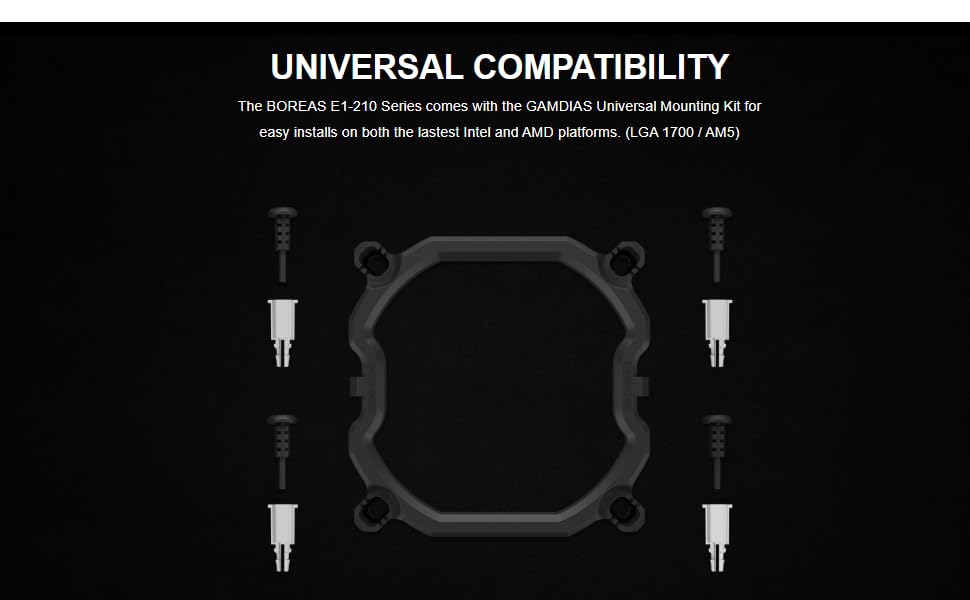
Figure 4.1: Universal mounting kit for Intel and AMD platforms.
4.3. Thermal Paste Application
Apply a small amount of thermal paste to the center of your CPU's integrated heat spreader (IHS). A pea-sized dot is usually sufficient. The cooler's direct contact heat pipes will spread it evenly upon installation.
4.4. Cooler Installation
- Carefully place the heatsink assembly onto the CPU, ensuring the base makes full contact with the thermal paste.
- Align the cooler's mounting clips with the universal mounting bracket.
- Secure the cooler by tightening the screws in a diagonal pattern (e.g., top-left, bottom-right, top-right, bottom-left) until snug. Do not overtighten.
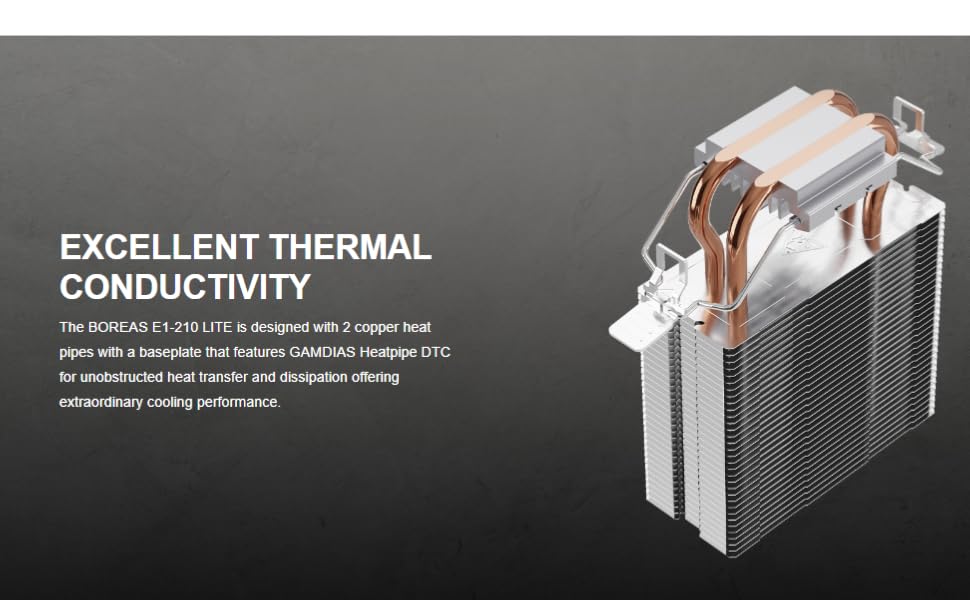
Figure 4.2: Heatsink design with 2 copper heat pipes for efficient thermal conductivity.
4.5. Fan Connection
- Locate the 3-pin fan connector on the cooler's fan cable.
- Connect this cable to an available 3-pin or 4-pin CPU Fan header on your motherboard. Refer to your motherboard manual for the exact location of the CPU Fan header.
- The fan features Rainbow LED illumination, which will light up once connected and powered on.
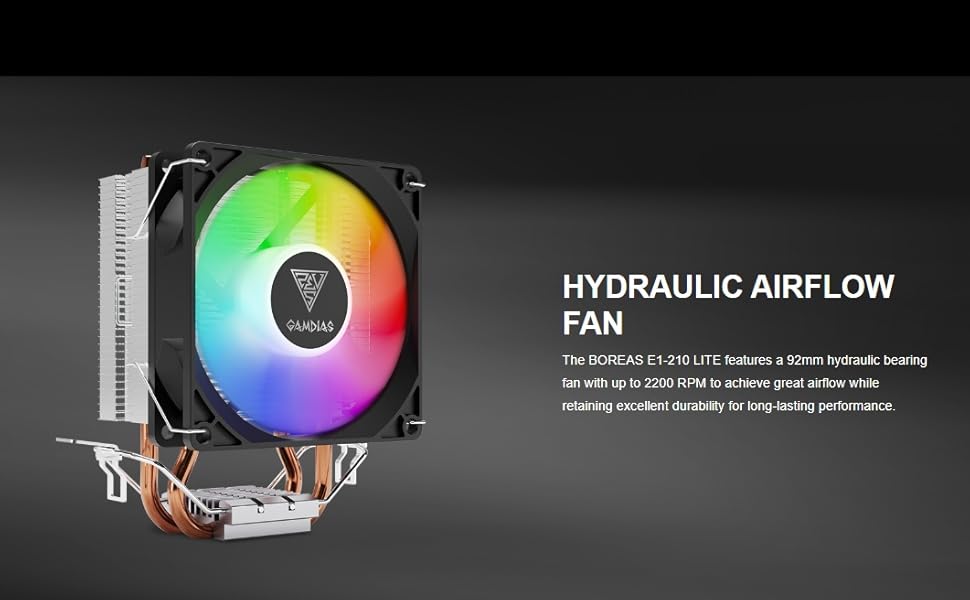
Figure 4.3: The 92mm hydraulic bearing fan provides high airflow.
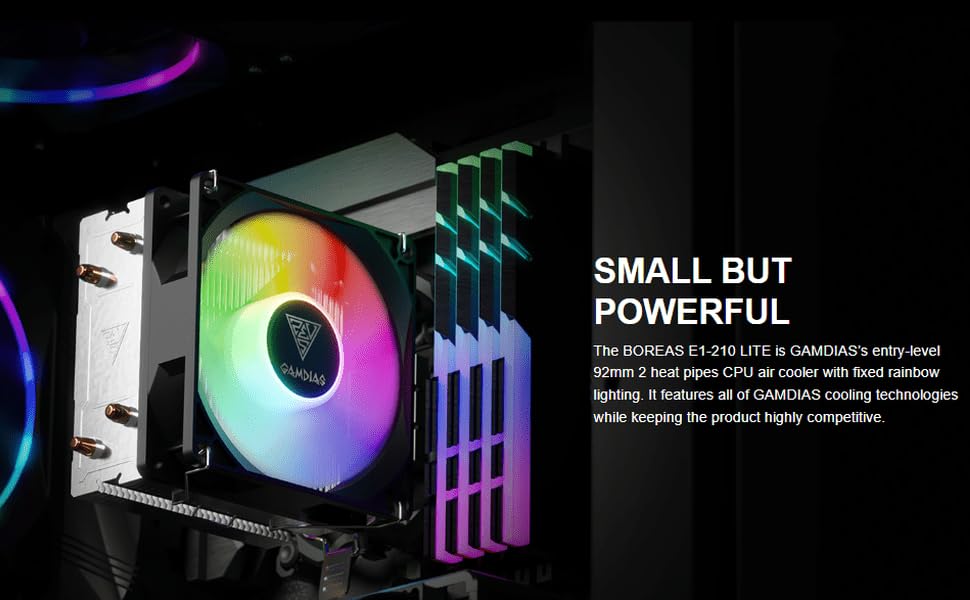
Figure 4.4: The Boreas E1-210 LITE CPU cooler installed in a system.
5. Operating Instructions
Once installed and connected, the GAMDIAS Boreas E1-210 LITE CPU cooler operates automatically based on your motherboard's fan control settings. The fan will spin to cool the CPU, and the Rainbow LED illumination will activate.
- Fan Speed: The fan operates at up to 2200 RPM. If connected to a 4-pin PWM header, your motherboard's BIOS/UEFI or operating system software may allow for fan speed control based on CPU temperature. If connected to a 3-pin header, the fan will typically run at a constant speed or be voltage-controlled by the motherboard.
- LED Illumination: The fan features fixed Rainbow LED lighting that illuminates when the fan receives power. There are no software controls for the LED effects on this specific model.
6. Maintenance
Regular maintenance helps ensure optimal cooling performance and extends the lifespan of your CPU cooler.
- Dust Removal: Periodically (e.g., every 3-6 months), power off your computer and use compressed air to clean dust from the heatsink fins and fan blades. Hold the fan blades gently to prevent them from spinning rapidly during cleaning, which can damage the bearing.
- Thermal Paste: Thermal paste typically lasts for several years. If you notice consistently high CPU temperatures, consider reapplying fresh thermal paste. This involves carefully removing the cooler, cleaning old paste from both the CPU and cooler base, and applying new paste.
- Fan Inspection: Check the fan for any signs of wear, unusual noises, or obstructions. Ensure the fan cable is securely connected.
7. Troubleshooting
If you encounter issues with your GAMDIAS Boreas E1-210 LITE CPU cooler, refer to the following common troubleshooting steps:
- Fan Not Spinning:
- Check if the fan cable is securely connected to the CPU Fan header on the motherboard.
- Verify that the CPU Fan header is enabled in your motherboard's BIOS/UEFI settings.
- Test the fan by connecting it to a different fan header if available.
- High CPU Temperatures:
- Ensure the cooler is properly seated and making full contact with the CPU.
- Check if sufficient thermal paste was applied and that it is evenly spread. Reapply if necessary.
- Clean any dust buildup from the heatsink fins and fan.
- Verify that the fan is spinning at an appropriate speed. Adjust fan curves in BIOS/UEFI if possible.
- Ensure adequate airflow within your PC case.
- LEDs Not Lighting Up:
- Confirm the fan is receiving power and spinning. The LEDs are integrated with the fan's power.
- If the fan is spinning but LEDs are off, there might be an issue with the fan's LED component.
8. Warranty and Support
For warranty information and technical support, please contact GAMDIAS customer service or the retailer from whom you purchased the product. Keep your proof of purchase for warranty claims.
- Manufacturer: GAMDIAS TAIWAN, No. 113, Jian 2nd Rd., Zhonghe, Dist., New Taipei City 235, Taiwan
- Importer (India): Allway Distributions Pvt Ltd, No-49, H.B. Samajha Road, Baswangudi, Bengaluru- 560004, Contact - 8904307700


