
Introduction
The Xvive U35 Wireless Microphone System Transmitter (U35TX) is designed to convert any dynamic microphone into a wireless unit, operating on the 5.8GHz band. This system provides a high-fidelity, low-latency solution for audio transmission in various professional settings, including live performances, studio recording, and video production. This manual provides essential information for setting up, operating, and maintaining your U35TX transmitter.
What's in the Box
- U35 Transmitter
- USB-C Cable
- PU Bag
- User Manual

Image: The Xvive U35TX Wireless Microphone Transmitter shown with its included USB-C cable, PU bag, and user manual.
Key Features
- 5.8 GHz True Diversity Wireless System: Ensures a solid RF connection over a 100 ft (30.5 m) distance, minimizing interference.
- Crystal Clear Sound: Offers a broad frequency response from 20Hz to 20kHz, 110 dB dynamic range, and 110 dB SNR, delivering high-resolution 24-bit/48kHz audio.
- Ultra-Low Latency: Less than 5ms latency for real-time audio transmission.
- 6 Switchable Channels: Provides multiple options to avoid frequency interference.
- Mic/Line Mode: Switchable input sensitivity for dynamic microphones or line-level audio sources.
- Long Battery Life: Up to 5 hours of operation on a single charge.
- Compact and Durable Design: Made with metal enclosure, designed for portability and reliability.
Setup
1. Charging the Device
Before initial use, fully charge the U35TX transmitter using the provided USB-C cable. The cable is designed to charge both the transmitter and a compatible receiver simultaneously if you have the full system.

Image: The U35TX transmitter connected to a USB-C cable for charging. The cable can charge both transmitter and receiver units.
2. Connecting to a Microphone
- Ensure your dynamic microphone is powered off.
- Plug the U35TX transmitter directly into the XLR output of your dynamic microphone.
- Ensure the connection is secure.
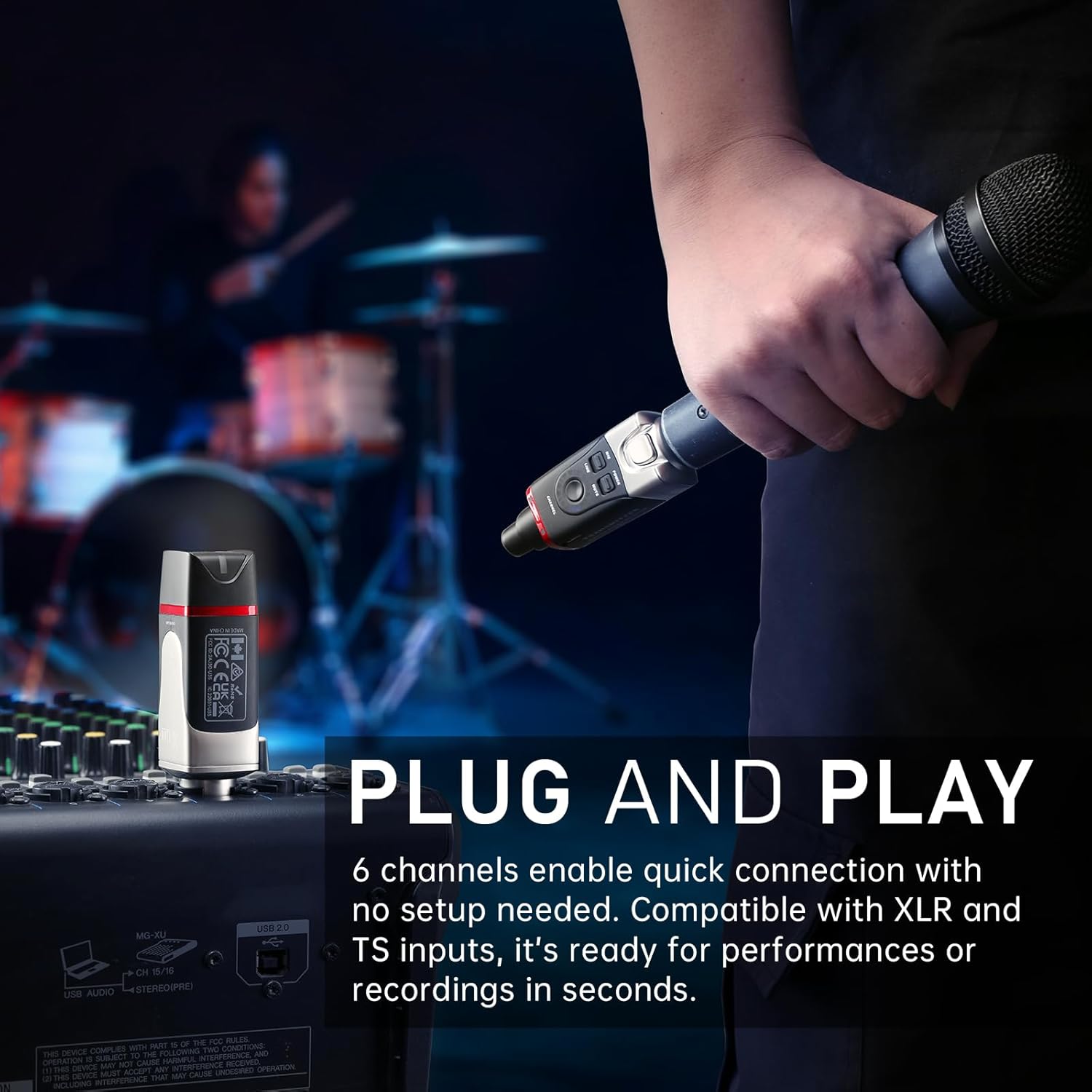
Image: The U35TX transmitter connected to the XLR output of a dynamic microphone, ready for wireless operation.
3. Connecting to a Receiver (Sold Separately or as part of a full system)
If you have a compatible U35 receiver, plug it into your audio interface, mixer, or PA system's XLR input.

Image: The U35TX transmitter (left) and U35RX receiver (right) connected to a mixing console, illustrating a typical wireless setup.
Operating Instructions
1. Powering On/Off
Press and hold the POWER button on the U35TX transmitter to turn it on or off. The LED indicator will illuminate when the device is on.
2. Channel Selection
The U35TX offers 6 channels. To change the channel, press the CHANNEL button. The blue LED display will show the current channel number. Ensure both the transmitter and receiver are set to the same channel for proper operation.

Image: Close-up of the U35TX transmitter highlighting the channel selection button and the blue LED channel indicator.
3. Mic/Line Mode Selection
The U35TX features a switchable MIC/LINE mode. Use MIC mode for dynamic microphones and LINE mode for line-level audio sources (e.g., from a mixer or audio interface). Selecting the correct mode prevents signal distortion.
4. Mute Function
Press the MUTE button to temporarily silence the audio transmission. Press it again to unmute.
5. Channel Scan (Receiver Function)
For optimal performance, especially in environments with potential interference, hold the receiver's channel button for 3 seconds to initiate a channel scan. This will automatically find the clearest available frequency.

Image: The U35TX transmitter and U35RX receiver in operation, illustrating the 5.8 GHz wireless connection and the channel scan function to find the best signal.
Product Demonstrations
Xvive U35 Wireless Microphone System Overview
Video: An official overview of the Xvive U35 Wireless Microphone System, demonstrating its features and ease of use for dynamic microphones and audio transmission. This video is provided by Xvive Direct.
Detailed Look at the Xvive U35 System
Video: A comprehensive review and demonstration of the Xvive U35 Wireless Microphone System, including unboxing, setup, and practical usage scenarios. This video is provided by Geekazine.
Maintenance
- Cleaning: Use a soft, dry cloth to clean the exterior of the transmitter. Avoid using liquid cleaners or solvents.
- Storage: Store the U35TX in the provided PU bag in a cool, dry place when not in use.
- Battery Care: To prolong battery life, avoid fully discharging the unit frequently. Charge it regularly, even if not in constant use.
Troubleshooting
| Problem | Possible Cause | Solution |
|---|---|---|
| No Sound |
|
|
| Interference/Dropouts |
|
|
| Distorted Sound |
|
|
Specifications
| Feature | Detail |
|---|---|
| Wireless Type | 5.8 GHz True Diversity |
| Audio Quality | 24-bit/48kHz High Resolution |
| Dynamic Range | 110 dB |
| Signal-to-Noise Ratio (SNR) | 110 dB |
| Latency | Less than 5ms |
| Frequency Response | 20 Hz - 20 kHz |
| Operating Range | Up to 100 ft (30.5 m) line of sight |
| Channels | 6 |
| Power Source | Built-in Lithium Ion Battery |
| Battery Life | Up to 5 hours |
| Connector Type | XLR |
| Material | Metal Enclosure |
| Dimensions | 1.5 x 1.5 x 3.9 inches |
Warranty & Support
The Xvive U35TX Wireless Microphone System Transmitter comes with a 1-Year Warranty. For technical support, troubleshooting assistance, or warranty claims, please visit the official Xvive website or contact Xvive customer service directly.
Official Xvive Store: Xvive Direct on Amazon


