Introduction
Thank you for choosing the Gvyugke Captain 100 Wireless Gaming Headset. This manual provides detailed instructions for the proper setup, operation, and maintenance of your headset. Please read this manual thoroughly before use to ensure optimal performance and longevity of your device.

Image: The Gvyugke Captain 100 Wireless Gaming Headset, showcasing its components including the headset, detachable microphone, USB wireless dongle, and 3.5mm audio cable.
Product Overview
Package Contents
- Gvyugke Captain 100 Wireless Gaming Headset
- USB Wireless Dongle
- 3.5mm Audio Cable
- USB Charging Cable
- User Manual (this document)
Key Features
- Connectivity: 2.4GHz Wireless, Bluetooth 5.2, and 3.5mm Wired modes.
- Audio Drivers: 50mm drivers with NdFeb magnet stilts and PET-grade diaphragm for immersive sound.
- Microphone: Environmental Noise Cancellation (ENC) for clear communication.
- Battery Life: Up to 40 hours of gameplay on a single charge.
- Comfort: Protein leather earmuffs, adjustable headband, and breathable memory foam padding.
- Low Latency: ≤20ms delay in 2.4GHz wireless mode.
Audio Quality Components

Image: An exploded diagram illustrating the internal components responsible for the headset's audio performance, such as protein leather ear cushions, PET shockproof protector, ring transducer, and neodymium magnet.
Comfort Design
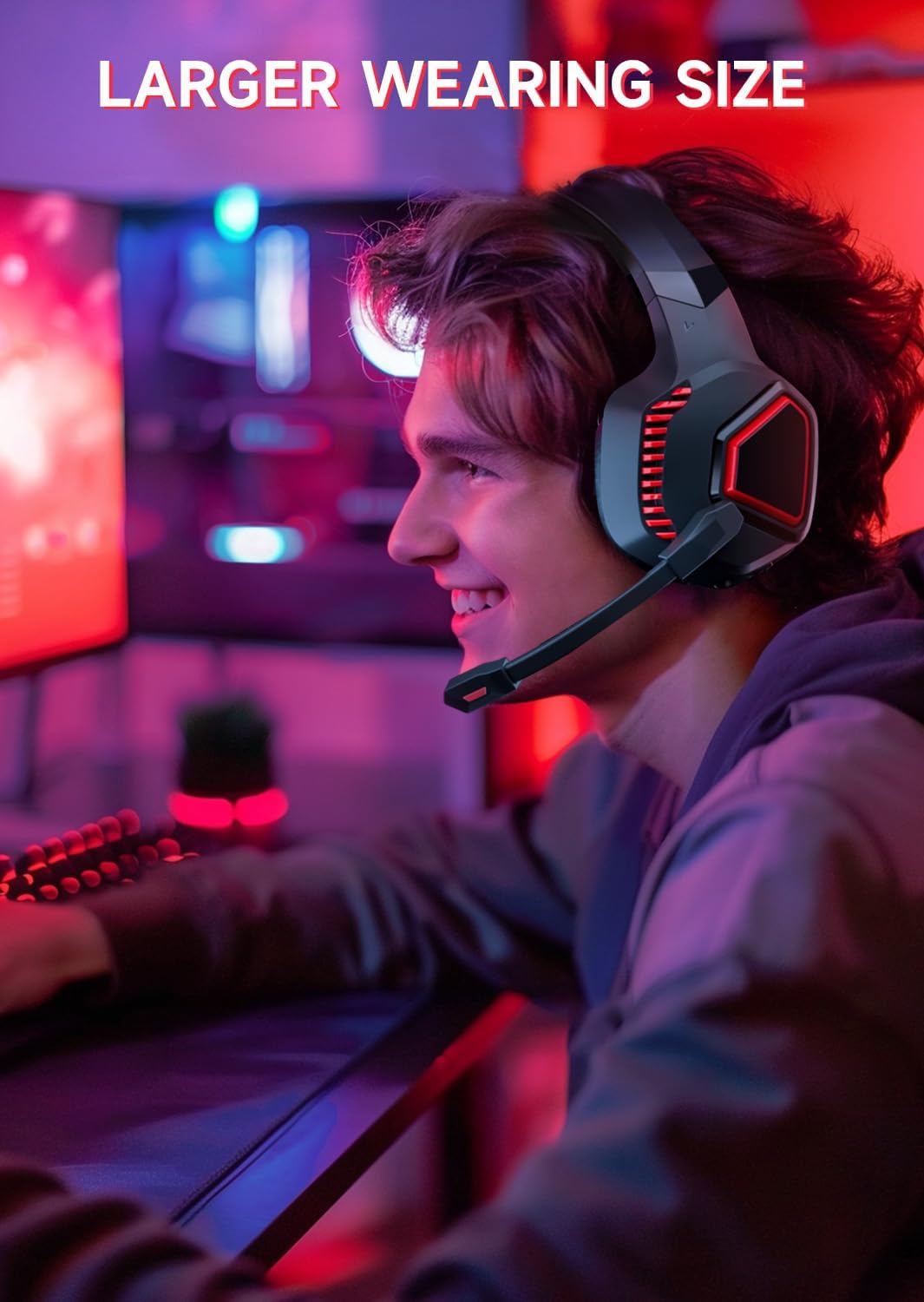
Image: A user wearing the Gvyugke Captain 100 headset, highlighting its ergonomic design and comfortable fit for various head sizes.

Image: Detailed views of the headset's comfort elements, including breathable memory foam padding, adjustable headbands, and soft protein leather earmuffs.
Setup
1. Charging the Headset
Before first use, fully charge the headset. Connect the supplied USB charging cable to the headset's charging port and to a USB power source (e.g., computer USB port, USB wall adapter). A full charge takes approximately 3 hours. The LED indicator on the headset will show charging status.

Image: Illustration demonstrating the headset's battery life and charging time, highlighting over 40 hours of gaming and a 3-hour charging duration.
2. Connecting the Headset
The Gvyugke Captain 100 offers three connection methods: 2.4GHz Wireless, Bluetooth 5.2, and 3.5mm Wired.
2.1. 2.4GHz Wireless Connection (USB Dongle)
This mode provides low-latency wireless audio for devices with a USB-A port. Compatible with PS4/PS5, PC, Mac, and Nintendo Switch (audio only, microphone not supported on Switch).
- Insert the USB wireless dongle into an available USB-A port on your device.
- Power on the headset. The headset will automatically attempt to connect to the dongle.
- Once connected, the indicator light on the dongle and headset will stabilize.
- On your device's audio settings, select the headset as the input and output device.
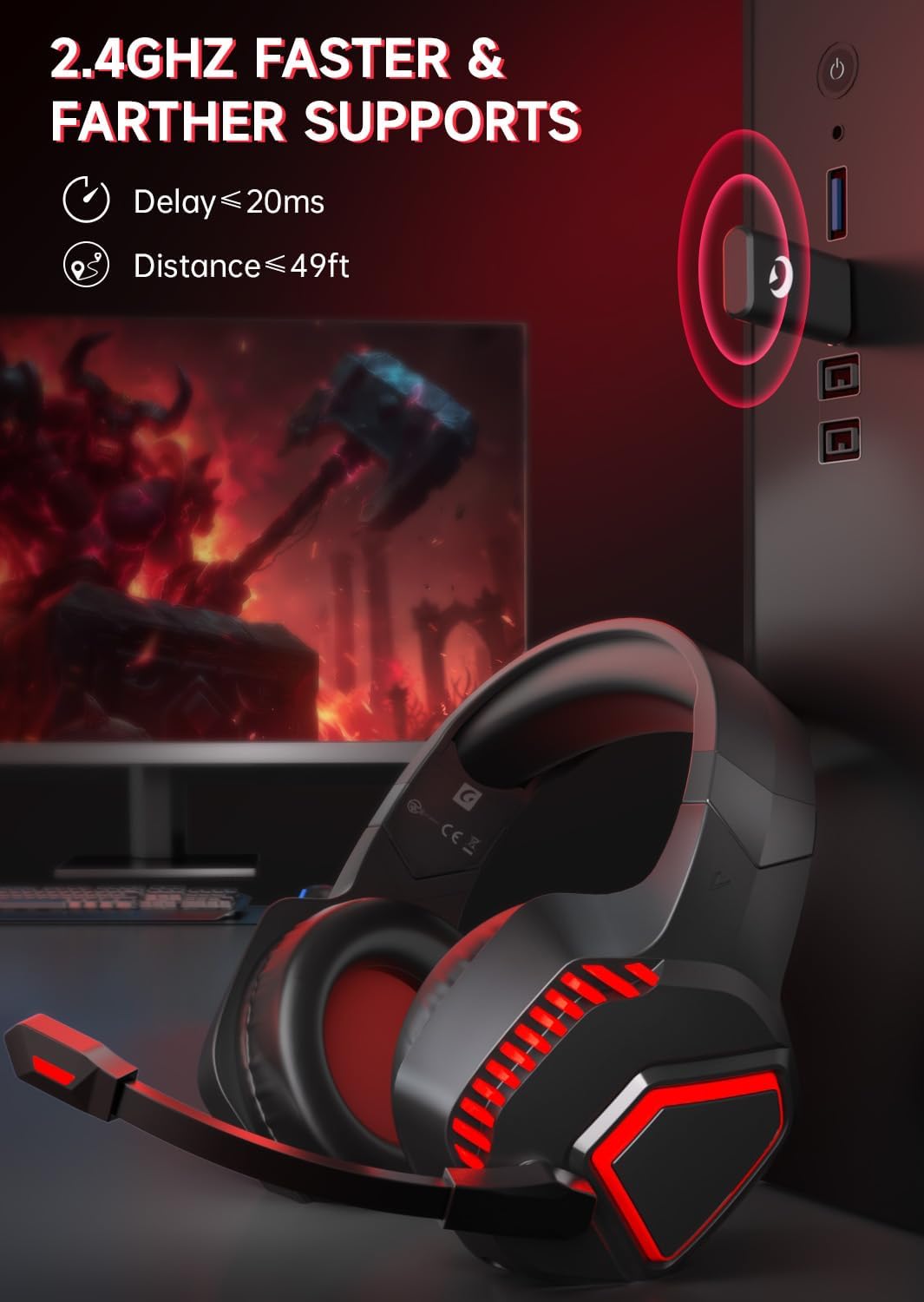
Image: The headset connected to a PC via the 2.4GHz USB dongle, illustrating its low latency (≤20ms) and effective range (up to 49ft).
2.2. Bluetooth 5.2 Connection
This mode is suitable for mobile devices, laptops, and other Bluetooth-enabled systems. Not compatible with Xbox series in wireless mode.
- Ensure the headset is powered on and not connected via 2.4GHz wireless.
- Press and hold the Bluetooth pairing button on the headset until the LED indicator flashes rapidly, indicating pairing mode.
- On your device, enable Bluetooth and search for "Gvyugke Captain 100" in the list of available devices.
- Select the headset to pair. Once connected, the LED indicator will stabilize.
2.3. 3.5mm Wired Connection
This mode offers universal compatibility with any device featuring a 3.5mm audio jack, including Xbox series consoles (for audio and microphone).
- Connect one end of the supplied 3.5mm audio cable to the headset's 3.5mm port.
- Connect the other end to the 3.5mm audio jack on your device.
- The headset will operate in wired mode, bypassing wireless functions.

Image: A visual guide to the headset's versatile 3-in-1 connectivity, detailing compatibility for 2.4GHz wireless (USB interface), Bluetooth 5.2, and 3.5mm wired connections across various platforms.
Operating Instructions
Power On/Off
- Power On: Press and hold the Power button for 3 seconds.
- Power Off: Press and hold the Power button for 3 seconds.
Volume Control
Use the volume roller or buttons located on the headset to adjust the audio output level.
Microphone Usage
The headset features an adjustable microphone with Environmental Noise Cancellation (ENC).
- Mute/Unmute: Press the microphone mute button on the headset.
- Positioning: Adjust the flexible microphone boom for optimal voice pickup.

Image: A visual representation of the headset's adjustable microphone, highlighting its flexibility and integrated ENC (Environmental Noise Cancelling) technology for clear audio.
Mode Switching
The headset automatically prioritizes connections. When both 2.4GHz dongle and Bluetooth are active, you may need to manually select the desired audio output on your device. Wired connection takes precedence when the 3.5mm cable is plugged in.
Maintenance
Cleaning
- Wipe the headset with a soft, dry cloth.
- For stubborn dirt, use a slightly damp cloth with mild soap, then wipe dry immediately.
- Do not use harsh chemicals, solvents, or abrasive cleaners.
- Avoid getting moisture into the earcups or charging ports.
Storage
- Store the headset in a cool, dry place away from direct sunlight and extreme temperatures.
- Avoid placing heavy objects on the headset.
- If storing for an extended period, charge the headset periodically to maintain battery health.
Troubleshooting
No Sound / Poor Sound Quality
- Ensure the headset is powered on and fully charged.
- Check the volume levels on both the headset and your connected device.
- Verify the correct audio output device is selected in your device's sound settings.
- If using 2.4GHz wireless, ensure the USB dongle is securely plugged in and recognized by the device.
- If using Bluetooth, ensure the headset is properly paired and within range. Try re-pairing.
- If using wired connection, ensure the 3.5mm cable is fully inserted into both the headset and the device.
- Test the headset with a different device or connection method to isolate the issue.
Microphone Not Working
- Ensure the microphone is not muted (check the mute button on the headset).
- Verify the correct microphone input device is selected in your device's sound settings.
- Adjust the microphone boom closer to your mouth.
- Note: The microphone is not supported on Nintendo Switch in 2.4GHz wireless mode.
- Note: Xbox series consoles only support microphone functionality in 3.5mm wired mode.
Headset Not Connecting
- Ensure the headset has sufficient battery charge.
- For 2.4GHz, try unplugging and re-plugging the USB dongle.
- For Bluetooth, ensure the headset is in pairing mode and your device's Bluetooth is enabled. Try forgetting the device on your system and re-pairing.
- Restart both the headset and the connected device.
Specifications
| Model Name | Captain 100 |
| Connectivity Technology | 2.4GHz Wireless, Bluetooth 5.2, 3.5mm Wired |
| Audio Driver Type | Dynamic Driver, 50mm |
| Noise Control | Environmental Noise Cancellation (ENC) |
| Audio Latency (2.4GHz) | ≤20 Milliseconds |
| Battery Life | Up to 40 Hours |
| Charging Time | Approximately 3 Hours |
| Compatible Devices | PS4/5, Laptops, Desktops, MACs, Switch (audio only), Phones, Tablets, PCs, Xbox series (wired only) |
| Material | Leather (earmuffs) |
| Item Weight | 0.5 Kilograms (1.1 pounds) |
| Package Dimensions | 8.35 x 7.32 x 4.49 inches |

Image: A diagram illustrating the physical dimensions of the Gvyugke Captain 100 Wireless Gaming Headset, including height, width, and microphone length.
Safety Information
- Avoid prolonged listening at high volumes to prevent hearing damage.
- Do not expose the headset to water or excessive moisture.
- Keep the headset away from extreme temperatures and direct heat sources.
- Do not attempt to disassemble or modify the headset. This will void the warranty.
- Dispose of batteries according to local regulations. Do not dispose of batteries in fire.
Warranty and Support
Gvyugke provides technical support for its products. For assistance with your Captain 100 Wireless Gaming Headset, please refer to the contact information provided with your purchase documentation or visit the official Gvyugke website.
This product comes with a standard manufacturer's warranty. Please retain your proof of purchase for warranty claims. The warranty covers defects in materials and workmanship under normal use. It does not cover damage caused by misuse, accidents, unauthorized modifications, or normal wear and tear.