1. Introduction
The ICY BOX M.2 NVMe & SATA SSD/HDD Docking Station (Model IB-2913MCL-C31) is a versatile device designed for efficient data management, including bidirectional cloning and high-speed data transfer. It supports a wide range of storage drives, offering tool-free installation and standalone cloning capabilities. This manual provides instructions for setup, operation, and troubleshooting.
2. Package Contents
Verify that all items are present in the package:
- M.2 NVMe & SATA SSD/HDD Docking Station & Cloner
- 2-in-1 Cable (USB-C to USB-C & USB-C to USB-A)
- Power adapter
- 3x M.2 rubber fixations

Figure 2.1: The ICY BOX M.2 NVMe & SATA SSD/HDD Docking Station, showing its two drive slots and included USB-C and USB-A cables.
3. Setup
3.1 Power Connection
- Connect the power adapter to the DC 12V input port on the docking station.
- Plug the power adapter into a standard electrical outlet.
3.2 USB Connection (for Online Data Transfer)
- Use the provided 2-in-1 cable to connect the docking station's USB-C port to an available USB-C or USB-A port on your computer.
- The device will be recognized by your operating system, allowing access to inserted drives.
3.3 Drive Installation (Tool-Free)
- For M.2 SSDs: Gently insert the M.2 SSD into the designated M.2 slot. Secure it in place using one of the provided rubber fixations.
- For 2.5"/3.5" SATA HDDs/SSDs: Insert the SATA drive into the 2.5"/3.5" SATA bay. The design allows for tool-free installation.

Figure 3.1: Tool-free installation of M.2 SSD and 2.5-inch SATA HDD.
4. Operating Instructions
4.1 Online Data Transfer
When the docking station is connected to a computer via USB, it functions as an external drive enclosure. You can access and manage data on up to two inserted drives simultaneously. This allows for seamless file transfers between drives or to/from your computer at speeds up to 10 Gbit/s (USB 3.2 Gen 2).

Figure 4.1: The docking station supports rapid data transfer rates up to 10 Gbit/s via USB 3.2 Gen 2.
4.2 Offline Cloning
The offline cloning function allows you to duplicate a source drive to a target drive without requiring a computer connection. This creates an exact, bit-by-bit copy.
- Disconnect USB: Ensure the docking station is disconnected from any computer before initiating the cloning process.
- Insert Drives: Insert the source drive into one slot and the target drive into the other.
- Capacity Requirement: The target drive must have an equal or larger capacity than the source drive. If the target drive is smaller, the cloning process will not start.
- Select Direction: Use the switch on the device to select the correct cloning direction (e.g., NVMe to SATA, SATA to NVMe, 2.5"/3.5" SATA to M.2 NVMe, or M.2 SATA to M.2 NVMe).
- Initiate Cloning (Step 1): Press and hold the "Clone" button for approximately 5 seconds until the LED indicators begin flashing.
- Initiate Cloning (Step 2): Release the button, then press the "Clone" button again briefly to confirm and start the cloning process.
- Monitor Progress: The LED indicators (25%, 50%, 75%, 100%) will illuminate sequentially to show the cloning progress.
- Completion: Once all LEDs are solid, the cloning process is complete.
- Remove Drives: Disconnect the power adapter before removing the drives.

Figure 4.2: Illustration of offline cloning and online data transfer modes.

Figure 4.3: LED indicators display the cloning progress and drive activity.
5. Compatibility
5.1 Supported Drive Types
- M.2 PCIe NVMe SSDs (form factors: 2230, 2242, 2260, 2280)
- M.2 SATA SSDs
- 2.5-inch SATA HDDs/SSDs
- 3.5-inch SATA HDDs
5.2 Supported Operating Systems
- Windows
- macOS
- Linux
5.3 Simultaneous Drive Access
The device supports simultaneous access to two drives. It cannot read three drives concurrently.

Figure 5.1: Comprehensive compatibility diagram for drive types and operating systems.
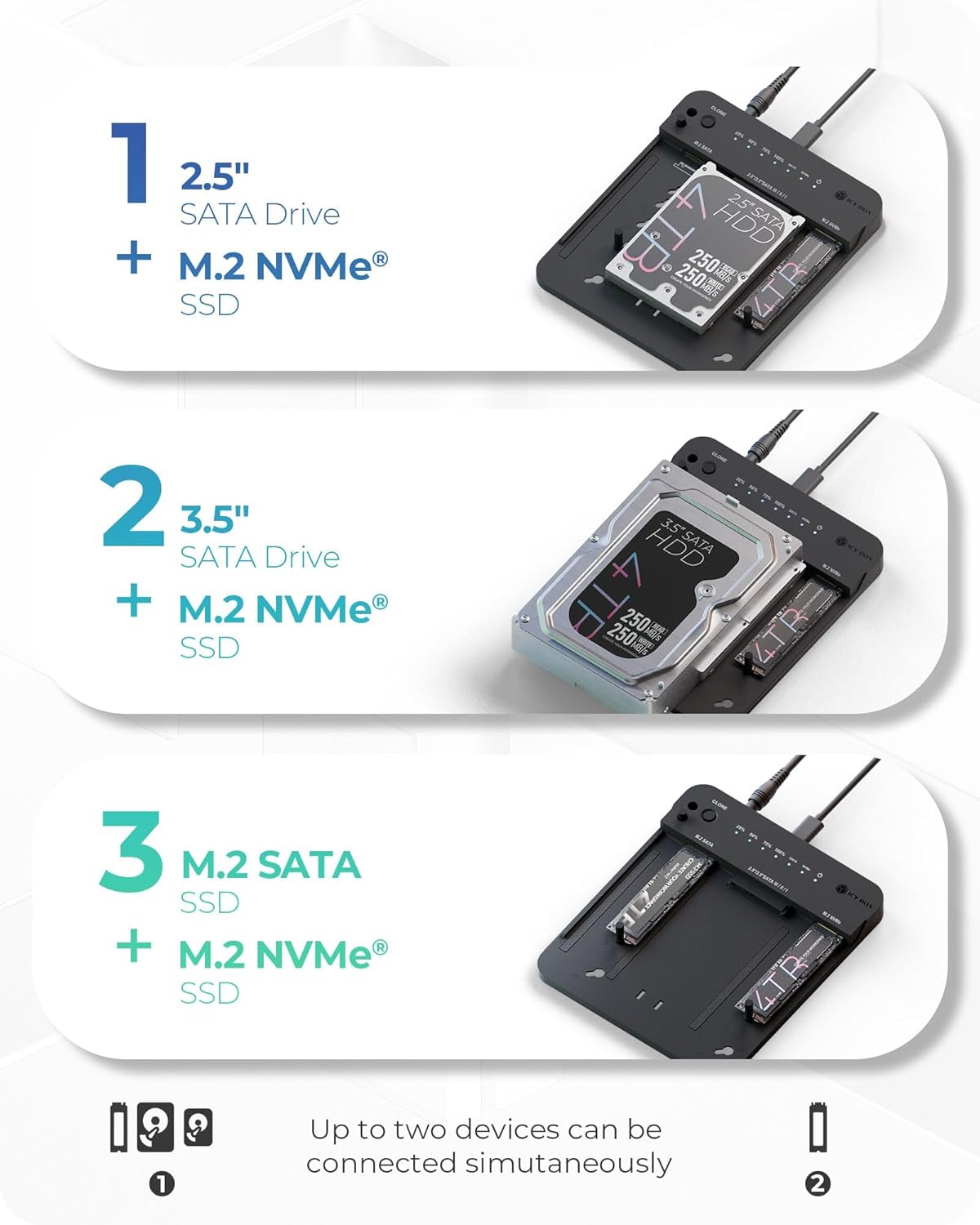
Figure 5.2: Examples of simultaneous dual drive configurations, such as 2.5" SATA with M.2 NVMe, 3.5" SATA with M.2 NVMe, and M.2 SATA with M.2 NVMe.
6. Maintenance
To ensure optimal performance and longevity of your docking station, keep it clean and free from dust. Use a soft, dry cloth for cleaning. Avoid exposing the device to extreme temperatures or moisture. The open-frame design aids in passive cooling during operation.

Figure 6.1: The open-frame design promotes efficient cooling for continuous operation.
7. Troubleshooting
- Cloning Fails (Target Drive Capacity): If the cloning process does not start, verify that the target drive's capacity is equal to or greater than the source drive's capacity.
- Cloning Fails (USB Connection): Ensure the USB-C cable is disconnected from your computer when performing an offline clone. The cloning process will not initiate if the docking station is connected to a host device.
- Simultaneous Drive Access: The docking station supports simultaneous access for two drives only. Attempting to connect three drives will not work.
- No Power: Check that the power adapter is securely connected to both the docking station and a working power outlet.
8. Specifications
| Model Number | IB-2913MCL-C31 |
| Product Dimensions | 6.45 x 1.57 x 0.71 inches (16.38 x 3.99 x 1.80 cm) |
| Item Weight | 5.5 ounces (0.16 Kilograms) |
| Hardware Interface | USB 3.2 Gen 2 |
| Data Transfer Rate | Up to 10 Gbit/s |
| Compatible Devices | PC, Phone, Game console |
| Number of Drive Ports | 2 |
9. Warranty and Support
The ICY BOX M.2 NVMe & SATA SSD/HDD Docking Station (IB-2913MCL-C31) comes with a 24-month warranty. For technical support, warranty claims, or further assistance, please refer to the official ICY BOX website or contact their customer service department directly.


