1. Introduction
Welcome to the user manual for your new ZUSZOX Android 14 Tablet. This guide provides essential information on setting up, operating, maintaining, and troubleshooting your device to ensure an optimal user experience. Please read this manual thoroughly before using your tablet.
1.1 Package Contents
Please verify that all items listed below are included in your package:
- ZUSZOX Android 14 Tablet (1 unit)
- US Standard Charger (1 unit)
- USB Charging Cable (1 unit)
- OTG Cable (1 unit)
- Protective Leather Case (1 unit)
- Bluetooth Keyboard (1 unit)
- Bluetooth Mouse (1 unit)
- Stylus (1 unit)
- Protective Film (1 unit)
- Instruction Manual (This document)
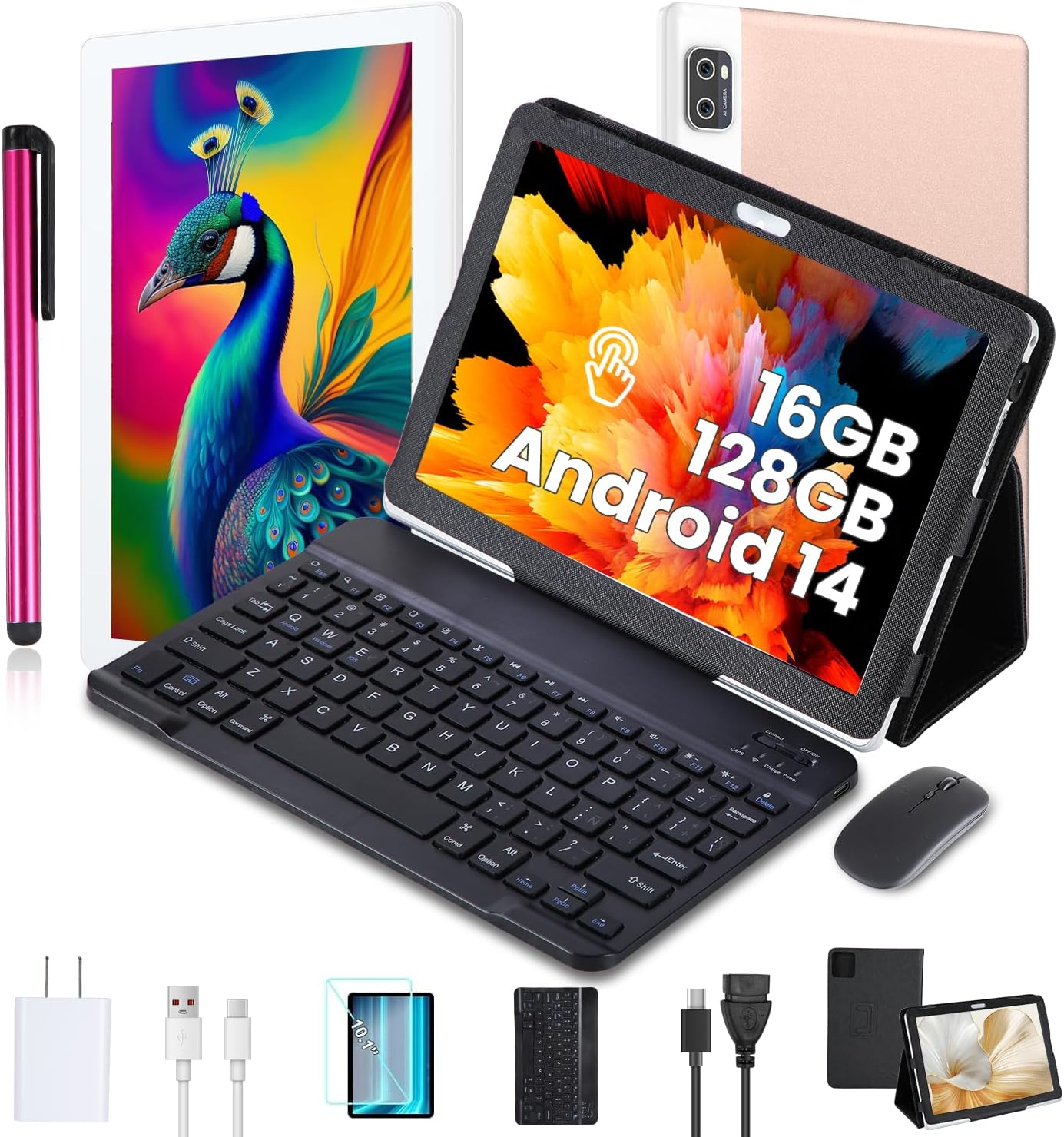
Figure 1.1: ZUSZOX Android 14 Tablet and its complete set of accessories.
2. Getting Started
2.1 Charging the Tablet
Before first use, fully charge your tablet. Connect the USB charging cable to the tablet's charging port and the other end to the US standard charger. Plug the charger into a power outlet. The battery indicator on the screen will show charging status.
2.2 Powering On/Off
- To Power On: Press and hold the Power button (usually located on the side or top edge) until the ZUSZOX logo appears on the screen.
- To Power Off: Press and hold the Power button until a menu appears. Select "Power off" from the options.
- To Restart: Press and hold the Power button until a menu appears. Select "Restart" from the options.
2.3 SIM Card and MicroSD Card Installation
Your tablet supports dual 5G SIM cards and one MicroSD (TF) card for expanded storage (up to 128GB, card not included).
- Locate the SIM/MicroSD card tray on the side of the tablet.
- Use the provided SIM ejector tool (if included, otherwise a small paperclip) to gently press into the small hole next to the tray to eject it.
- Carefully place your 5G SIM cards and/or MicroSD card into the designated slots on the tray, ensuring correct orientation.
- Gently push the tray back into the tablet until it clicks into place.

Figure 2.1: SIM and MicroSD card tray with slots for two SIM cards and one TF card.
2.4 Initial Setup
Upon first power-on, the tablet will guide you through an initial setup process. Follow the on-screen prompts to:
- Select your language.
- Connect to a Wi-Fi network.
- Set up your Google account (optional, but recommended for app downloads).
- Set up screen lock (PIN, pattern, password).
- Review privacy settings.
3. Basic Operation
3.1 Navigating the Interface
The ZUSZOX tablet runs on Android 14, offering an intuitive touch interface. Common gestures include:
- Tap: To select an item or open an app.
- Tap and Hold: To access contextual menus or move icons.
- Swipe: To scroll through pages or lists.
- Pinch-to-Zoom: To zoom in or out on images and web pages.

Figure 3.1: The tablet running Android 14, powered by a 12-core CPU.
3.2 Connecting to Wi-Fi and Bluetooth
To connect to networks or devices:
- Wi-Fi: Go to Settings > Network & internet > Wi-Fi. Turn Wi-Fi on and select your desired network. Enter the password if prompted. The tablet supports dual-band 2.4G/5G Wi-Fi.
- Bluetooth: Go to Settings > Connected devices > Connection preferences > Bluetooth. Turn Bluetooth on and pair with your Bluetooth keyboard, mouse, or other accessories.
3.3 Using Dual SIM Cards
With two SIM cards installed, you can manage calls and data for each. Go to Settings > Network & internet > SIM cards to configure preferences for calls, SMS messages, and mobile data for each SIM.
3.4 Camera Functions
The tablet features a 5MP front camera and an 8MP rear camera. Open the Camera app to take photos or record videos. You can switch between front and rear cameras, adjust settings, and apply filters.

Figure 3.2: Tablet camera specifications and physical attributes.
3.5 Split-Screen Multitasking
Android 14 allows you to run two applications simultaneously in split-screen mode. To activate:
- Open the first app you want to use.
- Swipe up from the bottom of the screen and hold to access recent apps.
- Tap the app icon at the top of the first app's card and select "Split top."
- Choose the second app from your recent apps or app drawer to fill the other half of the screen.
3.6 GPS Navigation
The tablet includes built-in GPS for navigation. Use pre-installed mapping applications or download your preferred navigation app from the Google Play Store. Ensure location services are enabled in Settings > Location.

Figure 3.3: Overview of tablet connectivity, battery life, and multitasking features.
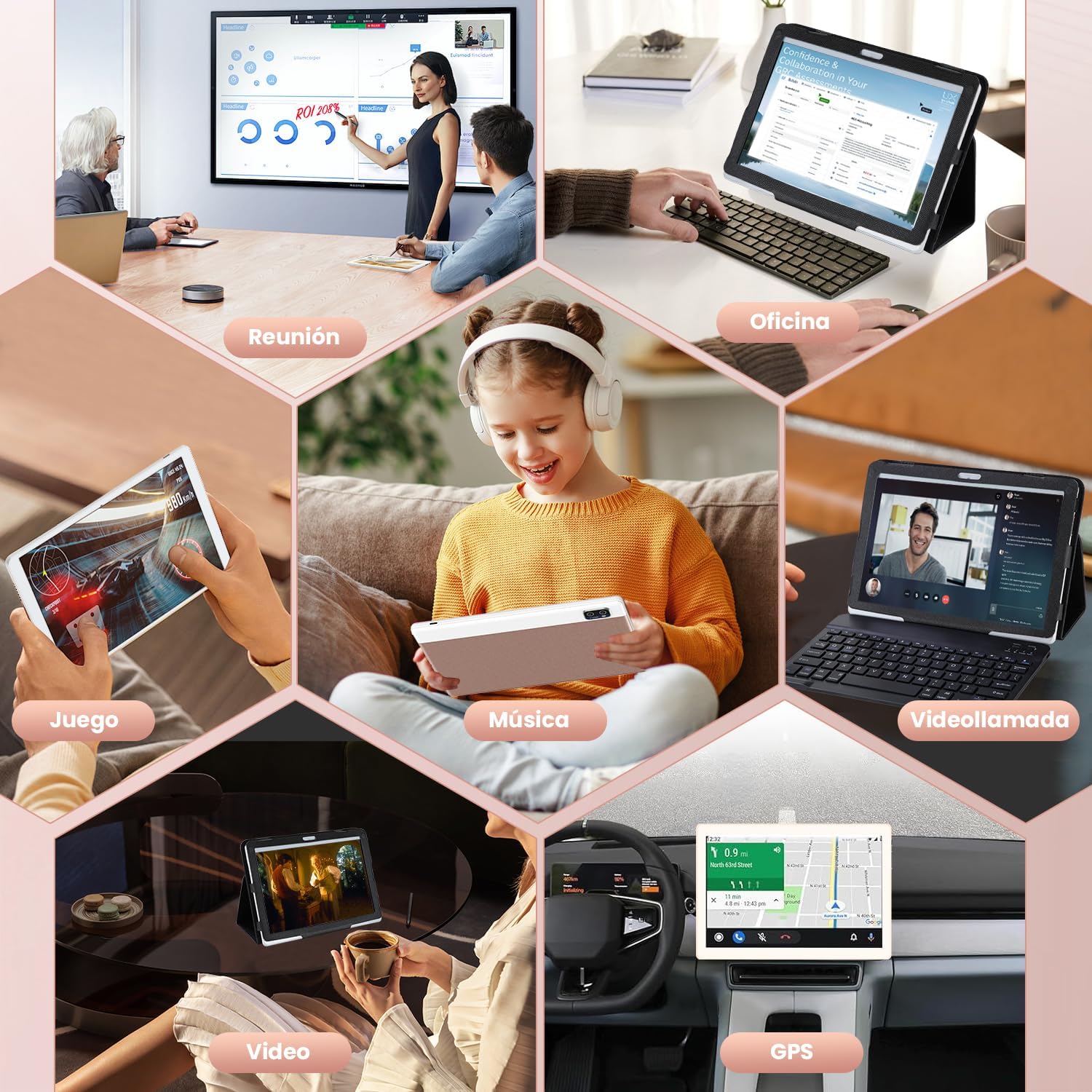
Figure 3.4: Diverse applications of the ZUSZOX tablet in daily life.
4. Care and Maintenance
4.1 Battery Management
- Avoid extreme temperatures, as they can degrade battery life.
- Do not leave the tablet charging for extended periods after it's fully charged.
- For optimal battery health, try to keep the charge level between 20% and 80%.
- Use only the provided charger and cable.
4.2 Cleaning Your Tablet
- Use a soft, lint-free cloth to clean the screen and body.
- For stubborn smudges, slightly dampen the cloth with water or a screen cleaner designed for electronics.
- Avoid using harsh chemicals, abrasive materials, or excessive moisture.
4.3 Storage
When storing the tablet for an extended period, ensure it is charged to about 50% and powered off. Store it in a cool, dry place away from direct sunlight and extreme temperatures.
5. Troubleshooting Common Issues
If you encounter problems with your tablet, refer to the following solutions:
- Tablet will not turn on:
- Ensure the battery is charged. Connect the charger and wait a few minutes before attempting to power on.
- Press and hold the Power button for at least 10-15 seconds to force a restart.
- Screen is unresponsive:
- Restart the tablet.
- Ensure the screen is clean and free of debris.
- Cannot connect to Wi-Fi:
- Ensure Wi-Fi is enabled in settings.
- Check if the Wi-Fi password is correct.
- Restart your Wi-Fi router and the tablet.
- Try connecting to a different Wi-Fi network to isolate the issue.
- Apps are crashing or running slowly:
- Close background applications.
- Clear the cache of the problematic app (Settings > Apps > [App Name] > Storage > Clear cache).
- Ensure you have sufficient storage space.
- Restart the tablet.
- SIM card not detected:
- Ensure the SIM card is correctly inserted into the tray.
- Restart the tablet.
- Check if the SIM card is active with your mobile carrier.
6. Product Specifications
Below are the detailed technical specifications for the ZUSZOX Android 14 Tablet:
| Feature | Specification |
|---|---|
| Model Number | RMZUSZOX |
| Operating System | Android 14 |
| Processor | MTK6797 12-core |
| Display Size | 10.1 inches |
| Display Type | HD IPS |
| Display Resolution | 1280 x 800 pixels |
| RAM | 16GB |
| Internal Storage (ROM) | 128GB |
| Expandable Storage | Supports MicroSD/TF card up to 128GB (not included) |
| Rear Camera | 8MP |
| Front Camera | 5MP |
| Battery Capacity | 8000mAh |
| Network Connectivity | 5G (Dual SIM support) |
| Wireless Connectivity | Wi-Fi (802.11ac, 802.11ax, 802.11g, 802.11n), Bluetooth 5.0 |
| GPS | Yes |
| Dimensions | 28.9 x 20 x 5.9 cm (Package) |
| Weight | 1.23 kg (Package) |
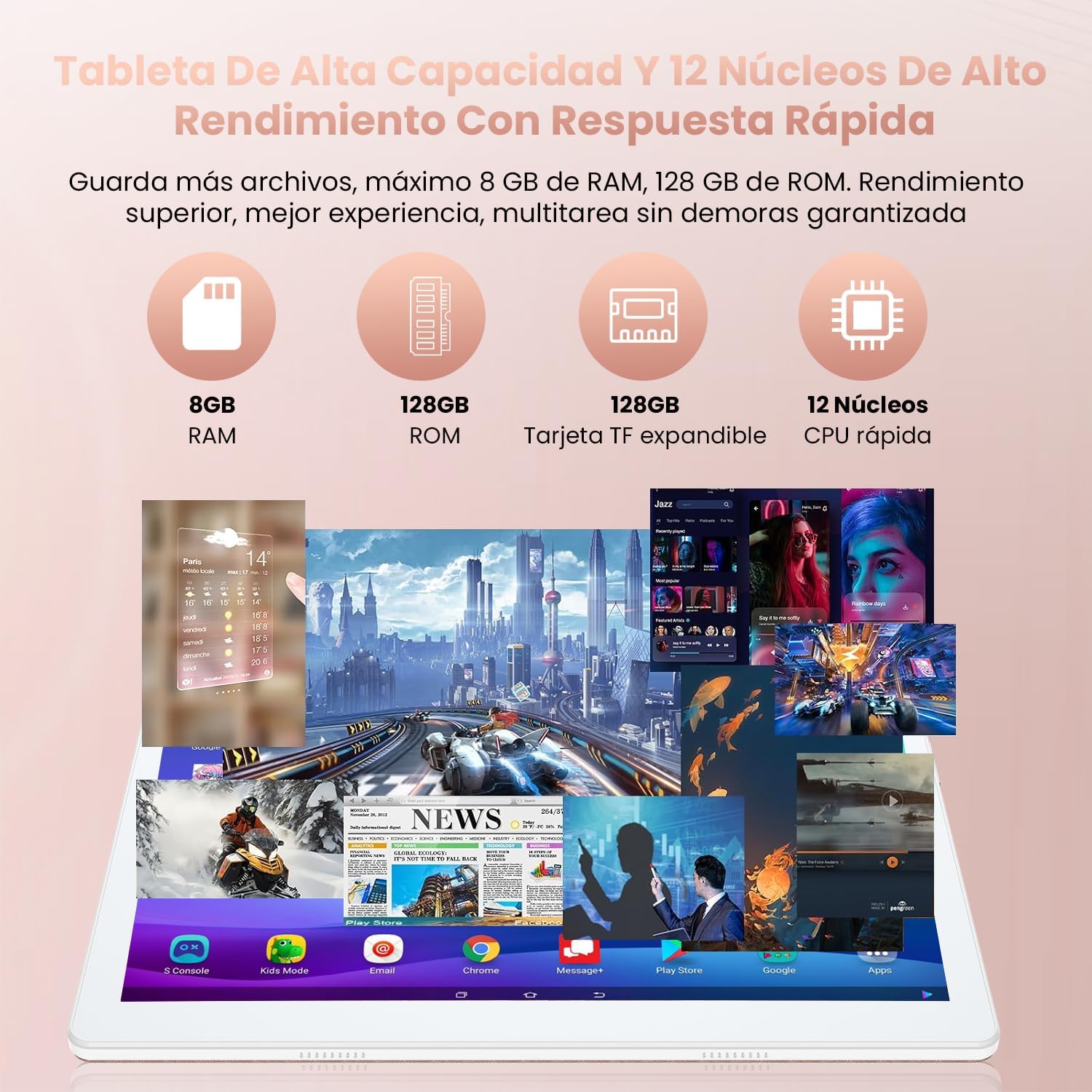
Figure 6.1: Performance and storage capabilities of the ZUSZOX tablet.
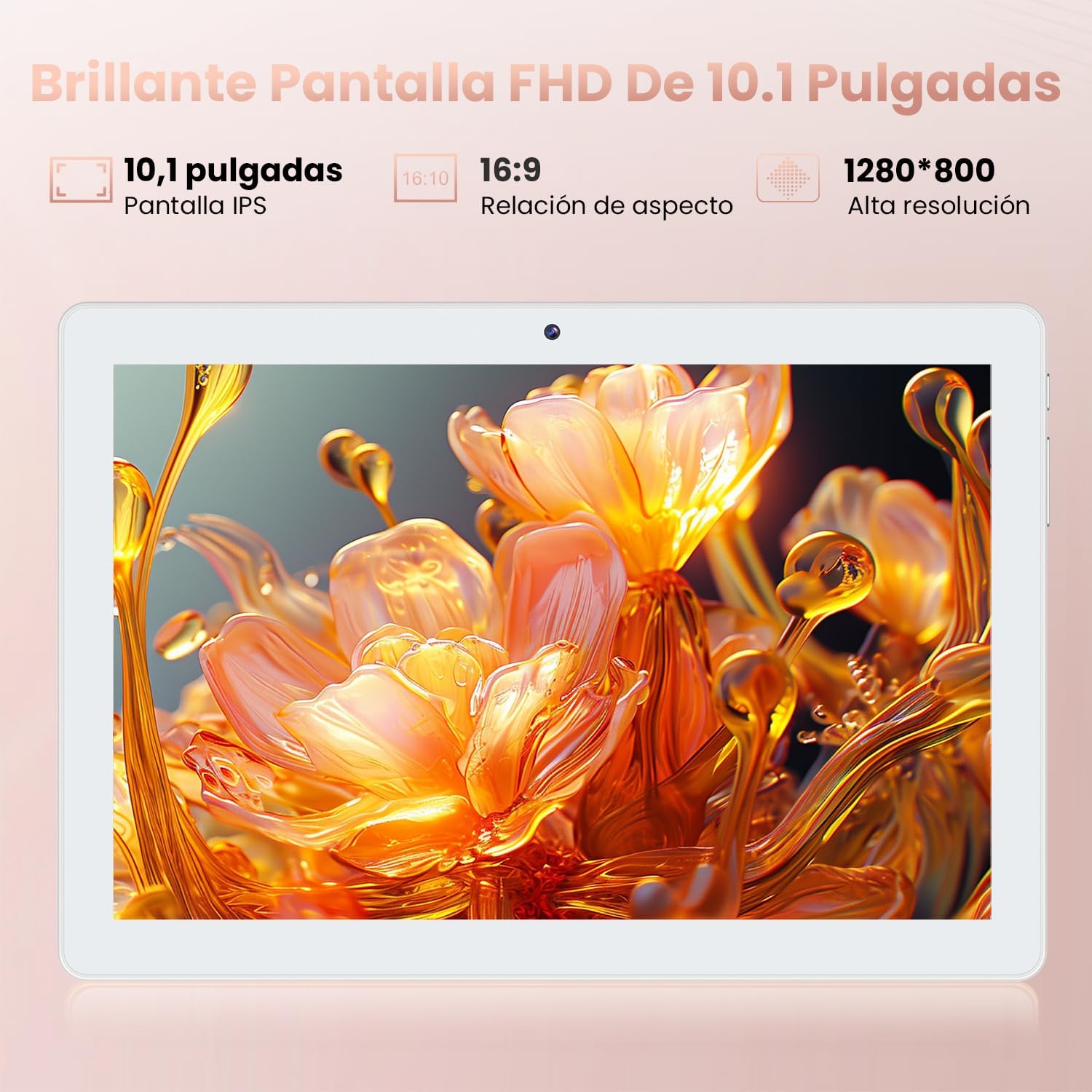
Figure 6.2: The tablet's 10.1-inch IPS display with 1280x800 resolution.
7. Warranty and Customer Support
7.1 Product Warranty
Your ZUSZOX Android 14 Tablet is covered by a limited warranty against defects in materials and workmanship. The specific terms and duration of the warranty may vary by region and retailer. Please refer to the warranty card included in your package or contact your point of purchase for detailed information.
This warranty does not cover damage caused by accident, misuse, unauthorized repairs, or normal wear and tear.
7.2 Customer Support
For technical assistance, warranty claims, or any questions regarding your ZUSZOX tablet, please contact our customer support team. You can typically find contact information on the retailer's website where you purchased the product or on the ZUSZOX official website.
When contacting support, please have your product model number (RMZUSZOX) and purchase details ready.