
1. Product Overview
The VCOROS VR1 Motorcycle Helmet Bluetooth Headset is designed to provide clear audio communication, music playback, and voice assistant functionality for motorcyclists. It features a slim design, robust connectivity, and durable construction suitable for various riding conditions.

Figure 1: VCOROS VR1 Main Unit and Speaker/Microphone Assembly

Figure 2: Product Overview with Labeled Components
- "+" Button: Volume Up / Next Song
- "-" Button: Volume Down / Previous Song
- Play/Pause Button: Answer/Hangup/Call Back/Reject, Play/Pause Music
- AI Assistant Button: Activate Voice Assistant
- Power Button: Power On/Off
- Charging Indicator: Red LED
- Bluetooth Working Indicator: Blue LED
- Speaker/Microphone Interface: Connects headset components
- Type-C Charging Port: For charging the device
2. Package Contents
Please verify that all items listed below are included in your package:

Figure 3: Included Accessories
- 1 x Bluetooth Headset Unit
- 1 x Set of Earphones with Soft Microphone
- 1 x User Manual
- 1 x Installation Clip Base
- 5 x Velcro Pads for Installation
- 1 x Type-C Charging Cable
3. Installation
The VCOROS VR1 headset offers two primary installation methods: clip-on and velcro. For enhanced stability, it is recommended to use both the clip base and velcro pads together.
3.1. Preparing Your Helmet
Ensure the inner lining of your helmet is clean and dry where the headset and speakers will be mounted.
3.2. Speaker Installation
- Identify suitable locations inside your helmet for the speakers, typically within the ear pockets.
- Attach the velcro pads to the back of the speakers.
- Securely press the speakers into the helmet's ear pockets.
- Route the speaker wires discreetly under the helmet's padding to the desired location for the main unit.
3.3. Microphone Installation
The VR1 comes with a soft microphone, suitable for most full-face helmets. Position the microphone close to your mouth for optimal voice clarity, typically along the cheek pad or chin bar.
3.4. Main Unit Installation
- Clip-on Method: Slide the clip base between the helmet shell and the inner padding on the left side of the helmet. Ensure it is firmly secured.
- Velcro Method: Attach the adhesive velcro pad to the exterior of the helmet where you wish to mount the main unit.
- Slide the main unit onto the clip base or press it firmly onto the velcro pad until it is securely attached.
- Connect the speaker/microphone cable to the interface port on the main unit.
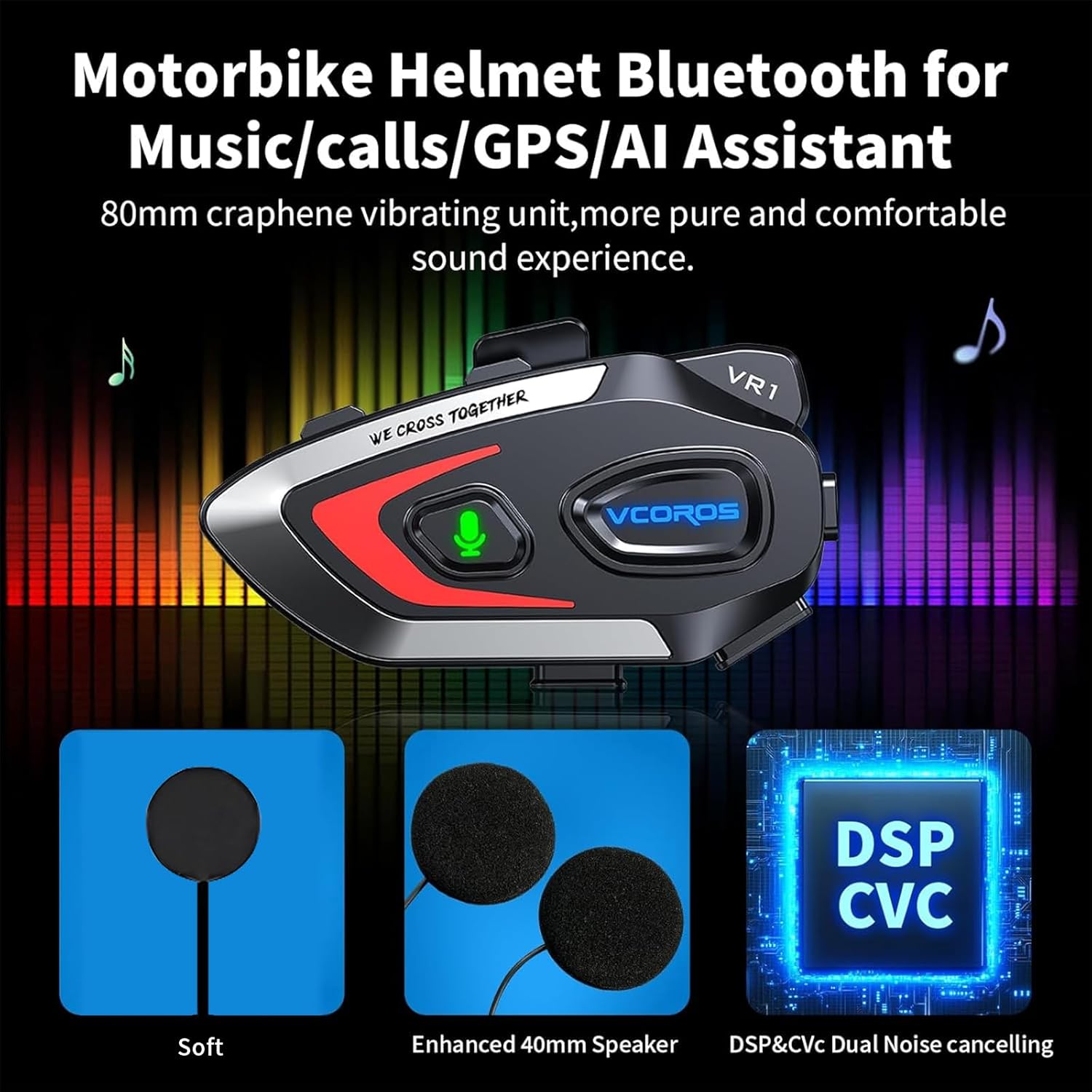
Figure 4: Installation Diagram
Note: For optimal stability, it is recommended to use both the clip base and the velcro pads together for mounting the main unit.
4. Operation
4.1. Power On/Off
- Power On: Press and hold the Power button until the blue indicator light flashes and you hear a "Power On" voice prompt.
- Power Off: Press and hold the Power button until the red indicator light flashes and you hear a "Power Off" voice prompt.
4.2. Bluetooth Pairing
- Ensure the headset is powered off.
- Press and hold the Power button for approximately 5-7 seconds until the blue and red indicator lights flash alternately, indicating pairing mode. You will hear a "Pairing" voice prompt.
- On your mobile device, enable Bluetooth and search for "VR1".
- Select "VR1" to connect. Once connected, the blue indicator light will flash slowly, and you will hear a "Connected" voice prompt.
4.3. Music Control
- Play/Pause: Short press the Play/Pause button.
- Next Song: Short press the "+" button.
- Previous Song: Short press the "-" button.
- Volume Up: Long press the "+" button.
- Volume Down: Long press the "-" button.
4.4. Call Management
- Answer Call: Short press the Play/Pause button when an incoming call rings.
- End Call: Short press the Play/Pause button during a call.
- Reject Call: Long press the Play/Pause button when an incoming call rings.
- Redial Last Number: Double-press the Play/Pause button.
4.5. AI Voice Assistant
The VR1 supports AI voice control for both Android and Apple systems.
- Activate Voice Assistant: Short press the AI Assistant button (microphone icon) to wake up your device's voice assistant (e.g., Siri, Google Assistant).

Figure 5: AI Voice Assistant in Use
5. Charging and Battery Life
The VCOROS VR1 headset is equipped with a rechargeable lithium-ion battery, providing extended usage times.
- Charging Time: Approximately 2.5 hours for a full charge.
- Continuous Working Time: Up to 25 hours (music playback).
- Continuous Call Time: Up to 20 hours.
- Standby Time: Up to 270 hours.
5.1. Charging Instructions
- Connect the provided Type-C charging cable to the charging port on the headset.
- Connect the other end of the cable to a USB power source (e.g., computer, wall adapter).
- The charging indicator (red LED) will illuminate during charging and turn off once fully charged.

Figure 6: Battery Life Overview
6. Waterproof and Dustproof Features
The VCOROS VR1 headset boasts an IPX6 waterproof rating, ensuring reliable performance even in challenging weather conditions.
- IPX6 Rating: Protected against powerful water jets. This means the device can withstand heavy rain and splashes, making it suitable for use during motorcycle rides in various weather.
- The tightly structured and solid waterproof design effectively blocks dust and rain from invading the internal components, allowing for worry-free travel.

Figure 7: IPX6 Waterproof Demonstration
7. Audio Quality and Noise Cancellation
Experience high-definition sound with the VCOROS VR1, featuring advanced audio technologies for clear communication and immersive music.
- High-Definition Sound Quality: Equipped with an 80mm graphene vibrating unit for a pure and comfortable sound experience.
- Dual Noise Reduction: Adopts intelligent CVC and DSP dual filter noise reduction technology, effectively reducing ambient noise for clear audio transmission and reception, even at high speeds.
- Enhanced 40mm Speakers: Provides robust and clear audio output.

Figure 8: Audio Technology Details
8. Compatibility
The VCOROS VR1 headset is designed for broad compatibility with various helmet types and smart devices.
- Helmet Compatibility: Suitable for all types of helmets, including Full-face, Modular, Off-road, Retro, and 3/4 helmets. The slim 0.3-inch thick headphones ensure a comfortable fit without pressing against the ears.
- Device Compatibility: Connects wirelessly via Bluetooth 5.3 to smartphones, tablets, and other Bluetooth-enabled devices.

Figure 9: Helmet Compatibility
9. Specifications
| Feature | Detail |
|---|---|
| Brand | VCOROS |
| Model | VR1 (Soft Mic) |
| Connectivity Technology | Wireless (Bluetooth 5.3) |
| Waterproof Rating | IPX6 |
| Noise Cancellation | CVC and DSP Dual Filter |
| Battery Type | Rechargeable Lithium-ion |
| Charging Time | Approx. 2.5 hours |
| Working Time (Music) | Up to 25 hours |
| Standby Time | Up to 270 hours |
| Speaker Diameter | 40mm |
| Headphone Thickness | 0.3 inches (approx. 7.6mm) |
| Weight | 180 grams |
| Compatible Devices | Smartphones, Tablets |
10. Safety Information
Warning: Use with caution while riding. Do not distract yourself from driving.
- Always prioritize road safety. Using the headset should not impair your ability to hear ambient sounds or focus on driving.
- Adjust volume to a level that allows you to hear emergency vehicles and other important sounds.
- Do not attempt to install or adjust the headset while riding.
- Keep the device away from extreme temperatures, direct sunlight, and corrosive materials.
- Do not disassemble or modify the device. This may void the warranty and pose safety risks.
11. Troubleshooting
If you encounter any issues with your VCOROS VR1 headset, please refer to the following common solutions:
11.1. Device Not Powering On
- Ensure the battery is charged. Connect the headset to a power source using the provided Type-C cable and allow it to charge for at least 30 minutes.
- Press and hold the Power button for a few seconds to confirm it's not just a short press.
11.2. Cannot Pair with Device
- Make sure the headset is in pairing mode (red and blue lights flashing alternately).
- Ensure Bluetooth is enabled on your mobile device and it is within range (typically 10 meters).
- Forget "VR1" from your device's Bluetooth settings and try pairing again.
- Restart both the headset and your mobile device.
11.3. No Sound or Low Volume
- Check the volume levels on both the headset and your connected device.
- Ensure the speaker wires are securely connected to the main unit.
- Verify that the speakers are correctly positioned within the helmet's ear pockets.
11.4. Poor Microphone Quality
- Ensure the microphone is positioned close to your mouth and not obstructed.
- Check for any damage to the microphone cable or connector.
11.5. Charging Issues
- Ensure the Type-C cable is fully inserted into the charging port.
- Try a different USB power adapter or port.
- Verify that the charging cable is not damaged.
12. Warranty and Support
VCOROS products are manufactured to high quality standards. For warranty information, technical support, or service inquiries, please contact VCOROS customer support through the retailer where you purchased the product or visit the official VCOROS website.
Please retain your proof of purchase for warranty claims.
