
1. Introduction
Thank you for choosing the EDJO K399 Ergonomic Wireless Keyboard. This manual provides detailed instructions for setup, operation, maintenance, and troubleshooting to ensure optimal performance and comfort.
Package Contents:
- 1 x EDJO Wireless Keyboard
- 1 x USB Receiver

Image: The EDJO K399 ergonomic wireless keyboard in white, shown with its USB receiver. This image illustrates the complete product package.
2. Setup
2.1 Battery Installation
- Locate the battery compartment on the underside of the keyboard.
- Open the battery compartment cover.
- Insert the appropriate batteries (e.g., 2 AAA batteries, not included) ensuring correct polarity.
- Close the battery compartment cover.
2.2 Connecting the USB Receiver
- The USB receiver is stored in a slot next to the battery compartment of the keyboard. Carefully remove it.
- Plug the USB receiver into an available USB-A port on your computer, laptop, or compatible device.
- Turn on the keyboard using the power switch located on the top right side of the keyboard.
- The keyboard is plug-and-play and should connect automatically.
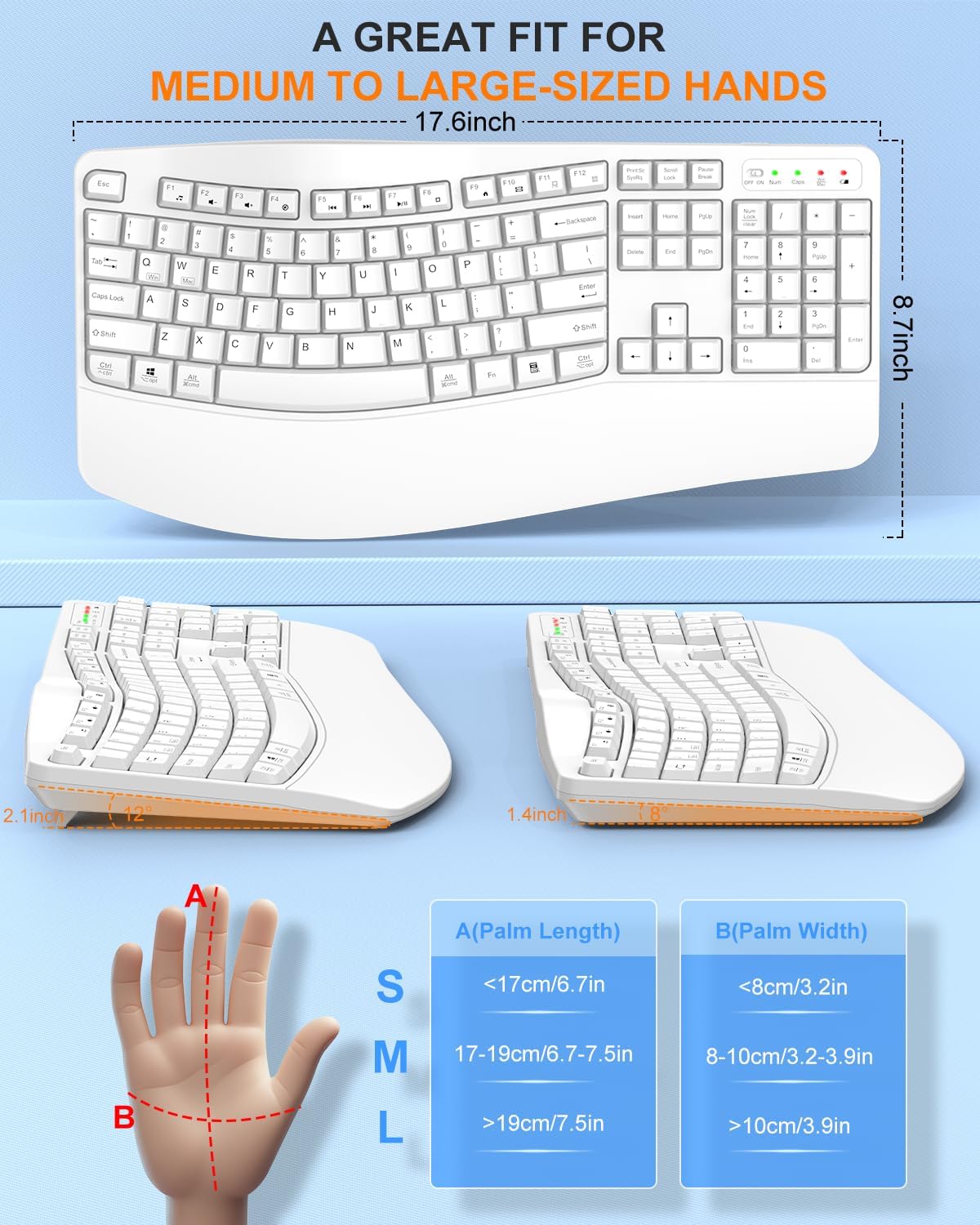
Image: A close-up view of the EDJO K399 keyboard highlighting the USB receiver storage slot near the battery compartment and the power switch. This illustrates the connection process.
3. Operating Instructions
3.1 Wireless Connection
The EDJO K399 keyboard utilizes 2.4GHz wireless technology, providing a stable and reliable connection up to 33 feet (10 meters) without noticeable latency or dropouts.
3.2 System Layout Switching (Mac OS / Windows)
This keyboard supports dual system layouts for both Mac and Windows operating systems. To switch between layouts:
- For Windows: Press the Fn + Q keys simultaneously. The Win/Mac indicator light will turn red. This activates Windows-specific functions like Win, Alt, and Num Lock.
- For Mac OS: Press the Fn + W keys simultaneously. The Win/Mac indicator light will turn green. This activates Mac-specific functions like option, cmd, and clear.

Image: A visual guide demonstrating the key combinations (Fn+Q for Windows, Fn+W for Mac) to switch between operating system layouts, with corresponding indicator light colors.
3.3 Multimedia Shortcut Keys
The keyboard includes 12 multimedia shortcut keys for enhanced efficiency. These keys are typically accessed by pressing the Fn key in combination with the F1-F12 function keys.
| Key Combination | Function |
|---|---|
| Fn + F1 | Music Player |
| Fn + F2 | Volume Down |
| Fn + F3 | Volume Up |
| Fn + F4 | Mute |
| Fn + F5 | Previous Track |
| Fn + F6 | Next Track |
| Fn + F7 | Play/Pause |
| Fn + F8 | Stop |
| Fn + F9 | Browser |
| Fn + F10 | |
| Fn + F11 | My Computer |
| Fn + F12 | Calculator |

Image: An illustration detailing the 12 multimedia shortcut keys (F1-F12) and their corresponding functions when used with the Fn key.
3.4 Indicator Lights
The keyboard features several LED indicator lights:
- Low Power Indicator: Illuminates when battery power is low, signaling that batteries need replacement.
- Mac OS & Windows Indicator: Shows the currently active operating system layout (Red for Windows, Green for Mac OS).
- Caps Lock Indicator: Illuminates when Caps Lock is active.
- Num Lock Indicator: Illuminates when Num Lock is active.

Image: A detailed view of the LED indicator lights on the EDJO K399 keyboard, showing their positions and labels for power, system, Caps Lock, and Num Lock.
4. Ergonomics and Comfort
The EDJO K399 keyboard is designed with user comfort in mind, particularly for individuals with medium to large-sized hands and those seeking to reduce repetitive strain injury (RSI).
4.1 Wave-Shaped Key Layout
The keys are arranged in a wave shape that simulates the natural curvature of human fingers. This design promotes a more natural typing posture, reducing stress on hands, wrists, and shoulders.

Image: A hand positioned on the curved keys of the EDJO K399 keyboard, illustrating how the wave design conforms to natural finger placement.
4.2 Integrated Wrist Rest
A wide, integrated palm rest supports your wrists, keeping them at a neutral level with the keyboard. This prevents bending of the palms and reduces strain during extended typing sessions.

Image: A user's hands comfortably resting on the wide palm rest of the EDJO K399 keyboard, demonstrating proper ergonomic support.
4.3 Adjustable Tilt Angle
The keyboard features adjustable tilt legs, allowing you to customize the typing angle for personal comfort and further reduce wrist pressure.

Image: A side view of the EDJO K399 keyboard showing its adjustable tilt legs, which can be extended to modify the typing angle.
5. Maintenance
5.1 Cleaning
- Turn off the keyboard before cleaning.
- Use a soft, damp cloth to wipe the surface of the keyboard.
- Avoid using harsh chemicals or abrasive cleaners.
- For dust between keys, use compressed air.
5.2 Spill Resistance
The keyboard is designed to be spill-resistant. In case of accidental spills, promptly turn off the keyboard, disconnect it, and allow it to dry completely before reuse. This feature helps protect against minor liquid incidents but does not guarantee full waterproofing.

Image: The EDJO K399 keyboard with simulated water droplets on its surface, visually representing its spill-resistant design.
6. Troubleshooting
6.1 Keyboard Not Responding:
- Ensure the keyboard is turned on.
- Check if the batteries are correctly installed and have sufficient charge. Replace if necessary.
- Verify that the USB receiver is securely plugged into a working USB port on your device.
- Try plugging the USB receiver into a different USB port.
- Ensure the keyboard is within the 33-foot wireless range of the receiver.
- Restart your computer.
6.2 Lag or Intermittent Connection:
- Move the keyboard closer to the USB receiver.
- Remove any large metal objects or electronic devices that might interfere with the 2.4GHz wireless signal.
- Ensure there are no other strong wireless signals (e.g., Wi-Fi routers, other wireless devices) too close to the receiver.
6.3 Incorrect Key Functions (Mac/Windows):
- Confirm that the keyboard is set to the correct operating system layout (Fn+Q for Windows, Fn+W for Mac OS). Refer to the "System Layout Switching" section.
7. Specifications
| Feature | Detail |
|---|---|
| Model Number | K399 |
| Connectivity Technology | 2.4GHz Wireless (USB-A Receiver) |
| Wireless Range | Up to 33 feet (10 meters) |
| Keyboard Description | Membrane |
| Special Features | Ergonomic, Hotkeys and Media Keys, Spill-Resistant, Wrist Rest |
| Compatible Devices | Laptop, PC, Smart TV (Windows, Mac OS, Linux, Chrome OS) |
| Product Dimensions | 17.6"L x 8.7"W x 1.4"H (44.7 x 22.1 x 3.6 cm) |
| Item Weight | 1.65 pounds (0.75 kg) |
| Material | Plastic |
| Color | White |

Image: A diagram illustrating the physical dimensions (length, width, height) of the EDJO K399 ergonomic keyboard.
8. Warranty and Support
EDJO is committed to providing quality products and customer satisfaction. For any inquiries or issues, please refer to the following support options:
- Customer Service: A dedicated team is available to provide expert assistance.
- Hassle-free Replace/Return: Contact customer support for replacement or return options.
- 24-Hour Response: Expect a response to inquiries within 24 hours.
- 12-Month Quality Service: The product is covered by a 12-month quality service period.
- Lifetime Technical Support: Receive lifetime technical support for your product.
To access support, you can typically go to your order details on the platform where you purchased the product and look for "Get product support" or similar options.

Image: A graphic depicting customer service representatives and icons representing various support services offered by EDJO, including hassle-free returns, 24-hour response, 12-month quality service, and lifetime technical support.