
ECHTPower F35B
ECHTPower Ergonomic Wireless Mouse User Manual
Model: F35B
1. Product Overview
The ECHTPower Ergonomic Wireless Mouse is designed for comfort and versatility, featuring a vertical design that promotes a natural hand posture to reduce wrist strain. It offers triple-mode connectivity, allowing seamless switching between up to three devices using dual Bluetooth channels and a 2.4GHz USB receiver.

Image: The ECHTPower Ergonomic Wireless Mouse in black, shown with its accompanying USB receiver. The mouse features a vertical design with blue LED accents.

Image: A diagram illustrating the ergonomic benefits of the vertical mouse. It shows how a traditional mouse can cause wrist bending, while the ergonomic vertical mouse promotes a natural, comfortable wrist posture.
2. Package Contents
Please check the package contents upon opening to ensure all items are present:
- 1 x ECHTPower Ergonomic Wireless Mouse
- 1 x 2.4GHz USB Receiver (stored in the mouse's bottom compartment)
- 1 x USB-C Charging Cable
- 1 x User Manual
3. Product Layout
Familiarize yourself with the buttons and features of your ECHTPower mouse:
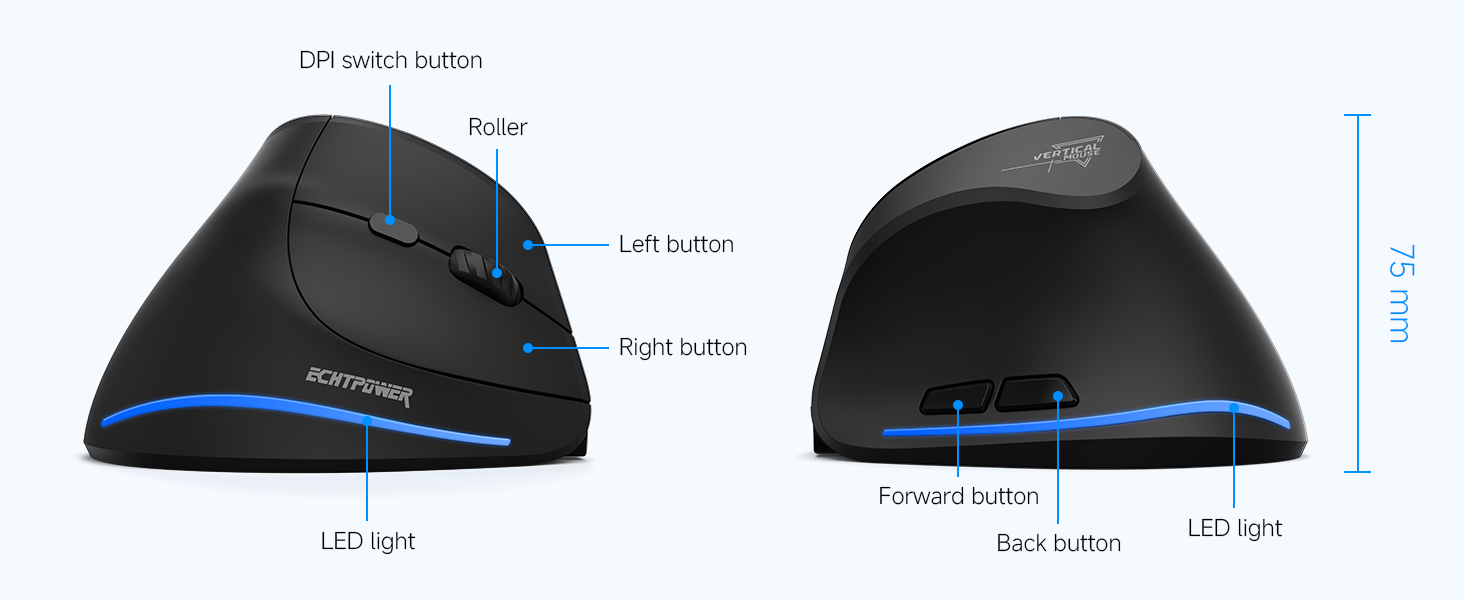
Image: A detailed diagram showing the top and side views of the mouse, labeling the DPI switch button, roller, left button, right button, forward button, back button, LED light, and Type-C port. Dimensions are also indicated.
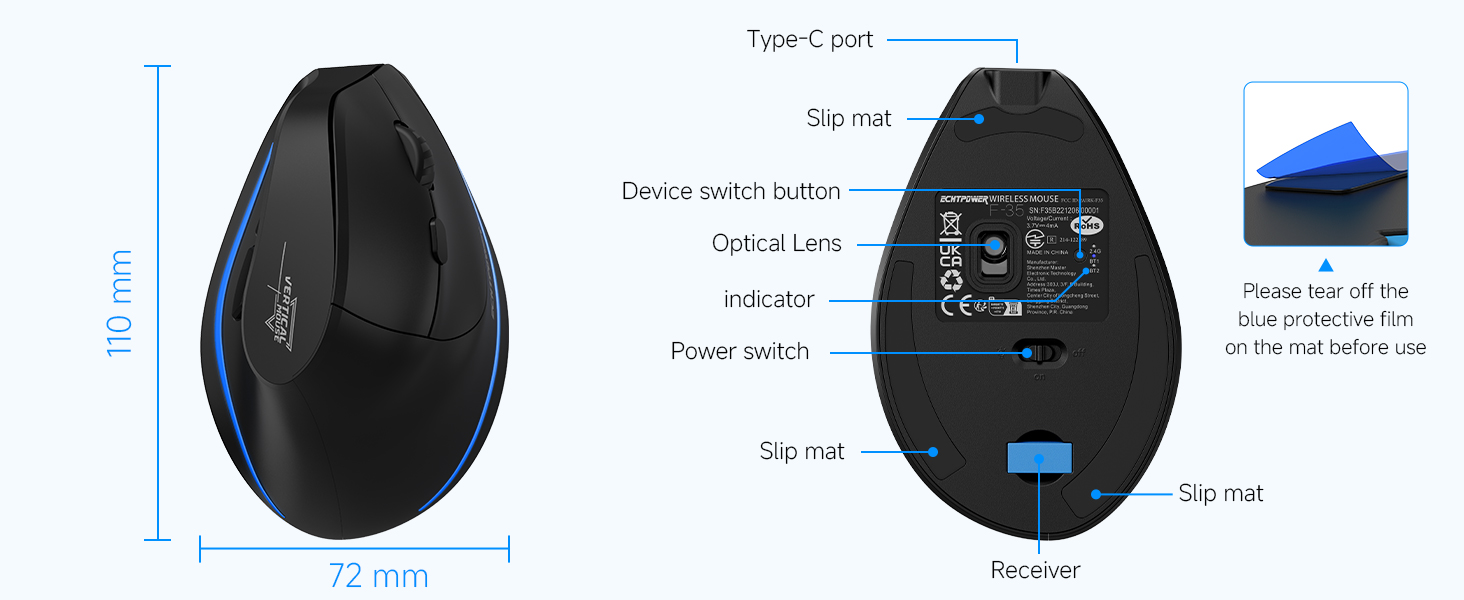
Image: A diagram of the bottom of the mouse, indicating the Type-C port, slip mats, device switch button, optical lens, indicator light, power switch, and the location of the USB receiver compartment. A note reminds users to remove the blue protective film from the slip mats before use.
- DPI Switch Button: Located on top, behind the scroll wheel, for adjusting cursor sensitivity.
- Roller (Scroll Wheel): For vertical scrolling.
- Left/Right Buttons: Standard mouse click functions, designed for silent operation.
- Forward/Back Buttons: Located on the thumb side for quick navigation (note: may be disabled on macOS).
- LED Light: Indicates connection status and charging.
- Type-C Port: For charging the mouse.
- Device Switch Button: On the bottom, to cycle between 2.4GHz and Bluetooth channels (BT1, BT2).
- Power Switch: On the bottom, to turn the mouse On/Off.
- USB Receiver Compartment: On the bottom, for storing the 2.4GHz USB receiver.
4. Setup
4.1 Initial Charging
Before first use, it is recommended to fully charge the mouse. Connect the provided USB-C charging cable to the mouse's Type-C port and the other end to a USB power source (e.g., computer USB port, USB wall adapter). The LED light will indicate charging status.

Image: The ECHTPower mouse with its Type-C charging port connected to a charging cable, illustrating the charging process. The image also highlights the 700mAh battery capacity and 2-hour charging time.
4.2 2.4GHz Wireless Connection
- Locate the 2.4GHz USB receiver from the compartment at the bottom of the mouse.
- Plug the USB receiver into an available USB port on your computer.
- Turn on the mouse using the power switch on the bottom.
- Press the device switch button on the bottom of the mouse until the indicator light shows the 2.4GHz mode (usually indicated by a specific color or pattern). The mouse should automatically connect.
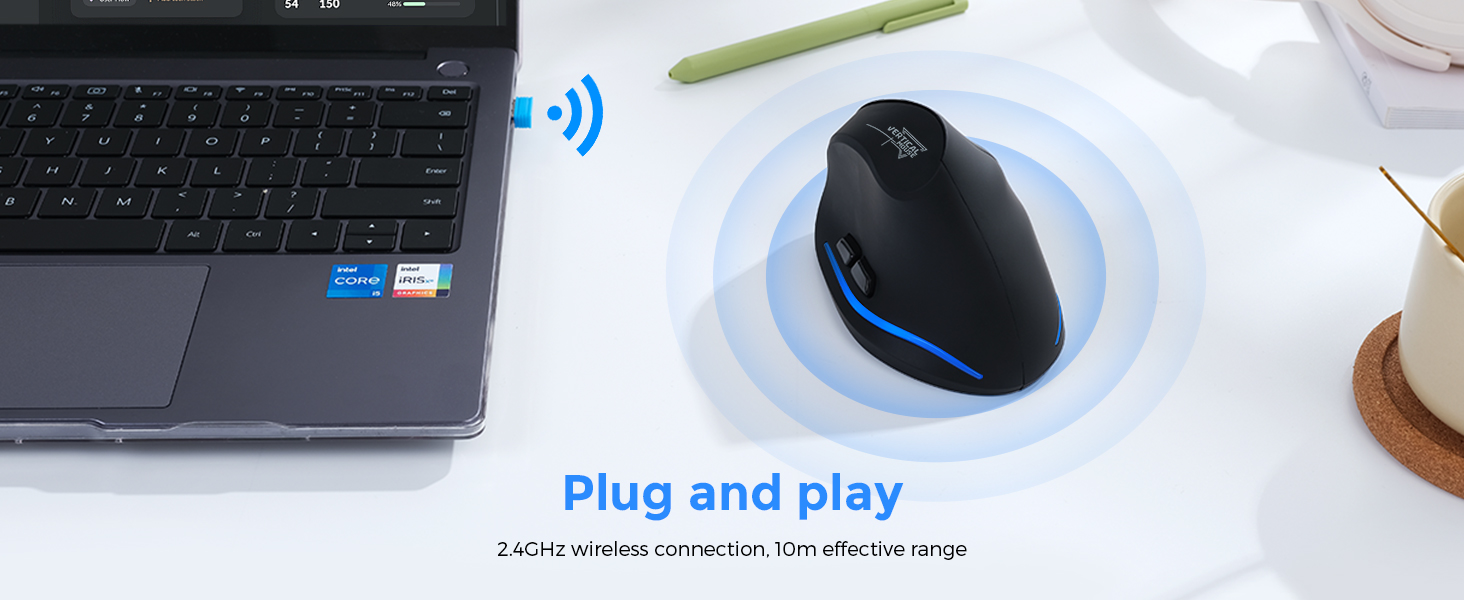
Image: A visual representation of the 2.4GHz wireless connection, showing the USB receiver plugged into a laptop and the mouse wirelessly connected, emphasizing its plug-and-play functionality and 10m effective range.
4.3 Bluetooth Connection (BT1 / BT2)
- Turn on the mouse using the power switch on the bottom.
- Press the device switch button on the bottom of the mouse to select either Bluetooth channel 1 (BT1) or Bluetooth channel 2 (BT2). The indicator light will show the selected Bluetooth mode.
- For first-time pairing, press and hold the device switch button for 3-5 seconds until the indicator light flashes rapidly, indicating pairing mode.
- On your device (PC, laptop, Mac, tablet), go to Bluetooth settings and search for new devices.
- Select "ECHTPower Mouse" (or similar name) from the list of available devices to pair.
- Once connected, the indicator light will stop flashing and remain solid.
- Repeat steps 2-5 to connect to a second Bluetooth device using the other Bluetooth channel (BT2).

Image: An illustration demonstrating the mouse's ability to connect to three devices simultaneously (laptop, desktop, tablet) via 2.4G and dual Bluetooth modes, with easy switching between them.
5. Operating Instructions
5.1 Switching Between Connected Devices
To switch between the 2.4GHz connection and the two Bluetooth connections (BT1, BT2), simply press the device switch button on the bottom of the mouse. Each press will cycle through the available modes.
5.2 DPI Adjustment
The mouse features adjustable DPI (Dots Per Inch) settings to control cursor sensitivity. Press the DPI switch button located on the top of the mouse, behind the scroll wheel, to cycle through the available DPI levels (1000, 1600, 2400 DPI). Select the sensitivity that best suits your needs.

Image: A graphic illustrating the adjustable DPI settings of the mouse, showing the three levels: 1000 DPI, 1600 DPI, and 2400 DPI. The mouse is positioned on a mouse pad, indicating its use.
5.3 Silent Click Feature
The left and right mouse buttons are designed to produce significantly less noise (up to 90% reduction) compared to traditional mice. This silent click feature helps maintain a quiet working environment. Note that the forward and back buttons are not muted.
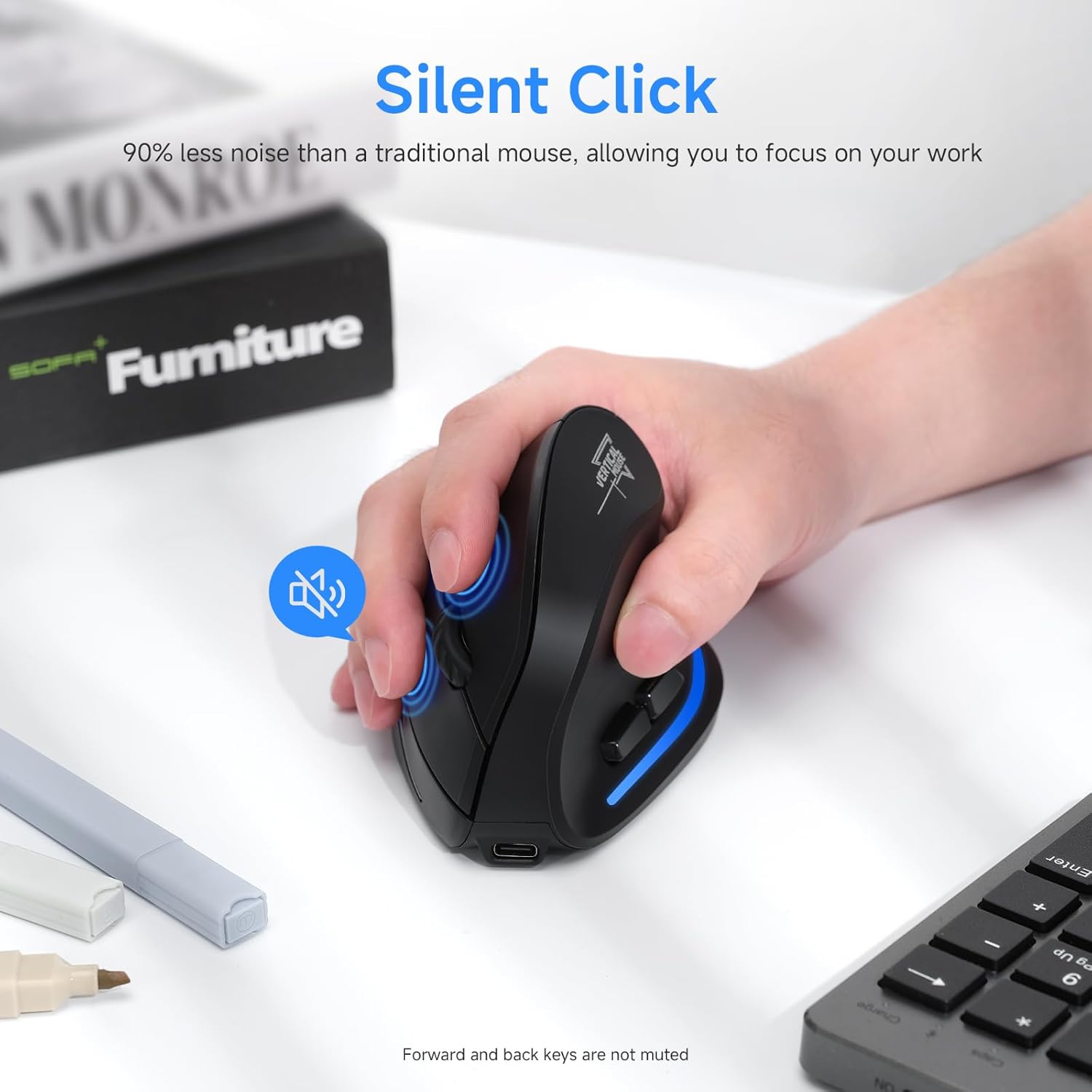
Image: A hand operating the ECHTPower mouse, with an icon indicating the silent click feature, highlighting that the left and right buttons produce 90% less noise than traditional mice.
6. Battery Management
The ECHTPower mouse is equipped with a 700mAh rechargeable battery for extended use.
- Battery Life: Up to 150 hours of non-RGB use on a full charge.
- Charging Time: Approximately 2-3 hours for a full charge.
- Low Battery Indicator: The LED light will blink to indicate a low battery.
- Auto-Sleep Function: The mouse will automatically enter sleep mode after 15 minutes of inactivity to conserve power.
- Wake-up: Simply move the mouse to instantly wake it up from sleep mode.
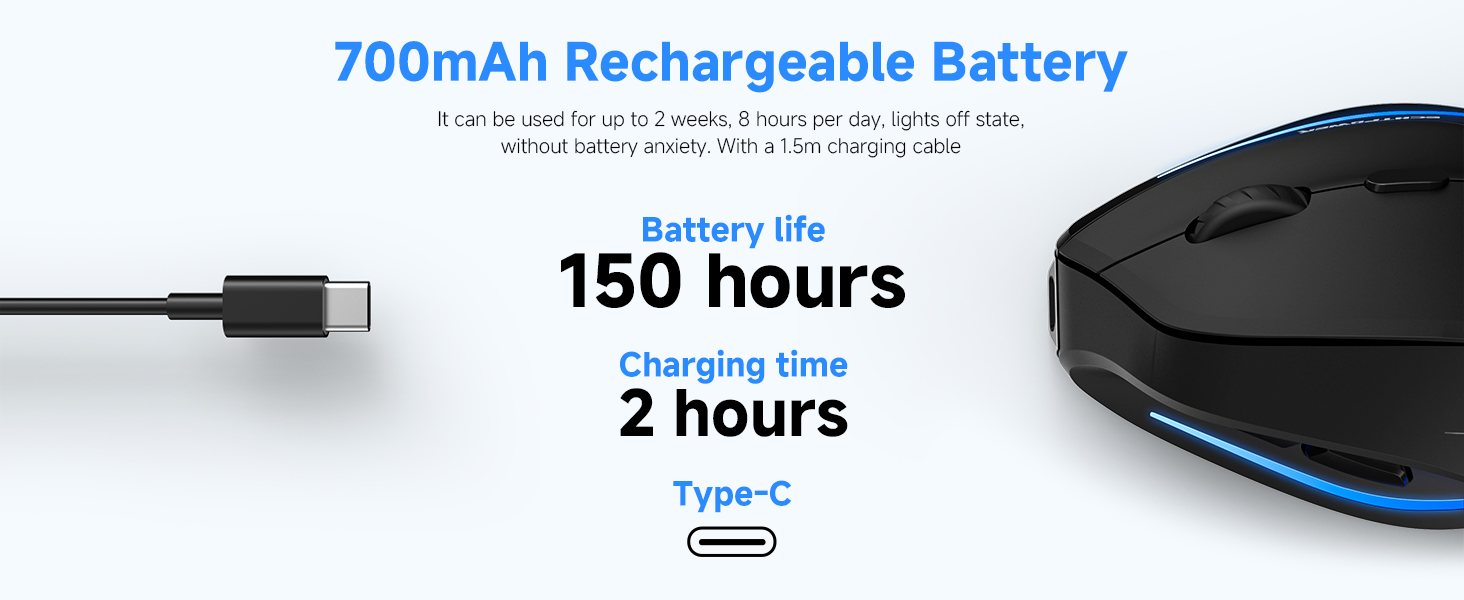
Image: A graphic highlighting the 700mAh rechargeable battery, indicating a battery life of 150 hours and a charging time of 2 hours via Type-C.
7. Compatibility
The ECHTPower Ergonomic Wireless Mouse is compatible with a wide range of operating systems:
- Windows XP / Vista / 7 / 8 / 10 / 11
- Linux
- macOS X (Note: Forward/back buttons may be disabled on macOS)
It is ideal for use with PCs, laptops, MacBooks, and other compatible devices.
8. Maintenance
To ensure the longevity and optimal performance of your mouse, follow these maintenance guidelines:
- Cleaning: Use a soft, dry cloth to wipe the surface of the mouse. For stubborn dirt, a slightly damp cloth can be used, but ensure no moisture enters the device.
- Avoid Liquids: Do not expose the mouse to water or other liquids.
- Storage: Store the mouse in a cool, dry place when not in use for extended periods.
- USB Receiver: When transporting the mouse, store the USB receiver in its dedicated compartment at the bottom to prevent loss.
- Protective Film: Remember to remove the blue protective film from the slip mats on the bottom of the mouse before initial use for smooth gliding.
9. Troubleshooting
If you encounter issues with your ECHTPower mouse, please refer to the following common solutions:
| Problem | Possible Solution |
|---|---|
| Mouse not responding (2.4GHz) |
|
| Mouse not connecting (Bluetooth) |
|
| Cursor movement is erratic or slow |
|
| Forward/Back buttons not working on macOS | This is a known compatibility limitation. The forward/back buttons may be disabled on macOS. This is not a defect of the mouse. |
| LED light not working or mouse not charging |
|
10. Specifications
| Feature | Detail |
|---|---|
| Model Number | F35B |
| Connectivity | Bluetooth 5.0 (BT1, BT2), 2.4GHz Wireless |
| DPI Levels | 1000 / 1600 / 2400 DPI |
| Battery Capacity | 700mAh Rechargeable |
| Charging Port | USB Type-C |
| Charging Time | Approx. 2-3 hours |
| Battery Life (non-RGB) | Up to 150 hours |
| Silent Click | 90% noise reduction on left/right buttons |
| Dimensions (L x W x H) | 4.41 x 3.5 x 2.95 inches (approx. 112 x 89 x 75 mm) |
| Item Weight | 6.7 ounces (approx. 190g) |
| Movement Detection Technology | Optical |

Image: A guide for measuring hand size (A and B) to determine the recommended mouse size. The table suggests M-L size for this mouse, with dimensions 4.33x2.83x2.95 inches.
11. Warranty and Support
ECHTPower provides a 24-month warranty for this product (registration may be required). For any questions, technical assistance, or warranty claims, please contact ECHTPower customer service. They offer 24/7 professional customer service for hassle-free troubleshooting.
For support, please refer to the contact information provided on the product packaging or the official ECHTPower website.
Related documentsF35B


Ask a question about this manual
Ask about setup, troubleshooting, compatibility, parts, safety, or missing instructions. Manuals+ will review the question and use this page’s manual context to help answer it.