
TabneraX A523
TabneraX 10-inch Android 15 Tablet User Manual
Model: A523
Introduction
Thank you for choosing the TabneraX 10-inch Android 15 Tablet. This device is designed to provide a seamless and efficient experience for work, entertainment, and daily tasks. Featuring an octa-core processor, 8GB RAM, and a vibrant IPS HD display, your tablet is built for optimal performance and user satisfaction. This manual will guide you through the setup, operation, and maintenance of your new tablet.

Image: The TabneraX 10-inch Android 15 Tablet, shown with its included stand case and a pre-applied screen protector. The display highlights key features like Android 15, Octa-Core processor, 8GB RAM, 64GB storage, Wi-Fi 6, and 7000mAh battery.
What's in the Box
Please check the package contents to ensure all items are present:
- TabneraX 10-inch Android 15 Tablet
- Stand Case
- Type-C Charging Cable
- Instruction Manual
- Pre-applied Screen Protector
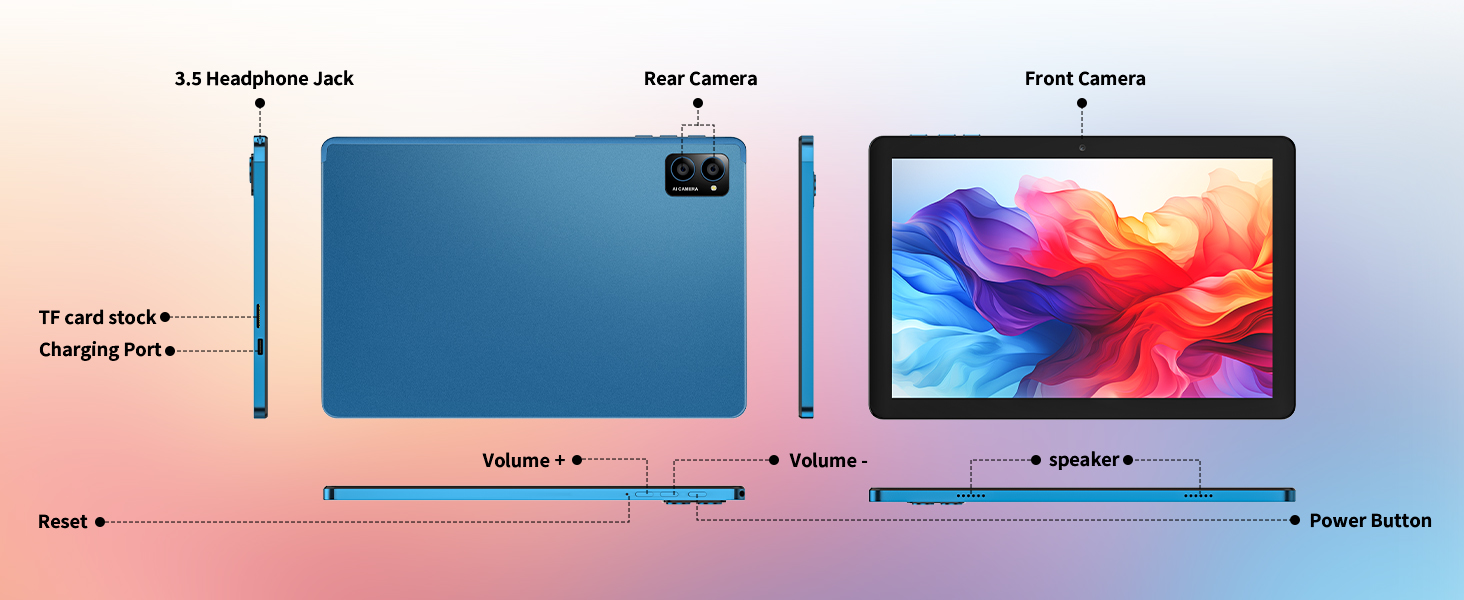
Image: A visual representation of the items included in the product packaging: the tablet, its protective case, a Type-C charging cable, and the user manual.
Setup
1. Initial Charging
Before first use, fully charge your tablet. Connect the provided Type-C charging cable to the tablet's charging port and the other end to a compatible USB power adapter (not included). The battery indicator on the screen will show charging progress. A full charge typically takes about 1.5 hours.
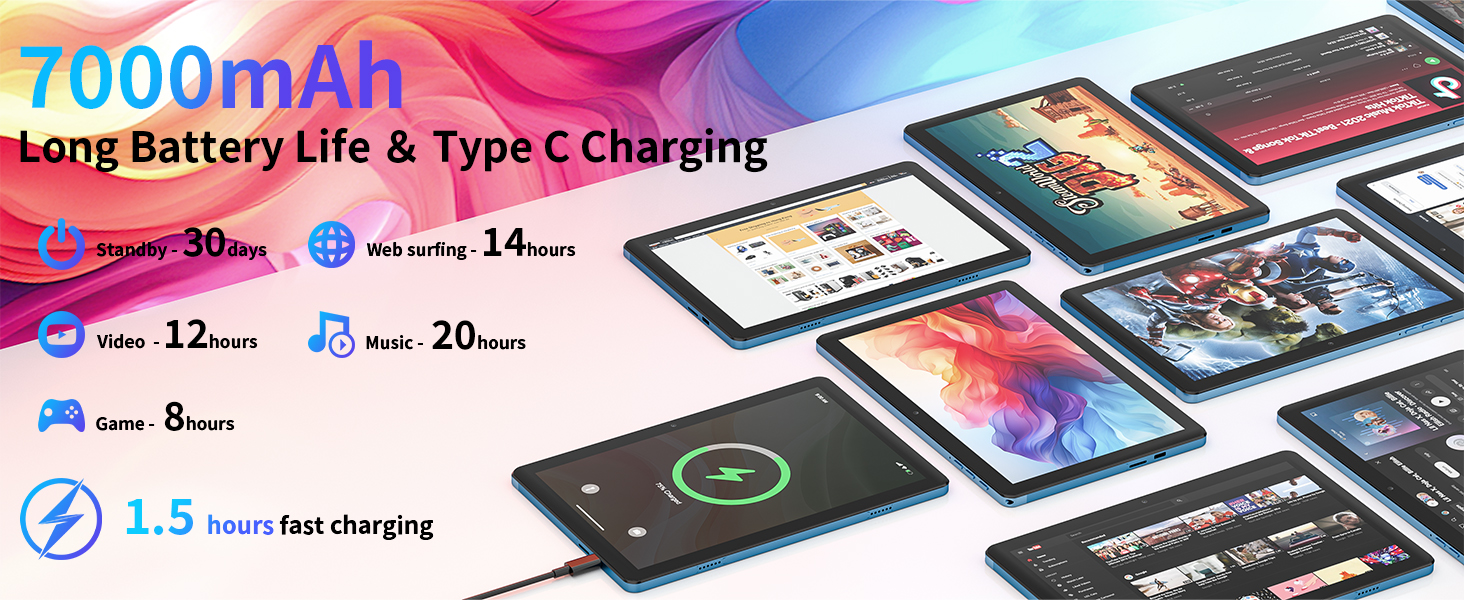
Image: The tablet connected to a Type-C charging cable, illustrating the charging process and highlighting the 7000mAh battery capacity and fast charging capability.
2. Powering On/Off
- To Power On: Press and hold the Power Button (located on the side) until the TabneraX logo appears on the screen.
- To Power Off: Press and hold the Power Button until a power-off menu appears. Select "Power off" and confirm.
- To Restart: From the power-off menu, select "Restart."
Image: A diagram showing the tablet's physical features, including the power button, volume controls, 3.5mm headphone jack, TF card slot, and charging port.
3. Connecting to Wi-Fi
- Go to Settings (gear icon).
- Tap Network & internet.
- Select Wi-Fi and turn it on.
- Choose your desired Wi-Fi network from the list.
- Enter the password if prompted and tap Connect.
4. Google Account Setup
Upon first boot or after a factory reset, you will be guided through the initial setup process, which includes setting up your Google account. A Google account is essential for downloading apps from the Google Play Store, syncing data, and accessing Google services.
Operating Your Tablet
1. Navigating the Interface
- Home Screen: The main screen where you can access apps and widgets.
- Notification Panel: Swipe down from the top of the screen to access notifications and quick settings.
- Navigation Bar: Located at the bottom of the screen, typically includes Back, Home, and Recent Apps buttons.
2. Using the Display
Your tablet features a vivid 10.1-inch IPS HD display (1280x800 pixels) with multi-touch support for intuitive interaction.
- Tap: Select an item or open an app.
- Long Press: Access contextual menus or move icons.
- Swipe: Navigate through screens or lists.
- Pinch-to-Zoom: Zoom in or out on images and web pages.

Image: The tablet's 10.1-inch IPS HD display showcasing vibrant colors, emphasizing its suitability for media consumption and general viewing.
3. App Management
The tablet comes with Android 15 Go Edition, optimized for smooth performance. You can download more applications from the Google Play Store.
- Installing Apps: Open the Play Store app, search for your desired app, and tap Install.
- Uninstalling Apps: Long-press the app icon on the home screen or app drawer, then drag it to "Uninstall" or select "App info" and choose "Uninstall."

Image: The tablet's screen displaying various applications, illustrating its 8GB RAM and 64GB ROM, with the capability for 1TB expandable storage, suitable for listening, reading, playing, and watching content.
4. Multimedia and Entertainment
With Widevine L1 certification, your tablet supports HD playback on popular streaming services like Netflix, TikTok, and Disney+. Dual stereo speakers provide an immersive audio experience.
- Video Playback: Use pre-installed video players or download streaming apps.
- Audio: Connect wired headphones via the 3.5mm jack or Bluetooth headphones.
5. Camera Usage
The tablet is equipped with dual high-definition cameras for capturing photos and videos, and for video calls.
- Open the Camera app.
- Switch between front and rear cameras as needed.
- Tap the shutter button to take a photo or start/stop video recording.

Image: The tablet's rear dual cameras are highlighted, alongside screenshots of video calls and social media, demonstrating its multimedia and communication capabilities.
6. Connectivity (Bluetooth & OTG)
- Bluetooth 5.0: Enable Bluetooth in Settings to pair with wireless headphones, speakers, or other Bluetooth devices.
- OTG Support: Use an OTG (On-The-Go) adapter (not included) to connect USB peripherals such as keyboards, mice, or flash drives for expanded functionality.

Image: The tablet is shown connected to an external keyboard and mouse, demonstrating its OTG (On-The-Go) support for enhanced productivity and versatility.
Maintenance
1. Battery Care
- Avoid extreme temperatures, which can degrade battery life.
- For optimal battery longevity, avoid frequently draining the battery completely or keeping it at 100% charge for extended periods.
- Use only the provided Type-C charging cable or a certified equivalent.
2. Storage Management
Your tablet has 64GB of internal storage, expandable up to 2TB via a microSD card (not included).
- Regularly clear cache and unnecessary files to free up space.
- Consider using a microSD card for large media files and documents.
- Access storage settings via Settings > Storage to manage files and apps.
3. Cleaning Your Tablet
- Use a soft, lint-free cloth to clean the screen and body.
- Avoid using harsh chemicals, abrasive cleaners, or aerosol sprays.
- Do not spray cleaners directly onto the tablet.
4. Software Updates
Keep your tablet's software updated to ensure optimal performance, security, and access to new features. You can check for updates in Settings > System > System update.
Troubleshooting
| Problem | Possible Solution |
|---|---|
| Tablet does not power on. | Ensure the battery is charged. Connect to charger for at least 30 minutes. If still unresponsive, perform a forced restart by holding the Power button for 10-15 seconds. |
| Tablet is lagging or freezing. | Close unused apps. Clear app caches. Restart the tablet. Check for system updates. If issues persist, consider a factory reset (backup data first). |
| Wi-Fi connection issues. | Toggle Wi-Fi off and on. Restart your router. Forget the network and reconnect. Ensure you are within range of the Wi-Fi signal. |
| Apps are crashing. | Clear the app's cache and data (Settings > Apps > [App Name] > Storage). Uninstall and reinstall the app. Ensure the app is compatible with Android 15. |
| Battery drains quickly. | Reduce screen brightness. Close background apps. Disable unused features like Bluetooth or GPS. Limit push notifications. |
Specifications
| Feature | Detail |
|---|---|
| Model Number | A523 |
| Operating System | Android 15 Go Edition |
| Processor | Octa-Core (1.8 GHz Allwinner A523) |
| RAM | 8GB (3GB physical + 5GB virtual) |
| Internal Storage | 64GB |
| Expandable Storage | Up to 2TB via microSD card |
| Screen Size | 10.1 Inches |
| Screen Resolution | 1280 x 800 pixels (IPS HD) |
| Battery Capacity | 7000mAh (Up to 7-8 hours typical use) |
| Wireless Connectivity | Wi-Fi 6 (802.11ax, 2.4G/5G), Bluetooth 5.0 |
| Cameras | Rear: 5 MP, Front: (details not specified, assumed standard for video calls) |
| Ports | Type-C (charging), 3.5mm Headphone Jack, TF Card Slot |
| Dimensions (LxWxH) | 9.2 x 0.1 x 6 inches |
| Item Weight | 1.98 pounds |
| Special Features | Widevine L1 Certification, Metal-style body, OTG Support |

Image: An infographic summarizing the tablet's key specifications, including Android 15, 10.1-inch FHD display, 7000mAh battery, Octa-Core processor (A523), 8GB RAM, 64GB ROM, dual high-definition cameras, and Widevine L1 support.
Warranty and Support
TabneraX is committed to quality and customer satisfaction. Your tablet comes with a 2-Year Warranty and Lifetime Support.
- 2-Year Warranty: Covers manufacturing defects and ensures lasting performance.
- Lifetime Support: Access to friendly and professional after-sales service.
- Timely Response Guarantee: We aim to respond to all inquiries within 24 hours.
For assistance, please contact TabneraX customer support through the contact information provided on our official website or your purchase platform.

Image: A graphic detailing TabneraX's commitment to customer satisfaction, including a 2-Year Warranty and Lifetime Support, emphasizing reliable after-sales service and timely response.
Ask a question about this manual
Ask about setup, troubleshooting, compatibility, parts, safety, or missing instructions. Manuals+ will review the question and use this page’s manual context to help answer it.